Powerful App Monetization Strategy To Earn More in 2026
A 2026 monetization playbook covering the real models: in-app purchase, subscriptions, ads (rewarded, interstitial, native), freemium, paymium, sponsorships, marketplace fees, and bring-your-own-key AI. Includes the math behind each, the categories where each model works, and how to combine two or three without breaking the user experience.
Mobile apps offer a massive opportunity for developers to build valuable products, grow engaging user bases, and generate revenue through a variety of creative monetization strategies. As the app ecosystem continues to expand, choosing the right business model is key to achieving sustainable success.
Before you plan monetization: know your platform cost. Swiftspeed Pro is $15/mo during the 50% off launch promo (forever-locked at signup), and the white-label reseller program for agencies starts at $74.50/mo for 100 client apps.
With over 5 million apps available and billions of downloads each year, standing out from the crowd and earning money is more competitive than ever before. Developers must get creative in order to attract users and turn their apps into thriving businesses. The potential rewards are worth the effort - mobile apps generated over $583 billion in 2021 alone.
👉🏾 Other Swiftspeed users also read: How do Free Apps Make Money in 2026? strategies Exposed
Fortunately, today's developers have more options than ever when it comes to monetizing their apps and recouping the costs of design and development. This guide will explore the most popular current models, including advertising, in-app purchases, paid apps, sponsorships, affiliate marketing, ecommerce, and leveraging user data.
Powerful App Monetization Strategy To Earn More in 2026
The year marks a significant milestone in the mobile app industry, which has blossomed into a multi-billion-dollar ecosystem. Unlike the early days when monetization was often an afterthought, today, the focus has shifted from merely generating revenue to creating sustainable revenue streams that also enhance the user experience.
1. Understanding Mobile App Monetization
To develop a good app monetization strategy, you first need to understand what app monetization itself is all about. Mobile app monetization is a crucial aspect of app development that helps app publishers generate revenue from their mobile apps.
With millions of apps available in app stores, it's not enough to simply create a great app; as a developer, you need to implement effective monetization strategies to sustain your business and maximize profitability.
First things first, you need to understand the different monetization models available. We're talking about in-app purchases, subscription models, freemium offerings, and, yes, advertisements. Each has its own set of pros and cons, and the trick is to find the one that aligns perfectly with your app's functionality and user experience; that is the decision we want to help you make by the end of this article. For instance, if your app offers premium features, a subscription model might be the way to go. On the other hand, if your app is a game, in-app purchases for special abilities or characters could be a hit.
2. Choosing the Right Monetization Strategy
The key to unclosing your app's full revenue potential lies in choosing the right monetization strategy that aligns with your app's unique attributes and your audience's preferences.
The right approach depends heavily on factors like target audience, platform, industry, and content type. For example, mobile games thrive with in-app purchases and advertising, while productivity apps may focus on subscription models. Assessing your goals, users, and capabilities will enable choosing the optimal strategy.
With a comprehensive monetization plan tailored to your app, generating impressive revenues is an achievable goal. This overview covers the core models to help developers build sustainable app businesses. Read on to learn how to turn your mobile apps into successful revenue streams.
3. using In-App Advertising
Advertising is one of the most common ways for mobile apps to generate revenue. There are several major mobile ad networks that app developers can work with to display banner, interstitial, native, and rewarded video ads within their apps.
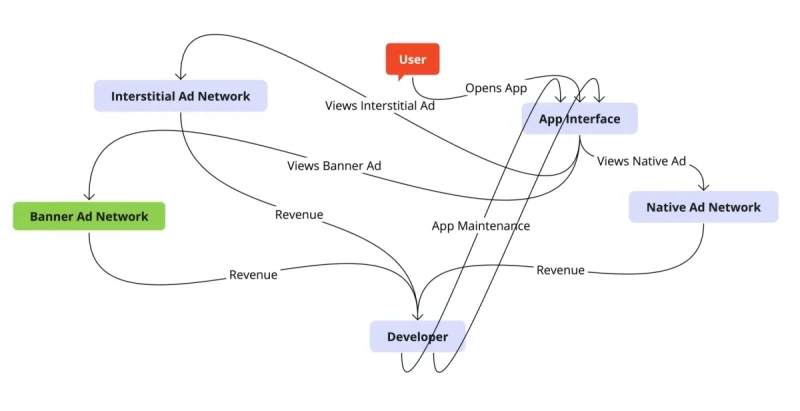
In-app advertising is a revenue-generating powerhouse when done right. The first step is to know your audience like the back of your hand.
Some of the top ad networks include Google AdMob, Facebook Audience Network, AppLovin, unity Ads, Chartboost, IronSource, Vungle, InMobi, and more. These networks allow developers to quickly integrate various ad formats into their apps to monetize the traffic.
Banner ads are rectangular image or text ads that occupy a spot within an app's layout. They are typically positioned at the top or bottom of the screen. Banner ads can provide a consistent flow of revenue as users view and potentially click/tap on the ads.
Interstitial ads are full-screen ads that cover the interface of an app for a brief time. These ads are displayed when transitioning between screens or levels. Interstitial ads have high visibility and provide a way to monetize natural app pauses.
Native ads match the form and function of the app's original content. For example, a social media app displays a promoted post in the feed. Native ads integrate the ad experience into the natural app use. They allow ads to feel less intrusive and disruptive.
Rewarded video ads are opt-in ads where the user watches a video ad and then receives an in-app reward. The reward incentivizes users to view the ads and allows apps to monetize viewer attention. These ads work well in gaming apps.
Mobile app developers should test out a variety of mobile ad formats and networks to determine which ones generate the best CPM and fill rates for monetizing their app traffic. Advertising provides a scalable, passive revenue stream based on user views and clicks/taps.
In today's mobile app industry, app developers are constantly exploring new ways to monetize their apps and generate revenue. One of the most effective strategies is implementing in-app purchases, allowing users to unlock additional content and virtual goods.
👉🏾 Other Swiftspeed users also read: App Name Detailed Guidelines and Best Practices for Success
4. Using The Freemium Model
The freemium model for mobile apps involves offering a free, limited version of an app alongside a paid, premium version with more features. This approach allows users to try out the core functionality of the app for free before deciding whether to invest in the fully paid version.
The key difference between the free and premium versions of a freemium app is the features available. The free version provides enough core functionality for users to understand the purpose and value of the app. However, key features are restricted, incentivizing users to upgrade to the full premium version to access the complete experience.
For example, a freemium music streaming app like Spotify allows free users to listen to songs and playlists interspersed with ads. However, only premium users can listen ad-free, download songs for offline playback, and unlock on-demand playback of any song. The free version acts as a teaser to encourage upgrading to premium.
The freemium model is optimal when the app offers supplemental non-core features that enhance the experience enough to convince users to pay. It works well for entertainment and productivity apps that can restrict advanced features in the free version. However, apps that rely solely on their core functionality may be better off using a paid-only approach. If the free version feels too limited, users may simply abandon the app instead of upgrading.
Overall, the freemium model balances user acquisition with monetization. The free version brings in a continual stream of new users, while the premium version converts a percentage of them into paying customers. Apps that execute this model well can maximize revenue while maintaining a large user base.
Our in-depth article on deploying the Freemium model of mobile app monetization will help you.
The Freemium model is a powerful mobile app monetization strategy that offers a free version of your app with premium features. By captivating users with a valuable free version, providing enticing premium features, and implementing seamless in-app purchases and subscriptions, you can generate revenue while maintaining trust with your user base.
Introducing Swiftspeed App Maker, the game-changing platform that's about to turn your app dreams into reality. Imagine being able to create an app that rivals Uber or launching your very own e-commerce empire. Got a website? Turn it into a sleek, user-friendly app in mere minutes. Whether you're looking to create a radio app, a podcast platform, or anything in between, Swiftspeed Appcreator has got you covered with pre-built templates, stunning layouts, and features so advanced they're practically from the future.
Make an app with Swiftspeed Appcreator
Create premium apps without writing a single line of code, thanks to our user-friendly app builder. Build an app for your website or business with ease.
Now, let's connect the dots back to monetization. Every strategy we've dissected in this deep dive? You can seamlessly integrate them into your app built with Swiftspeed App Builder. Whether you're eyeing mobile app monetization with ads through platforms like AdMob or Facebook Audience Network, or you're leaning towards in-app purchases, freemium models, or even affiliate marketing, you can learn how to monetize your app step by step here.
The best part? You don't need to be a software engineer to make this happen. Swiftspeed is designed to be user-friendly, allowing you to bring your app to life without writing a single line of code. And yes, you can start building your dream app for free. So, whether you're a seasoned developer or just getting your feet wet in the app world, Swiftspeed Appcreator is your ticket to not just creating an app but making an app that can seriously rake in the cash.
👉🏾 Other Swiftspeed users also read: How to Increase Your App Installs
5. Using In-App Purchases
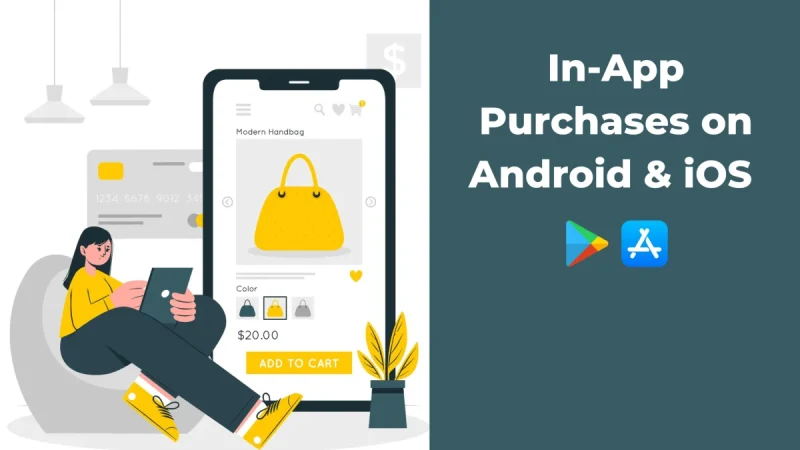
In-app purchases (IAPs) allow users to unlock additional content or functionality within an app. This monetization method offers a way for developers to earn revenue beyond the initial app download. There are several types of in-app purchases:
- One-time Purchases
One-time IAPs provide permanent access to premium content or features. For example, users could purchase additional levels in a game or unlock filters in a photo editing app. These are a one-time fee that users pay to access the content forever.
- Subscriptions
Subscription IAPs allow users to access premium content or remove ads for a recurring time period. Users pay a weekly, monthly, or annual fee to maintain access. Subscription IAPs provide developers with an ongoing revenue stream. The subscription automatically renews until the user cancels.
Netflix As a Case Study
- Let's take a page out of Netflix's playbook for a moment. They've nailed the subscription model by offering an ever-expanding library of movies and series content, including but not limited to high-quality Netflix originals that you can't watch anywhere else. This exclusive content not only attracts new subscribers but also keeps existing ones around.
- Netflix's success story is a testament to the power of the subscription model when executed correctly. So, if you're looking to build a sustainable, long-term revenue stream while fostering user loyalty, the subscription model might just be your golden ticket.
- Consumable IAPs
Consumable IAPs provide items that can be used or “consumed” within an app. Once used, the item is depleted, and users must purchase it again. Common examples are extra lives, virtual currencies, boosts, etc. Consumable IAPs encourage repeated purchases.
- Non-Consumable IAPs
Non-consumable IAPs provide permanent access to content, similar to one-time purchases. However, the content is digital rather than unlocking app functionality. For example, users could purchase an e-book, virtual asset, or new character skin within a game. Users only need to purchase the content once to own it forever.
In-app purchases allow developers to monetize apps in a user-friendly way. By providing optional purchases, the app remains accessible to users at no cost. Then developers earn revenue from users who choose to unlock additional content or features.
6. Building Paid Apps
One of the most straightforward ways to monetize a mobile app is by charging users an upfront fee to download and install the app, known as a paid app model. This model allows developers to earn revenue directly from users.
When implementing a paid app strategy, one important factor is setting the right price. Pricing too high could limit downloads, and pricing too low leaves money on the table. One approach is to offer tiered pricing at launch, such as a regular and premium version. This allows you to test price sensitivity. Another common tactic is to launch at a higher price and then discount later to maximize initial revenue.
Compared to a freemium model, paid apps allow developers to earn revenue from every user rather than having to convert a percentage of users to paying customers. However, the downside is that paid apps see fewer downloads, so you have a smaller user base to generate sales. Offering a free version alongside paid versions can help maximize market penetration.
Overall, paid apps are best suited for unique, high-quality apps that provide a lot of value. Users will be willing to pay upfront if the app offers exclusive features and functionality that aren't available for free. High-intent users who really need an app's capabilities are also good targets for paid apps.
7. Using Sponsorships Strategy
Sponsorship is becoming an increasingly popular way for mobile apps to generate revenue. This involves partnering with an advertiser or brand to promote their products or services within your app. There are a few main types of sponsorships to consider:
- Sponsorship Via Ad Placements
One approach is to allow sponsors to place banner, video, or native ads within your app. These can be displayed on certain pages, during natural breaks in the app flow, or as part of the loading process. Make sure ad placements align with the user experience and don't overly disrupt the core app functionality.
You can charge sponsors for a certain number of ad impressions, clicks, or actions. Cost per thousand (CPM) impressions and cost per click (CPC) models are common. Set clear metrics and reporting so sponsors can evaluate campaign performance.
- Sponsored Content
Integrating sponsored content into your app provides a way to monetize without blatant ads. This could involve sponsored posts in a social app feed or sponsored products/suggestions in a retail app.
Ensure the sponsored content is additive and relevant to users. Make disclosures clear to avoid deceiving users. Don't compromise the core integrity of the app by turning it into an endless sea of promotions.
- Sponsorship Business Models
Consider offering exclusivity or presenting sponsors as "official partners." This provides more prestige and justification for premium sponsorship pricing.
You can also build subscription tiers with increasing sponsorship benefits. Offer custom solutions for big brands willing to pay more. Be flexible to meet sponsors' unique goals.
Leverage your app's user demographics, contextual targeting, and engagement levels to attract lucrative deals. With a strategic sponsorship approach, integrating paid brand promotions can significantly boost app monetization.
8. Using Referral Programs
Referral programs can be a powerful way for mobile apps to gain new users. With a referral program, your existing users can invite their friends and contacts to download and try your app. By incentivizing referrals, you can leverage your current user base to help acquire new users in a more organic way.
User referral programs work by giving your users a unique referral code or link that they can share with their friends and followers. When someone signs up using their friend's referral code, both users typically get a reward. This creates a win-win scenario where your users are motivated to promote your app to their personal networks.
Popular ways to incentivize referrals include:
- Giving referral rewards like premium features, virtual goods, or currency
- Entering successful referrals into prize drawings
- Providing referral bonuses that increase with more referrals
- Giving the referer a percentage of the referee's in-app purchases
- Unlocking new app content or features
Referral program best practices:
- Make enrollment easy by detecting the first app open and prompting for access to contacts
- Allow referral links to be shared across multiple platforms like email, messaging, and social media
- Track referral data to optimize the program and rewards over time
- Communicate referral status within the app and through notifications
- Offer tiered rewards to encourage repeat referrals
- Run special referral promotions and contests to create excitement
Well-designed referral programs can become a significant user acquisition channel for mobile apps. By rewarding existing users to share your app, you can gain new quality users in a scalable way.
9. Using Ecommerce
Mobile apps provide a convenient way for users to shop and make purchases directly within the app. This allows developers to monetize their apps by selling real physical or digital goods.
Some examples of apps that leverage ecommerce include:
- Retail apps like Amazon, eBay, or Etsy allow users to browse and purchase physical products.e The app handles payment processing and order management.
- Gaming apps that sell virtual in-game items like skins, characters, power-ups, etc. These digital goods enhance the user experience.
- Subscription services like Netflix and Spotify offer premium content for a monthly fee. Users can sign up and access digital content from within the app.
The rise of mobile commerce presents significant opportunities for app developers. Key trends include:
- Mobilizing the shopping experience - Having an app enhances convenience and allows impulse purchasing anywhere.
- Using apps as digital wallets - Storing payment information makes checkout faster compared to mobile web.
- Personalization - Apps can tailor recommendations and offers based on user data and behavior.
- Augmented reality - AR allows users to visualize products in new contexts prior to purchase.
By carefully selecting the products or services to sell, developers can create additional revenue streams through in-app ecommerce. The key is providing a seamless user experience that incentivizes purchases within the app environment.
👉🏾 Other Swiftspeed users also read:App Marketing Strategies to Increase App Downloads in 2026
10. Taking Advantage of User data Monetization
Mobile app developers have discovered innovative ways to monetize the data collected from users. With users' consent, insightful data can be gathered, analyzed, and leveraged. Here are some common data monetization models:
- Data Collection Policies
To monetize user data ethically, apps must be transparent about their data collection policies. These policies inform users about what data types are gathered and how they will be used. Users should explicitly opt-in to data collection and understand their privacy rights. Ethical policies build user trust.
- Selling Aggregated User Data
Once anonymized and aggregated, user data can provide valuable insights. App developers can sell this bulk data to third parties like data brokers, market researchers, financial firms, and advertisers. The data reveals trends in usage, demographics, and interests. As long as individual user data remains private, selling aggregated data is an effective monetization method.
- Data Monetization Models
There are creative ways apps are generating revenue from user data:
- Data licensing - Companies pay to access aggregated app data. This can power targeted advertising, credit decisions, and more.
- Audience re-targeting - Apps share anonymized user data with ad platforms. This allows re-targeting users with related ads across sites.
- Demographic data products - Apps can sell demographic data packages on their audience, including info like gender, age, location, and interests.
- Predictive analytics APIs - Apps create APIs that provide insights from their data, which companies can integrate to enhance their services.
As long as user privacy is respected, data monetization provides a lucrative revenue stream by deriving value from the rich data apps generate. Properly anonymizing and aggregating data protects users while allowing apps to tap into this digital asset
Key Performance Indicators (KPIs)
Key Performance Indicators (KPIs) serve as your North Star. Let's kick things off with User Acquisition Cost (UAC). Think of UAC as the price tag on each new user you bring into your app's ecosystem. A lower UAC is the dream, signaling that you're getting more bang for your marketing buck.
Next up, we have Lifetime Value (LTV) and Average Revenue Per User (ARPU), the dynamic duo of revenue metrics. LTV is your crystal ball, giving you a glimpse into the future value of each user. It's not just about immediate gains; it's about long-term relationships. On the other hand, ARPU is your app's financial health check-up, providing a snapshot of your revenue streams. An uptick in ARPU? You're on the right track. But don't just rest on your laurels; see it as an opportunity for upselling and cross-selling.
A high churn rate is a red flag, signaling that users are jumping ship. It could be due to poor user experience or ineffective monetization strategies. Either way, it's a wake-up call for immediate action. Retention Rate, however, is the feel-good metric every app developer wants to see grow. A high retention rate is a sign of user satisfaction.
Last but not least, if you're using, you've got to keep an eye on Ad Performance Metrics. Click-through rates (CTR), viewability, and conversion rates are your go-to.
Conclusion
Monetizing a mobile app successfully requires utilizing a diversified combination of revenue models. Relying solely on one approach leaves you vulnerable to changes in the market or platform policies. A balanced monetization mix provides stability and sustainability.
Key takeaways include:
Short Summary
- Advertising works best at scale, with many active users to generate ad impressions. Relying solely on ads is risky for smaller apps.
- In-app purchases allow you to monetize your most engaged users. But you need compelling virtual goods that deliver ongoing value.
- Freemium can maximize reach while monetizing a smaller subset of users. The free version must provide value to attract users.
- Paid apps generate revenue upfront but limit audience size. This works best for specialized apps that solve a specific need.
- Sponsorships and referral programs engage your user base in promoting the app. But you need an existing audience to leverage.
- Ecommerce revenues come from selling physical or digital goods. This requires significant development and operations infrastructure.
- User data monetization depends on access to data valuable to third parties. This raises privacy concerns and is restricted on some platforms.
Summarily, today's successful mobile apps utilize a smart combination of monetization models tailored to their attributes and user base. Relying on just one revenue stream is risky. The most sustainable approach is to leverage multiple monetization methods, maximizing the reach and engagement of your users. This diversification safeguards your revenue as the market evolves