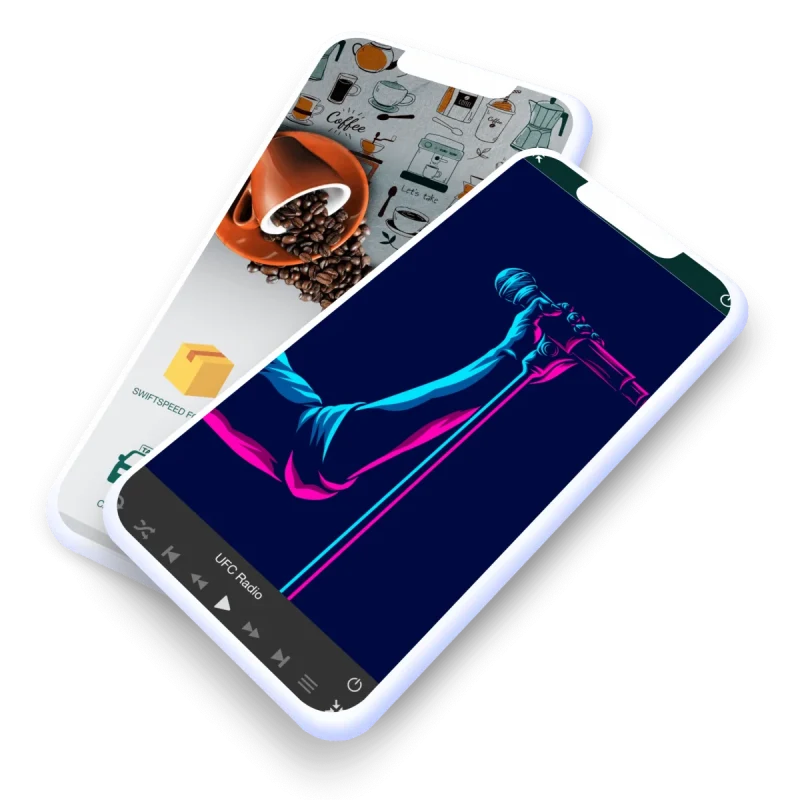
Best Way To Make A Radio App for Free Without Coding
A no-code walkthrough for building a radio app with Swiftspeed Appcreator: stations setup, background streaming, now-playing controls, push notifications for new shows, and monetization. Targeted at hobby DJs, podcasters, ministries, and small media businesses who want a real app on both stores without learning Xcode or Android Studio.
Do you want to make a radio app but don't have any coding skills? Well, your dream is about to become a reality! With Swiftspeed Appcreator, you can easily build your own radio app or create an app without the need for any technical expertise.
Building a radio or audio app? Swiftspeed has dedicated radio streaming and audio podcast features with background playback and now-playing controls. $15/mo Pro through the 50% off launch promo (forever-locked at signup).
Imagine having your own radio station, reaching a wider audience, and providing your listeners with a superior user interface, flexible design, and the ability to listen to your radio station anywhere they go, all without the hassle of writing a single line of code. Swiftspeed Appcreator takes care of the technical aspects for you, allowing you to focus on creating compelling content and engaging with your listeners.
👉🏾 Other Swiftspeed Users also read: 17 Best On-Demand Mobile App Ideas for Startups in 2023
In this step-by-step guide, we will walk you through the entire process of creating a radio app using Swiftspeed App Builder. We'll cover everything from selecting a good streaming URL to publishing and monetizing your app. Whether you're a club DJ, a radio enthusiast, or someone looking to venture into the mobile app market, this guide has got you covered.
So, get ready to take your passion for radio to the next level and join the ranks of successful app owners. Let's dive in and discover the best way to create your own radio app with ease, no coding required!
Create Your Own Radio App with Ease - No Coding Required
Creating a radio app may seem like a daunting task, especially if you don't have any coding experience. However, with the advancements in technology, it is now possible to build your own radio app without writing a single line of code. In this guide, we will introduce you to Swiftspeed Appcreator, a code-free application development platform that allows you to create your own radio app effortlessly.
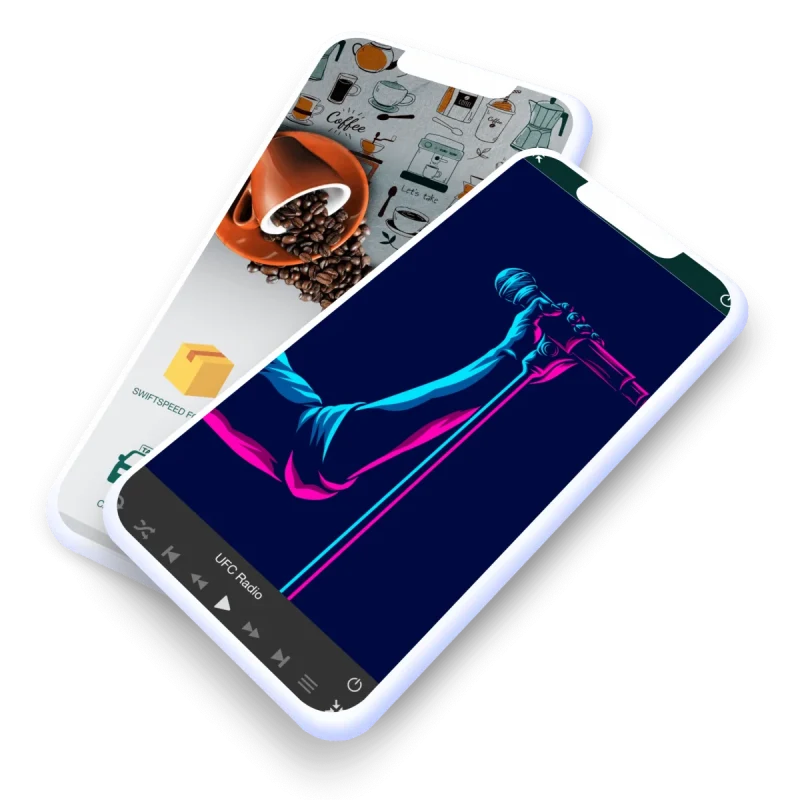
The advantages of using Swiftspeed Appcreator for making a radio app are numerous. Firstly, it eliminates the need for deep technical expertise, making app development accessible to anyone with a creative idea. Additionally, Swiftspeed Appcreator offers a wide range of customizable templates and features, allowing you to create a radio app with a superior user interface that perfectly matches your brand.
By using Swiftspeed Appcreator, you can save a significant amount of time and effort compared to traditional app development methods. Instead of spending months learning programming languages and writing code, Swiftspeed Appcreator empowers you to build and launch your radio app in a fraction of the time.
Moreover, our app builder provides robust support throughout the app development process. Their dedicated support staff is available to assist you with any questions or technical issues you may encounter along the way.
👉🏾 Other Swiftspeed Users also read: A Complete Guide to Mobile App Development in 2023
So let's get to it: the step-by-step guide on how to create a radio app without coding
How to Make a Radio App Without Coding
If you've ever wanted to create your own radio app but don't have any coding knowledge, you're in luck! With Swiftspeed Appcreator, you can easily build your own radio app without the need for complex programming skills. In this section, we'll guide you through a step-by-step process to create a radio app using Swiftspeed Appcreator.
1. Sign up and log in:
Start by signing up for a Swiftspeed Appcreator account. Once you've signed up, log in to your account to access the app builder platform.
2. Select the radio app template:
Our app builder offers a variety of mobile app templates to choose from. Select the template that suits your radio app idea and click on it to begin the app creation process.
3. Customize your app:
Personalize your app by adding your logo, branding elements, color schemes, and other design features. This will give your app a unique look and feel that aligns with your radio station or brand.
4. Set up a streaming URL:
A crucial step in creating a radio app is setting up a good streaming URL. This URL will determine the quality and reliability of your audio streaming. Make sure to choose a reputable streaming service that provides stable and high-quality audio.
Here is what a good streaming URL looks like for our “Radio” feature:
- https://62.210.36.44:9110
- https://76.164.217.100:7410/stream
Your URL mustn’t end with “listen. pls” or “listen.m3u”, etc. This means that if your URL is https://62.210.36.44:9110/listen.pls, you need to keep https://62.210.36.44:9110.
Note that sometimes you will need to add “/;” at the end of your URL to make it work both on Android and iOS, for example, http://62.210.36.44:9110/;
5. Add features and content:
Enhance your radio app with interactive features like song requests, social media integration, live chat, and podcast streaming. Additionally, upload your own audio content or connect your app to popular music platforms for a wide selection of music.
Here are other features on our app maker platform that I think can complement your radio app:
- AUDIO FEATURE: The Swiftspeed Appcreator "Audio" feature allows you to create your own radio and music app for Android and iOS from SoundCloud, Apple Music, Media RSS, Shoutcast, iTunes, etc.
- ABOUT US: This feature helps your customers familiarise themselves with the products you offer in your app. It can be used to add more information about your company or business.
- PHOTO: The ‘Photo’ feature allows photo integration from Pinterest, Flickr, Instagram, and other social networks, making it easy for you to share amazing photos with your users in just a few clicks.
- SOCIAL NETWORK: Animate your community with a social network within your app! Users can send posts and photos, geolocate other users’ photos, and comment on their posts. You can lean back and see your user engagement growing on its own!
6. Test and preview:
Before publishing your app, thoroughly test and preview it to ensure everything is working smoothly. Check for any bugs, audio streaming issues, or layout problems. Swiftspeed Appcreator provides a preview feature that allows you to see how your app will look and function on different devices.
7. Publish your app:
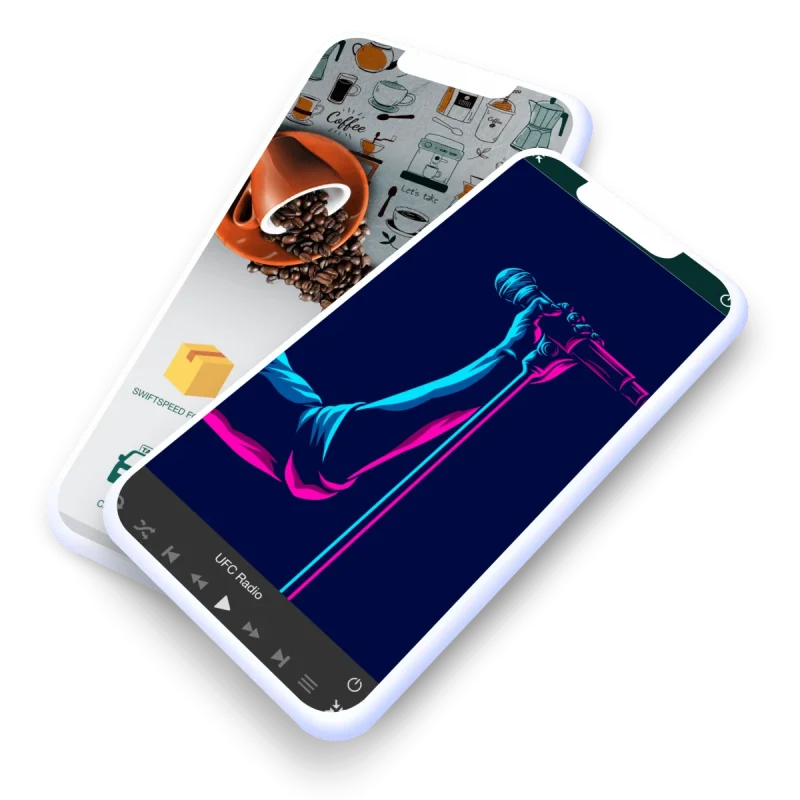
Once you're satisfied with your app, it's time to publish it. Our no-code app maker allows you to publish your radio app on both iOS and Android platforms. Follow the guidelines provided by Swiftspeed Appcreator to submit your app to the respective app stores. You can also watch step by step video guide on Creating a radio app without coding here.
Making a radio app without coding has never been easier. With Swiftspeed Appcreator's intuitive platform, you can bring your radio station to a wider audience and provide a superior user experience without the need for deep technical expertise. So why wait? Start creating your own radio app today and join the mobile revolution.
Remember, it's not just about building the app; it's also about effectively marketing and monetizing it. In the next section, we'll explore the benefits of using a DIY app builder like Swiftspeed Appcreator for making radio apps, as well as considerations for app development and marketing.
Benefits of Using a DIY App Builder like Swiftspeed Appcreator
When it comes to making a radio app without coding, using a DIY app builder like Swiftspeed Appcreator offers numerous benefits. Here's why you should consider using it for creating your own radio app:
1. Easy App Completion:
With Swiftspeed Appcreator, you don't need any coding knowledge or technical expertise to create a fully functional radio app. The intuitive drag-and-drop interface allows you to easily customize your app's design, features, and content without any hassle.
2. App Publishing on App Stores:
Once you've built your radio app using Swiftspeed Appcreator, you can easily publish it on popular app stores like the Apple App Store and Google Play Store. This gives your app a wider reach and allows you to target a larger audience.
3. Real-Time Statistics:
Our App Maker provides you with real-time statistics and analytics about your app's performance. You can monitor user engagement, track downloads, and analyze user behavior to make data-driven decisions and improve your app's performance.
4. Push Notification Capabilities:
With Swiftspeed Appcreator, you can easily send push notifications to your app users. This allows you to communicate important updates, new content, or promotional offers directly to your audience, keeping them engaged and informed.
5. Faster to Market:
App builders like Swiftspeed can help outshine, outsmart, and outwit your competitors in the industry; why? Because building an app with an app maker like Swiftspeed Appcreator is very easy and fast compared to native development; you save money because you don't need to hire a developer, and you also save enormous time and effort; you can get to market before them and win loyal users because you are the first.
Make an app with Swiftspeed Appcreator
Create premium apps without writing a single line of code, thanks to our user-friendly app builder. Build an app for your website or business with ease.
Using Swiftspeed App Maker for radio app development offers a seamless and efficient way to bring your radio station to the digital world. With its user-friendly interface, publishing capabilities, real-time analytics, and push notification features, you can create a professional radio app that caters to your audience's needs and enhances their listening experience.
Remember, utilizing an app builder like Swiftspeed Appcreator saves you time and effort, making the process of creating a radio app hassle-free.
Considerations for App Development and Marketing
When embarking on the journey of building a radio app, there are several key considerations to keep in mind. These factors will help ensure the success of your app and make it stand out in the crowded app market.
1. Define Your Objectives
Before diving into the development process, clearly define the objectives you want to achieve with your radio app. Are you targeting a specific audience or niche? Are you aiming to generate revenue through in-app purchases or advertisements? By identifying your goals early on, you can tailor your app development and marketing strategies accordingly.
2. Understand Your Target Audience
To create a radio app that truly resonates with your target audience, it's crucial to understand their preferences, interests, and needs. Conduct market research to learn about the content they enjoy, the features they expect, and the overall user experience they desire. This knowledge will guide your design choices and content selection.
3. Leverage the Power of Mobile Apps
Mobile apps offer unique advantages for businesses, including radio stations. A dedicated app can enhance user engagement, provide a personalized listening experience, and offer additional interactive features. Consider how a mobile app can help your radio station reach a wider audience and establish a stronger connection with your listeners.
4. Optimize App Development with Swiftspeed Appcreator
When it comes to developing a radio app without coding, Swiftspeed Appcreator is an excellent choice. This code-free application development platform allows you to build your own app using a simple drag-and-drop interface. With Swiftspeed Appcreator, you can quickly create a professional-looking radio app with a superior user interface and functionality.
5. Choose the Right Monetization Strategy
Monetizing your radio app is an essential aspect of its success. Consider incorporating various revenue streams, such as in-app purchases, advertisements, or even subscriptions. Swiftspeed Appcreator offers integration with Google AdMob and Facebook Audience Network, allowing you to maximize your app's earning potential.
6. Explore App Marketing Strategies
Once your radio app is developed, it's important to promote it effectively. Utilize your own social media channels, collaborate with influencers in the music industry, and implement an app marketing plan to generate awareness and attract users. Swiftspeed Appcreator also provides tools to boost your app's visibility and rating on app stores.
👉🏾 Other Swiftspeed Users also read: The Ultimate Guide to iPhone Screen Resolutions and Sizes in 2024
Alternative to BuildFire
While BuildFire is a popular app builder, Swiftspeed Appcreator offers next-generation app maker software with a simpler and more user-friendly interface. Swiftspeed Appcreator eliminates the need for extensive computer programming knowledge, allowing you to save time and focus on perfecting your radio app.
In conclusion, by considering these factors before and during the development process and utilizing Swiftspeed Appcreator, you can create a successful radio app that meets the unique preferences of your target audience. Take advantage of the opportunities provided by mobile apps and leverage the power of code-free development to bring your radio app to life.
Conclusion
In conclusion, creating your own radio app without coding has never been easier, thanks to Swiftspeed Appcreator. With this code-free application development platform, you can tap into the world of mobile apps and reach a wider audience with your radio station.
By utilizing Swiftspeed Appcreator, you can enjoy the benefits of a superior user interface, easy app completion, and real-time statistics. The platform also offers push notification capabilities, allowing you to engage your users and keep them informed about the latest updates and events.
With the support of the Swiftspeed Appcreator team and their comprehensive tutorial, you can navigate through the entire process with ease. Furthermore, you have the flexibility to publish your app on your chosen mobile application store, reaching a global audience.
Don't miss out on the opportunity to make your own radio app and boost your reach. Try Swiftspeed Appcreator and see how creating a radio app without coding can be a breeze.