Tasks Feature
What is the Tasks Feature?
The Tasks feature is a fully-functional to-do manager inside your mobile app. End-users capture tasks, set due dates and priorities, build sub-tasks, attach notes and files, recurring tasks for routines, and track completion streaks. Suitable for productivity apps, habit-tracking apps, project-management apps, and any consumer app where users need to remember things.
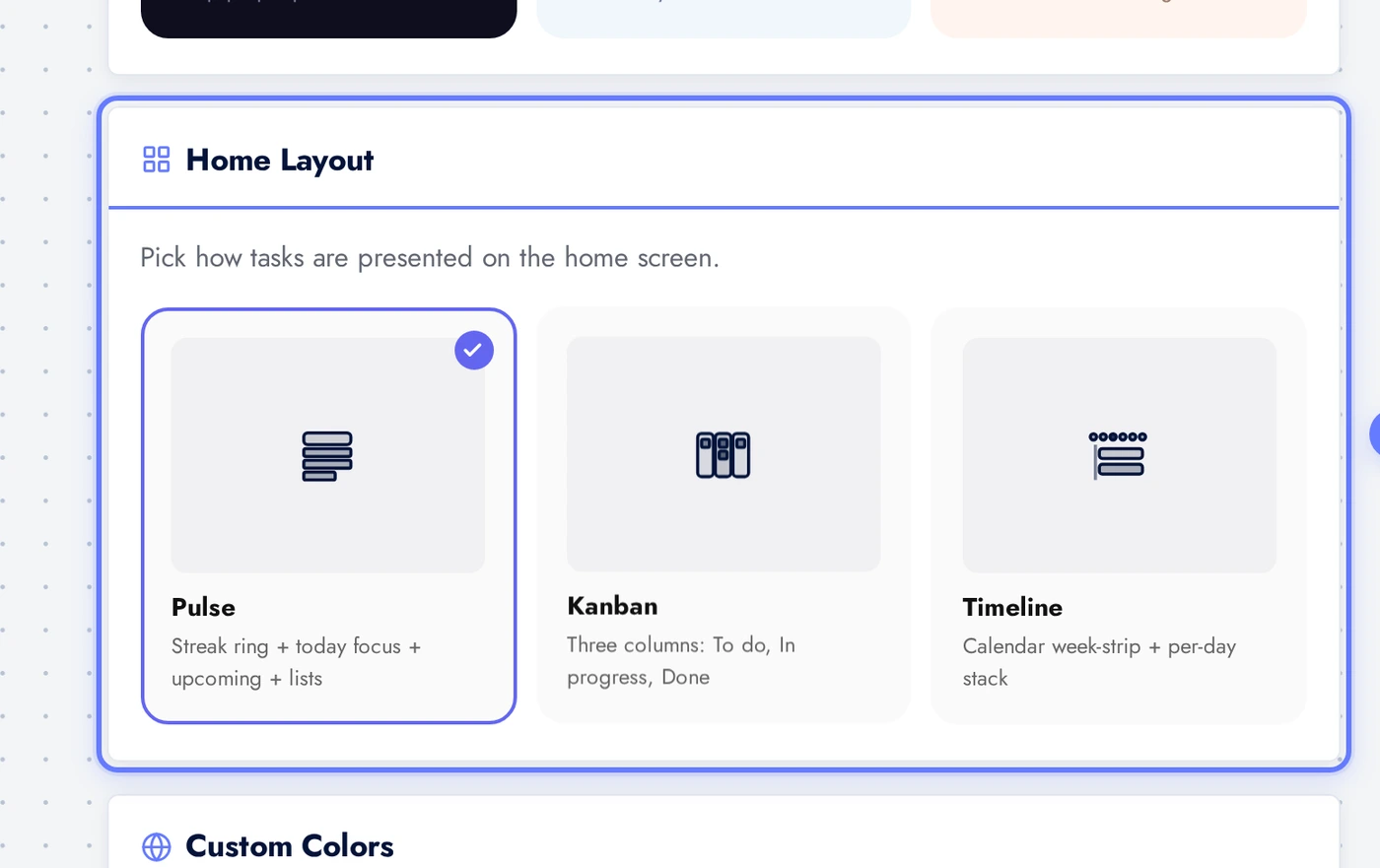
Three layouts available. Pulse is feed-style (default), most familiar to consumers. Kanban is column-based (Todo / Doing / Done), suits project workflows. Timeline is date-anchored, suits time-blocking and scheduled work.
Adding the Tasks Feature to Your App
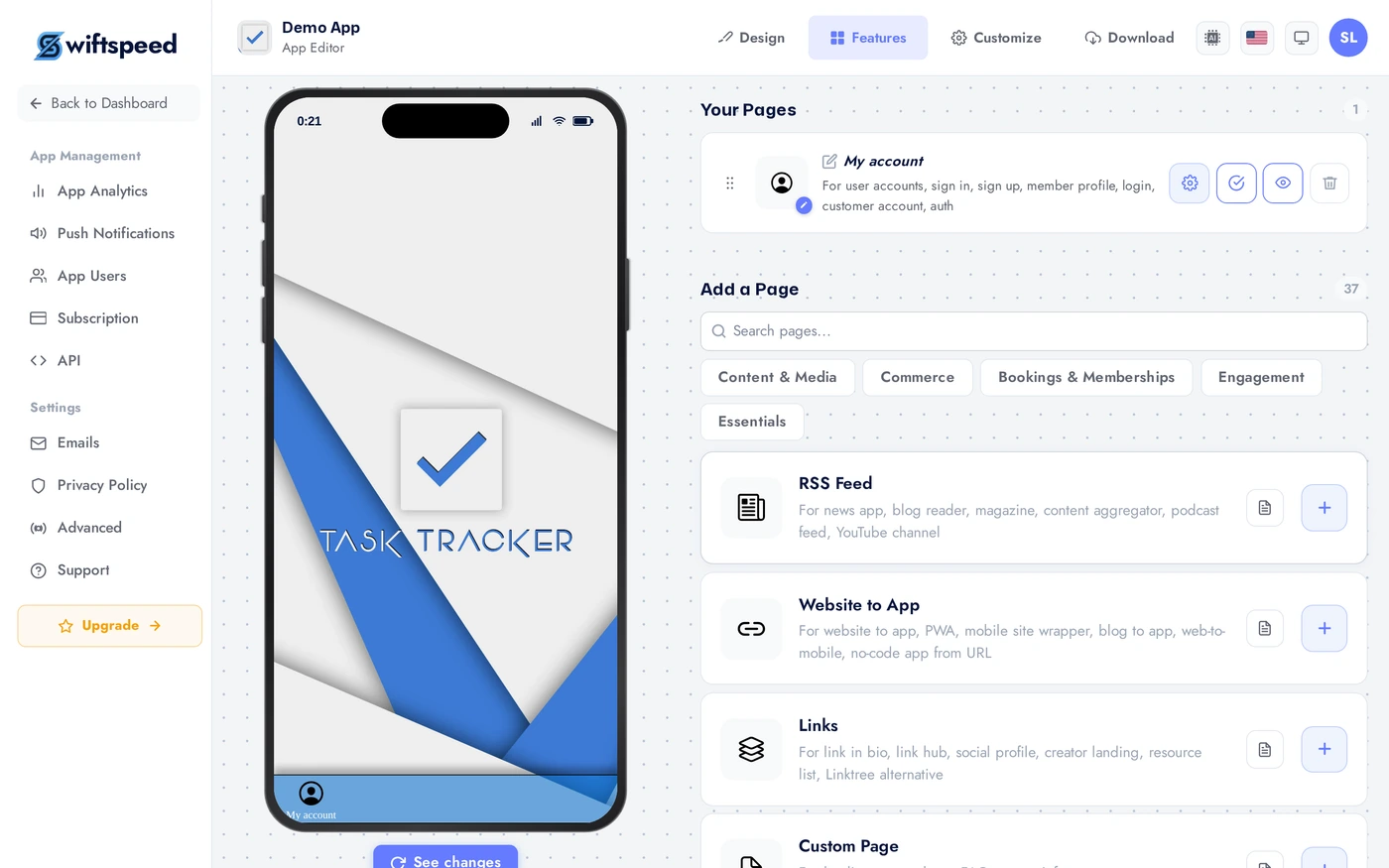
In the App editor, click Features in the top bar.
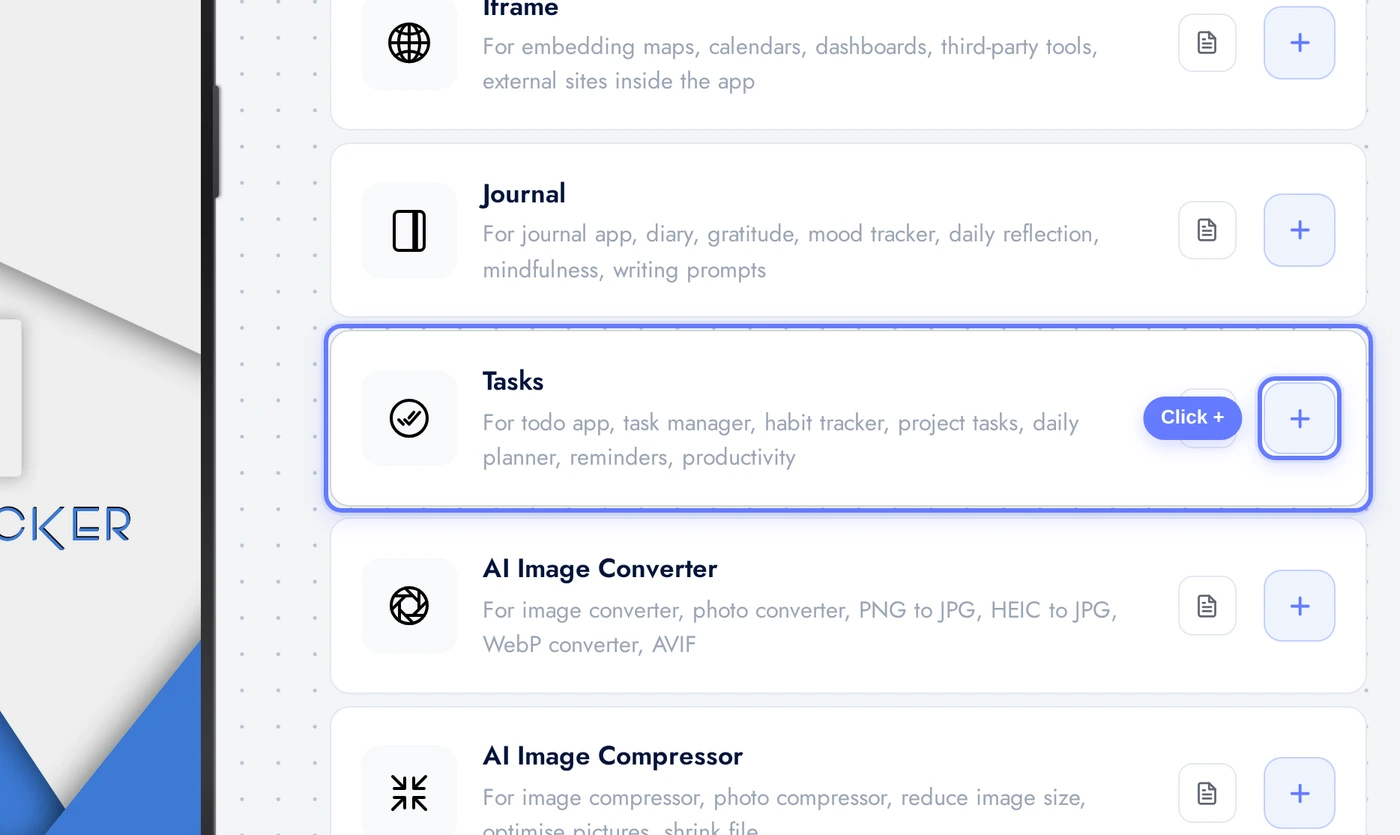
Find the Tasks card and click the + button.
Appearance Tab: Layout, Theme, Colors
Three layouts: Pulse (feed-style, default), Kanban (column board: Todo / Doing / Done), Timeline (date-anchored). Pulse suits consumer to-do apps; Kanban suits project teams; Timeline suits time-blocking workflows.
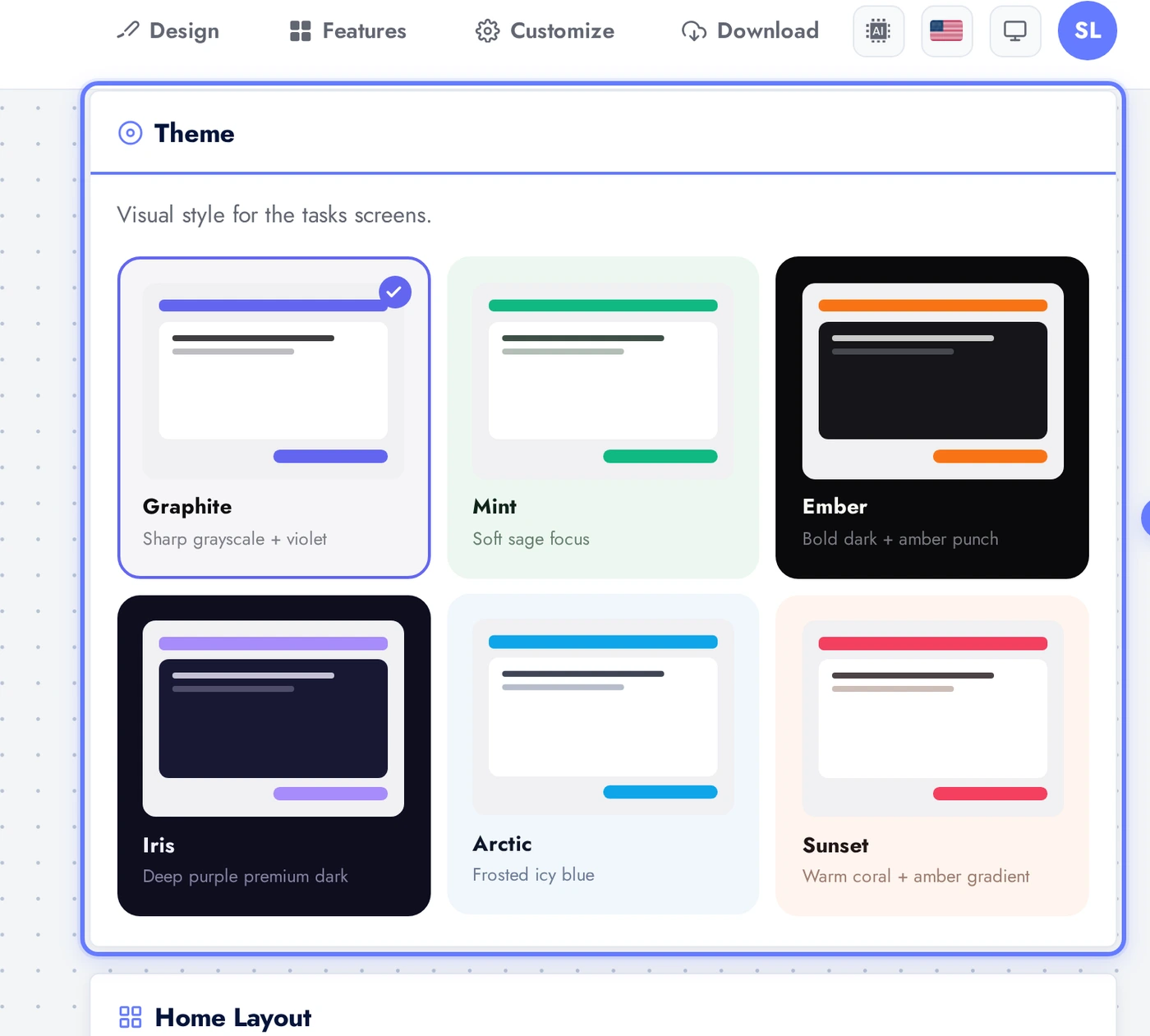
Pick a theme. For productivity apps, calm and high-contrast palettes work well (graphite, arctic). For consumer to-do apps, friendly palettes (mint, sunset) keep users coming back.
Content Tab: Hero and Feature Toggles
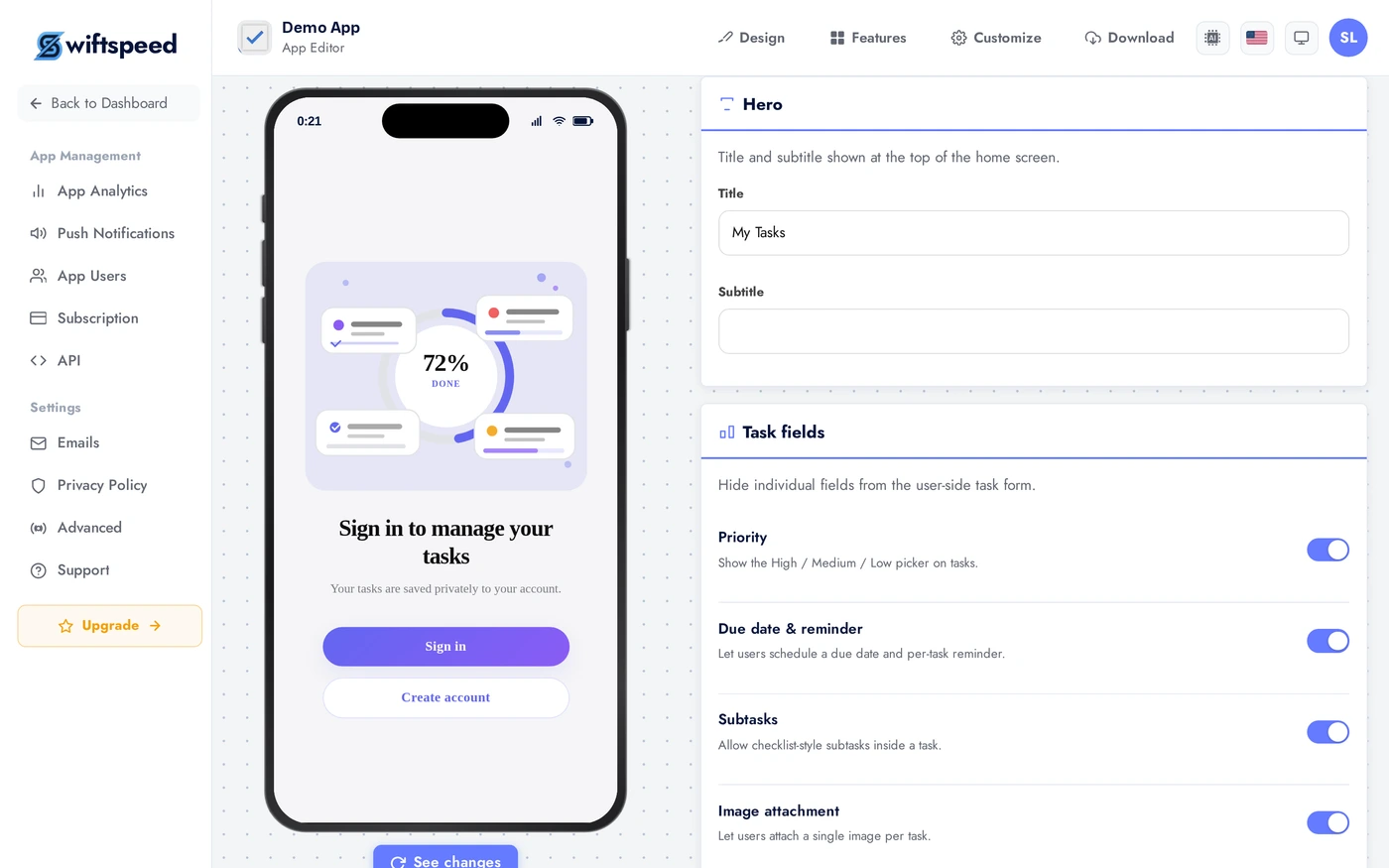
Set hero copy plus toggle individual features. Priority adds a 3-level priority label per task. Due date adds a deadline. Sub-tasks lets users break work down. Attachments for files and photos. Notes for longer-form context. Recurring tasks for routines. Streaks tracks consecutive completion. Progress shows completion percentage. Lock adds a passcode gate. Share lets users export tasks. Reminders sends push. Late alerts notifies on overdue. Toggle anything you don't need; less is usually more.
Lists Tab: Pre-Seeded Lists
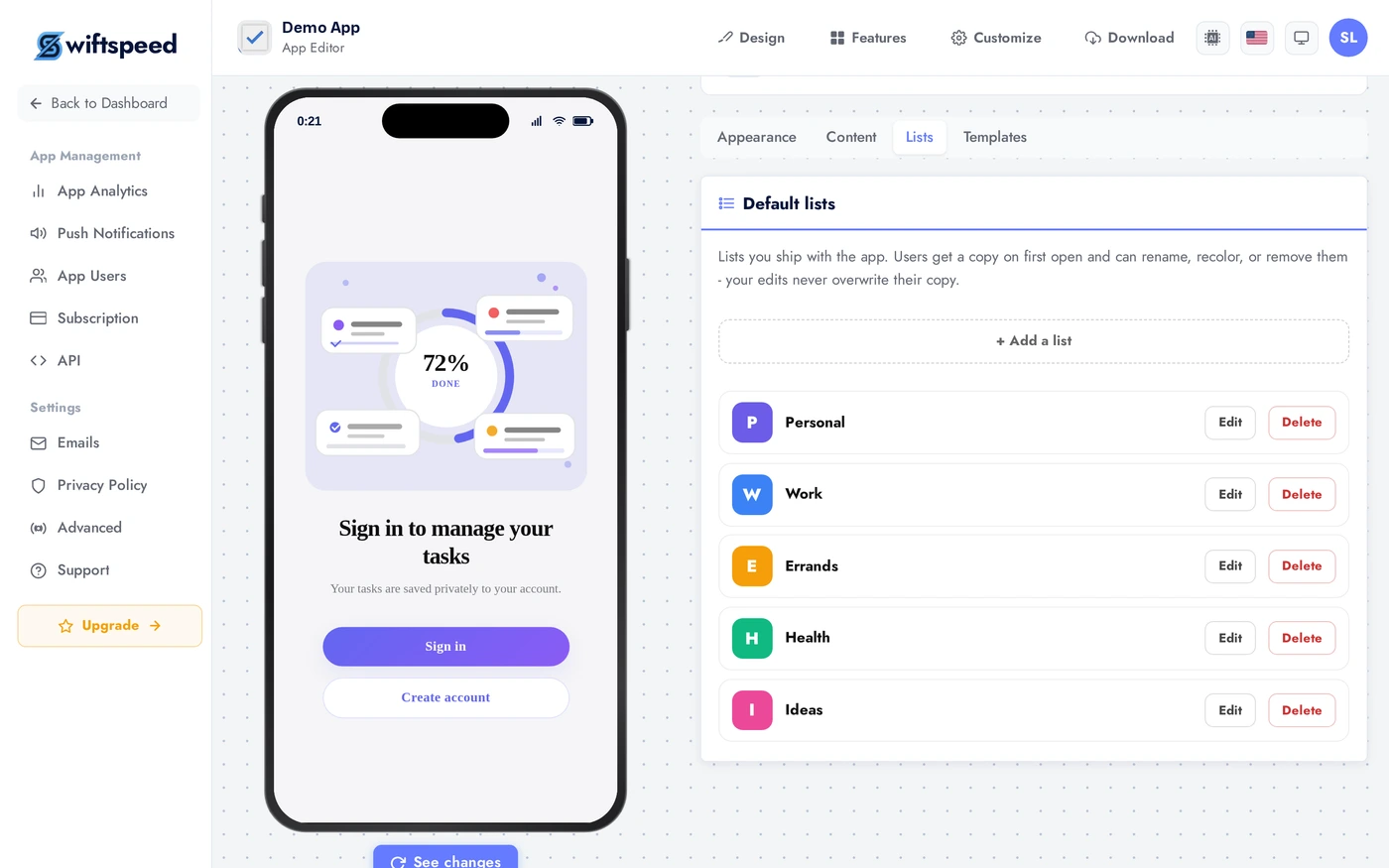
Pre-seed lists every user starts with. Common defaults: Today, This Week, Inbox, Done. Users can rename or add their own when Allow user lists is on in the Content tab. Three default lists feels balanced; more is overwhelming for first-time users.
Templates Tab: One-Tap Routines
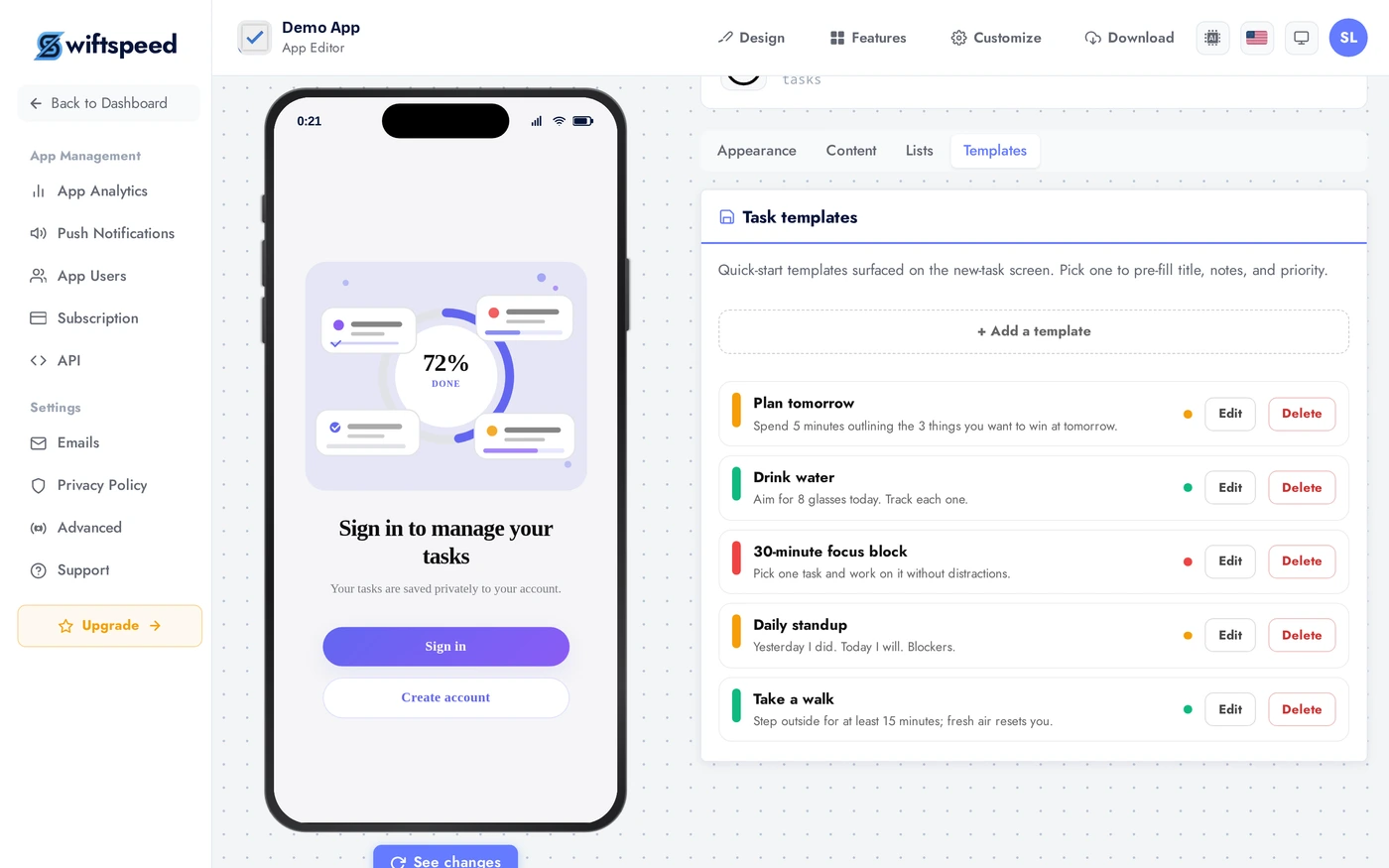
Templates are task bundles users spawn from a single tap. Examples: "Morning routine" (5 sub-tasks: meditate, journal, gym, breakfast, plan day) or "Weekly review" (10 sub-tasks). Useful for habit and routine apps. Each template has a name, description, and pre-filled sub-tasks.
Live Preview
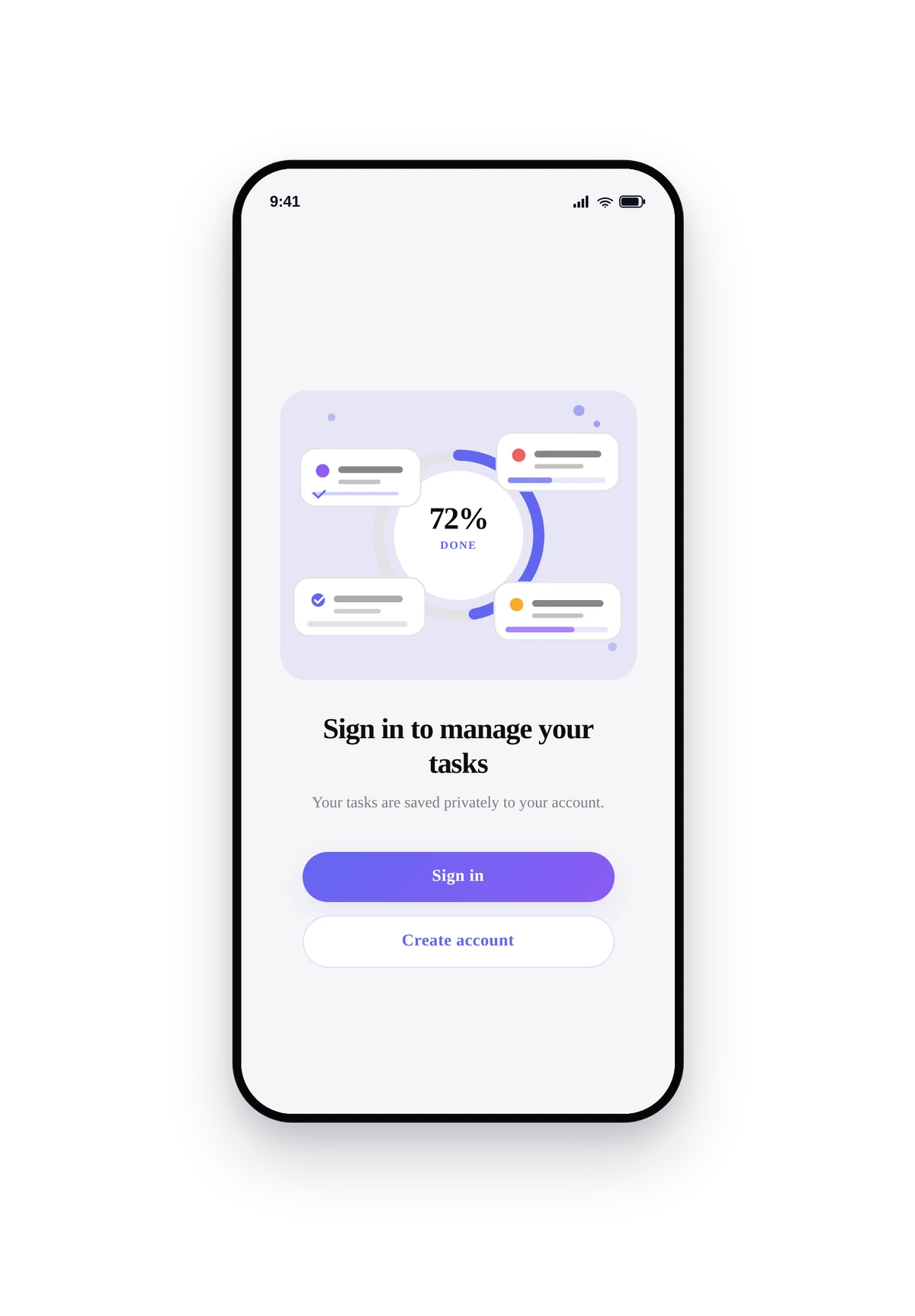
This is the actual native UI. The layout, theme, and feature toggles you picked are all live.
Tips
- Kanban suits team-style apps. Pulse is the safest default for consumer productivity. Timeline is niche.
- Streaks are the engagement multiplier for habit apps. Turn streaks on by default if your app is about routines.
- Three pre-seeded lists is the sweet spot. Too few feels empty; too many is decision fatigue.
- Recurring tasks are critical for habit and study apps. Without recurrence, users abandon within 2 weeks.
- Templates work for power users. Most casual users will not use them; do not waste UI real estate on prominent template chips for general consumer apps.
- Reminders + late alerts together = nag mode. Turn one or the other on, rarely both, unless your audience explicitly wants accountability.
Removing the Feature
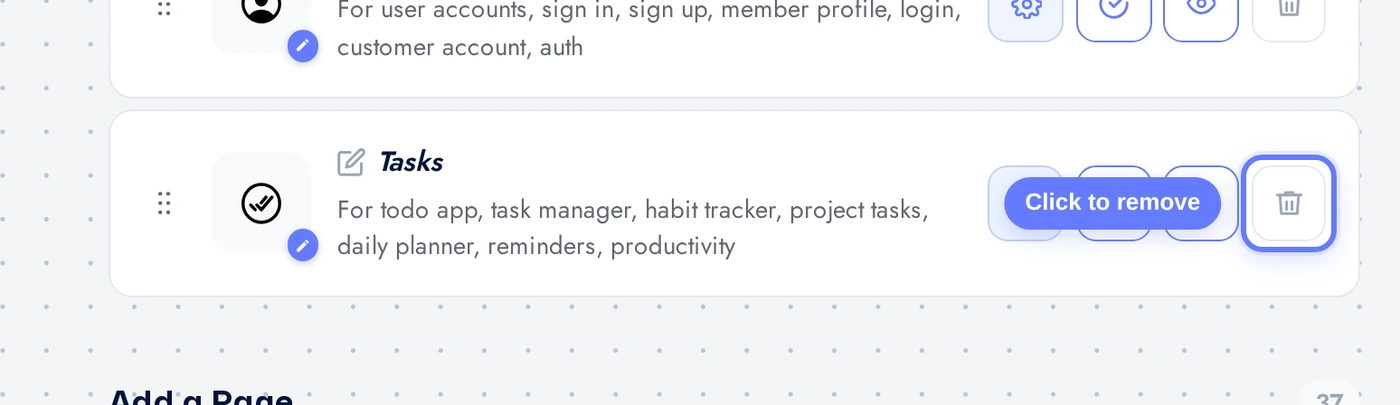
Back on Features, find the Tasks row, click the red trash icon, confirm.