Setting Up PWA (Progressive Web App)

Enable and configure your Progressive Web App. Installable, offline support, push notifications, and instant web access.

What is a PWA?

A Progressive Web App (PWA) is a web-based version of your Swiftspeed app that users can access directly from any browser without requiring app store download. When opened on a mobile device, users are prompted to install it on their home screen, giving them a native app-like experience instantly.

PWAs are fast, lightweight, and work across all platforms: Android, iOS, and desktop. They are the quickest way to get your app in front of users who have not yet downloaded it from a store.

How to Access the PWA Section

To find your PWA settings in Swiftspeed:

  1. Open your app in the App Editor

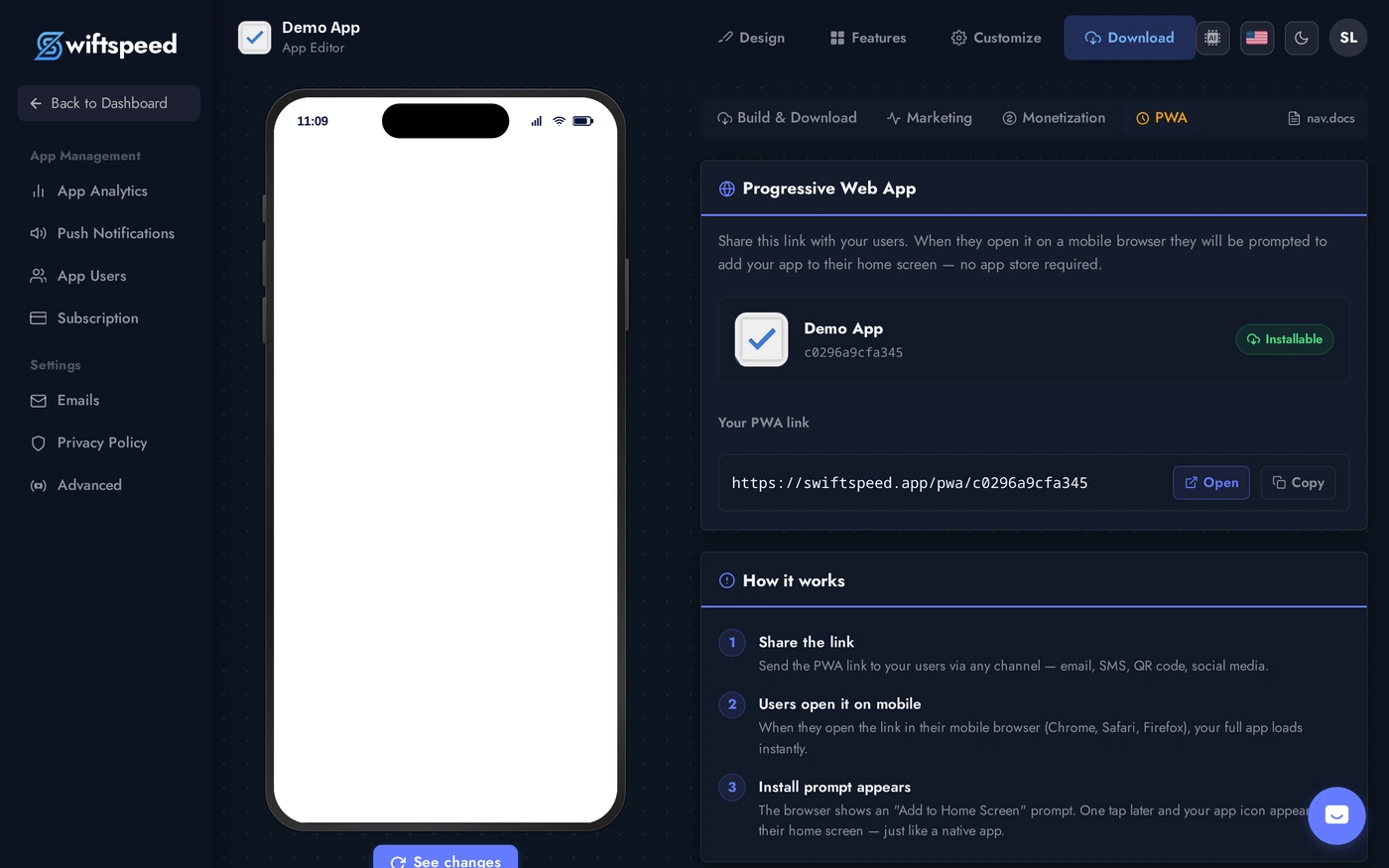
  2. Click Download in the top navigation bar

  3. Click the PWA tab from the horizontal sub-menu (alongside Build & Download, Marketing, Monetization)

You will land on the Progressive Web App panel where your app's PWA status and unique link are displayed.

Your PWA Dashboard

Once on the PWA tab, you will see the following at a glance:

  • App name and ID — confirms which app the PWA belongs to

  • Installable badge — a green Installable indicator means your PWA is fully configured and ready to be installed by users

  • Your PWA link — a unique URL (e.g. https://swiftspeed.app/pwa/your-app-id) that you share directly with your users

Sharing Your PWA Link

Your PWA link is the key to distributing your app without going through an app store. Here is exactly how to use it:

  1. On the PWA tab, locate the Your PWA link section

  2. Click Copy to copy the link to your clipboard — or click Open to preview it live in a new browser tab

  3. Share the link with your users via email, SMS, WhatsApp, QR code, social media, or any channel you use to reach your audience

When a user taps the link on their mobile browser, your full app loads instantly — and they are prompted to install it on their home screen.

How It Works for Your Users — Step by Step

Here is what your users experience once they receive your PWA link:

  1. They open the link — In Chrome, Safari, Firefox, or any mobile browser, your app loads in full just like a native app, with your branding and all your content.

  2. Install prompt appears — The browser automatically shows an Add to Home Screen banner or prompt. On Android (Chrome) this appears as a bottom popup; on iOS (Safari), users tap the Share icon and then select Add to Home Screen.

  3. App icon is added to home screen — With one tap, your app icon appears on their device home screen — just like any app downloaded from the App Store or Google Play.

  4. Launches as a standalone app — When opened from the home screen, your app runs without any browser address bars or navigation UI, giving a completely native app feel.

Web Push Notifications

Your PWA also supports Web Push Notifications allowing you to re-engage users with push alerts even when they are not actively using the app.

When Web Push is configured (shown as Web push is configured with a green checkmark on the PWA dashboard - This is automatically configured for all Pro users on Swiftspeed), your app can:

  • Send push notifications to users who have granted permission

  • Re-engage users with updates, promotions, and time-sensitive reminders

  • Deliver notifications on Android and desktop Chrome-based browsers

  • Deliver notifications on iOS 16.4+ when using Safari

To send push notifications to your PWA users, go to Push Notifications in the left sidebar of the App Editor and create a notification campaign from there, select Web.

PWA vs. App Store Apps

  • PWA — Best for immediate reach, no review process, no app store account needed. Users access via a link. Great for marketing campaigns, onboarding new users, or sharing at events.

  • App Store / Google Play — Best for long-term discoverability, store trust, and users who prefer traditional downloads. Built via the Build and Download tab.

  • Both together (recommended) — Use your PWA for fast, frictionless access while also listing on app stores for broader organic reach and discoverability.

Key Benefits of Your Swiftspeed PWA

  • No app store required — Skip the review process and get your app to users instantly via a link

  • Works on all platforms — Android, iOS, and desktop — one link works on any device

  • Instant updates — Changes you publish in the App Editor go live on your PWA immediately — no app store submission needed

  • Lower barrier to entry — Users do not need to search for your app — just tap a link and it opens

  • Push notification support — Keep users engaged with web push alerts directly from the dashboard

  • Fast loading — PWAs use cached assets for quick startup, even on slower connections

  • Installable on home screen — Appears and launches just like a native app, with your icon and branding

Frequently Asked Questions

Does my PWA work on iPhone?

Yes. On iOS, users open your PWA link in Safari, tap the Share button (the box with an arrow icon at the bottom of the screen), and select Add to Home Screen. The automatic install banner is not available on iOS Safari — users must use the Share menu manually. Web push notifications are supported on iOS 16.4 and later.

Do I need to do any setup to enable my PWA?

No setup is required. Your PWA is automatically generated for your app. Simply go to the PWA tab under Download in the App Editor and share your unique link. If the status badge shows Installable in green, your PWA is ready to go.

Can I customize the PWA app icon and name?

Yes. Your PWA automatically uses your app icon and name as configured in the App Editor. To update them, go to Design in the editor, update your app icon and app name — those changes apply automatically to your PWA as well.

What happens when I update my app?

PWA updates are instant. When you publish changes in the App Editor, your PWA reflects those changes immediately — no user action required and no app store review process involved.

Is the PWA content the same as my native app?

Yes, the PWA delivers the same content and features as your native app. It runs inside the device browser engine, so some deep OS-level features may behave slightly differently from a native build. For maximum native functionality, use your store-built app alongside the PWA for complete coverage.