Sell Online Feature
What is the Sell Online Feature?
The Sell Online feature turns your Swiftspeed app into a native online store. Sell digital or physical products through cart and checkout, accept payment via Stripe or Paystack, manage orders inside the editor. Suitable for any business with a product catalog: boutiques, digital downloads, course bundles, merch, food (not delivery), services, anything.
Five editor tabs: Appearance for the look, Products for the catalog, Orders for fulfillment, Settings for tax and shipping rules, Analytics for sales reporting.
Adding the Sell Online Feature
In the App editor, click Features in the top bar.
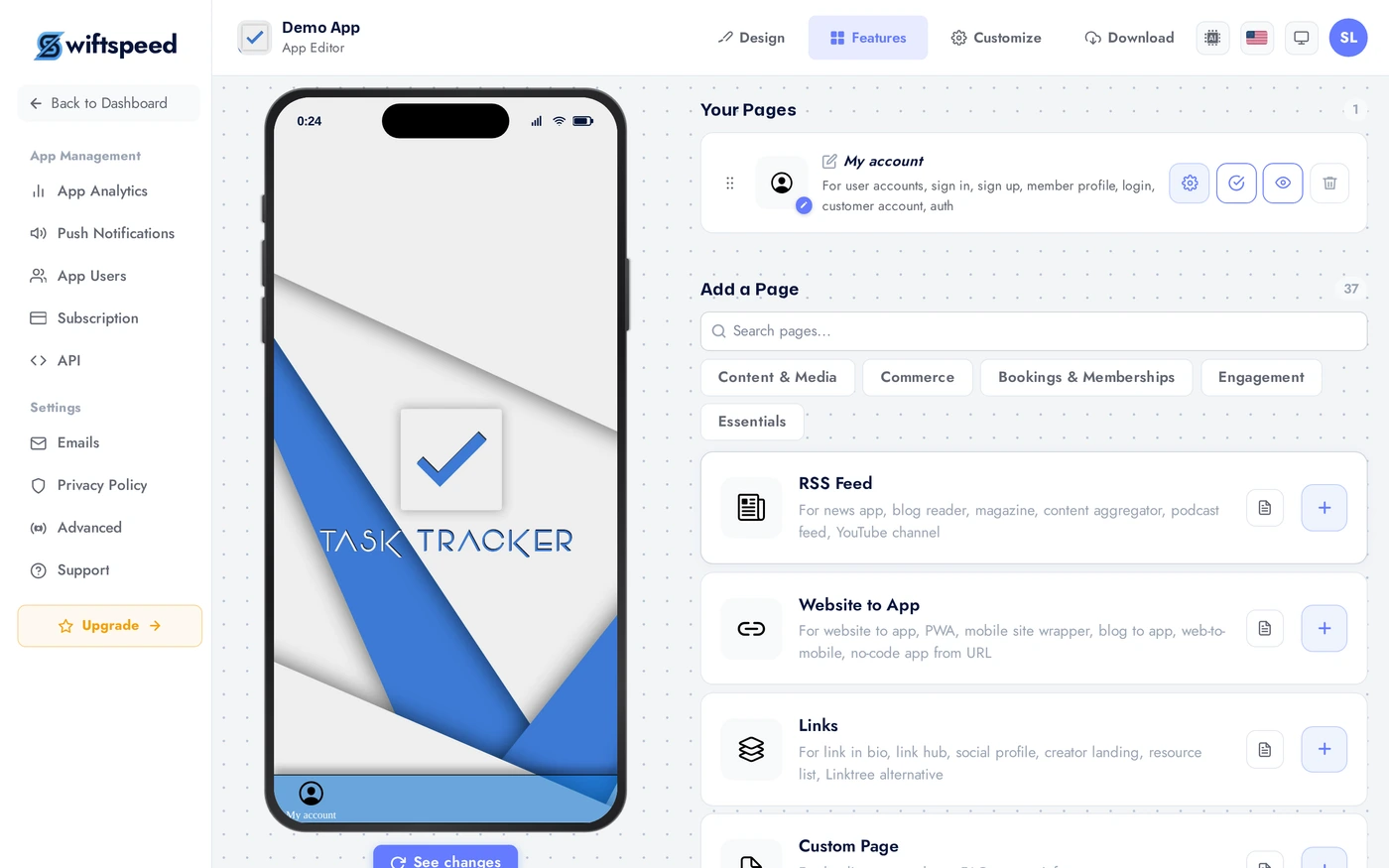
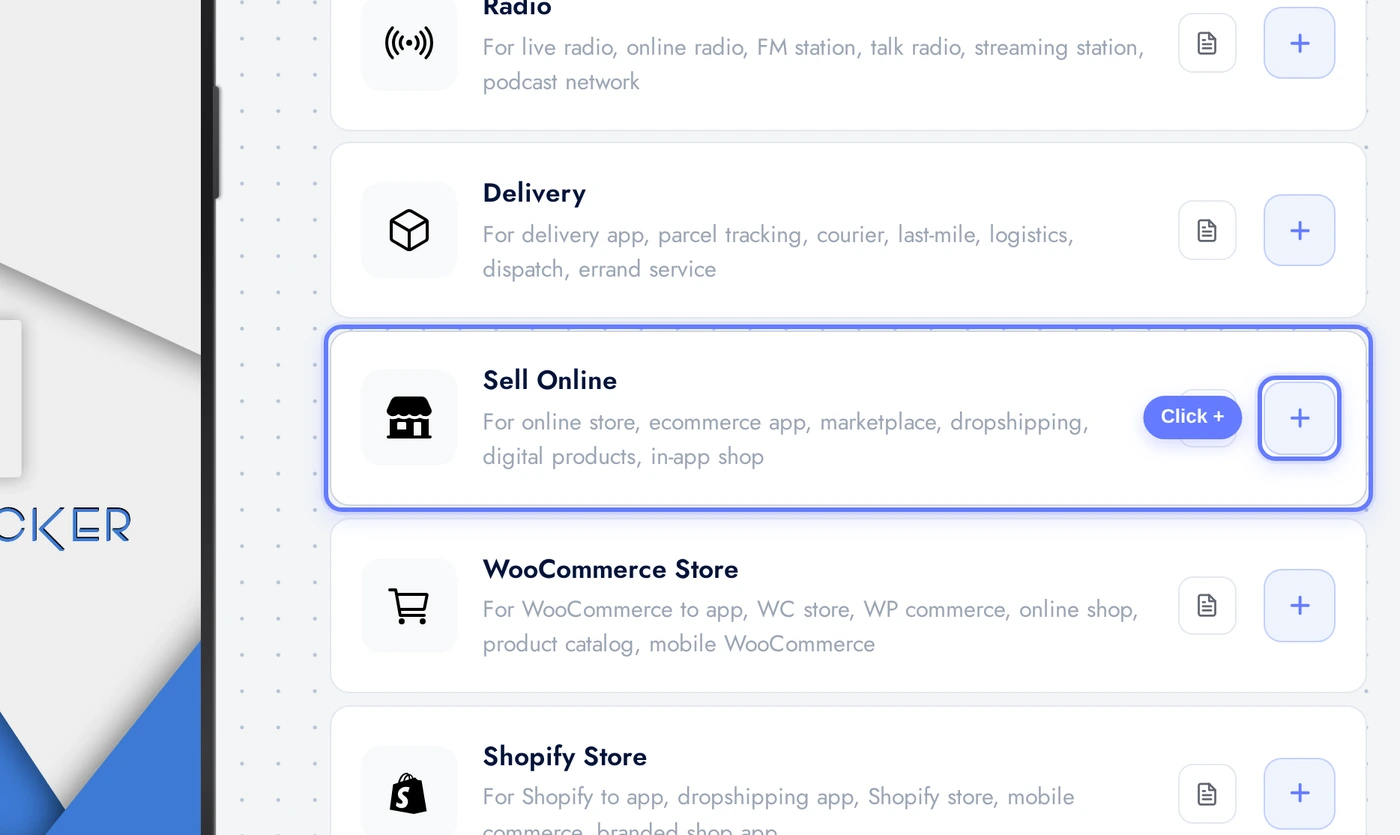
Find the Sell Online card and click the + button.
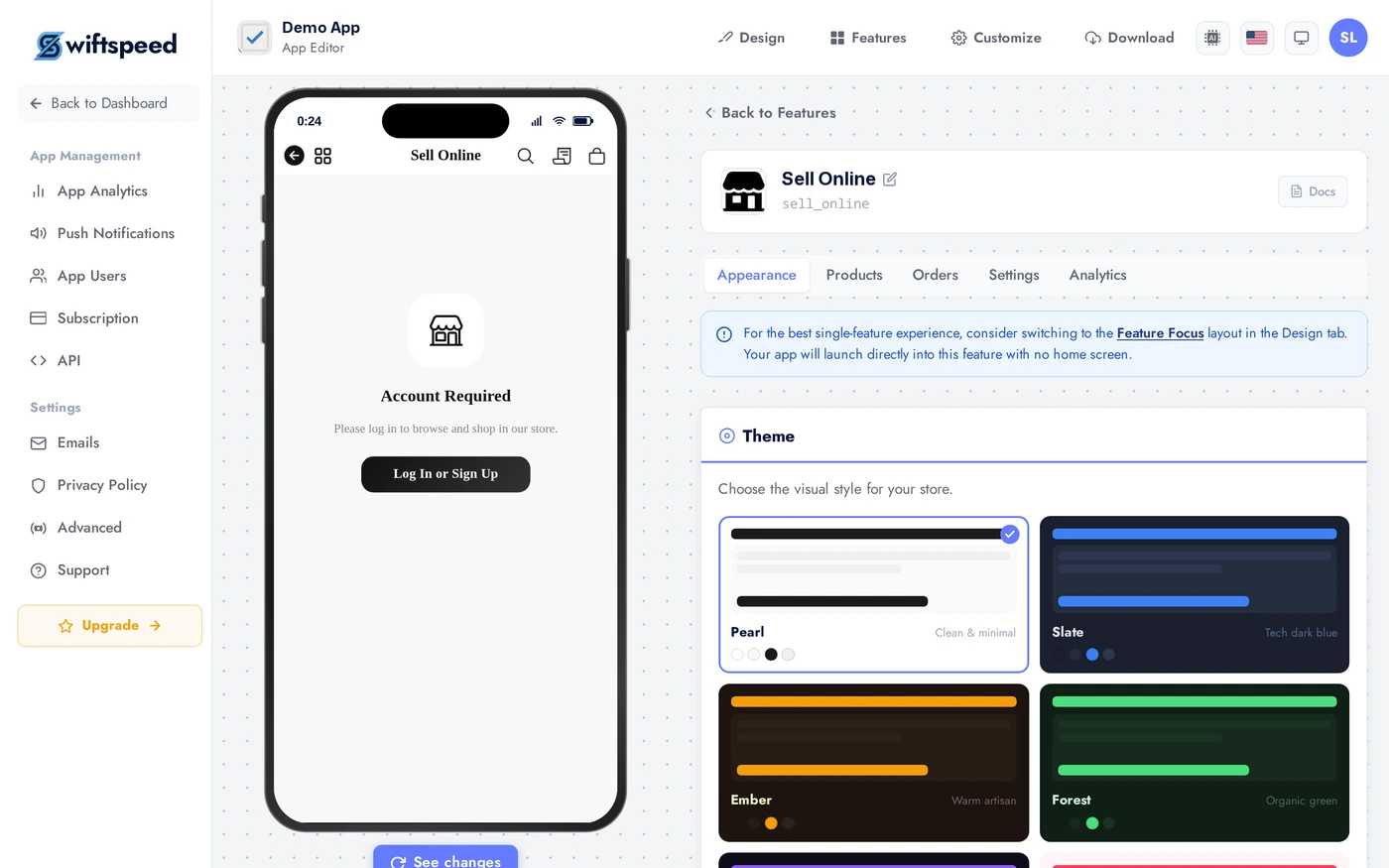
Appearance Tab
Pick a layout: Storefront (image-heavy with a featured row and product grid, default), List (clean rows for catalogs with many SKUs), Hero (single-product or boutique launches). Theme and custom colors as usual.
Products Tab
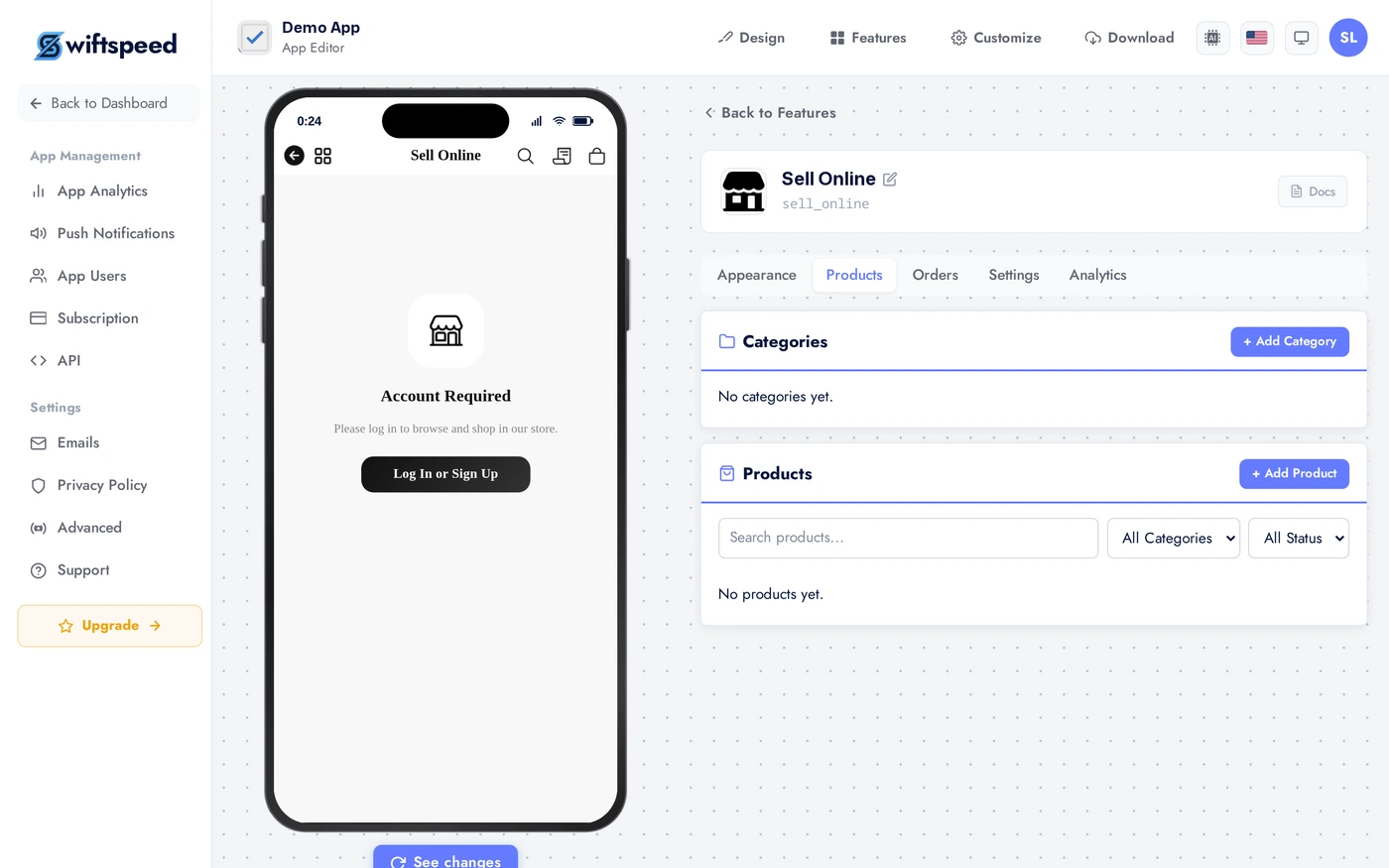
Add and manage products. Each product has a title, description, up to 8 images, price (with optional compare-at price for sales), SKU, stock tracking, variants (size, color, material), category and tags, and a digital-or-physical toggle. Physical means shipping is required at checkout; digital means automatic delivery by email after purchase.
Orders Tab
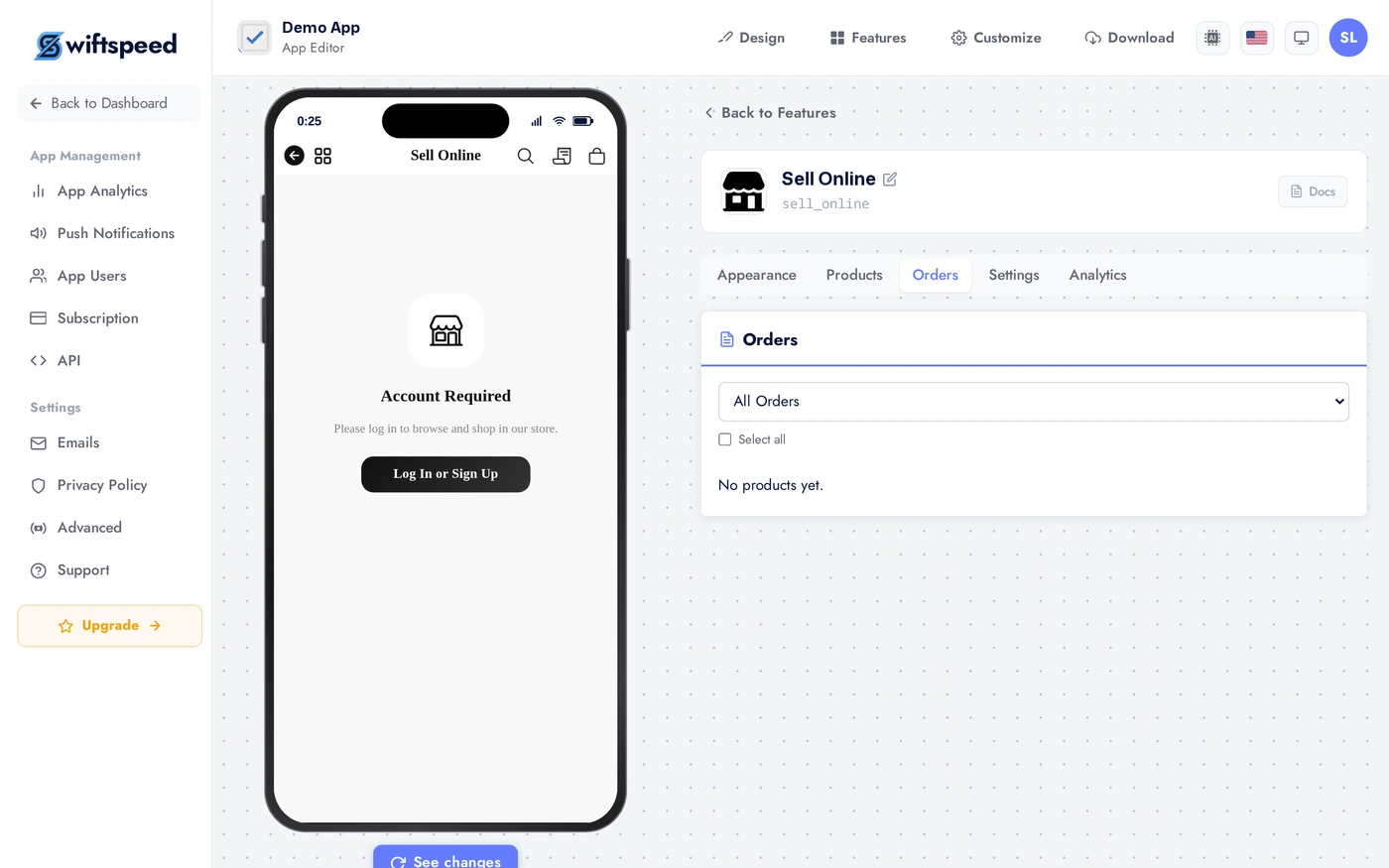
Every order shows up with line items, payment status, shipping address, fulfilment status (unfulfilled, fulfilled, shipped, delivered). Mark orders as shipped to trigger the customer notification with tracking. Refund individual line items or the entire order from this view.
Settings Tab
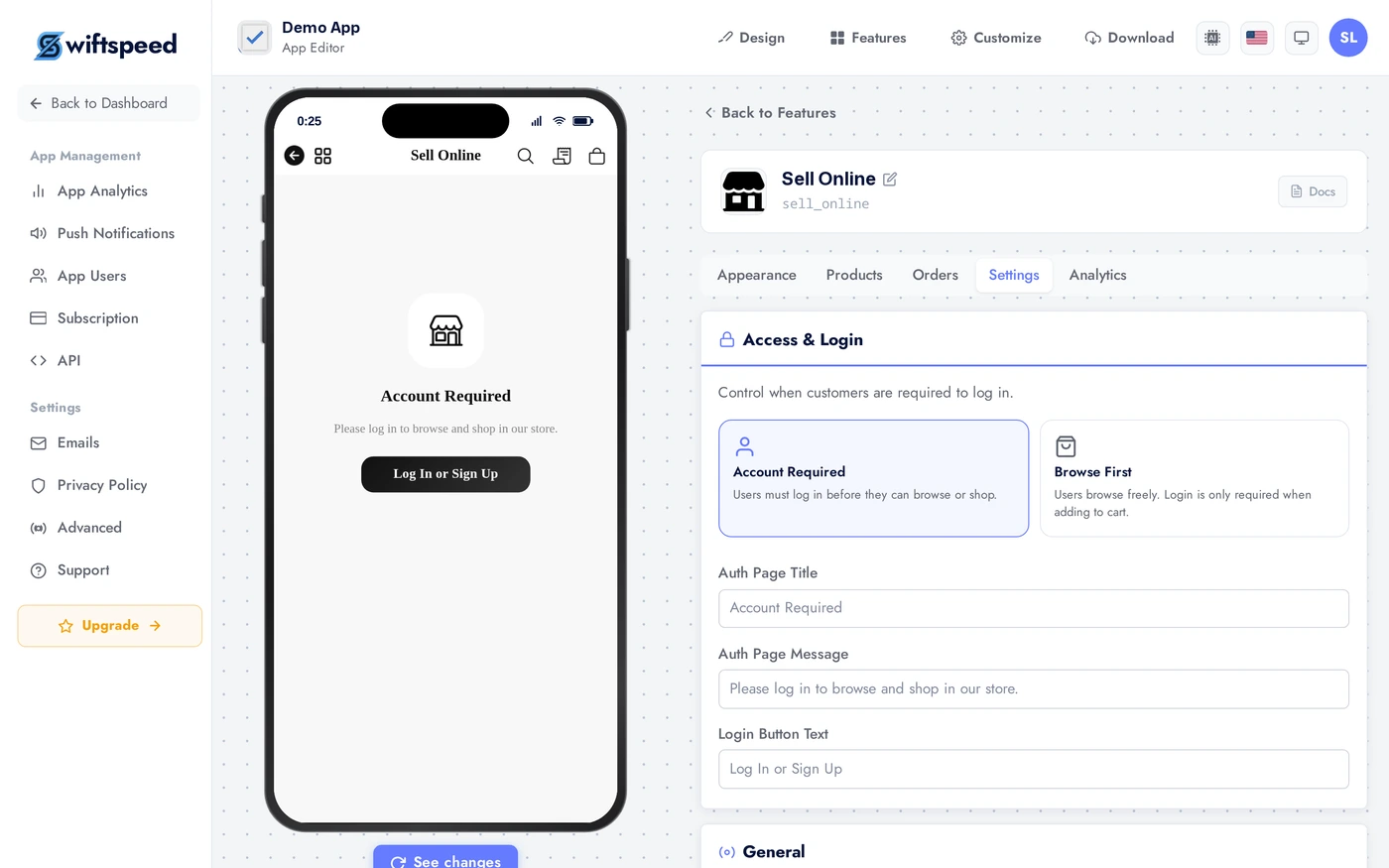
Currency, supported countries, tax handling (inclusive or exclusive), shipping rules (flat rate, free over X, by weight or location), refund policy. Connect Stripe or Paystack in the editor's Publish Monetization page for payment processing.
Analytics Tab
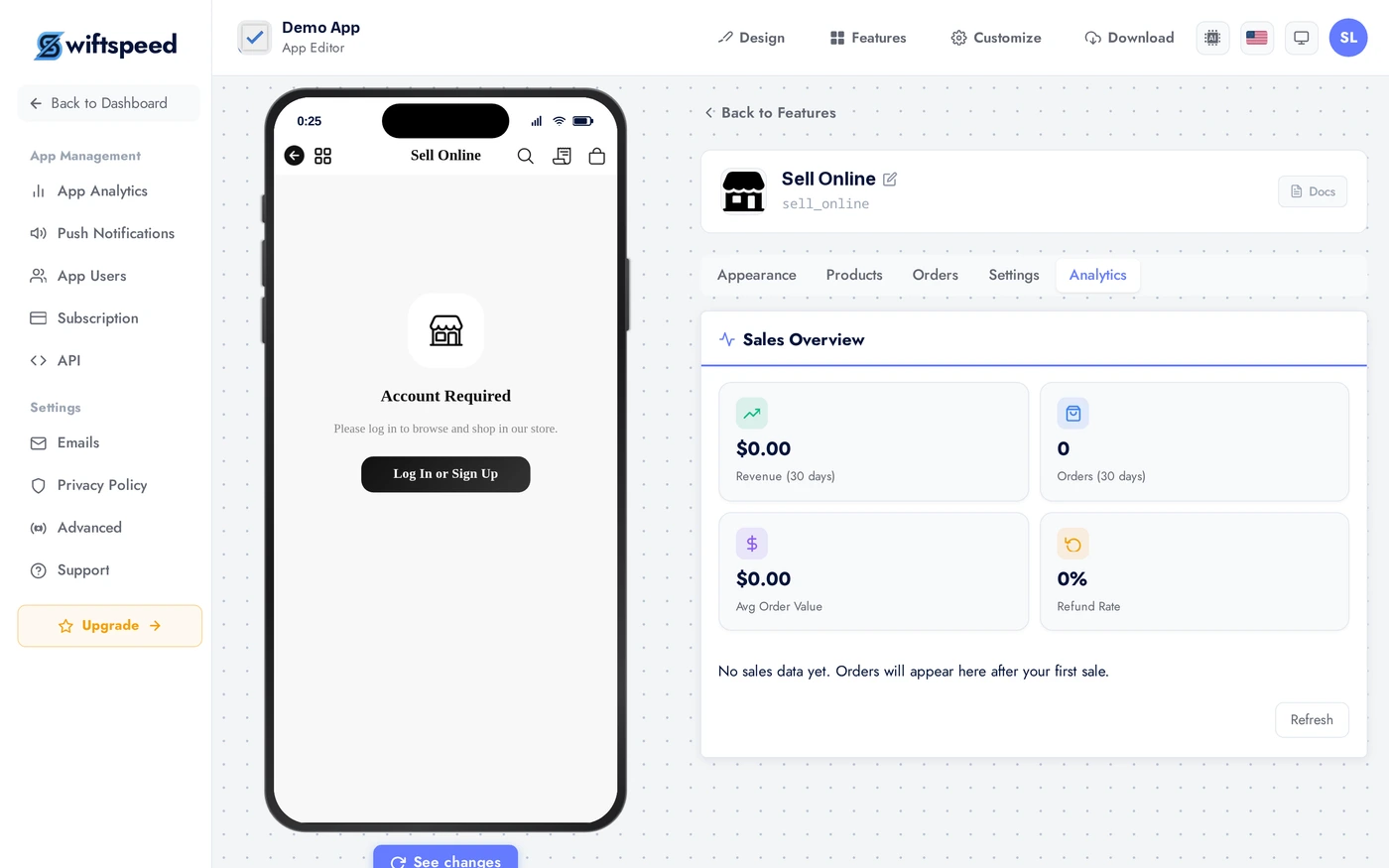
Revenue, orders, conversion rate, top products, average order value, refund rate. Daily, weekly, monthly views. Export to CSV for accounting.
Live Preview
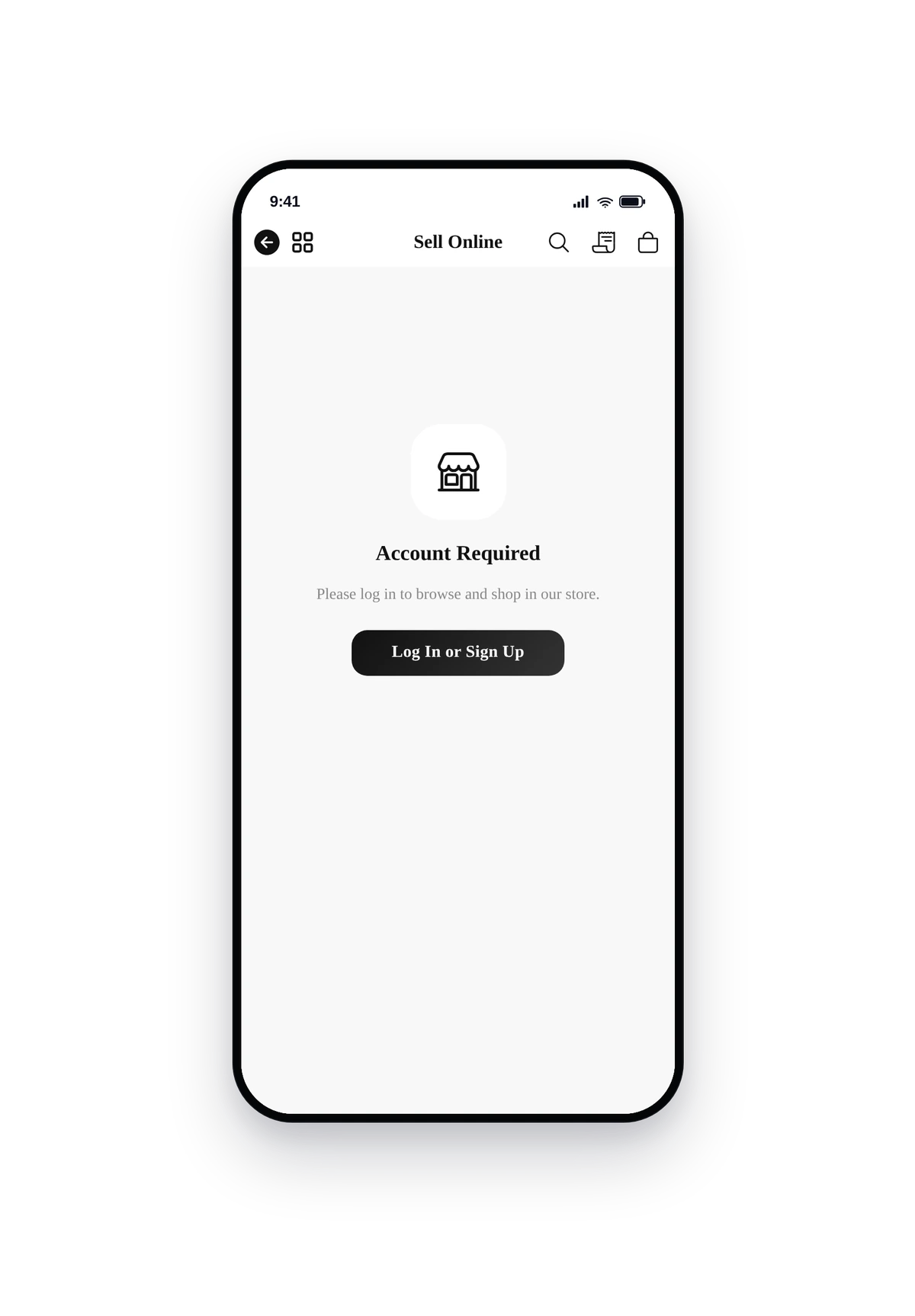
This is the actual native UI. Storefront grid, search at the top, category chips, tap any product for the detail view, add to cart, checkout.
Tips
- List 10 to 30 products at launch. Less feels empty, more is hard to maintain.
- Always upload at least 3 product images per item. Single-image products convert 40 percent worse than multi-image listings.
- Variants matter for clothing and jewellery. One blanket SKU per size and color converts 2 to 4x better than the customer having to ask.
- Free shipping over a threshold lifts average order value. Pick a threshold 20 to 30 percent above your current AOV.
- For digital products, test the automatic email delivery once before publishing. A broken email-after-purchase is the highest-cost bug you can ship.
- Compare-at prices drive urgency. Set a non-zero compare-at for sale items so the strike-through shows.
Removing the Feature
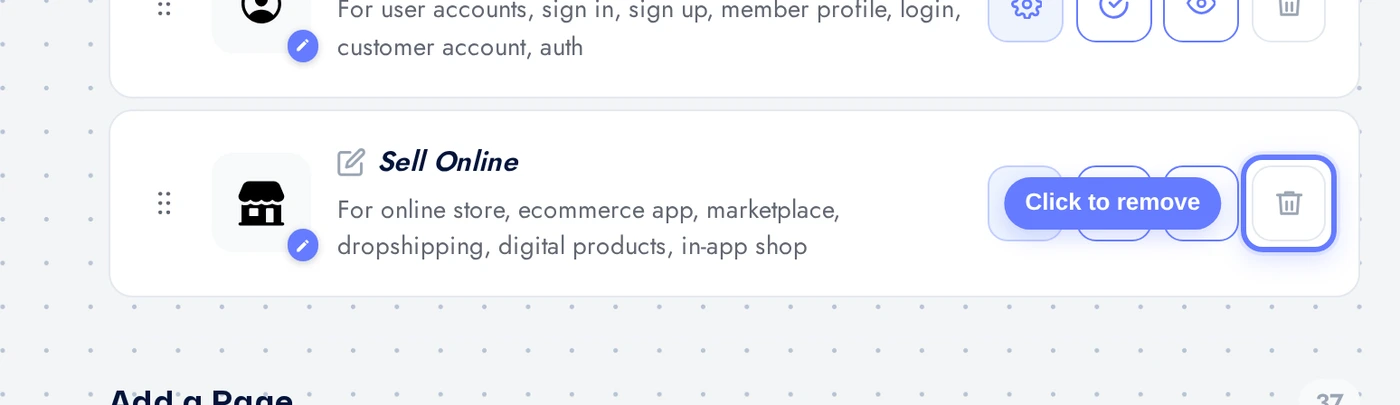
Back on Features, find the Sell Online row, click the red trash icon, confirm.