Publish Monetization: AdMob and Ads
What is the Publish Monetization Page?
The Publish > Monetization page in the editor is where you configure AdMob. AdMob is Google's mobile-app advertising network: banner ads at the bottom of screens, interstitial ads between transitions. Each ad shown by your app earns you a small share of the advertiser's spend. Banner ads are constant low-revenue; interstitials are high-revenue but disruptive.
iOS and Android are configured independently because Apple and Google issue separate AdMob app IDs and ad unit IDs.
Where to Find It
Click Download in the top bar, then Monetization. You land on the AdMob configuration page.
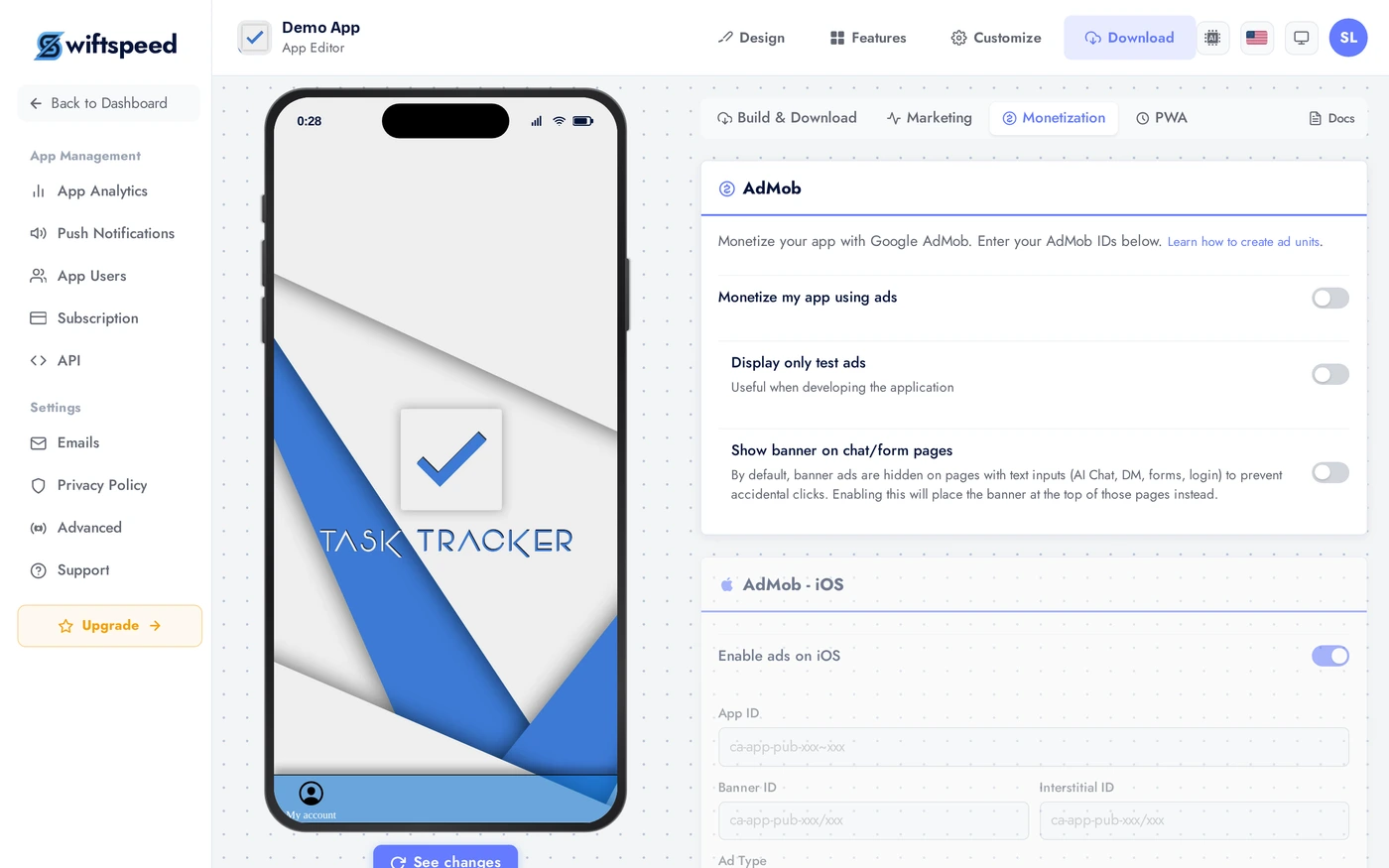
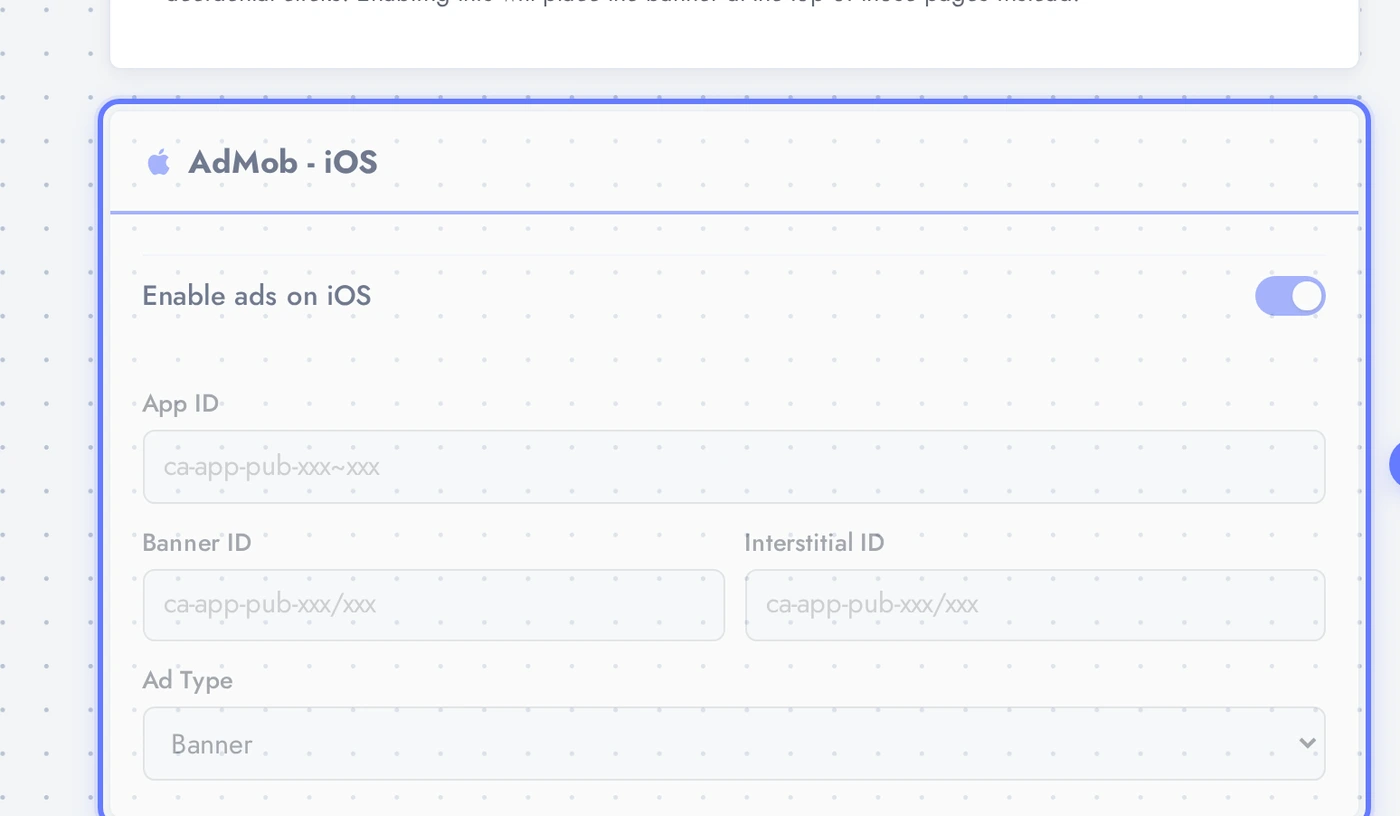
AdMob iOS Configuration
For iOS, you need three values from your AdMob dashboard: App ID (the unique identifier for your iOS app inside AdMob), Banner ad unit ID (for bottom banners), Interstitial ad unit ID (for full-screen interstitials). The Banner type dropdown picks the size: standard (320x50), large (320x100), or adaptive (matches screen width). Toggle AdMob iOS on to enable ads on iPhones.
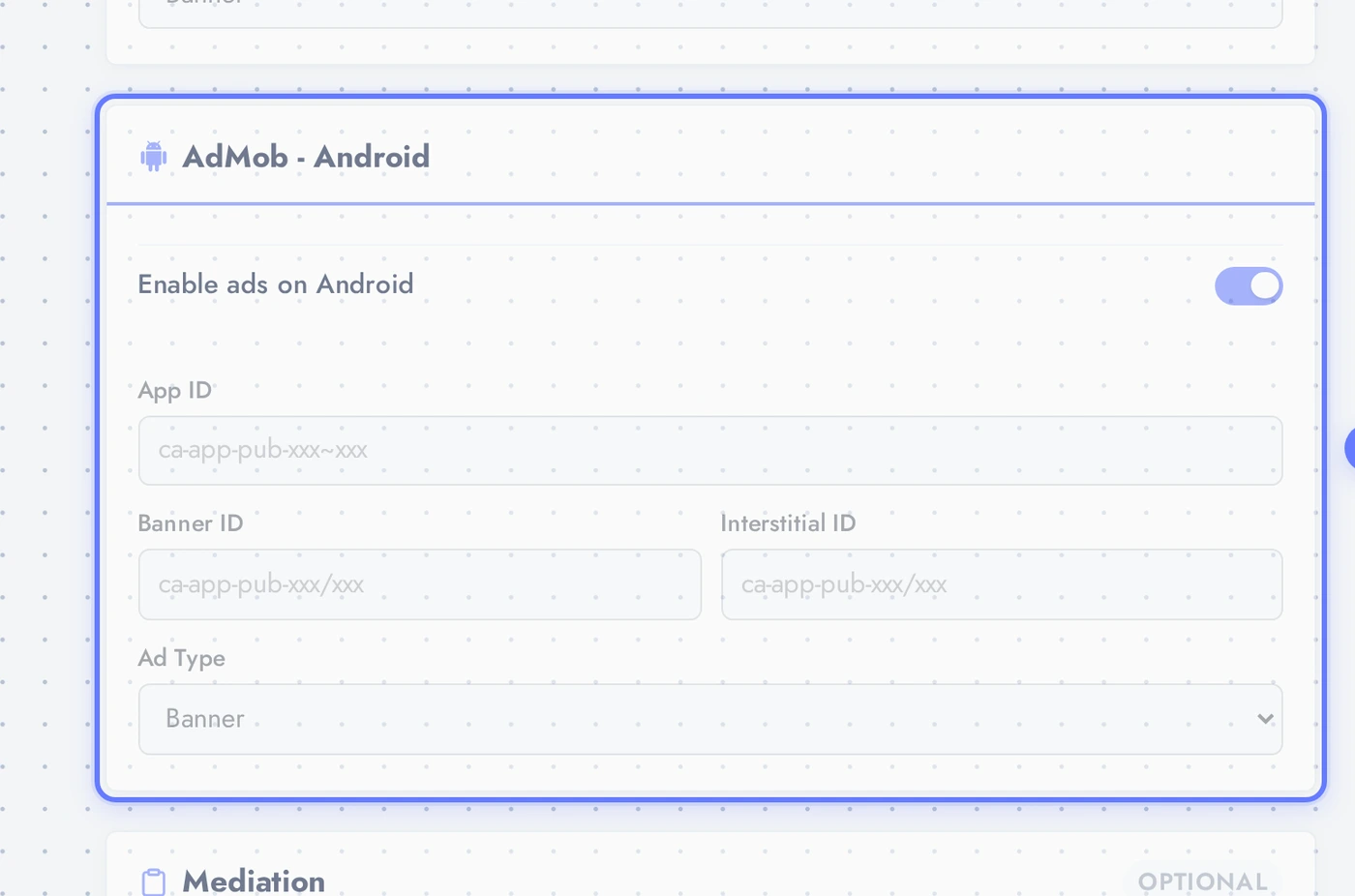
AdMob Android Configuration
Same as iOS but with Android-specific values. Find them in AdMob > Apps > [your Android app] > Ad units. Each ad unit you create has its own ID. The toggle enables AdMob on Android specifically; you can ship ads on one platform and skip the other.
Tips
- Create a separate AdMob app for each platform. Apple and Google each issue their own app ID. Reusing the iOS ID on Android (or vice versa) breaks ad serving.
- Start with banner only. Interstitials make more revenue but disrupt the experience. Add interstitials after launch once you know your user retention.
- Use test ad unit IDs during development. AdMob provides public test IDs (
ca-app-pub-3940256099942544/...) that always return a fake ad. Switch to your real IDs only when you submit to the stores. - Adaptive banners outperform fixed sizes. They auto-resize to the device width and look native; AdMob also pays more for adaptive impressions.
- Live ads on test builds risk account suspension. Always tick "test mode" in the AdMob console while your app is unpublished; switch off only when live on the store.
- Banner-heavy apps feel cheap. Hide banners on premium screens (paywall, account, checkout) and only show on browse/list screens.
Related
- In-app purchases and subscriptions are configured per feature (e.g. Sell Online for products, Fitness Studio for memberships). This page only covers AdMob.
- iOS in-app purchases go through App Store Connect, not Stripe or Paystack. Apple takes 30 percent on digital goods (15 percent after year one on subscriptions).
- Apple's App Tracking Transparency requirement: if you use AdMob on iOS, your app prompts users for tracking permission on first launch. Apple rejects apps that show this prompt aggressively or repeatedly.