Project Management Feature
What is the Project Management Feature?
Project Management turns your app into a shared workspace for a team. You create projects, break them into tasks, assign those tasks to people who signed up in your app, and everyone sees what is theirs the moment they open the app. Progress, deadlines and hours all roll up into reporting you can read at a glance.
It is a core feature, which means an app runs one of them. It needs a signed-in user, so adding it installs the My Account feature automatically if you do not already have it, along with a linked Messages page so members can reach you.
Common use cases for Swiftspeed Project Management App Builder: agencies running client work, construction and trades tracking sites and snag lists, field service teams dispatching jobs, property maintenance, professional services tracking matters to a deadline, and event crews working to a run sheet.
Adding Project Management to Your App
Open Features in the top bar, find the Project Management card in the Add Features list, and click the + button. That is the whole install.
Two things are added for you at the same time, because the feature cannot work without them. My Account arrives if you do not already have it, since projects need a signed-in person to assign work to. A Messages page is also created and linked to Project Management so members can start a chat with you from inside the app. Removing Project Management later removes that linked Messages page and its conversations with it.
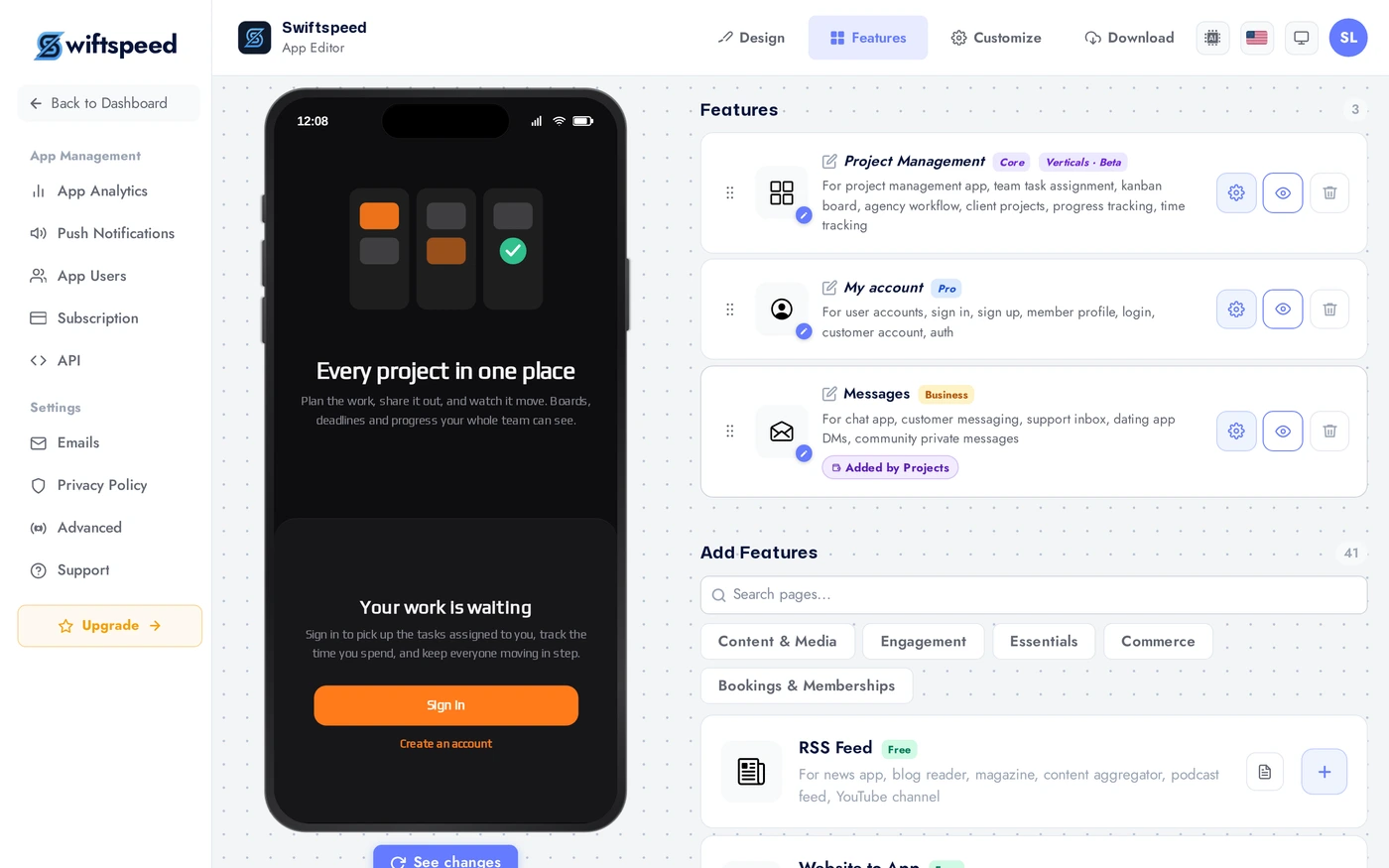
After adding it, your Features list shows Project Management together with My account and a Messages page tagged as added by Projects.
Creating Projects and Assigning Work
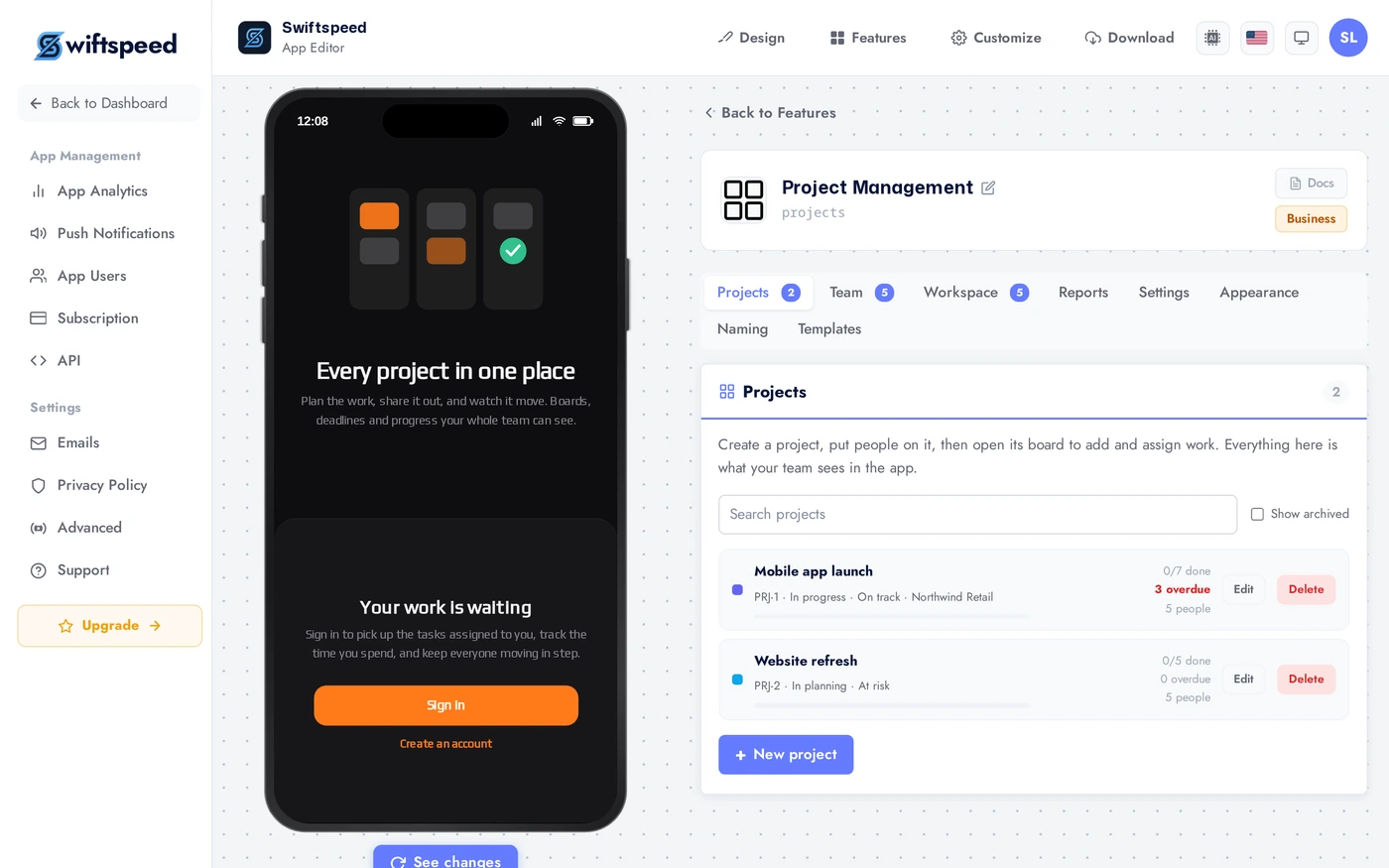
The Projects tab is where the work lives. Create a project, then open its board to add tasks and hand them to people. Everything here is what your team sees in the app.
Each project shows its key, status, health, how many tasks are done, how many are overdue, and how many people are on it. Click New project to add one, or Edit to change it.
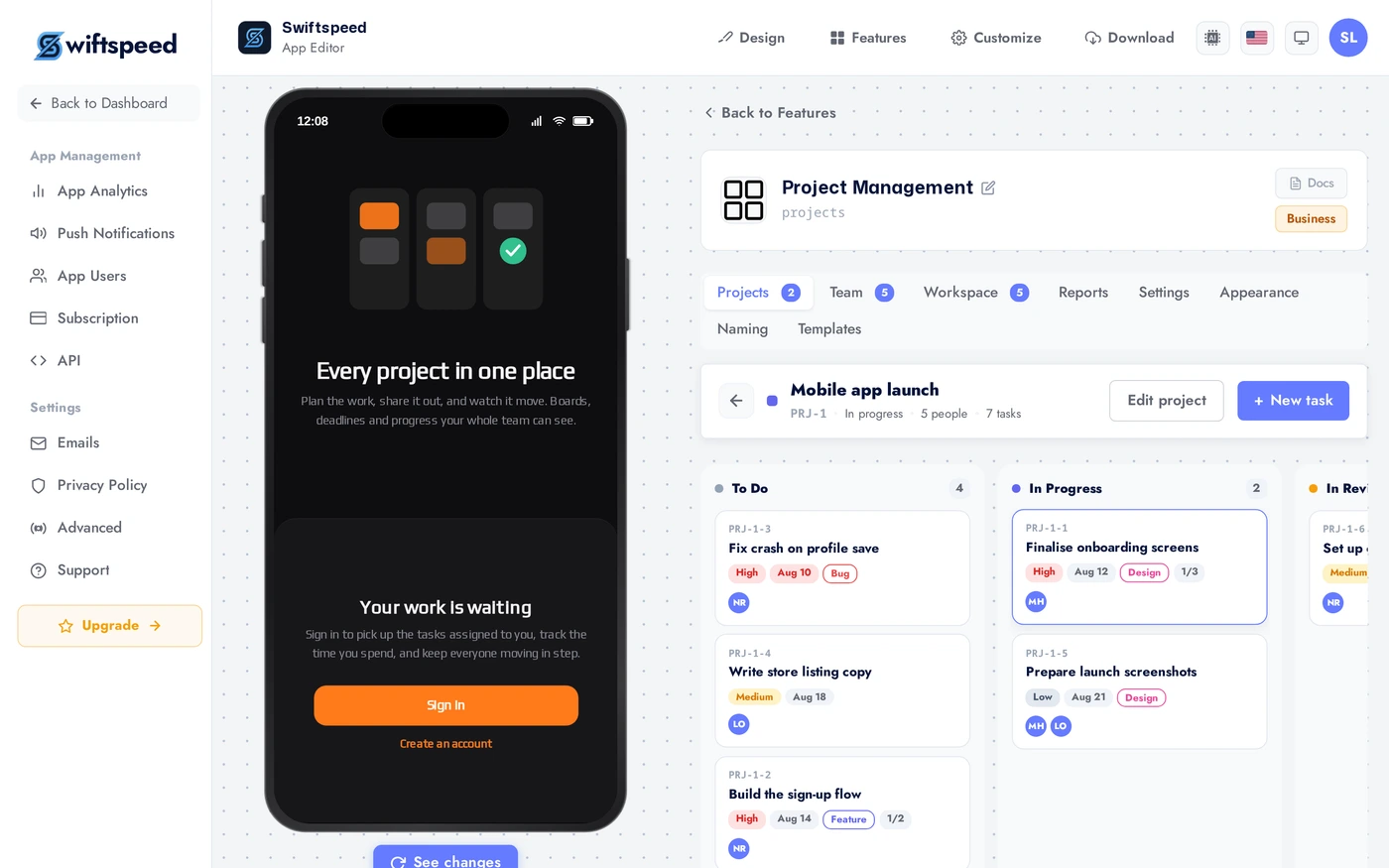
Open a project to get its board. Drag a card between columns and the task status follows. Click + Add task in any column, or click a card to edit it, set its priority and due date, and assign it to someone.
Giving People Roles
Everyone who signs up in your app appears on the Team tab automatically. There is no separate invite system to manage. You stay the owner and keep full control, and the role you give each person decides what they can do from inside the app.
Use the dropdown beside each person to set their role. The list is searchable and paginated, so it still works when thousands of people have signed up.
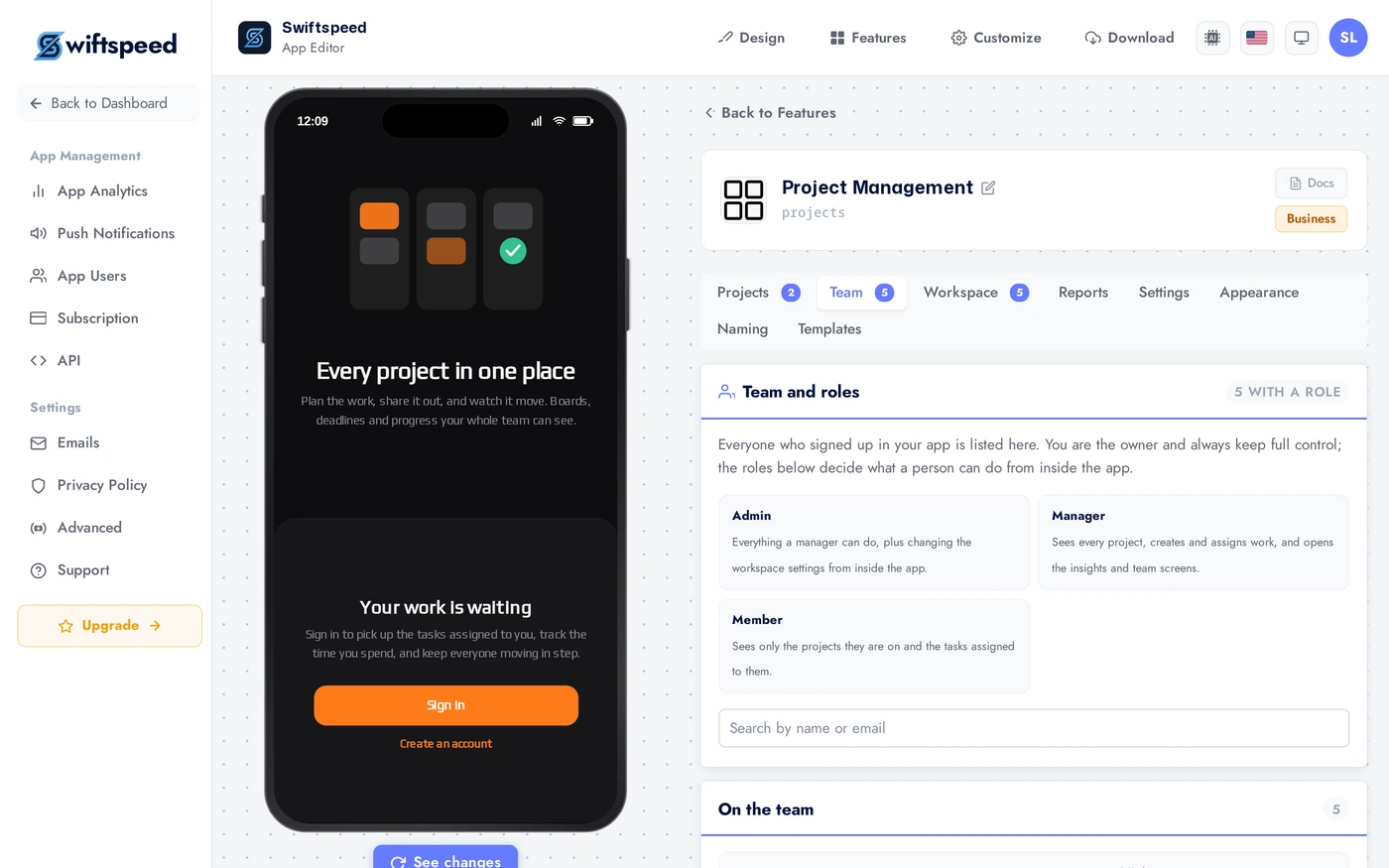
Admin: everything a manager can do, plus changing the workspace settings from inside the app.
Manager: sees every project, creates and assigns work, and opens the insights and team screens.
Member: sees only the projects they are on and the tasks assigned to them.
Reporting and Time Tracking
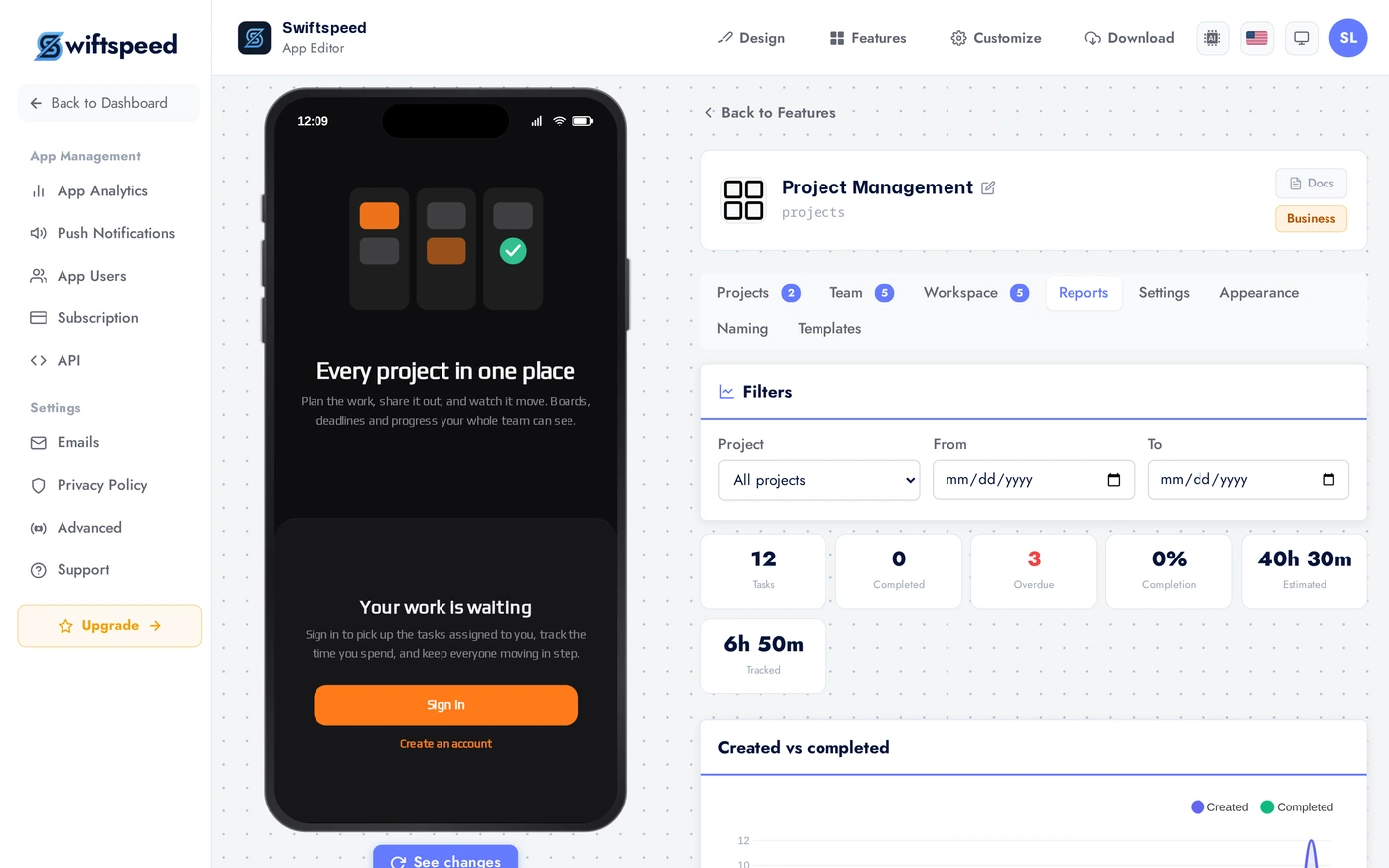
Progress is not a feeling. Every task, deadline and logged hour rolls up into charts you can read in seconds, and the underlying time log exports to a spreadsheet whenever you need to invoice or report.
Tasks by status and priority, project health, and workload per member. Use the export button to download the full time log as a spreadsheet.
Renaming Everything to Match Your Team
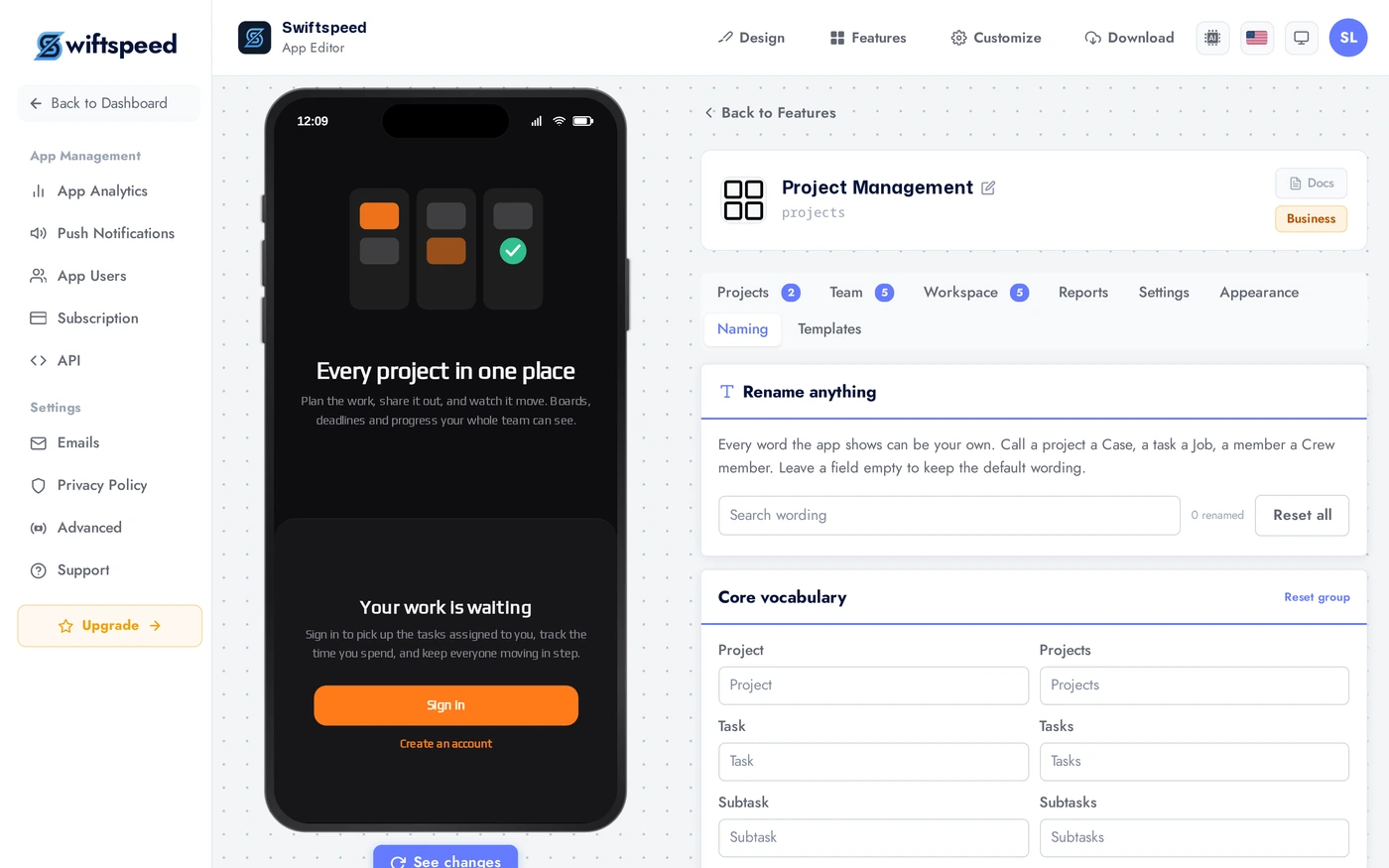
This is the part most teams care about. Every visible word in the app is editable from the Naming tab, so the app speaks the way your team already speaks.
If you run building sites, projects can become jobs and tasks can become steps. A law firm can call them matters. A studio can call them shoots. A field service team can call them visits. You change the word in one place and the whole app follows, including the notification emails.
Labels are grouped by screen so you can work through them in order. Anything you leave alone keeps its default wording.
Themes and Layout
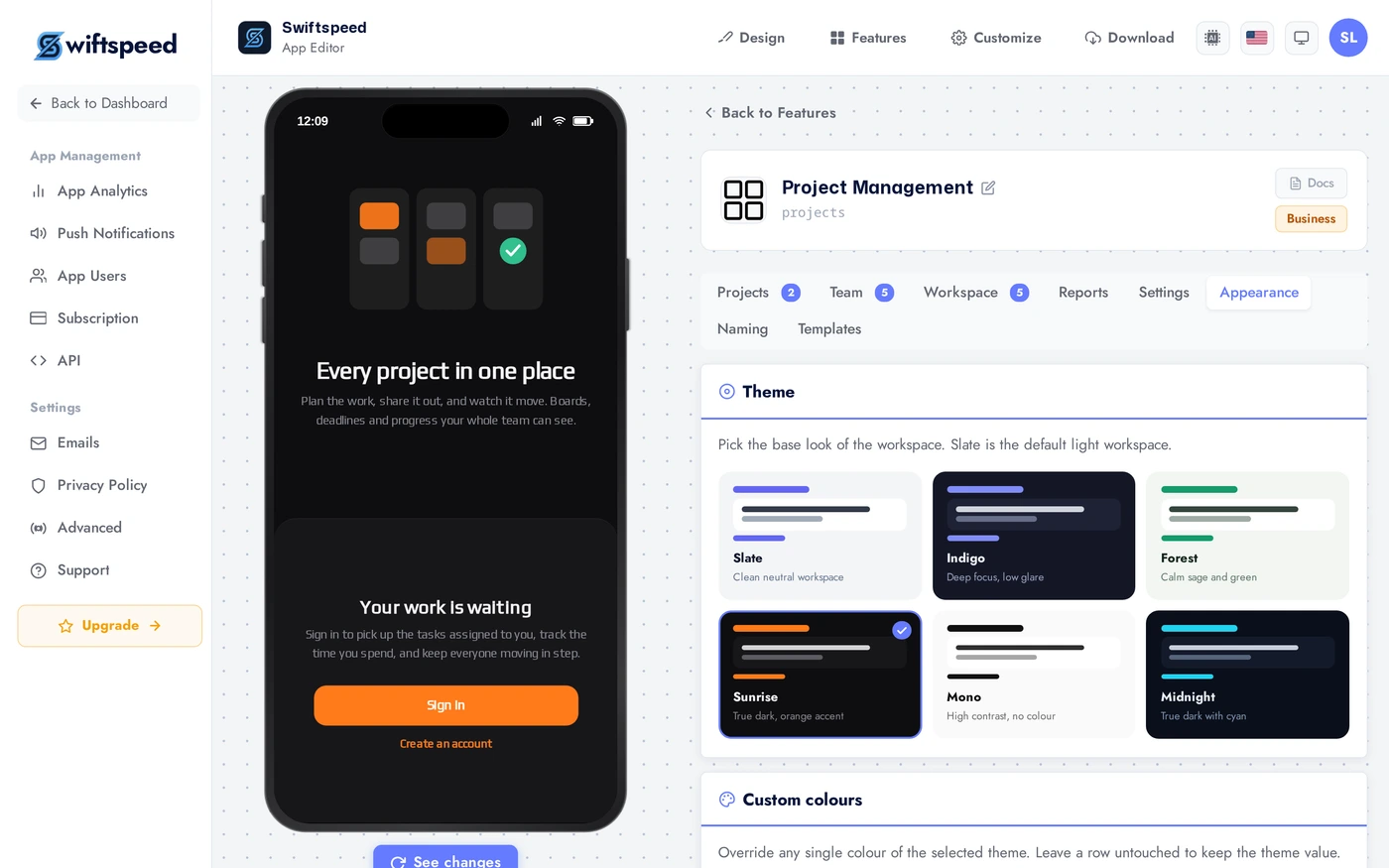
Six themes ship with the feature in light and dark, and every one of the 27 colour tokens can be overridden if you want an exact brand match. The layout setting decides how work is shown when someone opens a project.
Pick a theme and layout, then use Custom colours to override any single token. Leave a row untouched and it keeps the theme value.
Board: kanban columns you drag cards between. The default.
List: a grouped schedule view with an inline timeline.
Calendar: a month view of everything that is due.
Themes: Slate (light), Indigo (dark), Forest (light), Sunrise (dark with an orange accent), Mono (high contrast), Midnight (dark with cyan).
What Your Team Sees
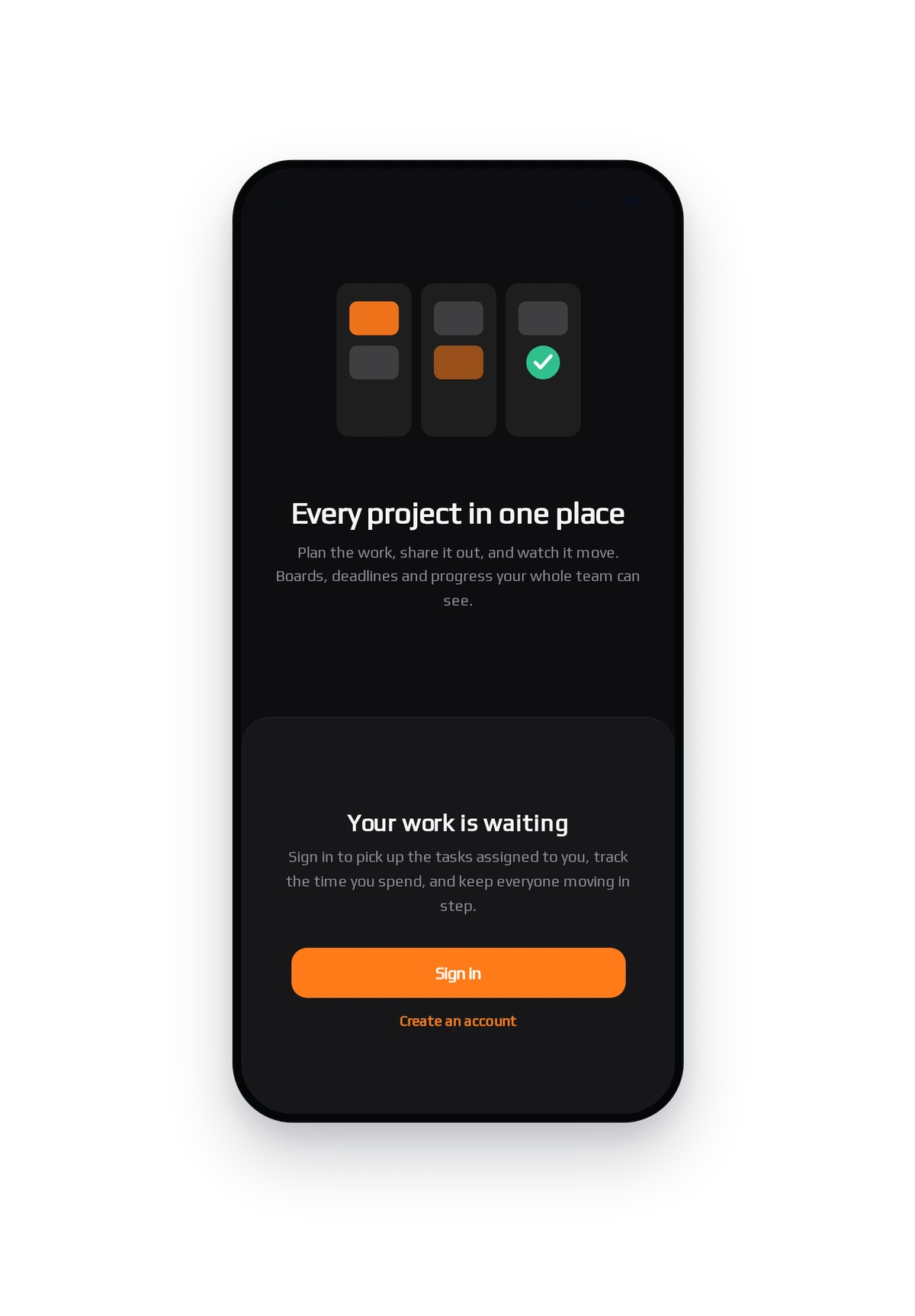
Here is the feature running inside a real phone. Members sign in, then land on their own work.
The home screen has a My work tab and a Projects tab, with counters for assigned, due today, overdue and completed. Opening a task gives subtasks, comments, attachments and a timer. Assigning work sends the person a push notification and an email in your own wording.
Tips and Best Practices
Rename the labels before you invite anyone. The wording is the difference between a generic tool and one that feels built for your trade. Do it once, up front, and the app reads naturally from day one.
Give most people the Member role. Members only see the projects they are on, which keeps their home screen short and their app fast. Reserve Manager for the people who genuinely need to see everything.
Use the progress percentage instead of dragging when you are on the phone. Typing a number moves the task for you: 0 sends it back to To do, anything between 1 and 99 puts it in progress, and 100 completes it.
Turn on both notification channels for assignment. Push gets attention now, email leaves a record. Both use your wording from the Templates tab.
Set the reminder window to match your work. A 24 hour reminder suits office work. Same-day trades often want it shorter so it lands the morning of the job.
Export the time log at month end. The export is the full record per task, person and project, which is what you need for invoicing rather than a summary chart.