Journal Feature
What is the Journal Feature?
The Journal feature is a private writing surface inside your mobile app. End-users write daily entries, attach photos, tag entries, track mood, follow prompts, and (optionally) lock the journal behind a passcode or biometric. Suitable for wellness, mindfulness, gratitude, habit-tracking, and reflective journaling apps.
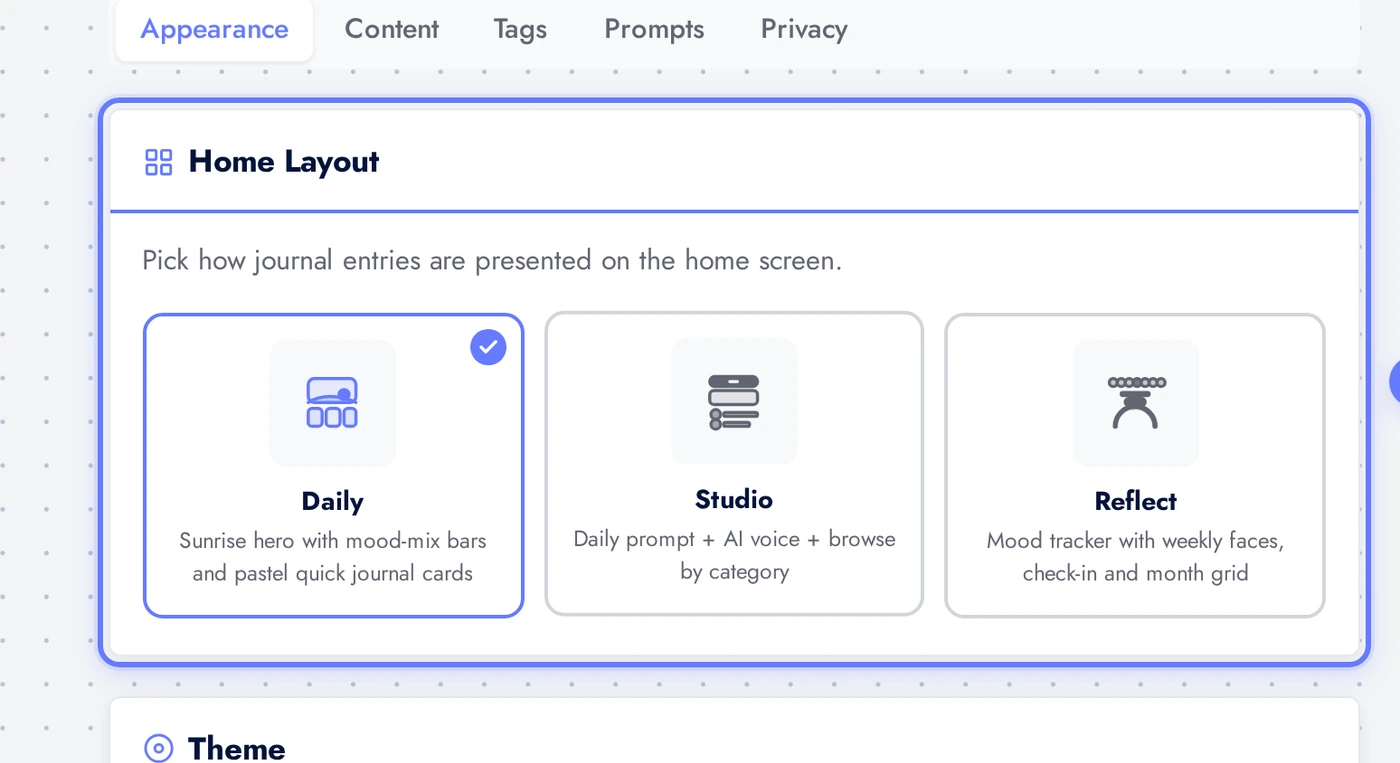
Three preset layouts available. Daily is calendar-based, one entry per day. Studio is timeline-based, free-form. Reflect is prompt-led, optimised for guided reflection. Pick what matches your audience.
Adding the Journal Feature to Your App
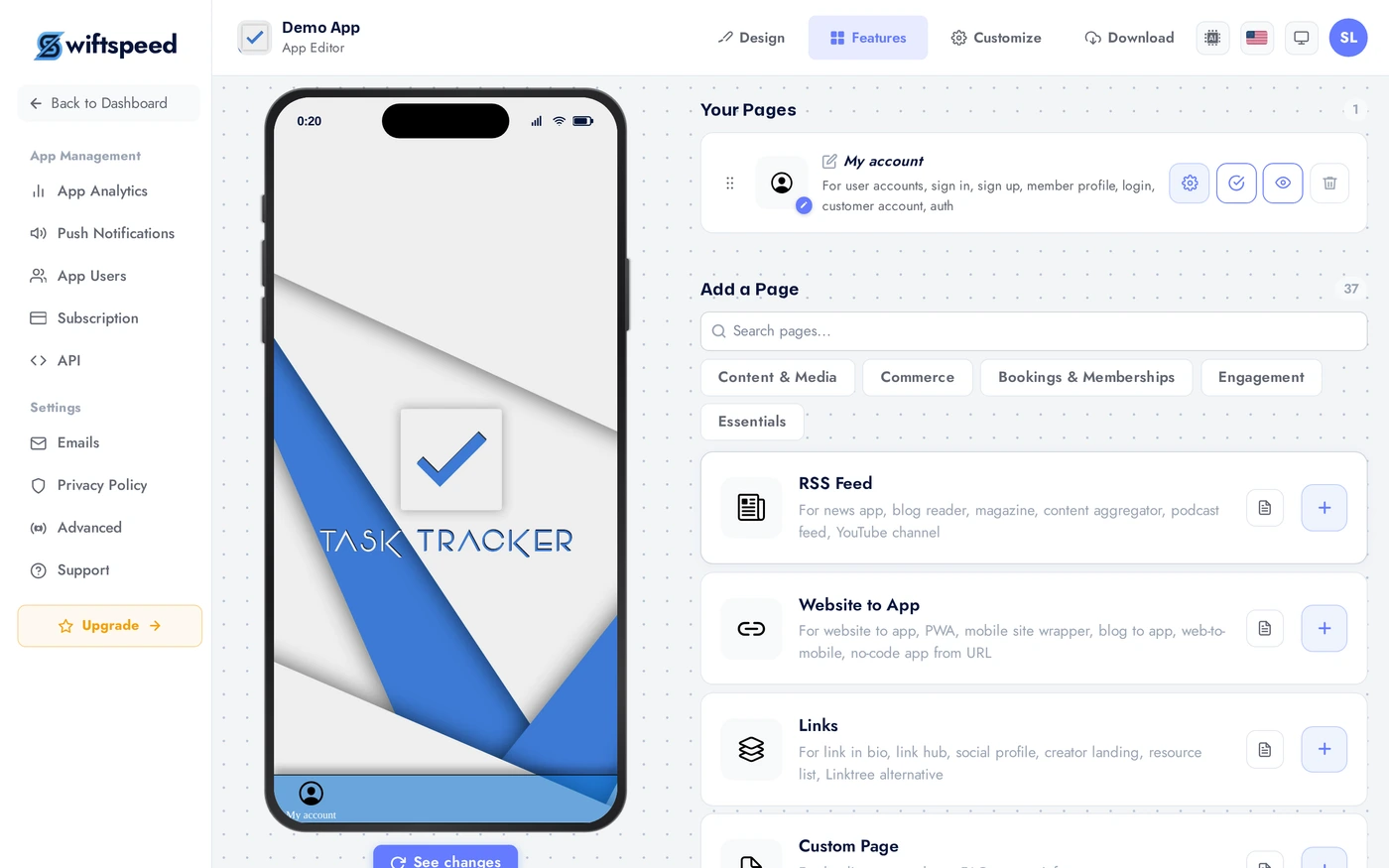
In the App editor, click Features in the top bar.
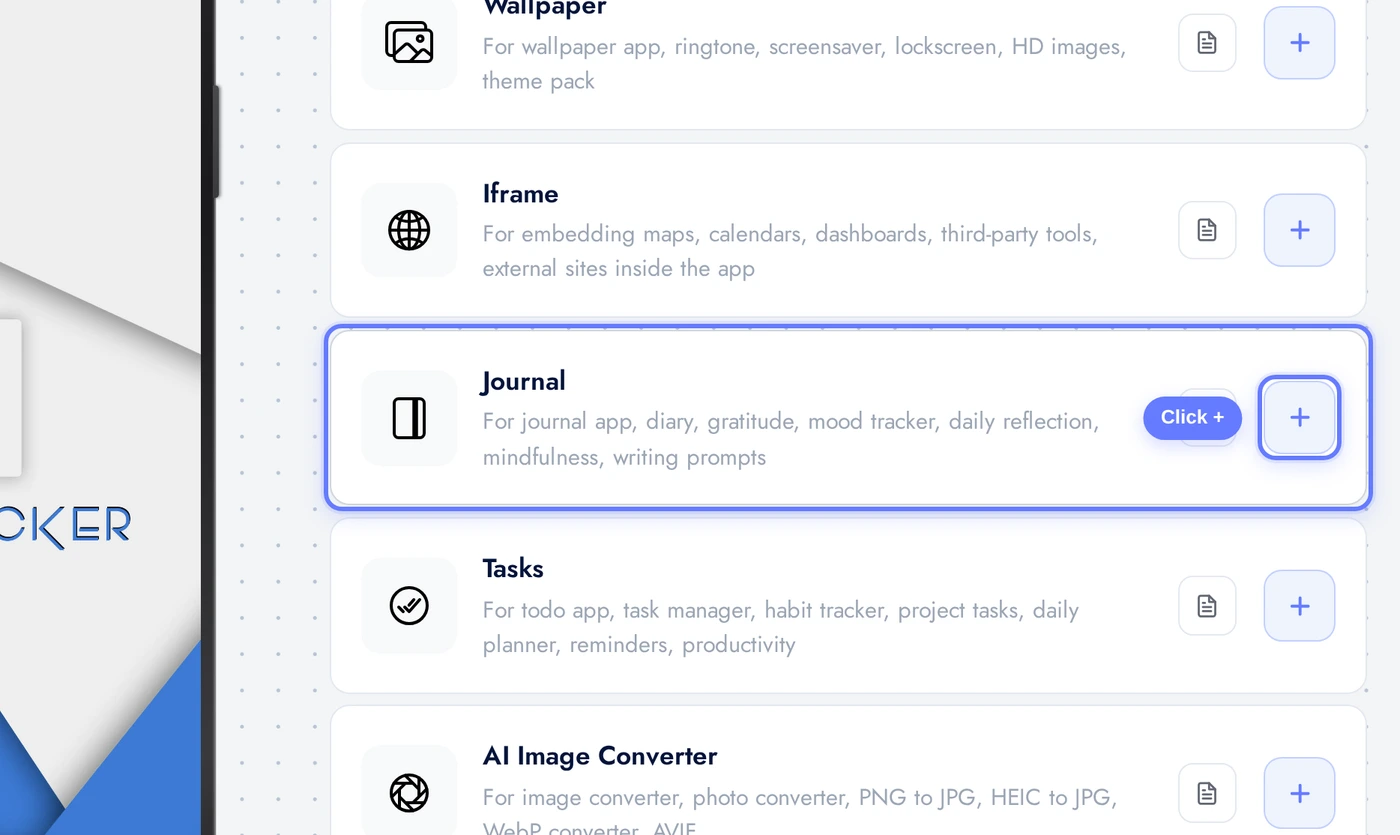
Find the Journal card and click the + button.
Appearance Tab: Layout, Theme, Colors
Three layouts: Daily (calendar-based, one entry per day, good for habit-building), Studio (timeline, free-form, good for general journaling), Reflect (prompt-led, good for guided reflection apps). Pick what matches your audience's journaling style.
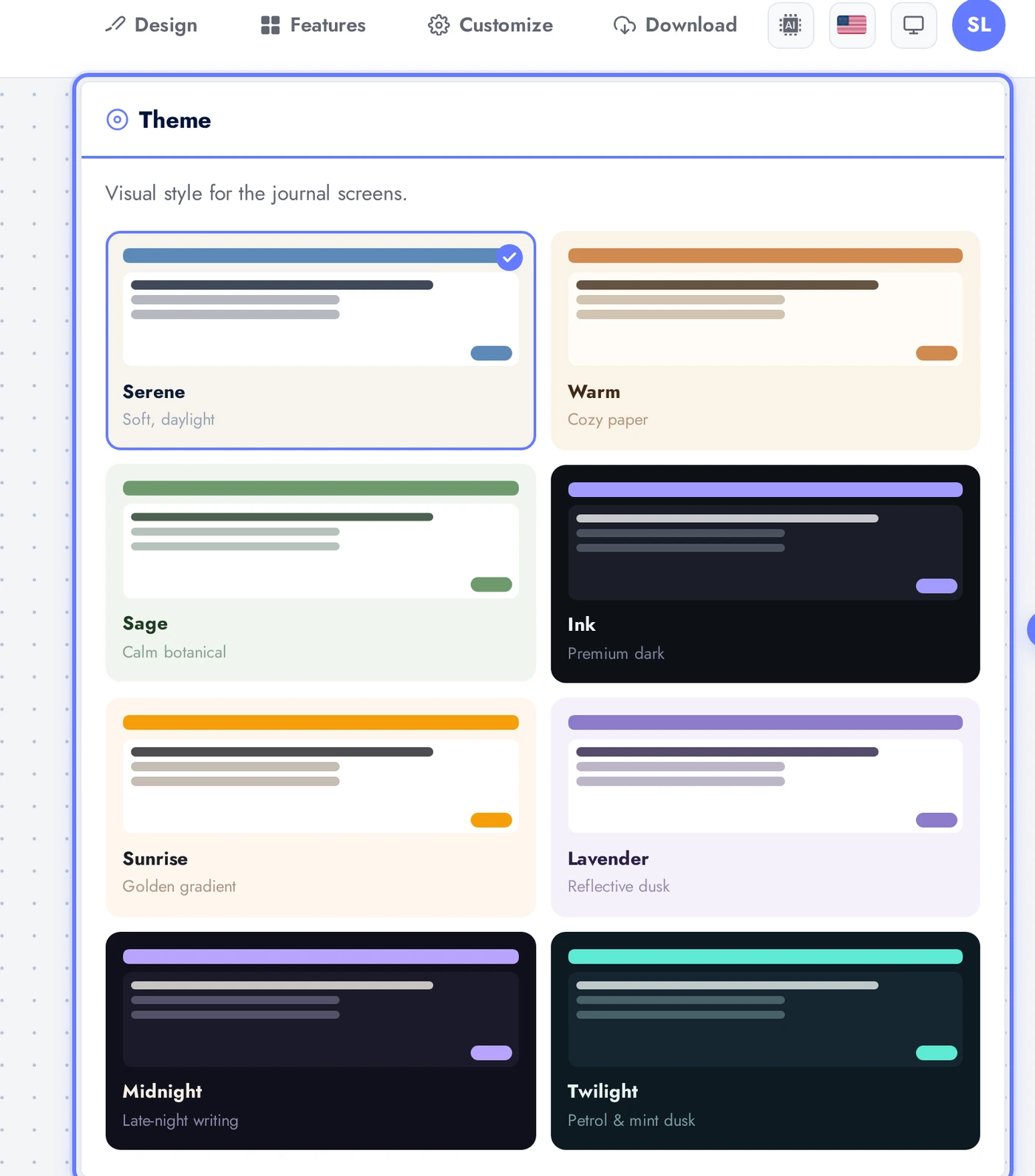
Each theme adjusts background, surface, and accent colors as a set. For journaling apps, muted serene palettes outperform high-contrast: users want a calm space.
Content Tab: Hero and Feature Toggles
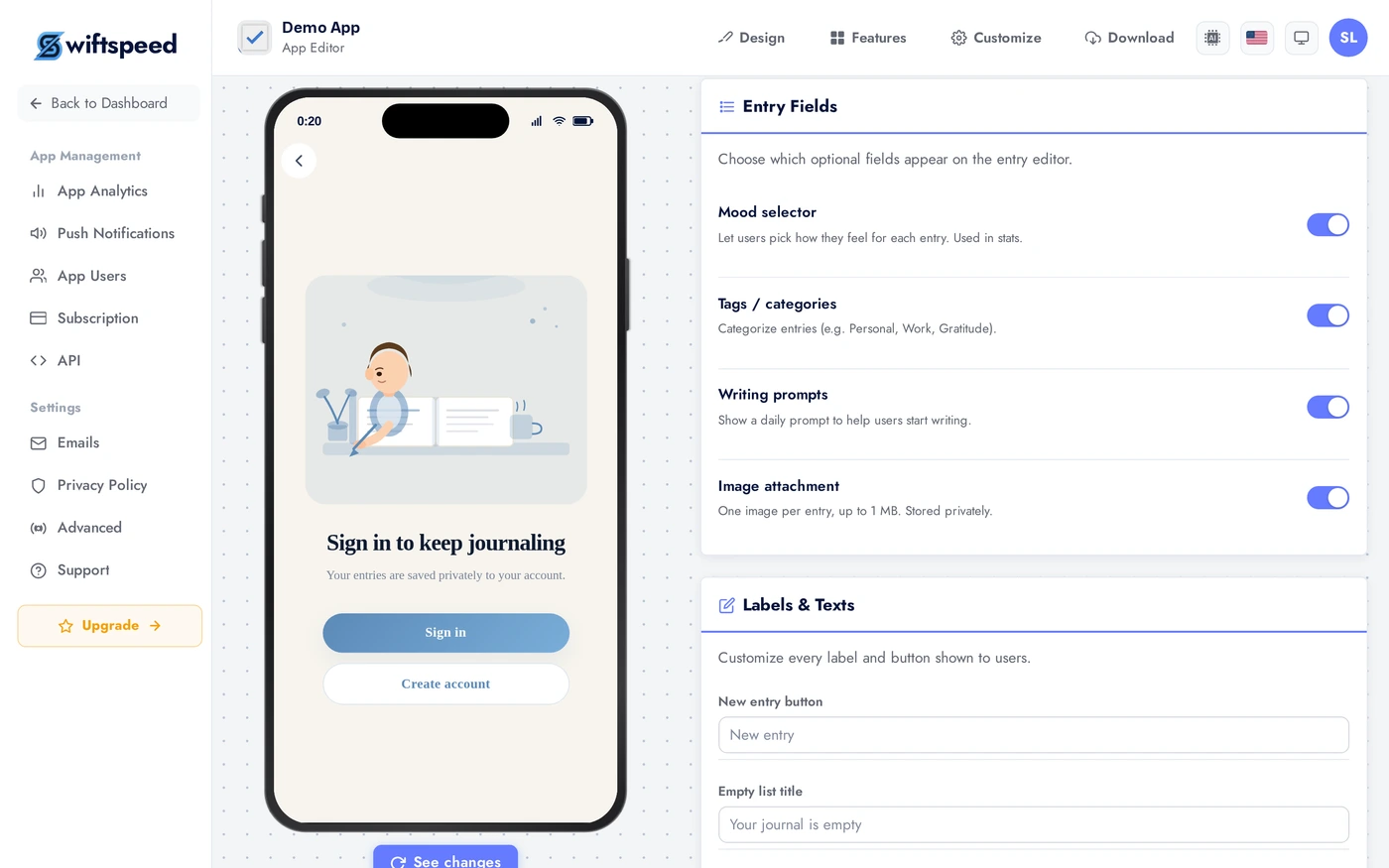
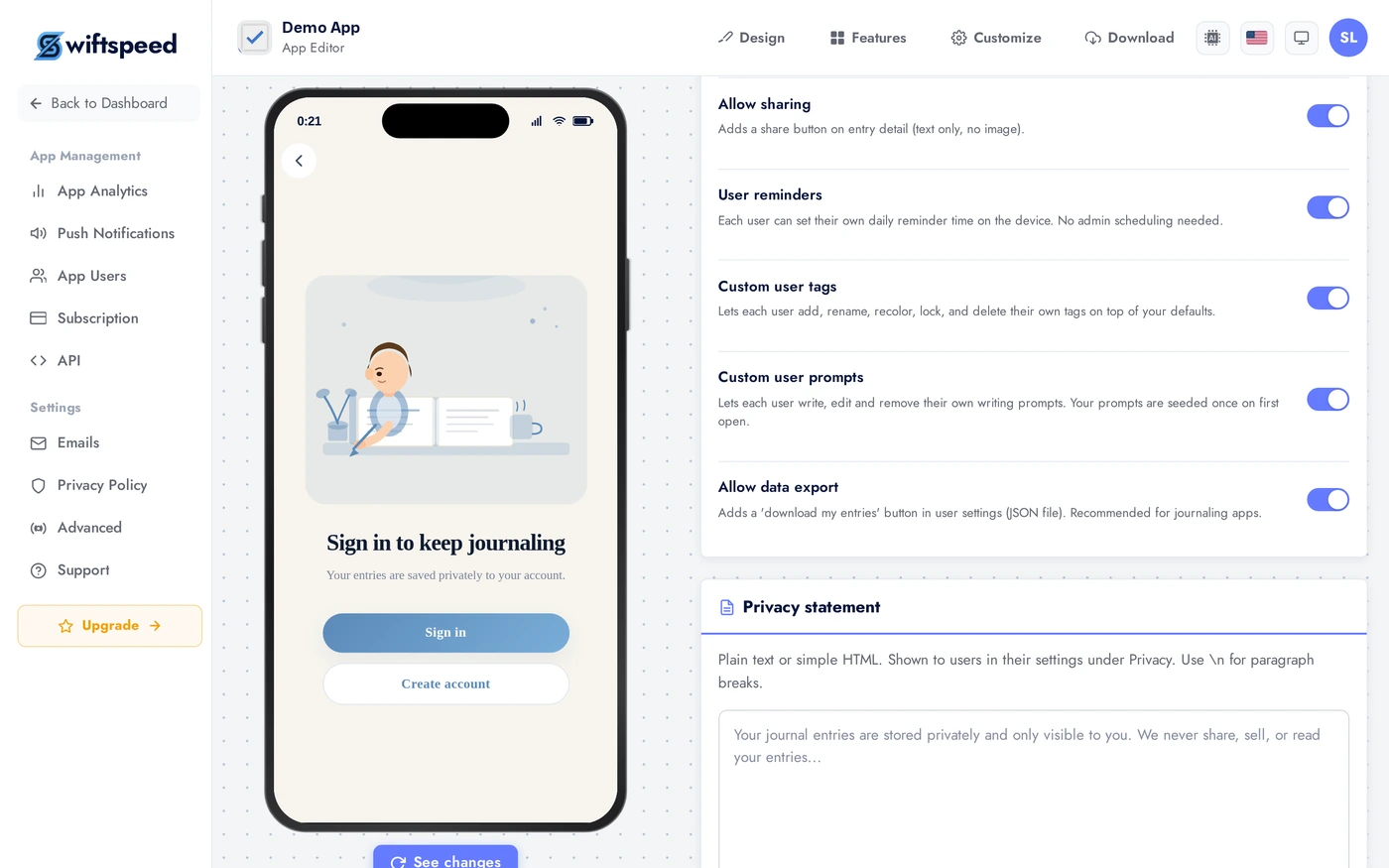
Set the hero title and subtitle, plus toggle individual features: Mood tracking adds a mood selector to every entry. Tags lets users label entries. Prompts surfaces writing prompts you author. Image attachment lets users add photos. Lock the journal adds a passcode or biometric gate. Share lets users export individual entries. Reminders sends daily push notifications. Export lets users download their full journal as a PDF.
Tags Tab: Pre-Seeded Tags
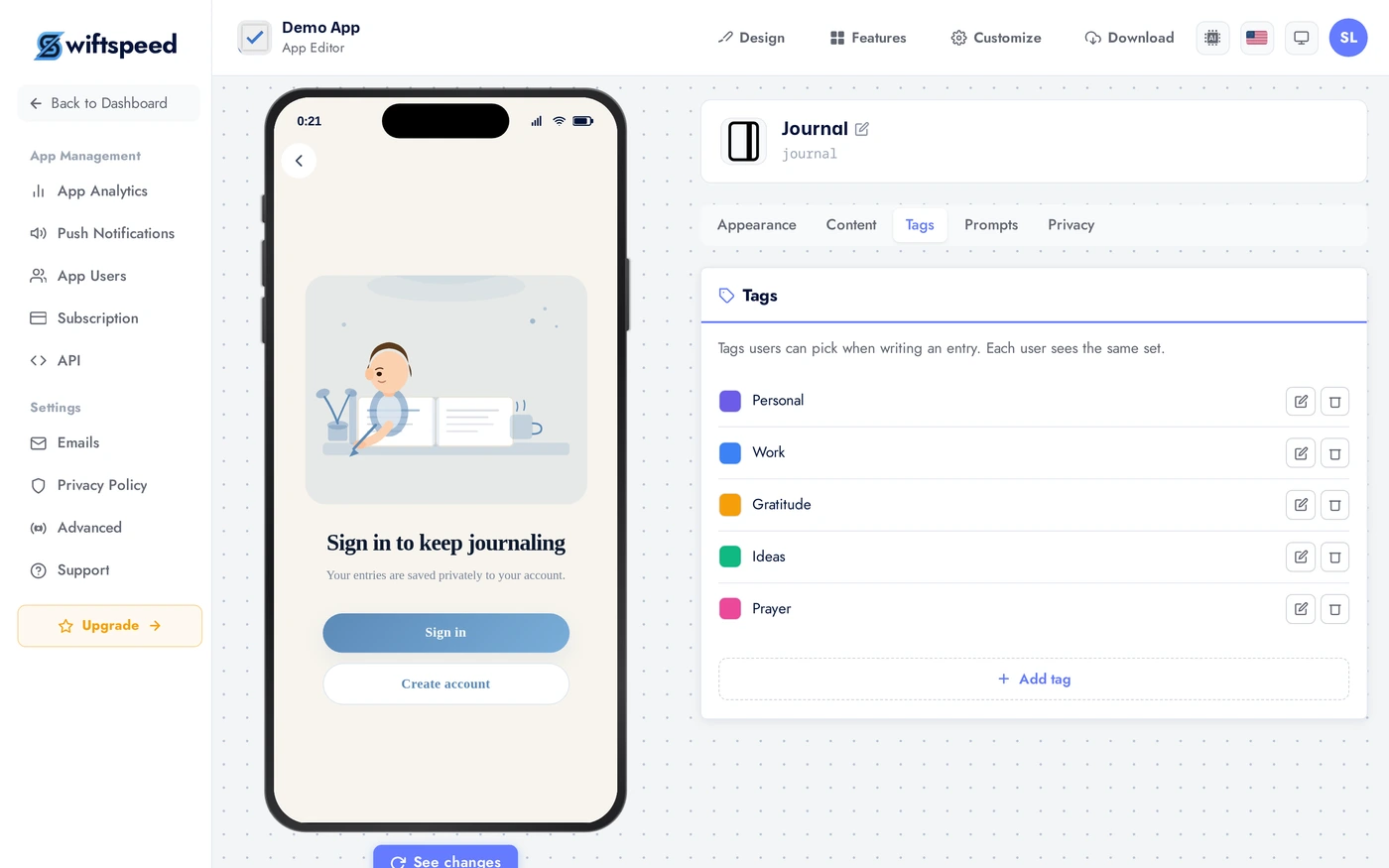
Pre-seed tags every user starts with. Examples: work, personal, travel, health. Users can add their own (if the Tags feature toggle is on). Pre-seeding 5 to 10 tags gives new users a starting frame.
Prompts Tab: Daily Writing Prompts
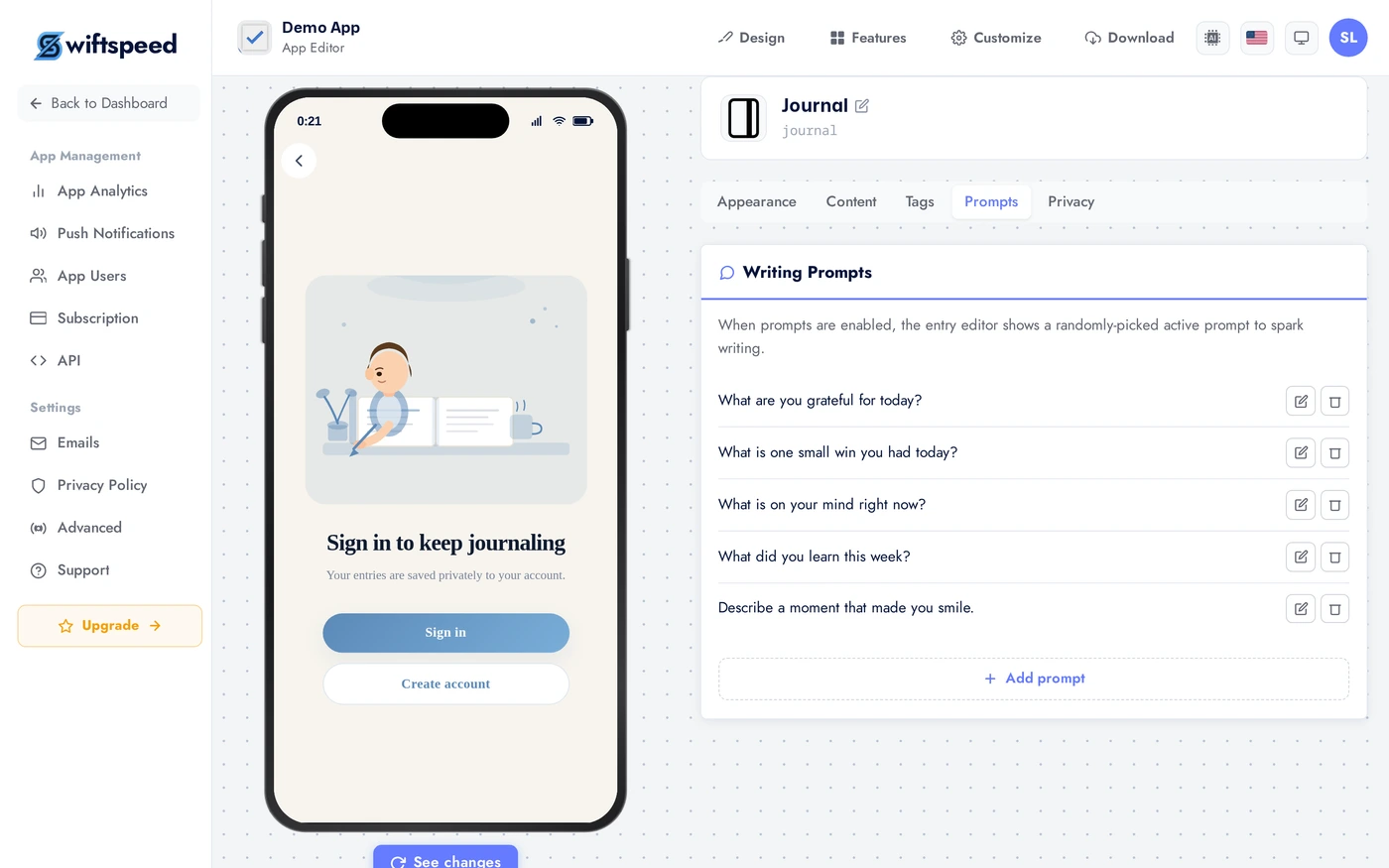
Author writing prompts that surface at the top of the entry composer. Examples: "What went well today?", "One thing I learned", "How am I feeling right now?". The app rotates through them daily. Pre-seeding 3 to 5 prompts is enough; empty prompts feel like a missing feature.
Privacy Tab: Lock and Statement
The Privacy statement is shown on the journal entry view to reassure users their writing is private. Require login forces users to be signed in before they can view or write entries (highly recommended for any cloud-synced journal). The Lock toggle in the Content tab adds an additional passcode or biometric gate inside the app.
Live Preview
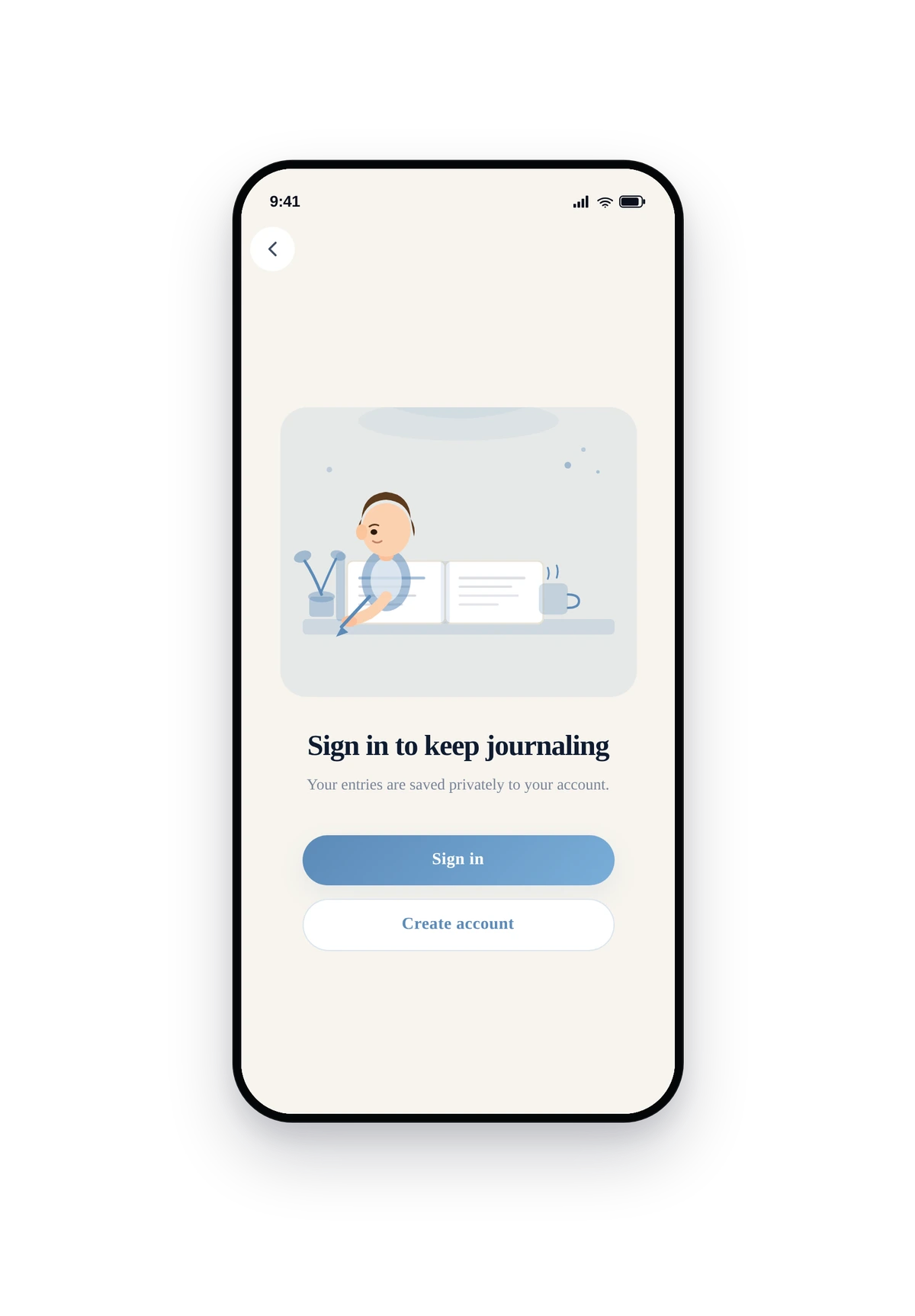
This is the actual native UI. The layout, theme, and feature toggles you picked are all live. End-users tap New entry to write, Calendar to navigate by date, or scroll the timeline.
Tips
- Require login by default. Cloud-synced entries are the killer feature; users hate losing their journal if they uninstall.
- Daily reminders are critical for habit retention. Most journals die after week 2 without reminders. Default the reminder to a thoughtful time (evening for daily reflection, morning for intention-setting).
- Pre-seed 3 to 5 prompts. Empty prompts look broken; too many overwhelms first-time users.
- Mood tracking is the engagement multiplier for wellness apps. Turn it on by default.
- The Daily layout works best for habit apps. Timeline (Studio) suits free-form journaling. Reflect suits guided reflection apps.
- If you lock the journal, set a clear privacy statement. Users want to know what privacy locking actually buys (the device only, not server-side encryption).
Removing the Feature
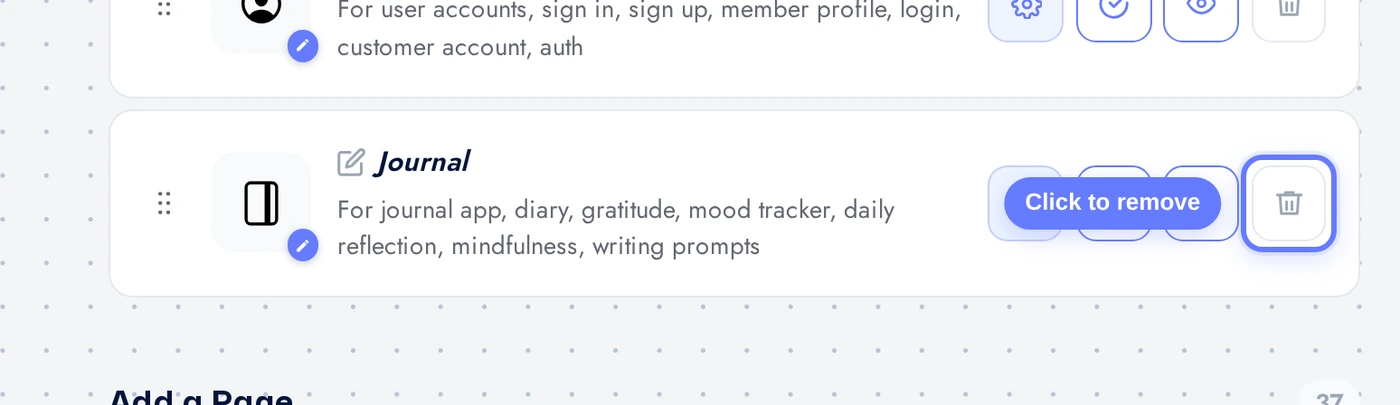
Back on Features, find the Journal row, click the red trash icon, confirm. The feature is gone; previously written entries are kept on the server until you delete them through the customer account or the API.