Books & Reader Feature
What is the Books & Reader Feature?
Books & Reader turns your app into a native ebook library. You upload EPUB files in the editor; the platform extracts the chapters into a true reflowable reader so your readers get adjustable text size, light and dark themes, bookmarks, read-aloud (text to speech), reading progress, and offline reading. Embedded audio in a book plays through the native engine with lock-screen controls.
Five editor tabs control the feature: Library to upload and manage books, Categories to group them into shelves like "Trending", Appearance for the mode, theme and home layout, Storage for where book files live, and Reports for reader activity.
Adding the Books & Reader Feature
In the App editor, click Features in the top bar.
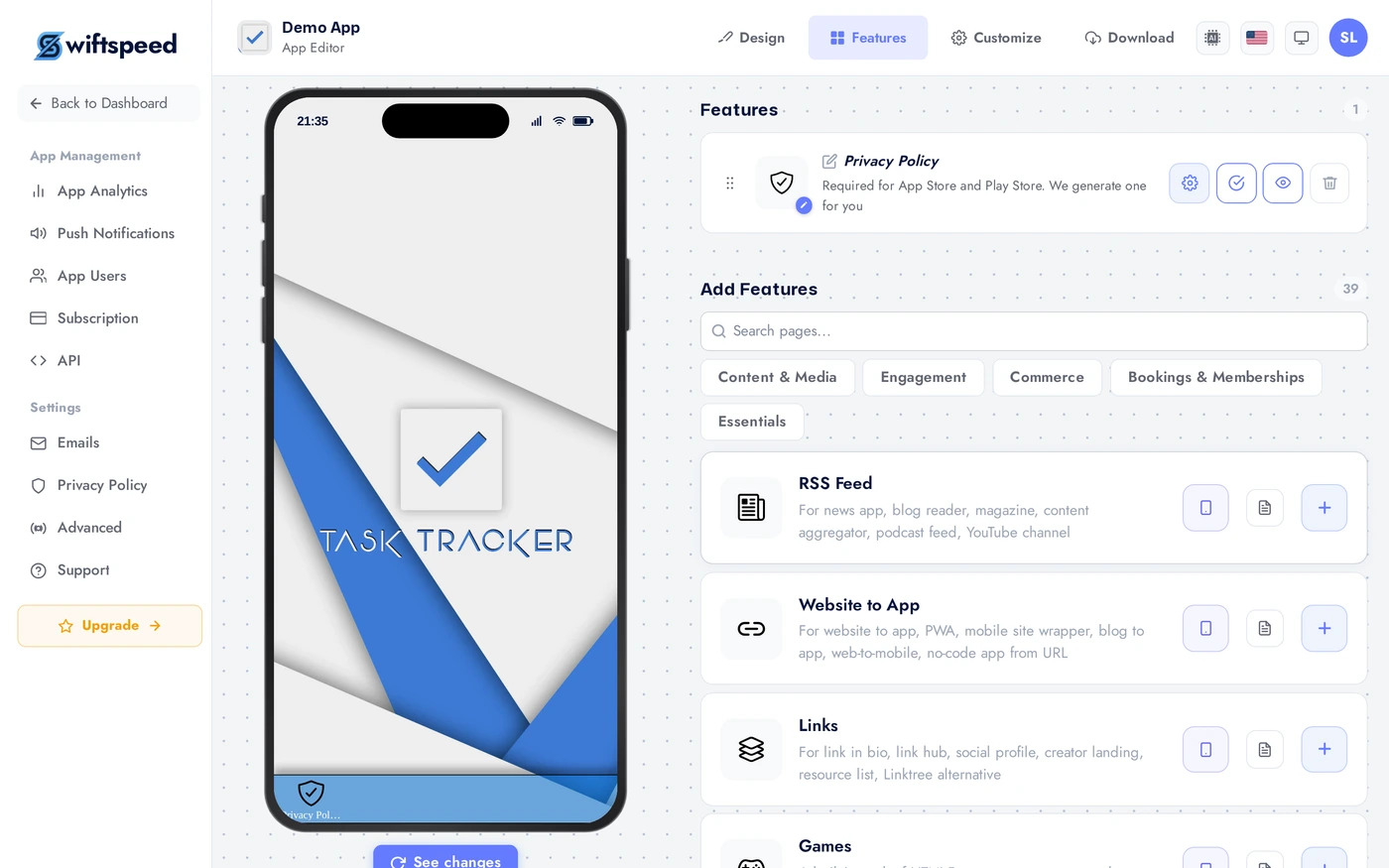
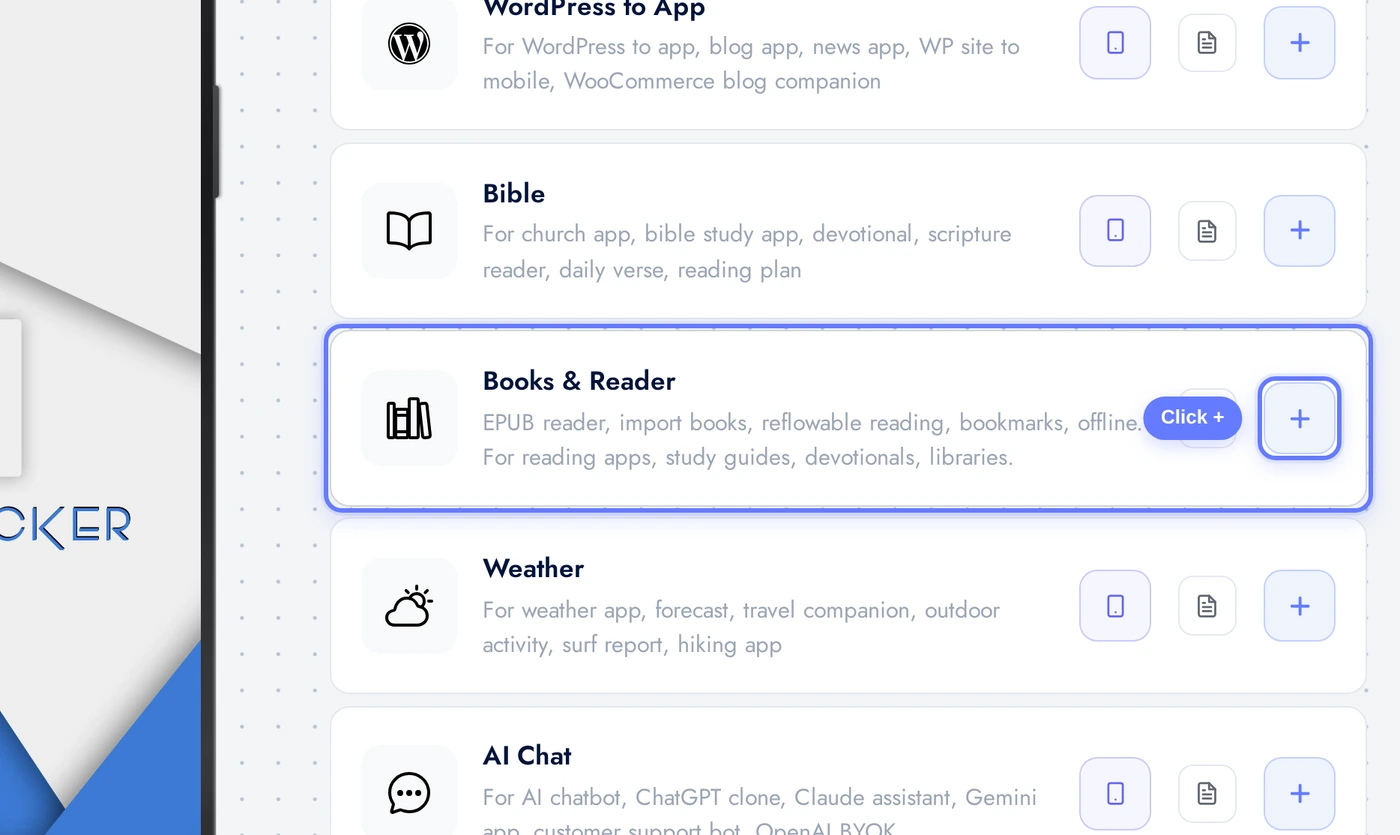
Find the Books & Reader card and click the + button to add it.
Library Tab: Uploading Books
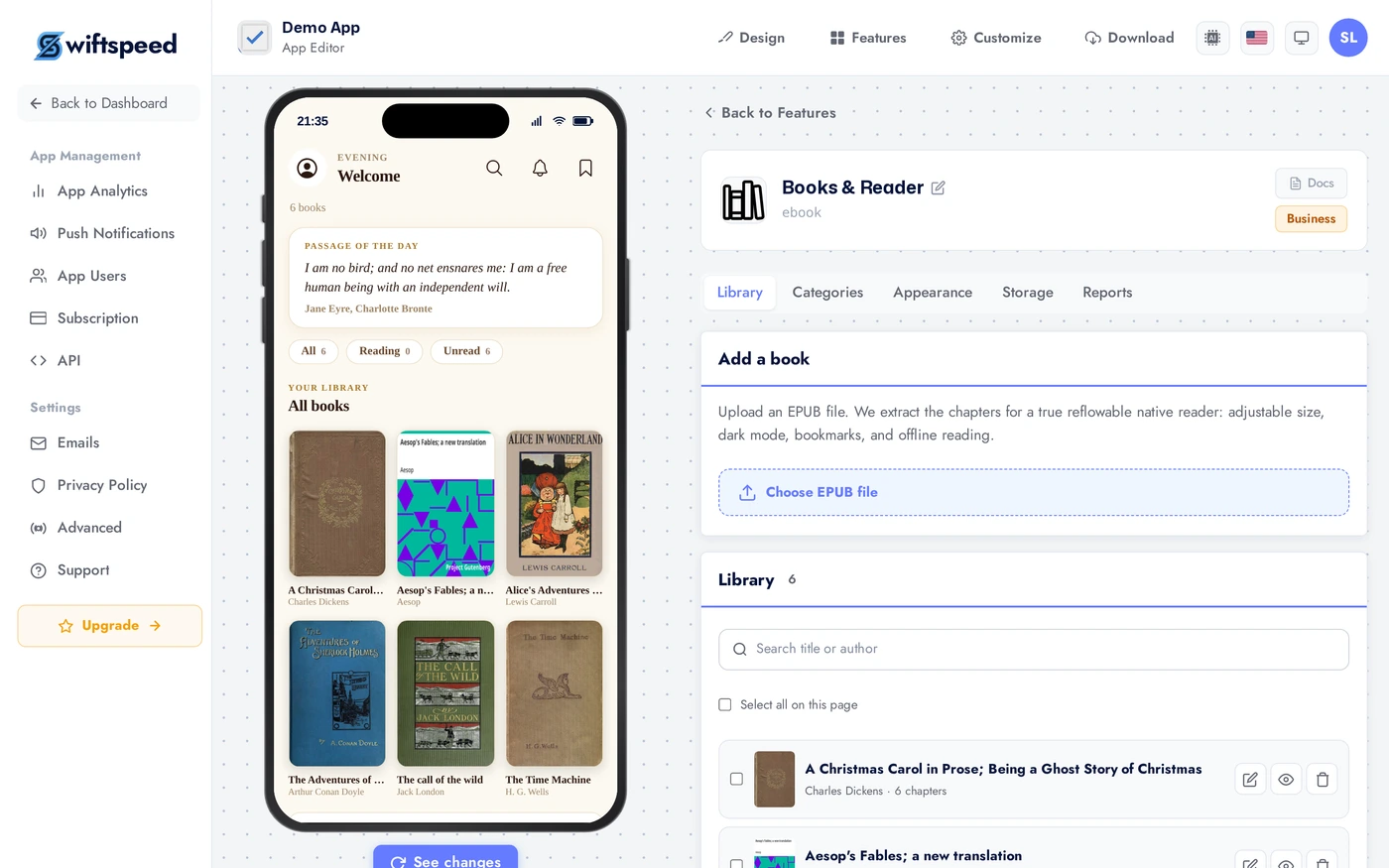
The Library tab is where you upload and manage books. Click Choose EPUB file to upload a book. The platform extracts the chapters automatically; the heavy source file is discarded, only the lightweight reader content is kept. The list below is searchable and paginated (20 at a time), with multi-select and bulk delete for large libraries. Use the pencil icon to edit a book's title, author, or categories.
Categories Tab: Organising Books
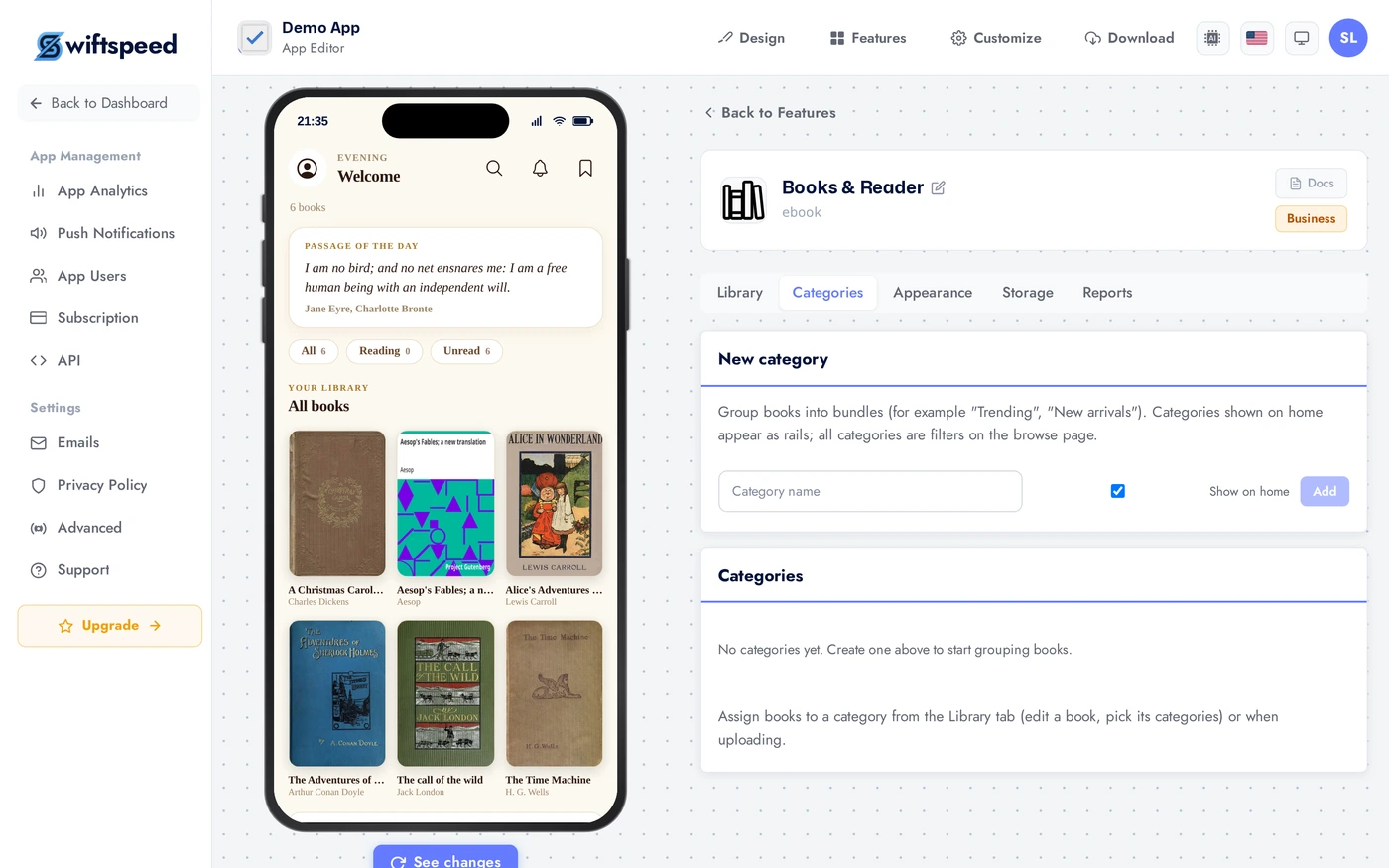
Group books into named categories (for example "Trending", "New arrivals", "Classics"). Toggle Show on home to make a category appear as a horizontal shelf on the reader home; categories that are not on home still work as filters on the browse page. Assign books to a category from the Library tab when you upload or edit a book.
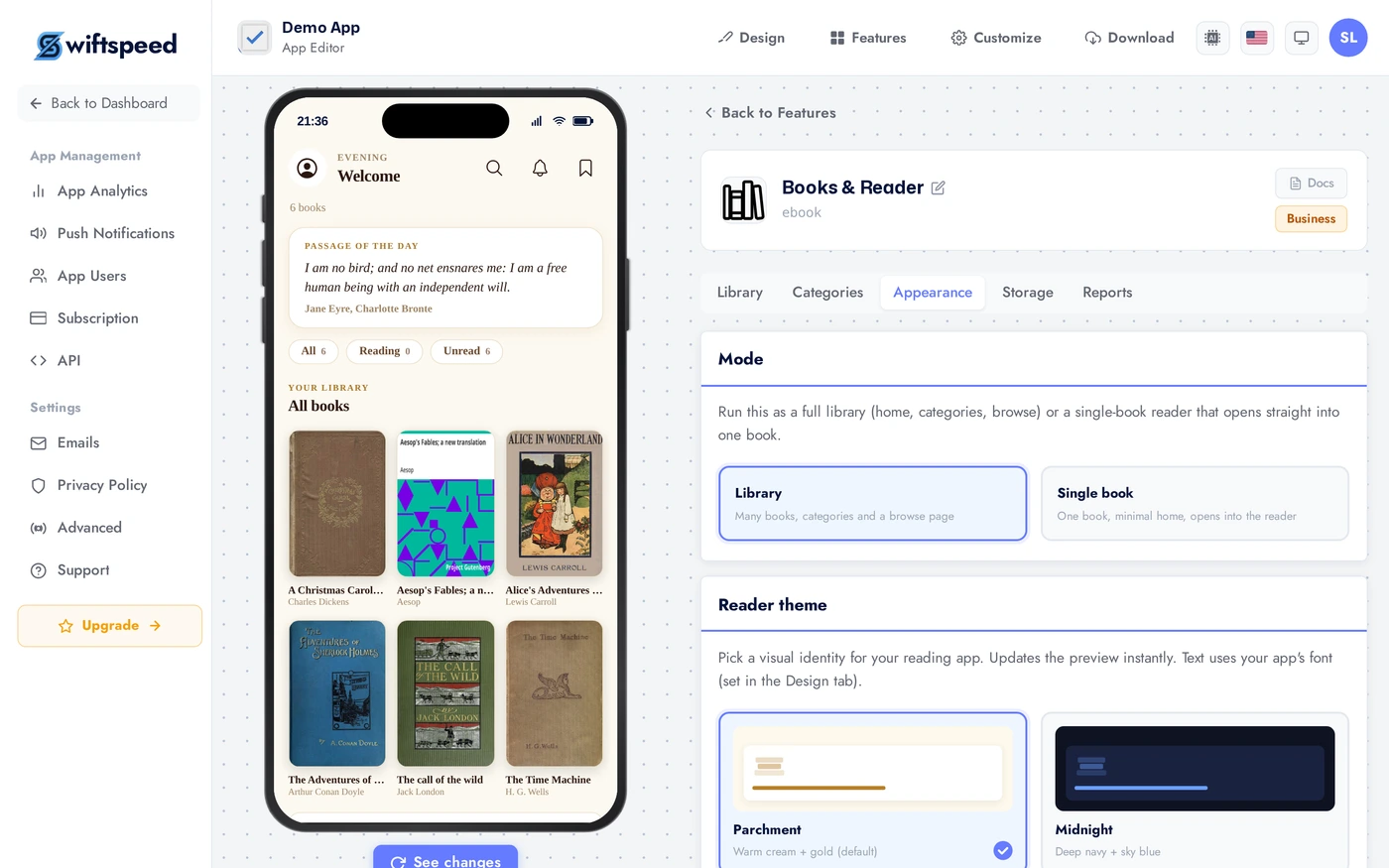
Appearance Tab: Mode, Theme and Layout
Choose the Mode: Library (many books, with categories and a browse page) or Single book (one book that opens straight into the reader, ideal for a single-title app). Pick a reading theme from the six-theme family and a home structure (Shelf, Cover Flow, or Continue). Custom colors let you override any theme token. Reading apps reward calm, high-contrast palettes; users read for long stretches.
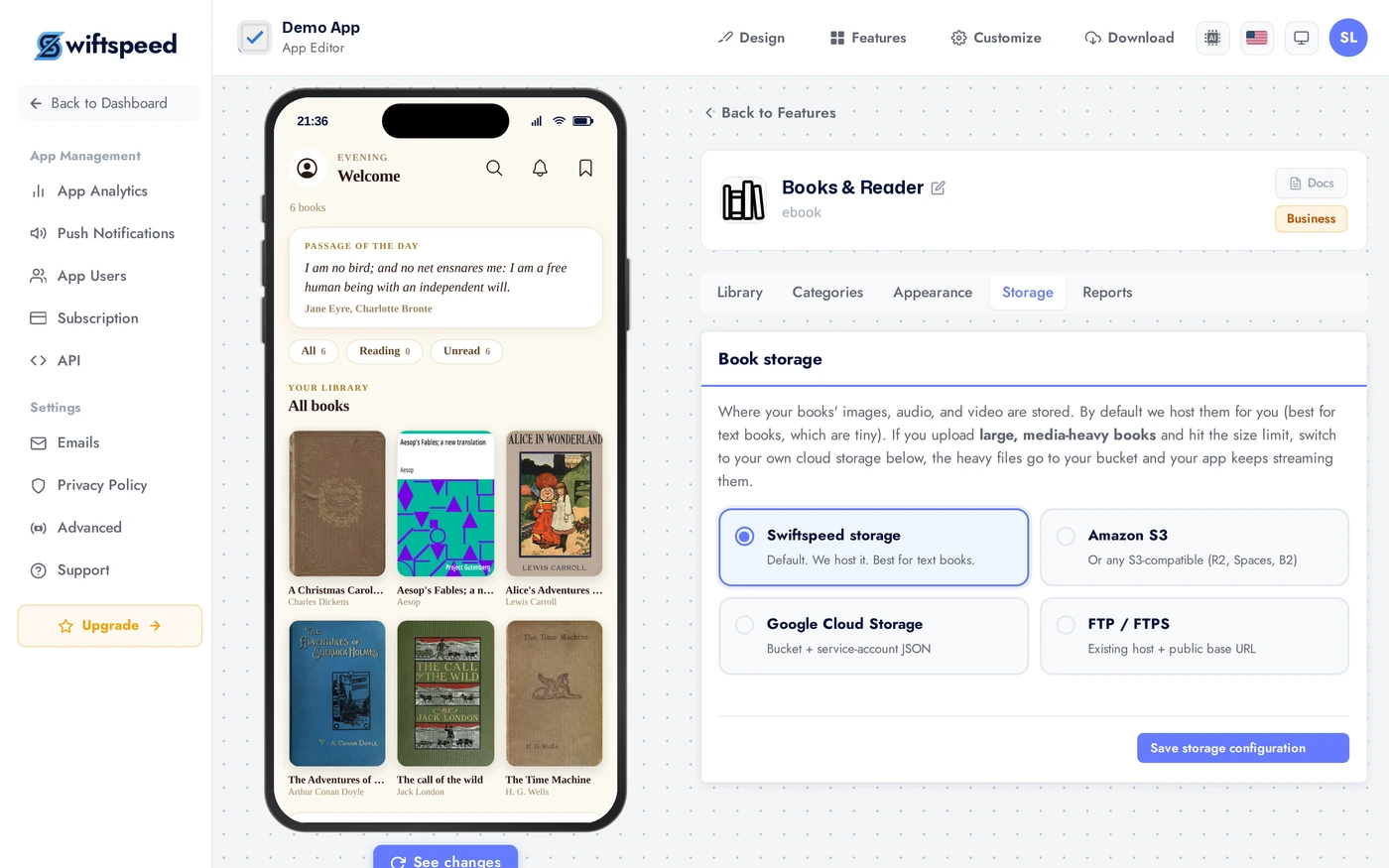
Storage Tab: Where Book Files Live
By default, extracted book content is stored on the platform (capped). If you upload many large books, switch to your own external storage (S3, Google Cloud Storage, or FTP/FTPS) here and paste your bucket credentials. Books uploaded after switching are routed to your storage automatically; if external storage is misconfigured the upload safely falls back to local.
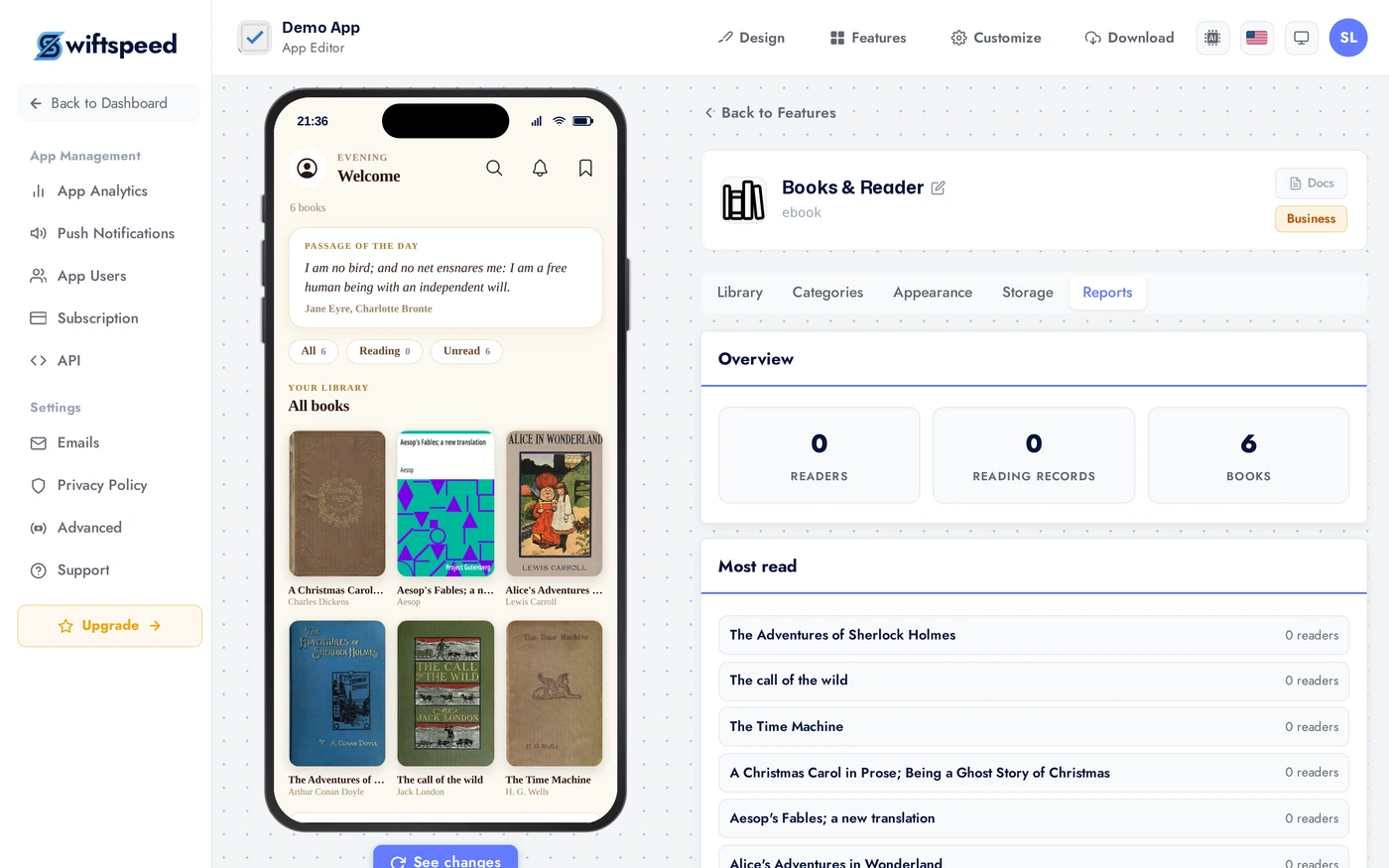
Reports Tab
See how many readers opened your books, which titles are most read, and the list of readers (searchable and paginated). Remove a reader's reading history and bookmarks from here if needed.
Live Preview
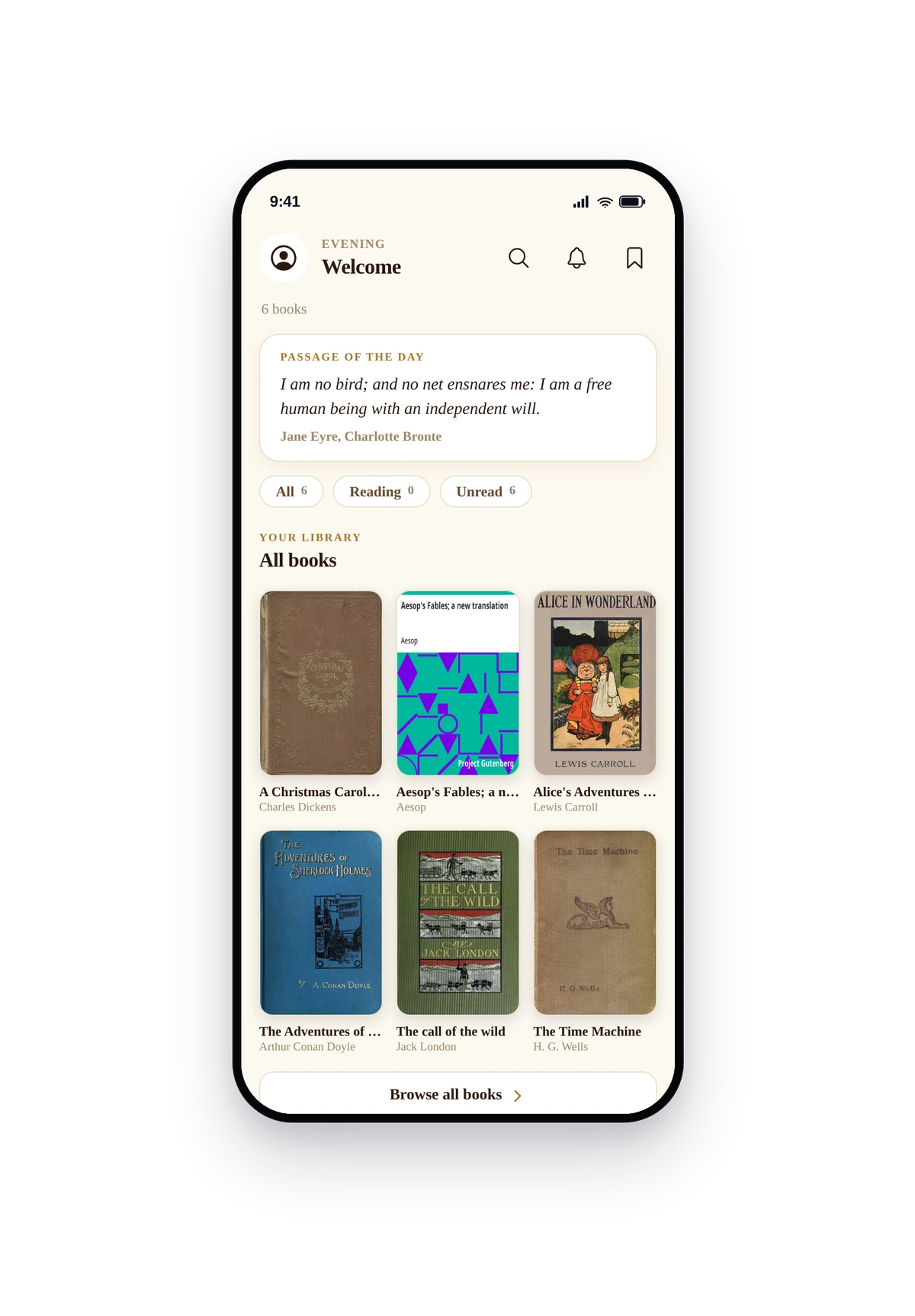
This is the actual native UI. Greeting and search at the top, a passage of the day, a reading-streak strip, filter chips, category shelves, a Continue-reading rail, and the full library grid. Tapping a book opens the reflowable reader with adjustable size, themes, read-aloud, and bookmarks.
Tips
- Use categories as shelves. A home with "Trending" and "New arrivals" shelves reads like a real bookstore and surfaces more of your catalogue than a flat list.
- Single-book mode is perfect for a one-title app. It skips the library entirely and opens straight into the reader, so the whole app is the book.
- Switch to your own storage before uploading a big catalogue. Local storage is capped; S3 / GCS / FTP scale with you and keep your platform footprint small.
- Read-aloud uses the device's native voice. It works on the lock screen and keeps playing in the background, so your app doubles as an audiobook player.
- EPUB only. Export from Word, Google Docs, Calibre, or any publishing tool to EPUB before uploading. Public-domain classics from Project Gutenberg are a quick way to seed a demo library.
Removing the Feature
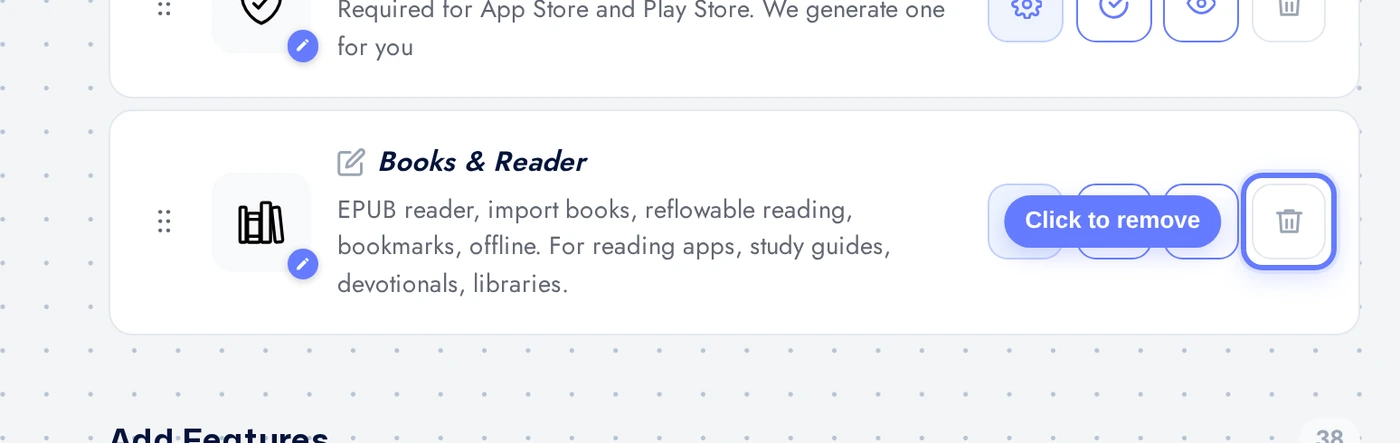
Back on Features, find the Books & Reader row, click the red trash icon, and confirm. This removes the feature and all its uploaded books from this app.