Audio Streaming Feature - For Podcast and Music app
⚠️ Important: Content Hosting & Copyright
Swiftspeed does not host audio files or media on its servers. All images and audio files must be hosted externally, either on your own server/website, or via a configured cloud storage provider (Amazon S3, Google Cloud, FTP). You provide URLs pointing to your externally hosted content.
This policy exists to protect intellectual property rights. You are solely responsible for ensuring you have the legal rights to all music, audio, and images you add to your app. Swiftspeed is not liable for any copyright infringement resulting from content you distribute through your app.
What is the Audio Streaming Feature?
The Audio Streaming feature is how Swiftspeed turns any catalogue of music and podcasts into a fully native iOS and Android streaming app, without writing a single line of code. You bring the audio files (hosted wherever you already keep them) and the editor wraps them in a polished native music app interface, complete with a Genre, Artist, Album, Track hierarchy, podcast categories with episodes, custom themes, custom colors, a full-screen player, a persistent mini-player, and search.
Customers browse the music streaming app on their phone exactly like they would Spotify or Apple Music: scroll genres, tap into an artist, open an album, hit play. Podcasts get their own dedicated tab inside the same audio app. Everything caches locally for fast loading and resilient playback. Think of it as the fastest path from a folder of MP3s on a server somewhere to a real native music and podcast app on the App Store and Google Play.
Before You Start Building Your Music Streaming App
A few things should be in place before you start building the music and podcast app:
- A list of the audio you want to stream (MP3 or M4A files), with cover art for each track or album
- A place those audio files live (your own server, S3, Google Cloud Storage, FTP/SFTP, or any public URL). Swiftspeed does not host audio files on its servers, you bring the URLs.
- The legal right to distribute that audio inside a mobile app. Music streaming apps run on top of properly licensed catalogues, originals you own, public domain recordings, or content you have explicit permission to redistribute.
- Cover images at 500x500 pixels or larger so the music streaming app looks sharp on retina phones
If your catalogue is already on a public web server (or you have an S3/GCS bucket ready), you can wire it into a native music streaming app in one editor session. Storage providers are configured inside the Audio editor itself, no DevOps work required.
Adding the Audio Streaming Feature to Your Mobile App
Inside the Swiftspeed editor, the audio streaming experience becomes a feature page in your native mobile app. The flow below walks through adding that page so you can start building the music and podcast app:
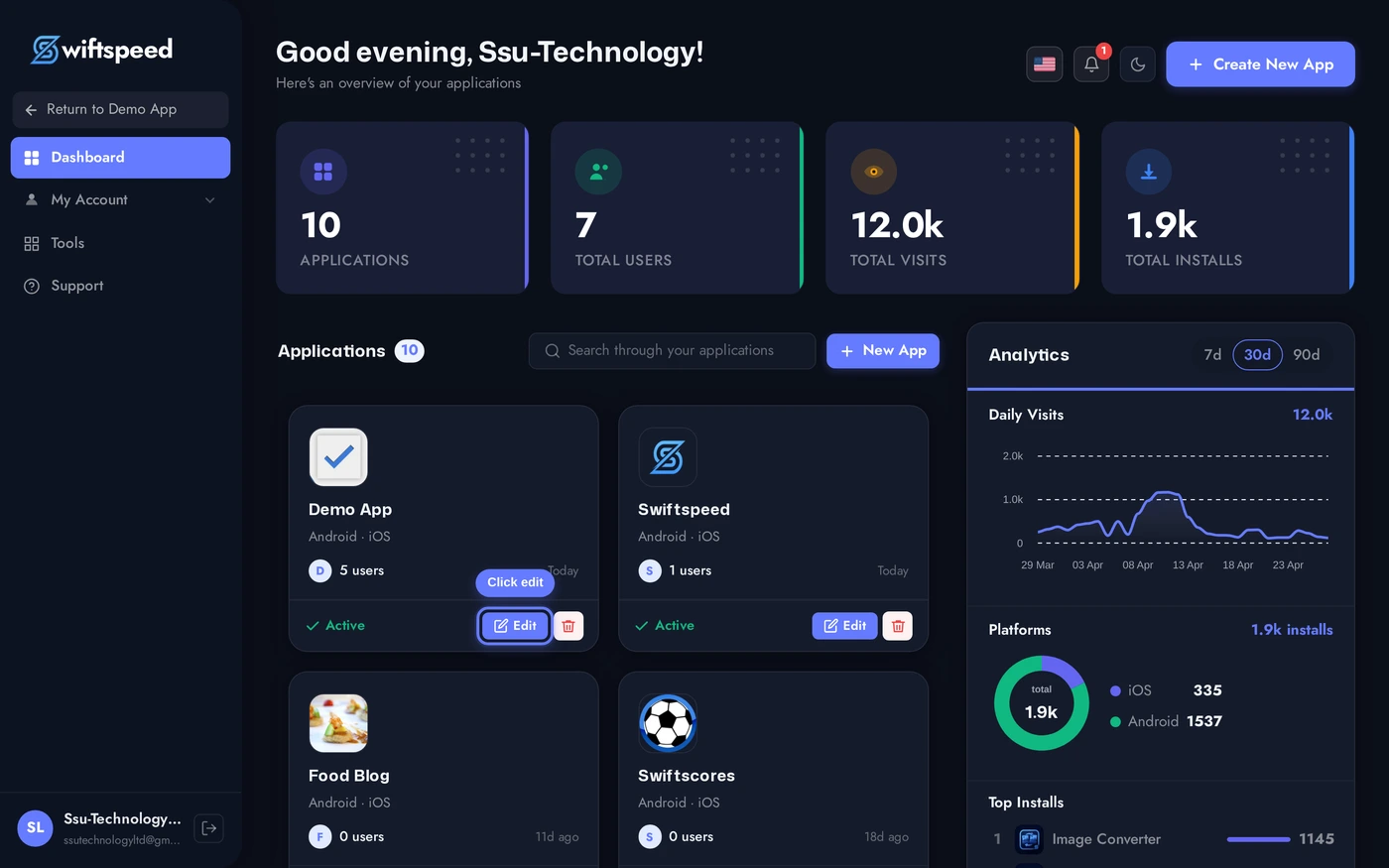
From your Swiftspeed dashboard, click the edit pencil on the mobile app you want to turn into a music and podcast streaming app.
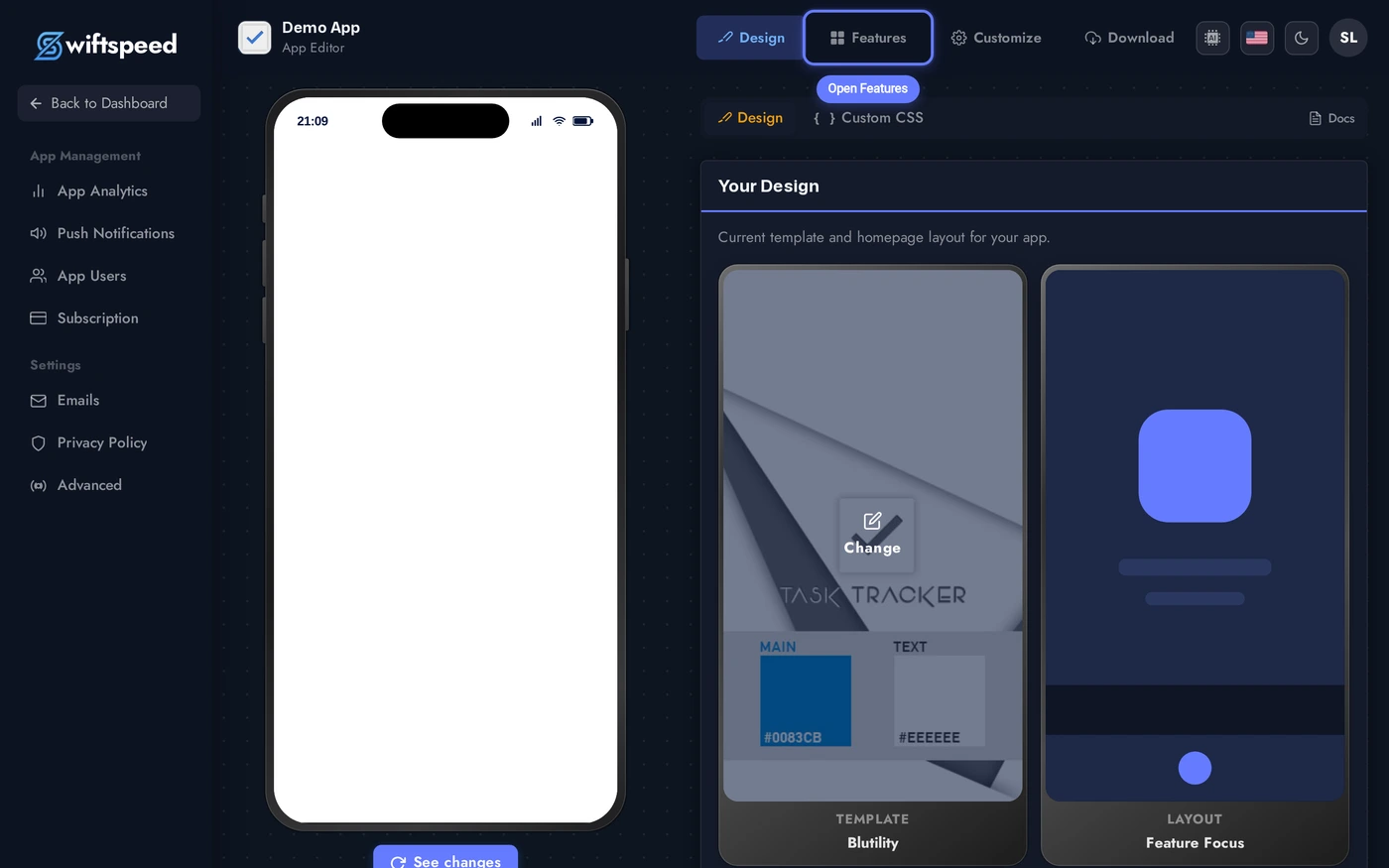
You'll land in the App Editor. Click Features in the top bar, that's where every page in your native music streaming app lives, including the Audio page you're about to add.
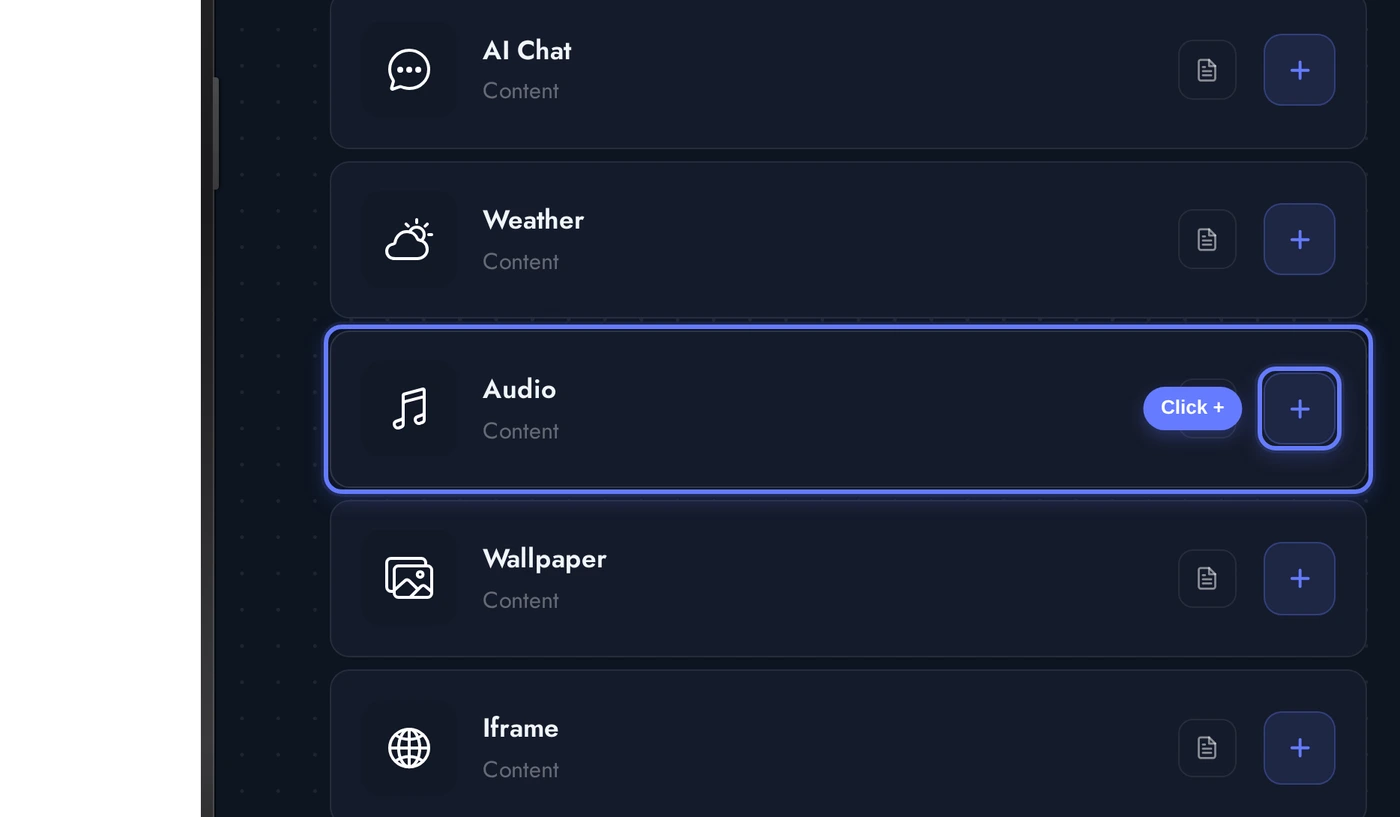
In the Add a Page list, find the Audio card and click the + button on its right. This is the page that turns the rest of your mobile app into a native music and podcast streaming experience.
Demo Content Comes Pre-Loaded
The moment you add Audio to your mobile app, Swiftspeed seeds it with a curated demo catalogue so you can see the music streaming app come to life immediately. The demo includes three genres (Classical, Jazz, Ambient), six well-known composers as artists (Mozart, Beethoven, Bach, Vivaldi, Joplin, Satie), six albums of public-domain works, eight tracks, and a podcast category called "Composer Stories" with three episodes. Cover art comes from public-domain Wikimedia portraits, audio is wired to free, attribution-free demo MP3s.
This demo content is yours to keep, edit, or replace. Most teams treat it as scaffolding: replace one entry at a time with your real music and podcast catalogue, and the music streaming app gradually becomes yours without ever sitting empty.
The Music Library: Genre, Artist, Album, Track
The music half of the audio streaming app is organized as a four-level drill-down: Genre, Artist, Album, Track. The editor mirrors how end users will navigate the music streaming app on their phones, so building a music streaming app feels exactly like browsing one.
When you open the Audio editor, the Music Library card sits in the middle of the Content tab on the Genres level. Each genre card shows the cover art, name, and how many artists live inside. Click + Add Genre to add a new one, or click any existing card to drill into the artists in that genre.
Click into a genre and the editor swaps to the Artists level inside it. The breadcrumb at the top tracks where you are (Genres → Classical), and each artist card shows their cover and how many albums they have. + Add Artist at the top right adds new ones, or click any existing artist to drop another level deeper into albums.
Two more clicks (artist, then album) bring you to the Tracks level, where every individual song lives. Each track has a title, artist name, cover art, and the audio URL the music streaming app fetches when a user hits play. Tracks can be Featured so they surface on the home screen of the music streaming app, and reordered with drag handles.
You can mix and match the hierarchy: an artist can sit directly under a genre with no albums, an album can hold uncategorised tracks, and tracks can live without an album. The music streaming app falls back gracefully at each level, so even a sparse catalogue still browses cleanly.
Podcasts (Right Alongside the Music)
The same Audio feature also drives the podcast tab of your music and podcast app. Podcasts have their own simpler hierarchy: Category → Episode. Each category groups a series of episodes (a show, a season, or a topic), and each episode is one audio URL plus metadata.
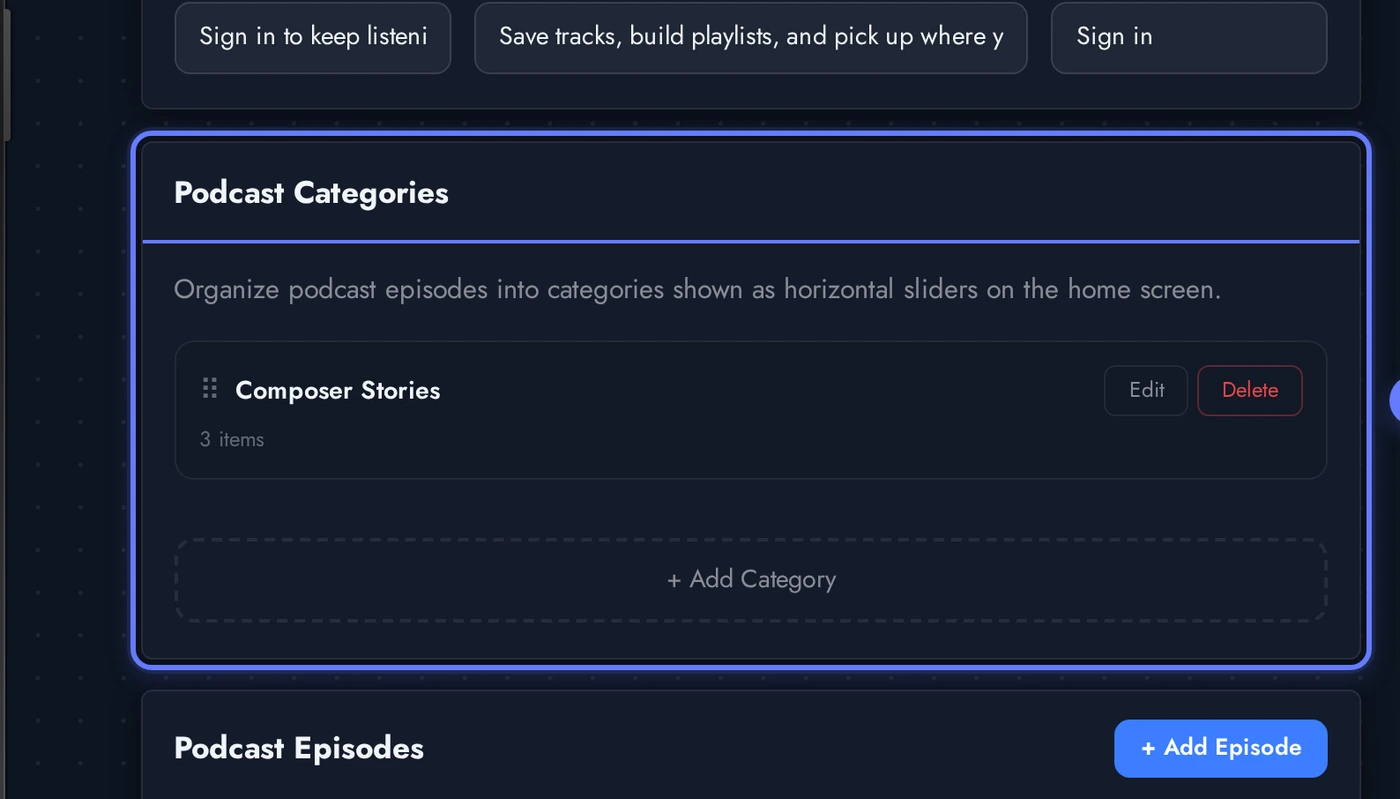
Scroll to the Podcast Categories card to manage podcast content in the music and podcast app. The seeded Composer Stories category is here with three demo episodes: "The Life of Mozart", "Beethoven and the Romantic Era", and "Bach and the Baroque Mind". + Add Category spins up a new podcast feed, + Add Episode drops a new episode into the selected category. Episodes can be marked Featured so they surface on the home screen of the streaming app.
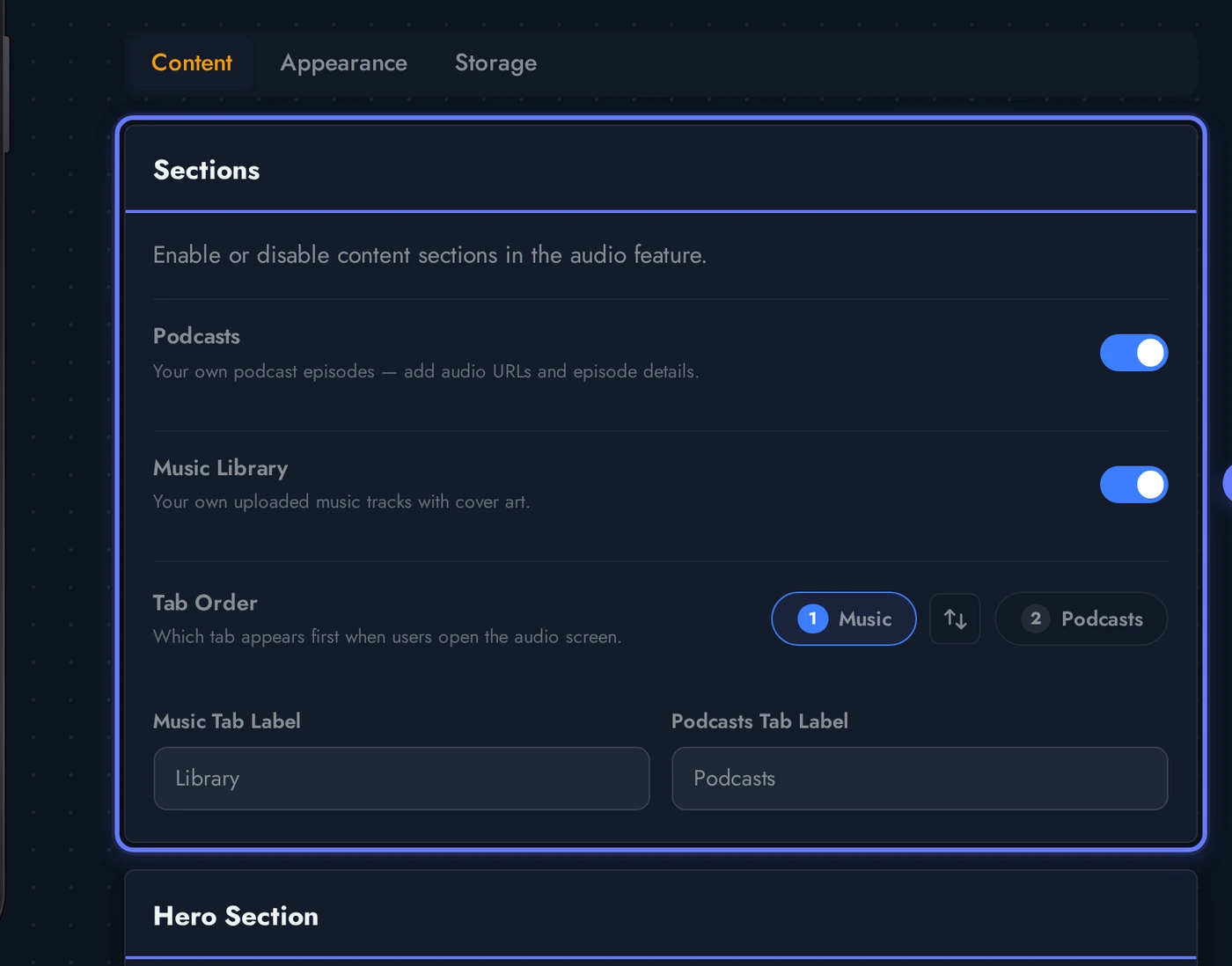
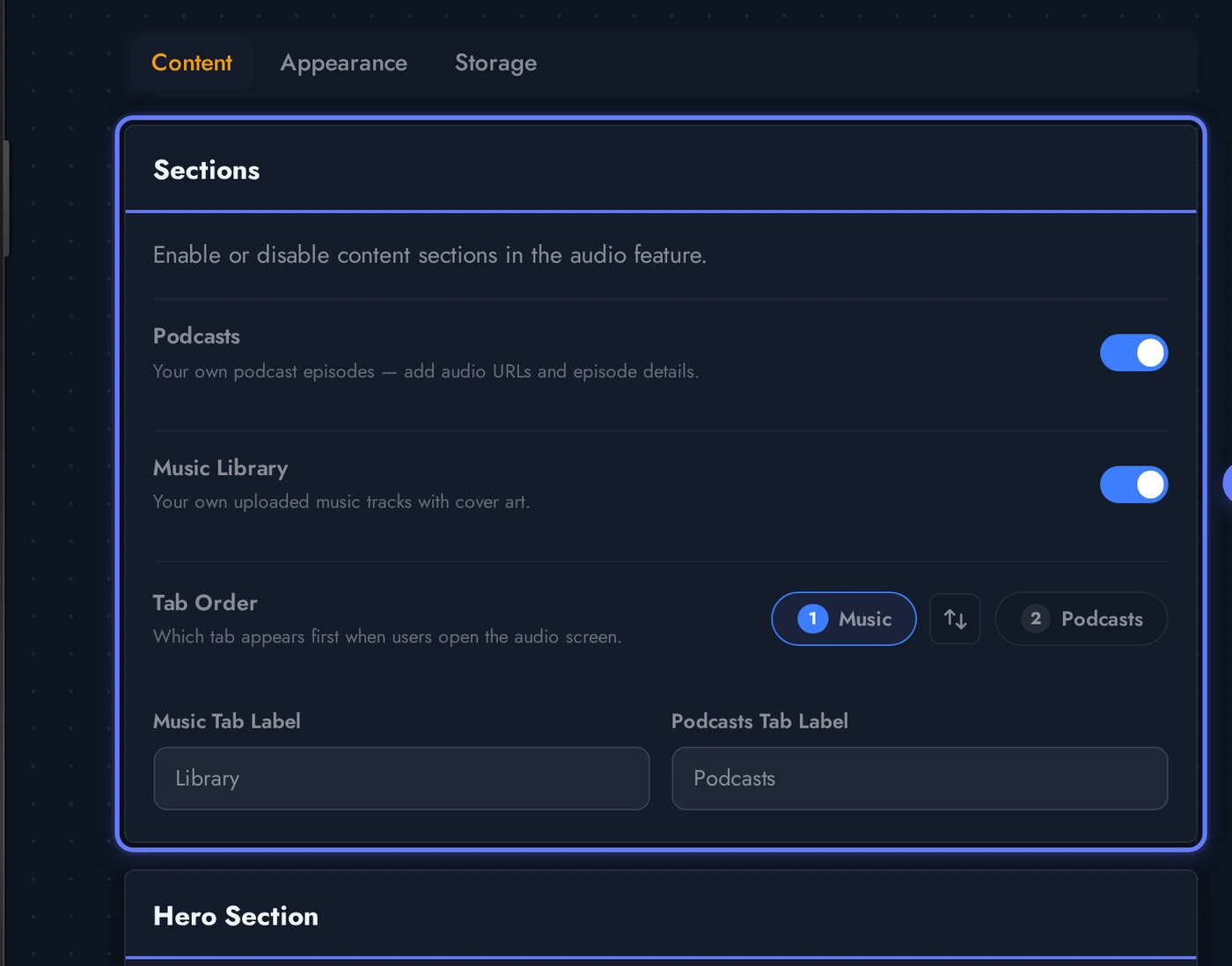
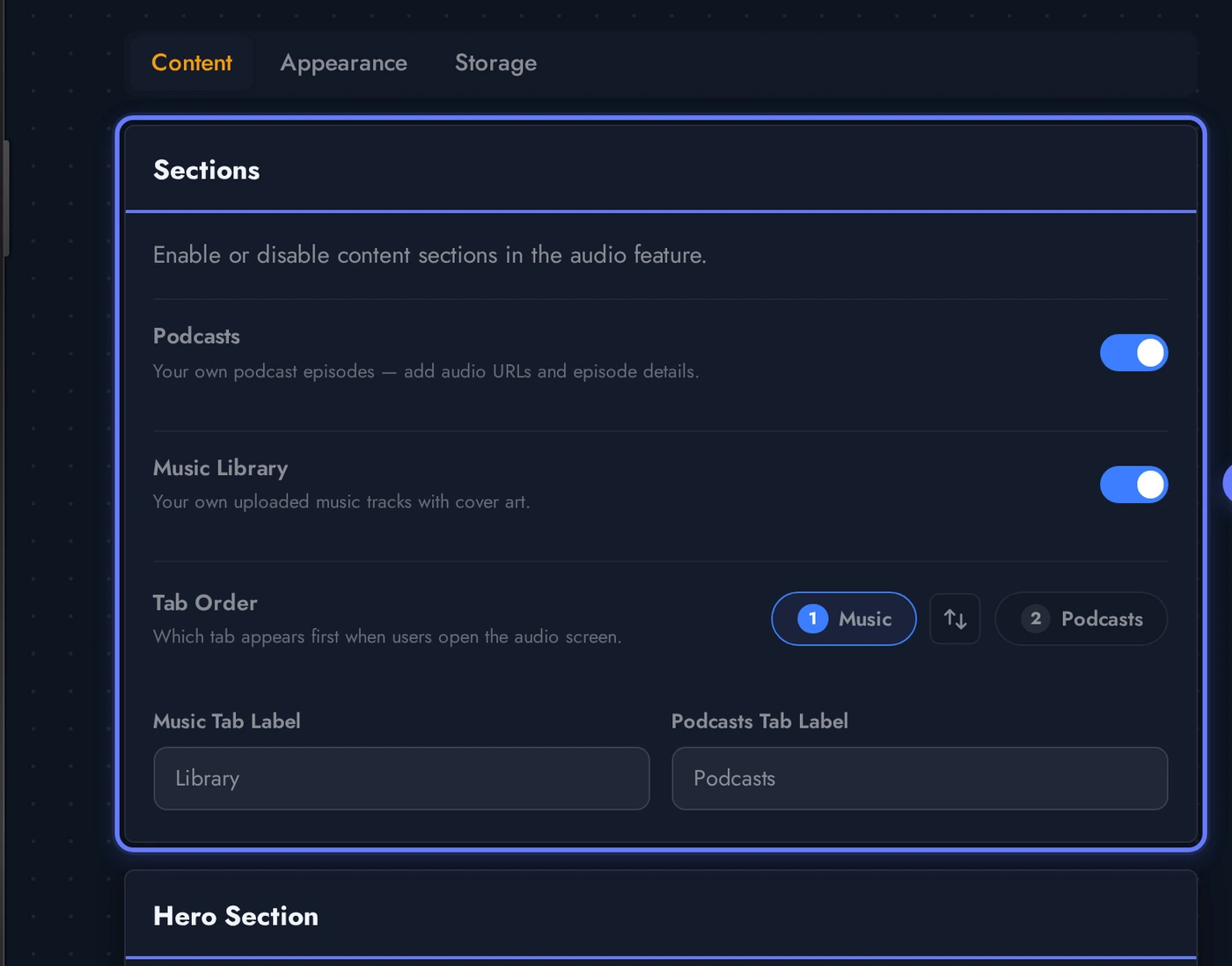
You can run a music-only audio streaming app, a podcast-only audio app, or both at once. The Sections card at the top of the Content tab toggles each side on or off independently, and reorders the tabs so Music or Podcasts opens first.
Designing the Music Streaming App (Themes and Custom Colors)
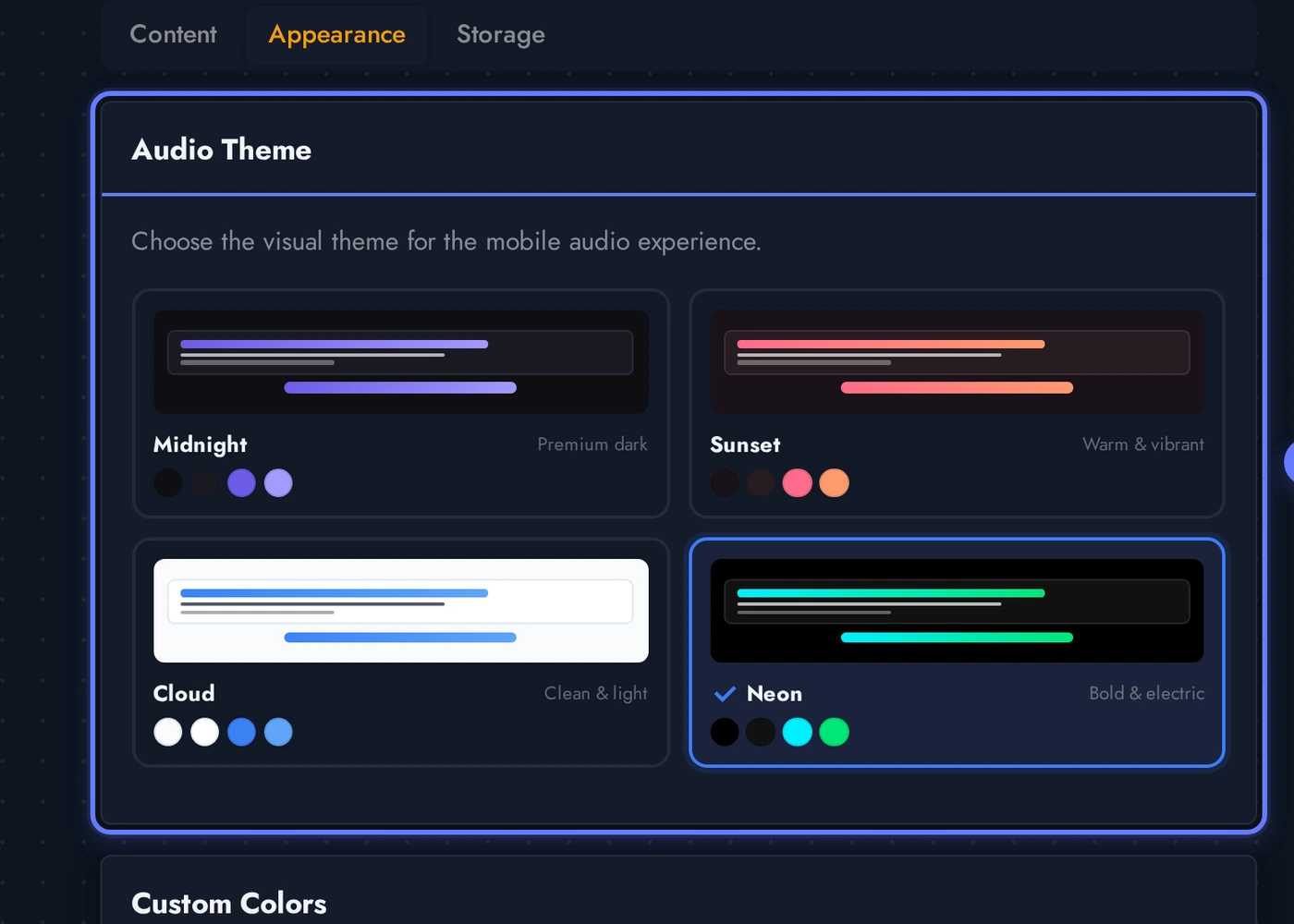
Switch to the Appearance tab to control how the music and podcast streaming app looks on the phone. Eight themes ship out of the box, each one a complete visual identity tuned for native mobile listening. Pick a theme that matches your brand, then override individual colors if you need to.
The eight built-in themes for the music streaming app: Midnight (deep dark, premium feel), Sunset (warm orange/pink gradient), Cloud (light, airy), Neon (vibrant accents on dark), Vinyl (warm cream and burgundy), Aurora (purple/teal gradient), Daylight (clean light), Pulse (high-energy red/black). Each card previews the look. Below the theme grid, the Custom Colors card lets you fine-tune background, surface, accent, header, player background, controls, mini-player, and more, so the music streaming app matches your brand exactly.
Bring Your Own Audio: Storage Providers
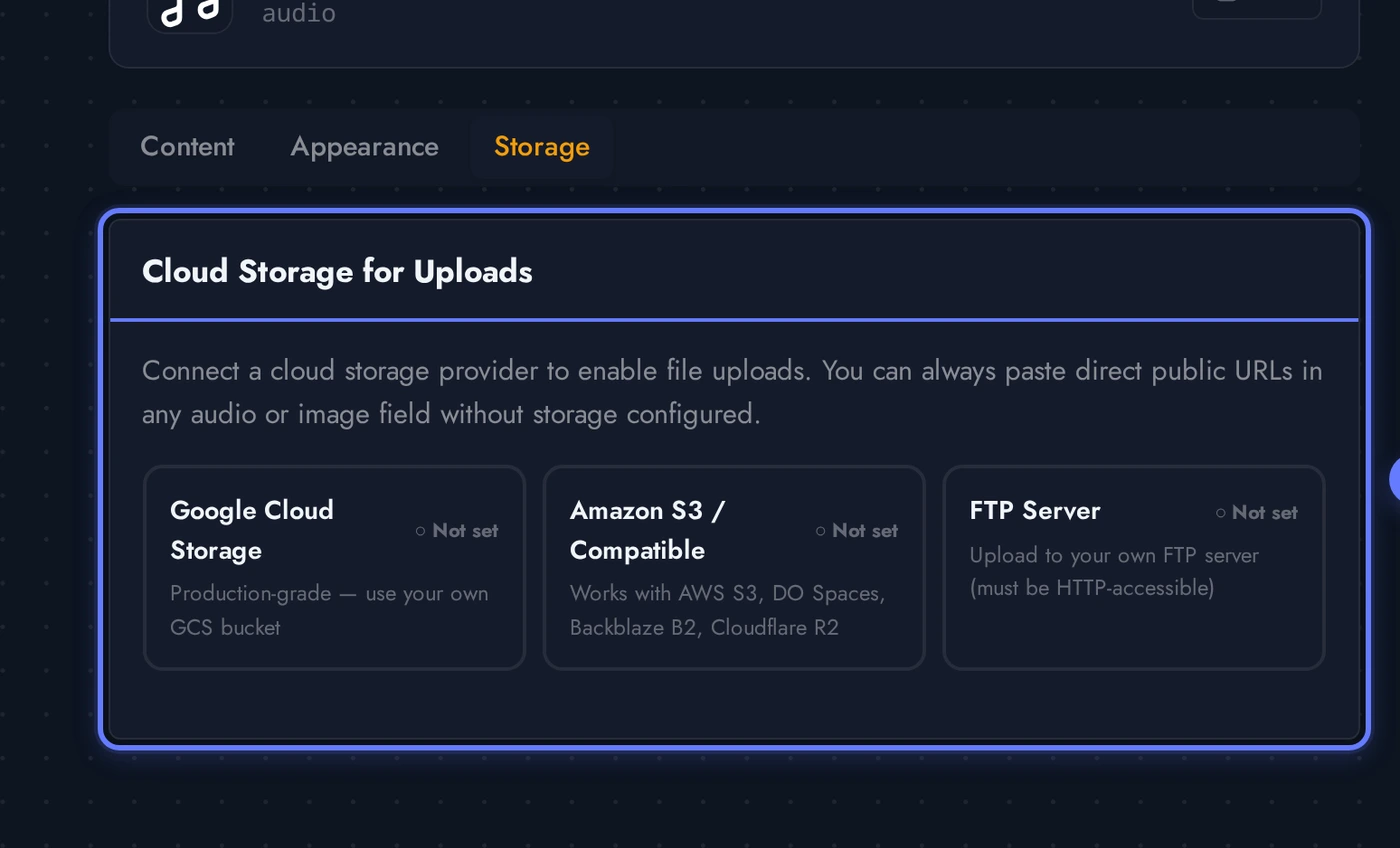
Swiftspeed does not host audio files on its servers. This is intentional, the platform powers the music streaming app, but the catalogue itself stays on infrastructure you own and license. The Storage tab in the Audio editor configures where your audio files live so the streaming app can fetch them. Three providers are supported out of the box:
Pick the storage provider that matches where your audio already lives. Once configured, every audio_url field across genres, artists, albums, tracks, and podcast episodes gets a browse button that opens a file picker against your chosen storage, so building the music streaming app stops being copy/paste URLs and turns into clicking files.
- Direct URL: paste any public https URL into the audio_url field of a track or episode. Works for files on your own website, a CDN, a hosted bucket, or any web server. Easiest path for small catalogues.
- Amazon S3 (and S3-compatible services like Cloudflare R2, DigitalOcean Spaces, Backblaze B2): plug in the bucket name, region, and access keys, then browse and pick files inside the editor. Recommended for production music and podcast apps because S3 scales to any catalogue size.
- Google Cloud Storage: same browse-and-pick experience as S3, just with a GCS bucket. Best if you already run on Google Cloud.
- FTP/SFTP: connect to your own server, navigate the file tree, pick audio files. Useful when your catalogue lives on a managed host with FTP rather than a cloud bucket.
You are responsible for the legal rights to everything in the streaming app. Originals, licensed catalogues, public domain recordings, or content you have explicit permission to distribute are all fine. Swiftspeed provides the music streaming app shell, you provide the catalogue.
Live Preview of the Music and Podcast Streaming App
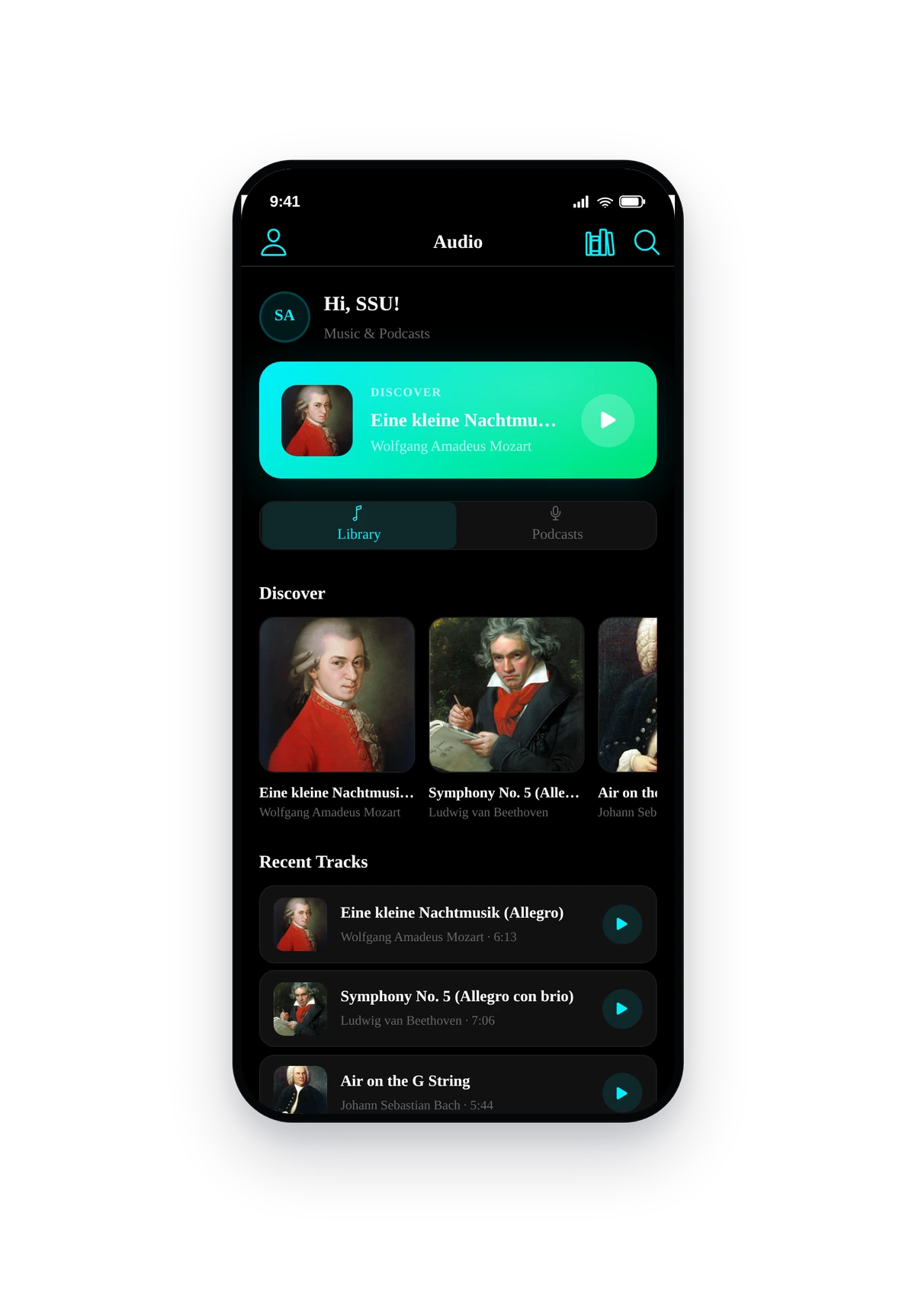
Here is how the seeded demo content (Mozart, Beethoven, Bach, Joplin, Satie, plus the Composer Stories podcast) renders inside a real phone running the converted native music and podcast streaming app:
This is the actual native UI of the music streaming app, not a mockup. The home screen mixes featured tracks, recently added music, genres (Classical, Jazz, Ambient), the Featured Composers section, and podcast categories. Tap any track to launch the full-screen player with album art, scrub bar, shuffle, repeat, and queue. Tap the mini-player at the bottom to keep listening while browsing other parts of the app. Pull down to refresh, or open Search to find anything in the catalogue. This is your music and podcast streaming app, ready to ship to the App Store and Google Play.
Tips and Troubleshooting for Your Music Streaming App
- Use HTTPS for every audio URL. iOS blocks plain http audio inside native apps by default, so any track or podcast on http will silently fail to play in the music streaming app. Set up SSL on your audio host before connecting.
- MP3 is the safest format. Every iOS and Android version supports MP3 natively. M4A also works on most platforms. Avoid OGG, FLAC, and WMA in the streaming app, they break on at least one mobile OS.
- Cover art matters more than you think. A music streaming app sells itself on the home screen visuals. Upload covers at 1000x1000 pixels or larger, square aspect ratio, well-lit. Anything smaller looks soft on retina phones.
- Featured flag controls the home screen. Mark up to 5 tracks as Featured to put them in the hero block of the music streaming app. Same flag exists on podcast episodes. Pick your best content.
- Cache lifetime is in Audio settings. Lower it (5 to 15 minutes) if you push frequent catalogue updates and want the streaming app to reflect them quickly. Higher it (1 to 6 hours) for static catalogues to reduce load on your audio host.
- Storage provider unlocks file picker. Without storage configured, every audio_url and cover_url is a manual paste. Configure S3, GCS, or FTP and the editor adds a browse button next to every URL field, which speeds building a music streaming app dramatically once your catalogue is bigger than a handful of tracks.
- The guest screen is configurable. The first thing customers see when they open the music streaming app (before they sign in) lives in the Guest Screen card on the Content tab. Customize the title, subtitle, and button label so the welcome doesn't feel generic.
- Replace, don't empty. When you swap demo content for your real catalogue, edit the existing rows instead of deleting them all and starting over. The seeded structure (3 genres, 6 artists, 6 albums, 8 tracks, 1 podcast, 1 home section) is a working layout. Reuse it.
- You own the rights, you keep the rights. Swiftspeed never sees your audio files, the streaming app fetches them directly from your storage. That means you also own the copyright responsibility, only ship music and podcasts you have the right to distribute.
Your Responsibility
By using the Audio Streaming feature, you confirm that you have the necessary rights and licenses to distribute all music, audio, and images added to your app. Swiftspeed provides the platform, you are responsible for the content.