App API Keys and Integrations
What is the API Page?
The API page lets you generate keys for programmatic access to your app's data. Use them to integrate external systems (CRM, analytics, automations, custom dashboards) with Swiftspeed. Each key is scoped (read or read and write), labeled (so you can identify which integration owns it), and optionally restricted by IP address allowlist.
The page has two tabs. Platform is the key manager (create, rotate, delete, list). Auth guide is reference documentation: base URL, header format, endpoint list, response shapes.
Where to Find It
In the App editor sidebar, click API. The page has a Platform tab (key management) and an Auth guide tab. PRO plan required to use the API.
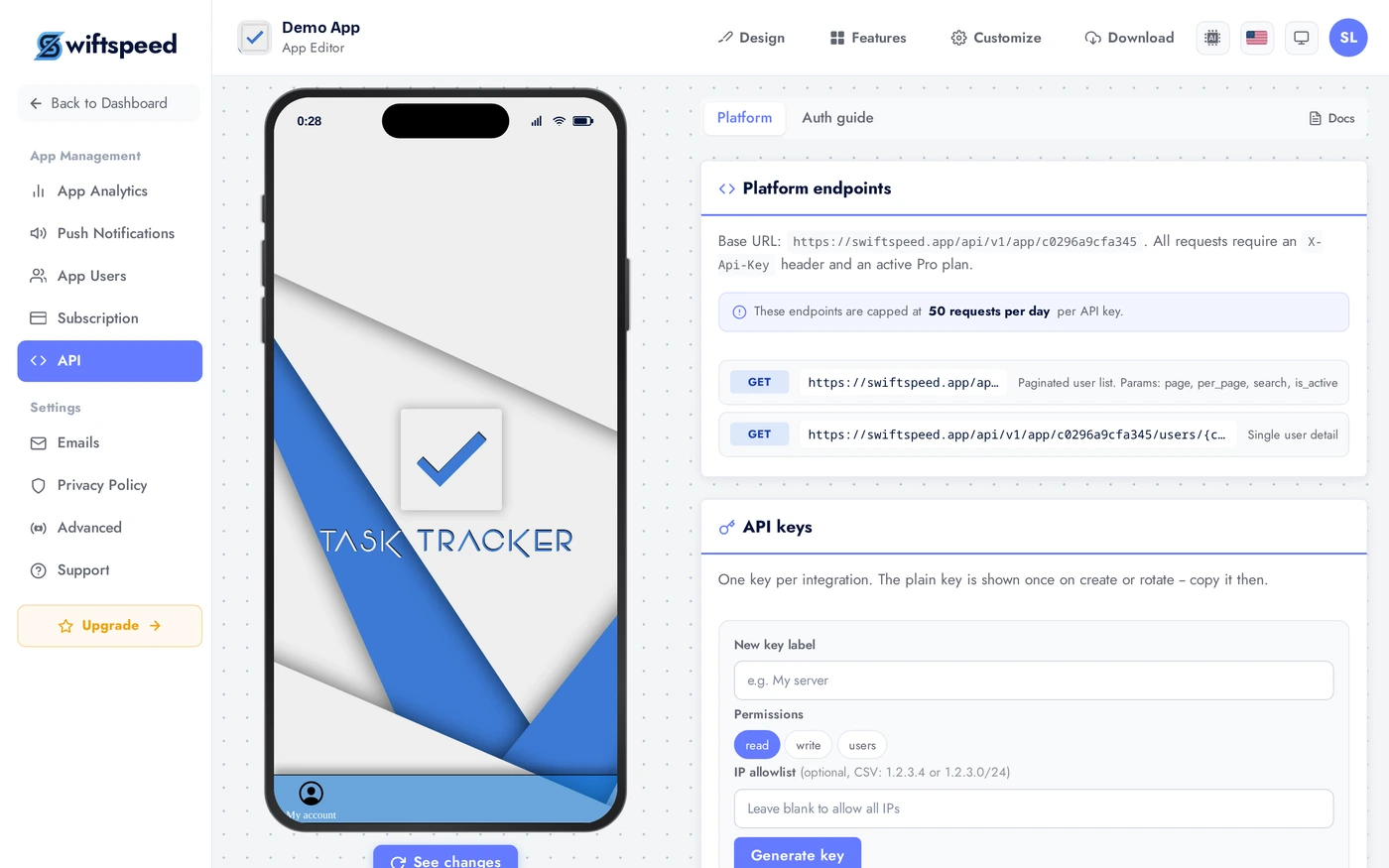
Platform Tab: Manage Keys
The default tab. Top section lists every key with its label, scope (Read or Read+Write), IP allowlist, created date. Bottom section is a form to create a new key: label, permissions checkboxes, optional IP allowlist (comma-separated). Click Create key and the new key value is shown ONCE; copy it immediately, you cannot view it again.
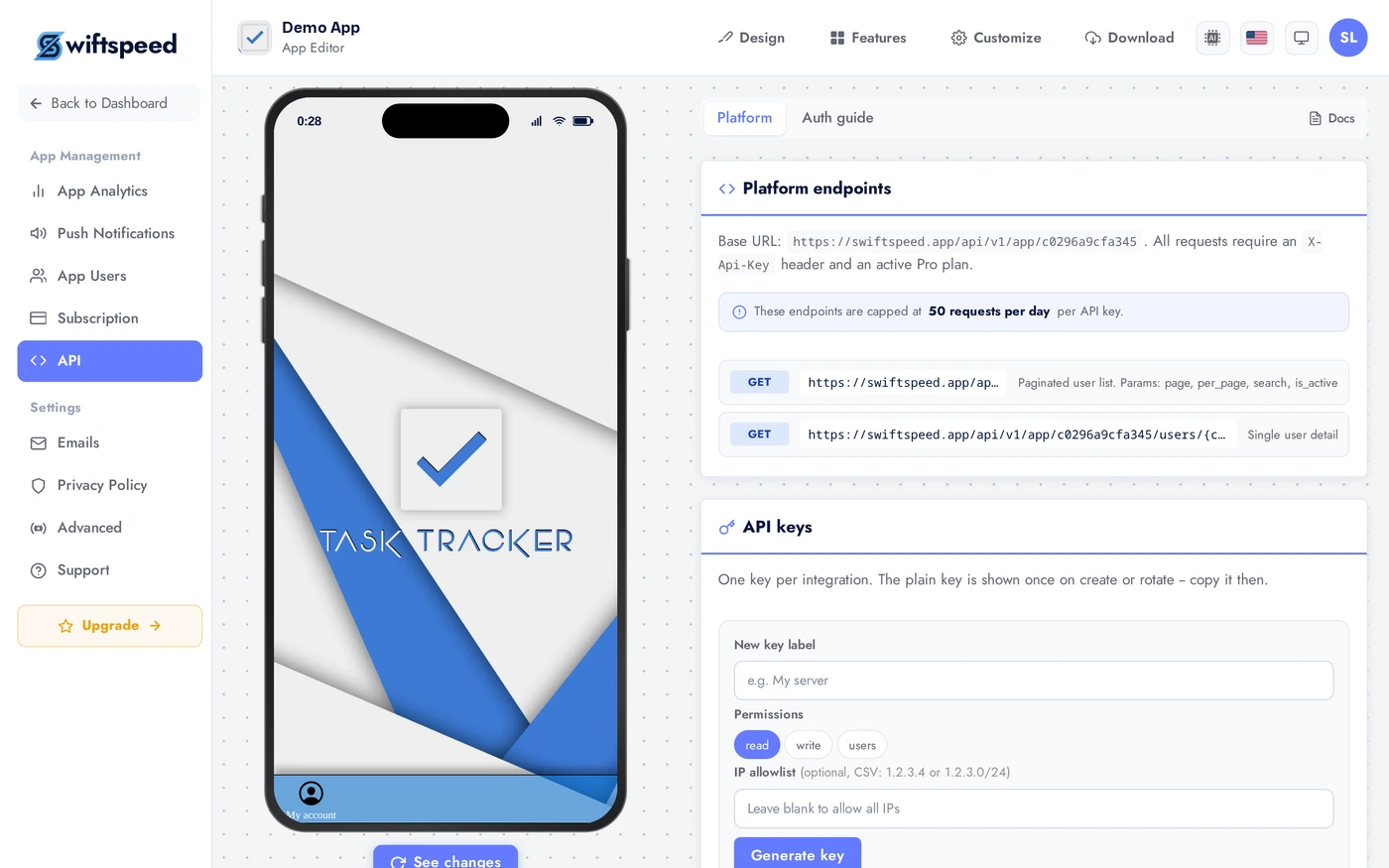
Auth Guide Tab: REST Reference
Click the Auth guide tab. This is your reference. Base URL pattern: /api/v1/app/{appKey}/.... Send keys via the X-Api-Key header on every request. The endpoint list shows GET /users (paginated), GET /users/{customerId}, plus response shapes and status codes.

Tips
- Use scoped keys. A read-only key for analytics is safer than a full-access key that can also write.
- Rotate keys every 90 days. Old keys live in scripts and laptops; rotation limits damage if one leaks.
- Set an IP allowlist for server-side keys. If your integration only calls from a known fixed IP, lock the key to that IP. Reduces credential-stuffing risk to nothing.
- Never paste keys into client-side code. Mobile apps and web frontends can have their JS bundle inspected. Keep keys on a server you control.
- Label keys by integration. "Zapier", "Mailchimp sync", "internal dashboard". When you rotate or revoke, you know which integration breaks.
- The key is shown once. Save it somewhere secure the moment you create it. If you lose it, regenerate; do not try to recover.