AI Image Upscaler Feature
What is the AI Image Upscaler?
The AI Image Upscaler is a Swiftspeed feature that adds an image-enhancement screen to your mobile app. End-users upload a photo and the AI doubles or quadruples its resolution, restoring detail that simple stretch resampling would smear. Suitable for print-on-demand apps, photo-archive restoration, low-resolution social posts that need to look sharp on retina displays.
Upscaling does not invent information that was never captured: a blurry 100x100 photo upscaled 4x ends up at 400x400 but stays blurry. The AI is best at sharp small photos that need to be bigger, not at rescuing genuinely bad source material.
Adding the Image Upscaler to Your App
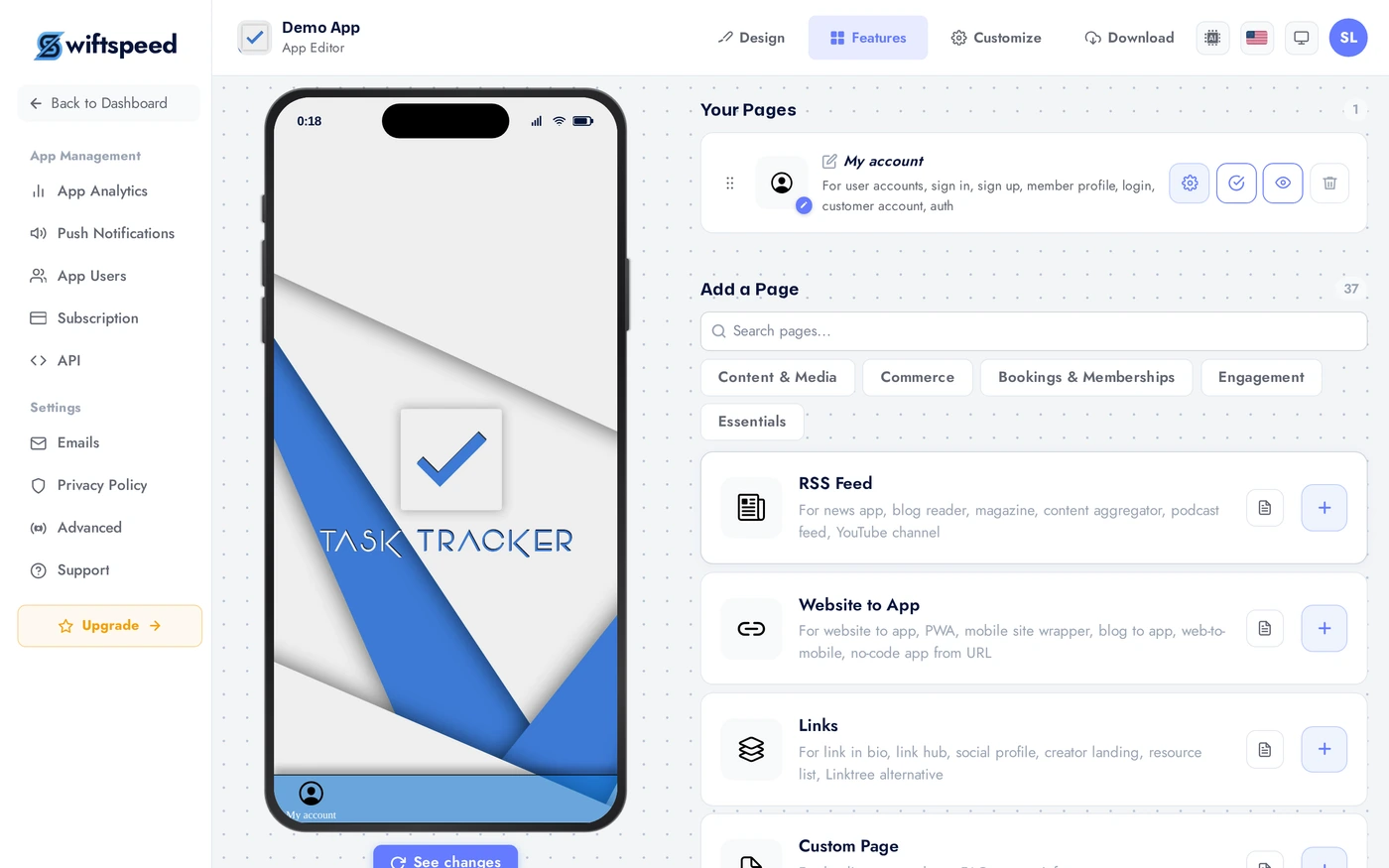
In the App editor, click Features in the top bar.
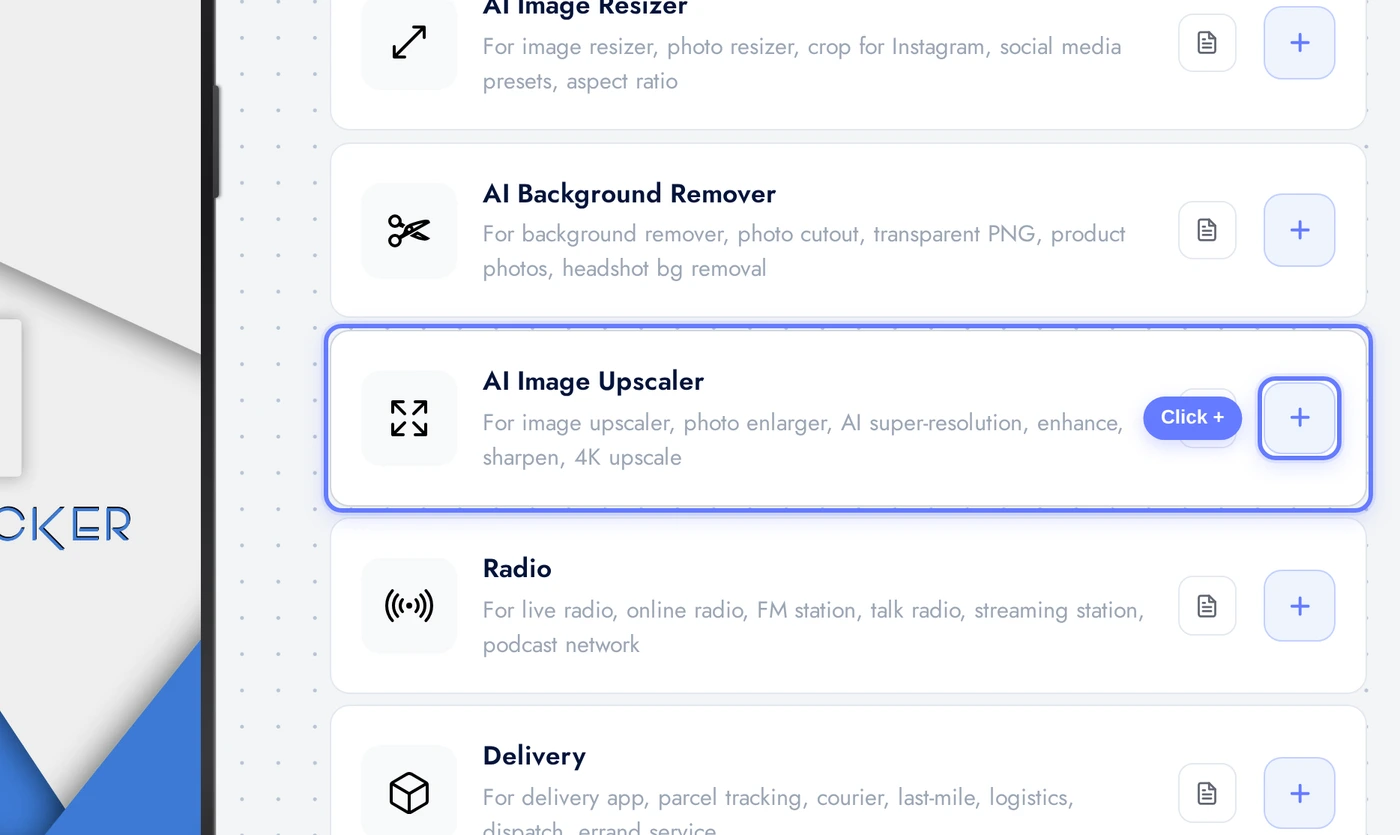
Find the AI Image Upscaler card. Click the + button to add it.
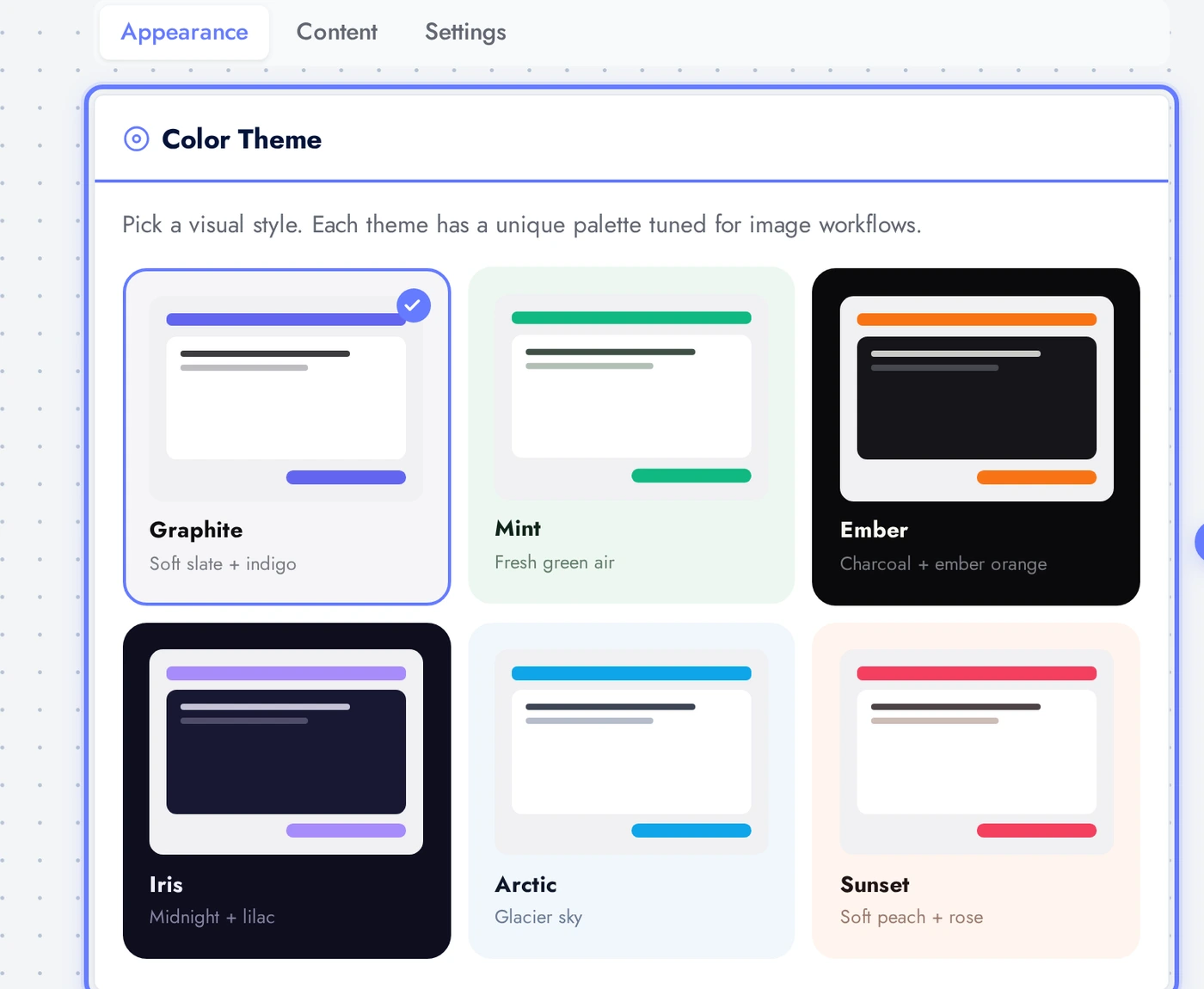
The Appearance Tab
Six pre-tuned themes available. The phone preview updates immediately on selection.
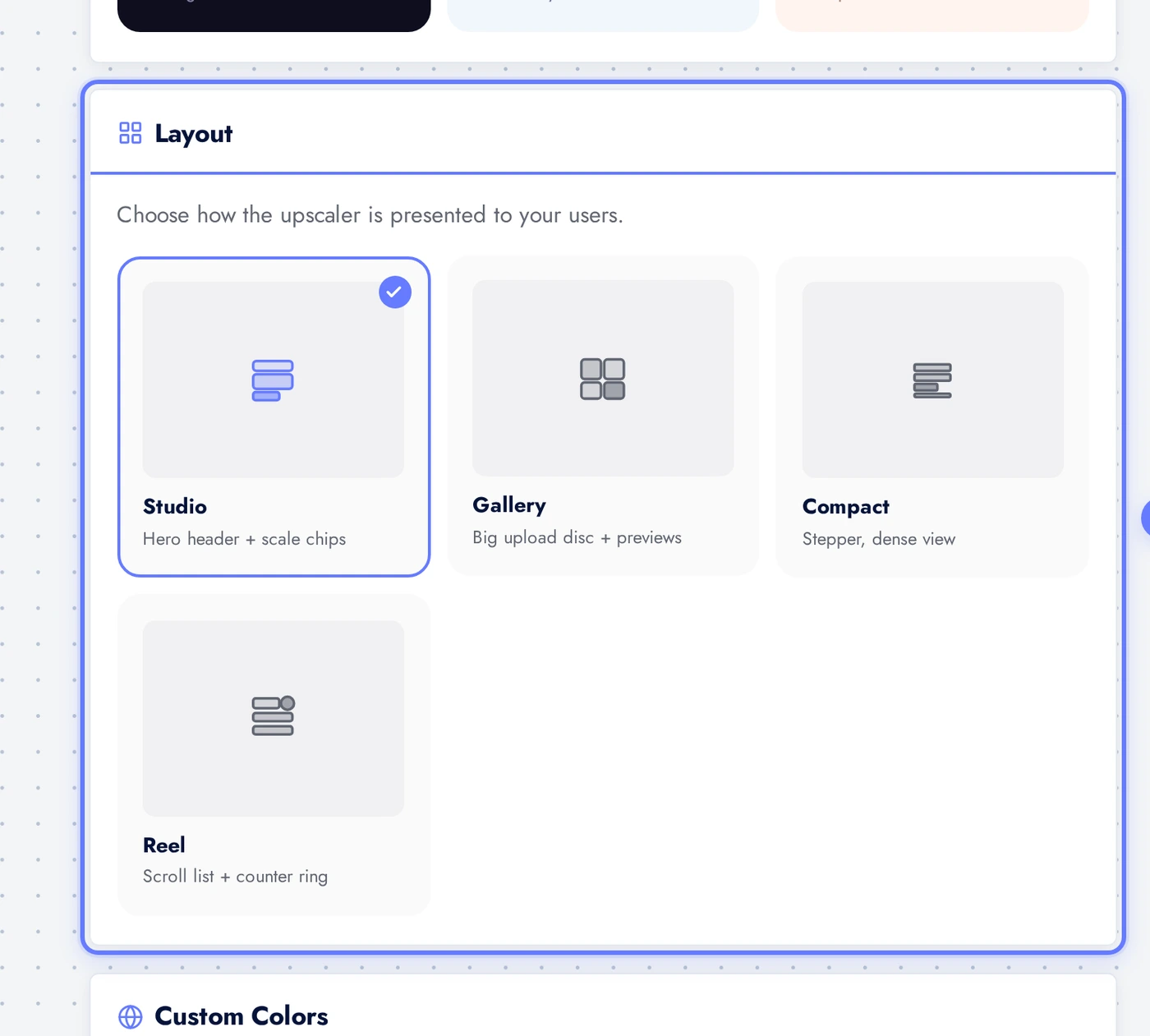
Four layouts: Studio, Gallery, Compact, Reel. Studio is the default and most intuitive for one-off upscales; Reel works well for users who want to upscale a queue.
The Content Tab
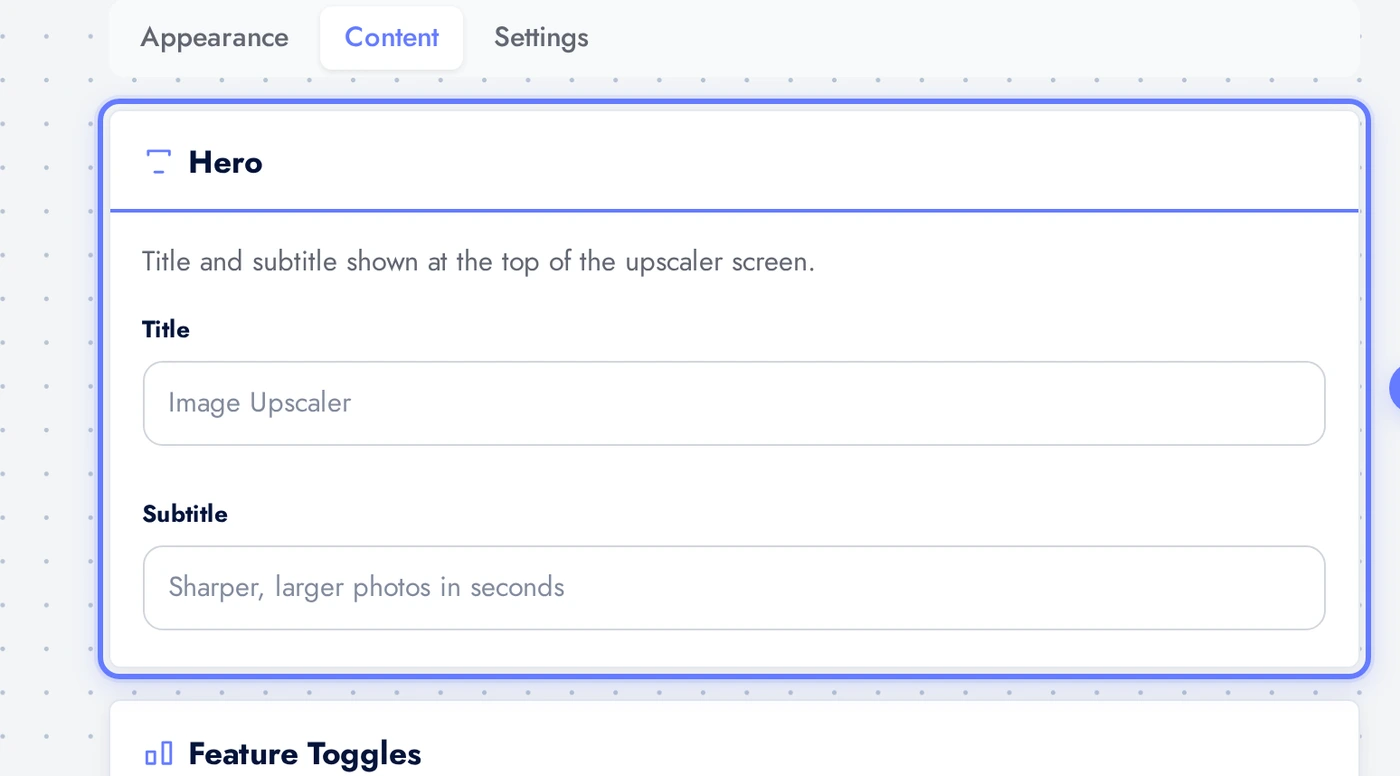
The Hero card holds the title and subtitle.
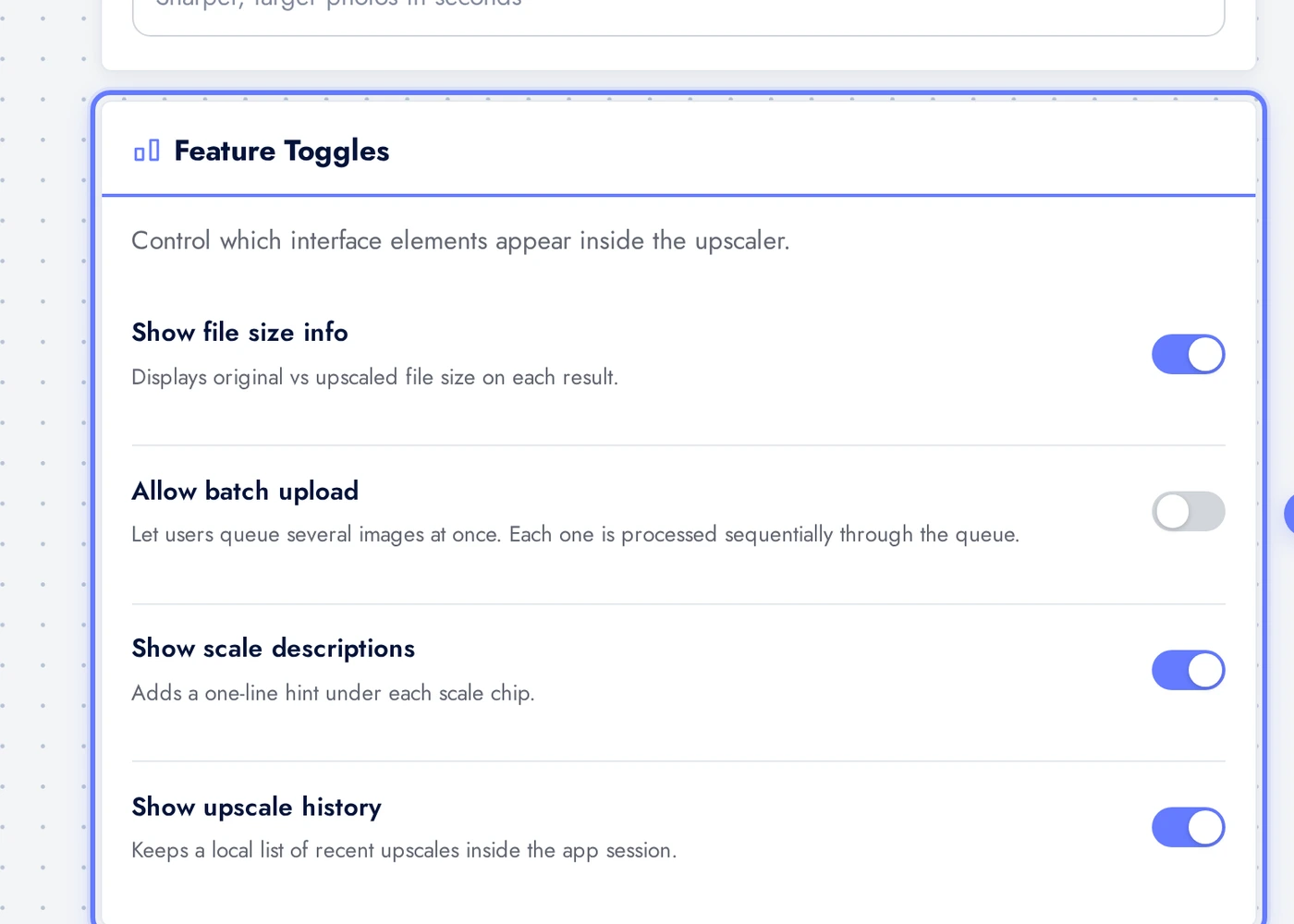
Show file size info shows original vs upscaled bytes on each result. Allow batch upload queues several images; the AI processes them sequentially. Show scale descriptions adds hints under each scale chip. Show upscale history keeps a session log.
The Settings Tab
Settings control scale, switching, and upload limits.
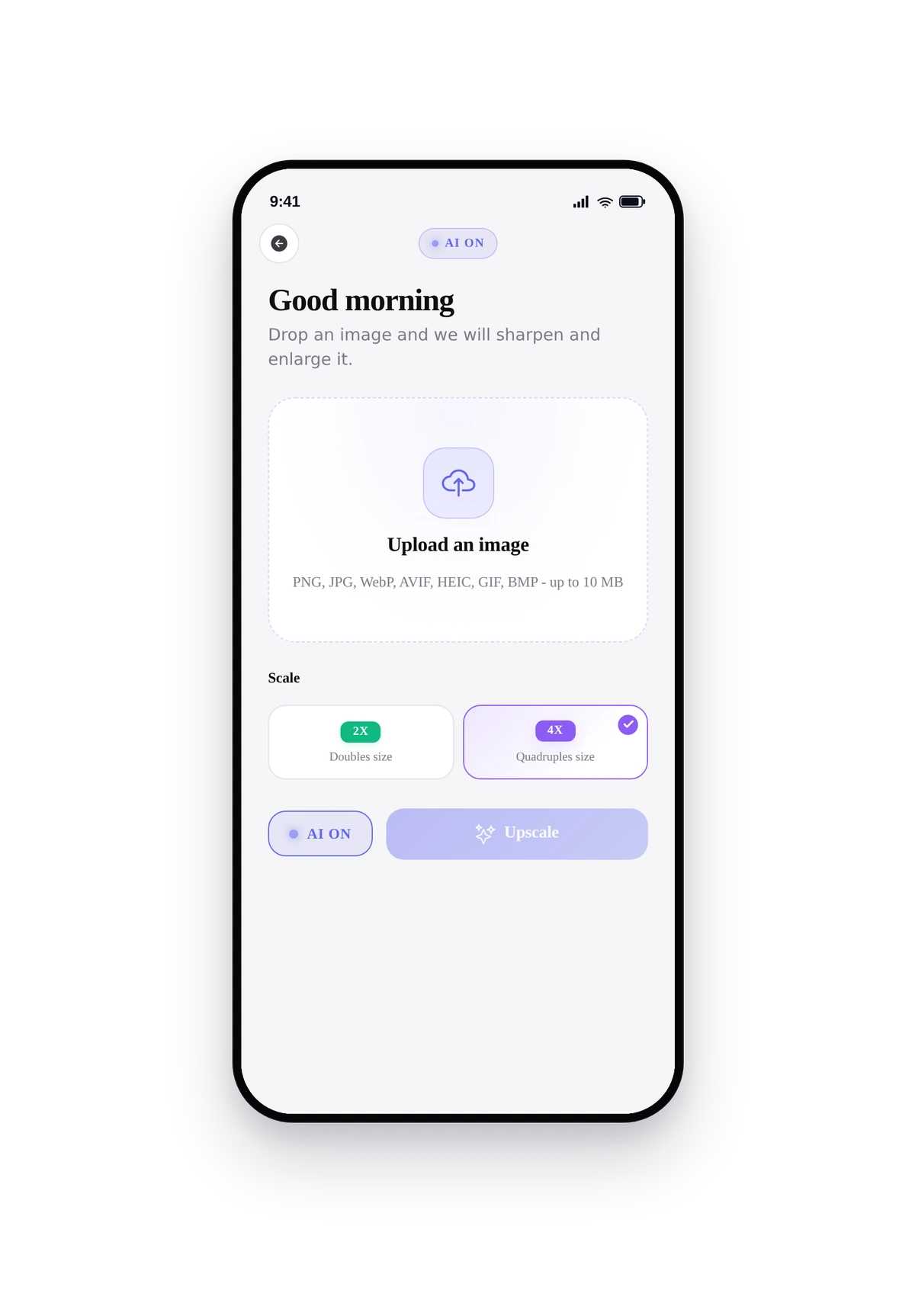
The Default scale controls which level new sessions start with. 2x doubles each dimension (quadruples pixels), fast, good for social and web. 4x quadruples dimensions (16x pixels), slower, good for print, posters, archive restoration. Allow scale switch lets users toggle inside the app; turn off if you only want one scale.
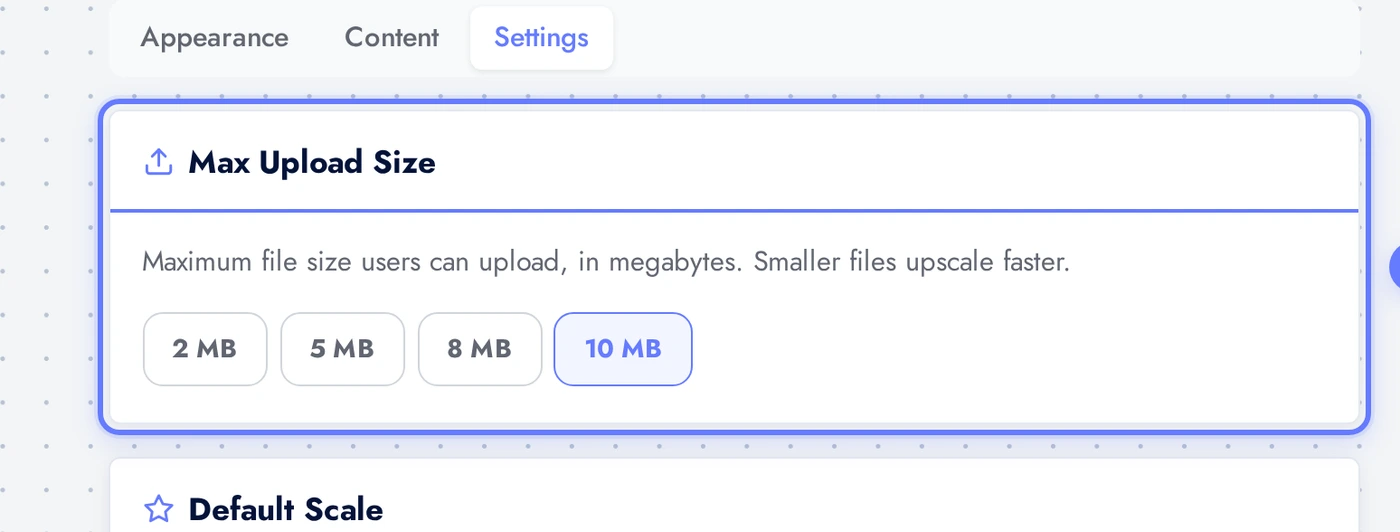
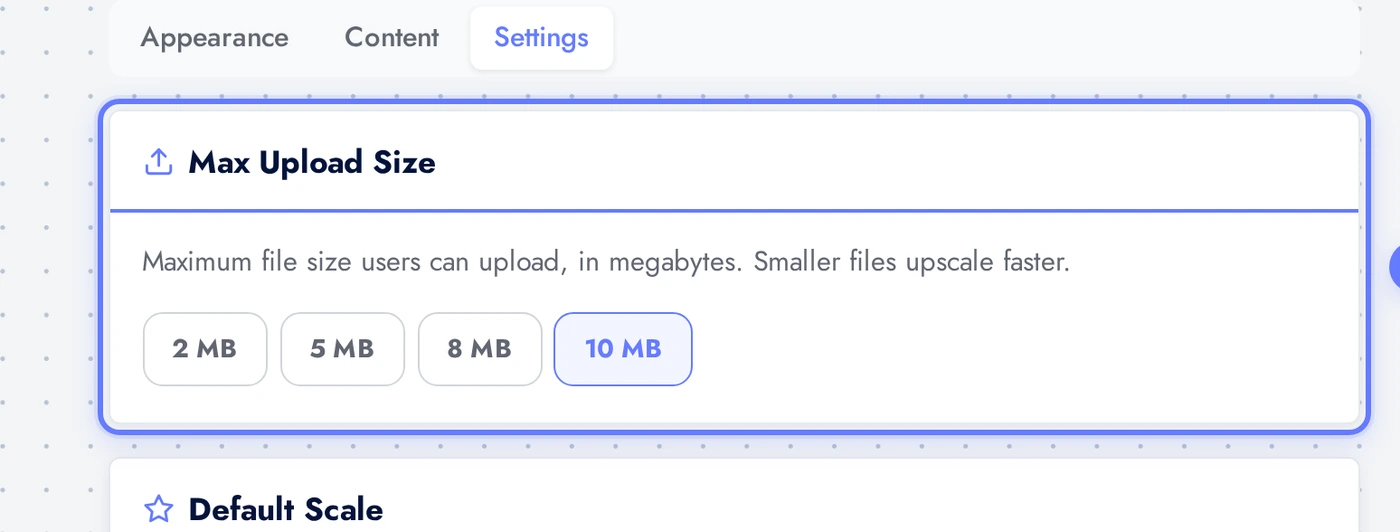
The Max Upload Size decides the largest file users can submit. Pick from 2, 5, 8, or 10 MB. Smaller is safer for upscaling because 4x of a 10 MB image is computationally expensive.
Live Preview
This is the actual native UI. Users upload, pick a scale, watch the AI work.
Tips
- Use 2x for social and web; 4x for print. 4x on screen is overkill and wastes time.
- Upscaling cannot rescue blurry source photos. The AI infers detail but cannot recover information that was never captured. Sharp small photos upscale well; blurry small photos stay blurry just bigger.
- For print-on-demand apps, default to 4x and turn allow-scale-switch off. Forces users to print-ready quality without confusing them with the option.
- Batch upload is slow by design. The AI is sequential. Set expectations in your hero subtitle ("4x upscale, about 30 seconds per image").
- Pair with the Image Converter so users can upscale then convert to AVIF or WebP in one trip.
Removing the Feature
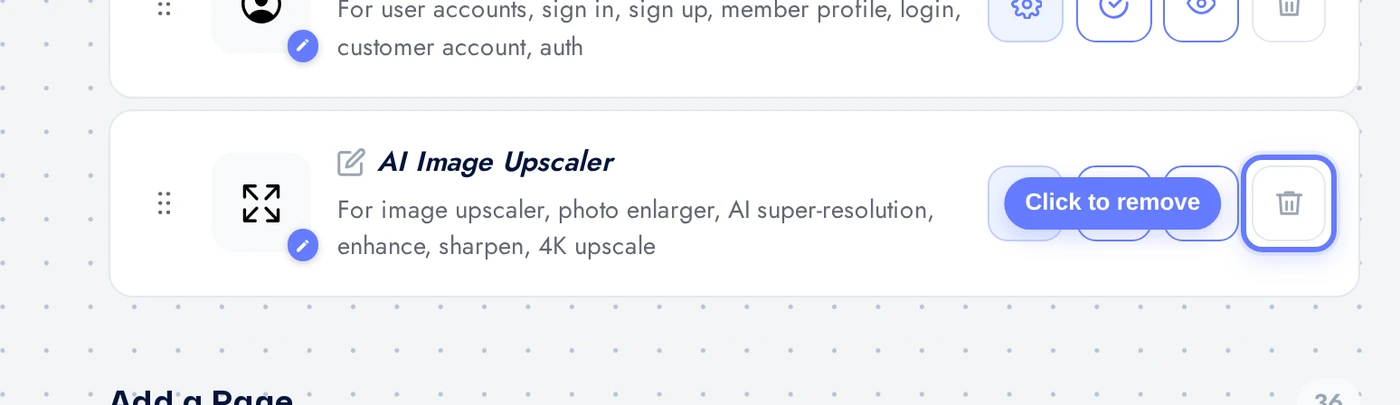
Back on Features, find the AI Image Upscaler row, click the red trash icon, confirm.