AI Image Converter Feature
What is the AI Image Converter?
The AI Image Converter is a Swiftspeed feature that adds a format-conversion screen to your mobile app. End-users upload a photo, pick a target format (WebP for web, AVIF for next-gen, JPG for universal sharing, PNG for lossless, GIF for animation, BMP for raw, HEIC for Apple), and download or share the converted file.
The most popular conversion is HEIC to JPG: every iPhone user runs into this when sharing photos with non-Apple recipients. WebP and AVIF give 30 to 50 percent smaller files than JPG for the same visual quality, useful for web designers and marketers.
Adding the Image Converter to Your App
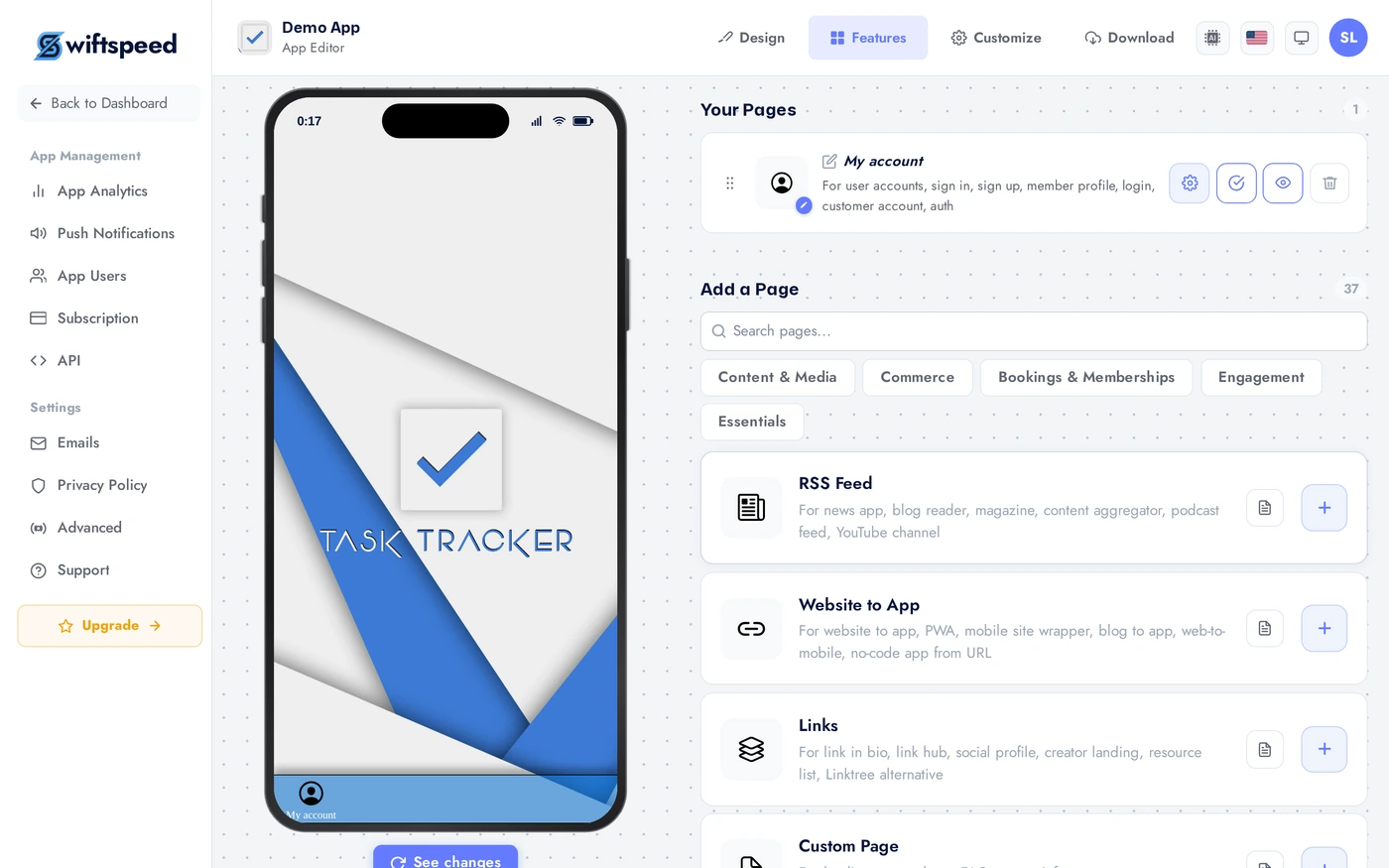
In the App editor, click Features in the top bar. Browse the AI Tools category.
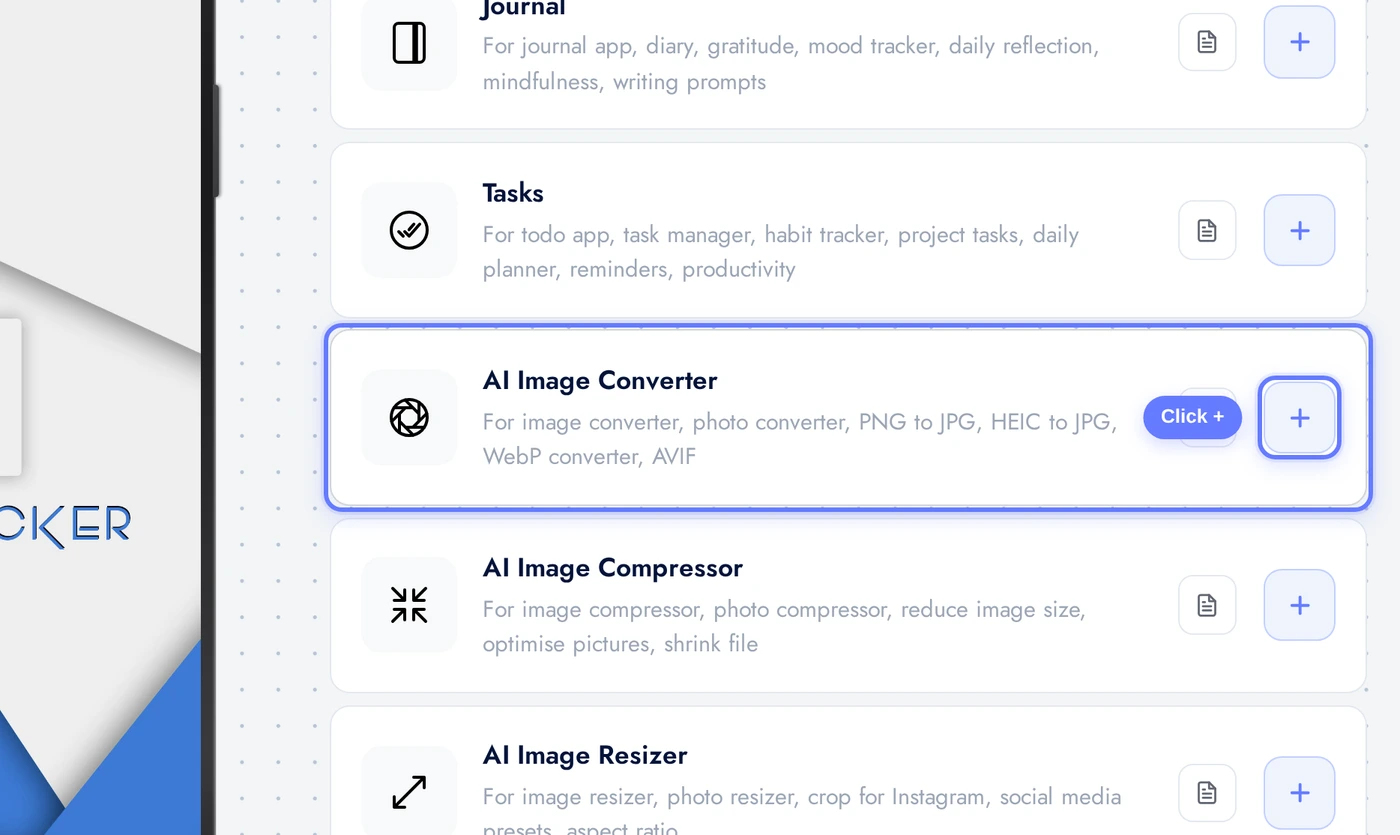
Find the AI Image Converter card. Click the + button to add it.
The Appearance Tab
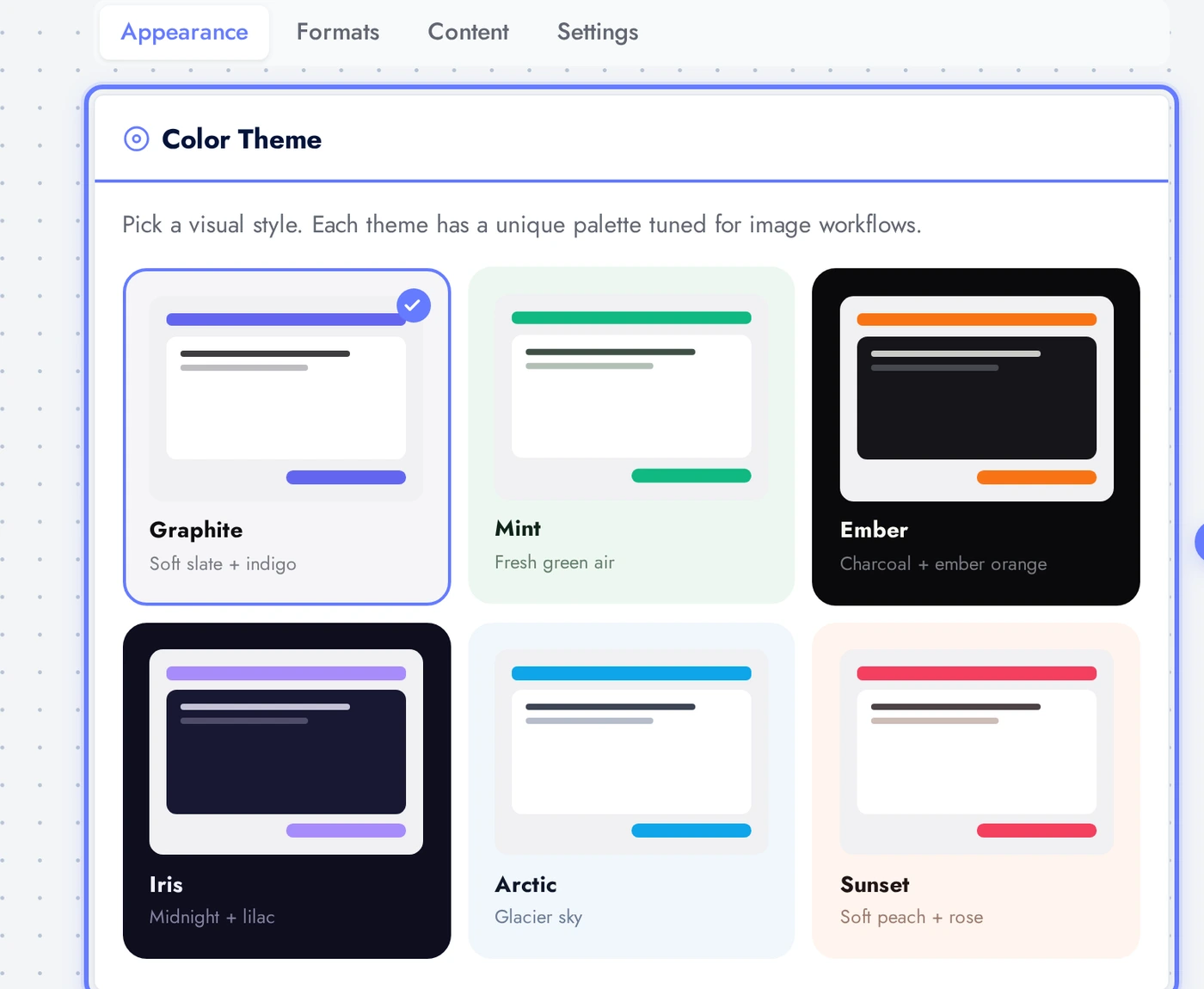
The Appearance tab controls the look of the converter screen.
Six pre-tuned themes: Graphite, Mint, Ember, Iris, Arctic, Sunset. Each adjusts background, surface, text, and accent colors together. Pick what matches the rest of your app.
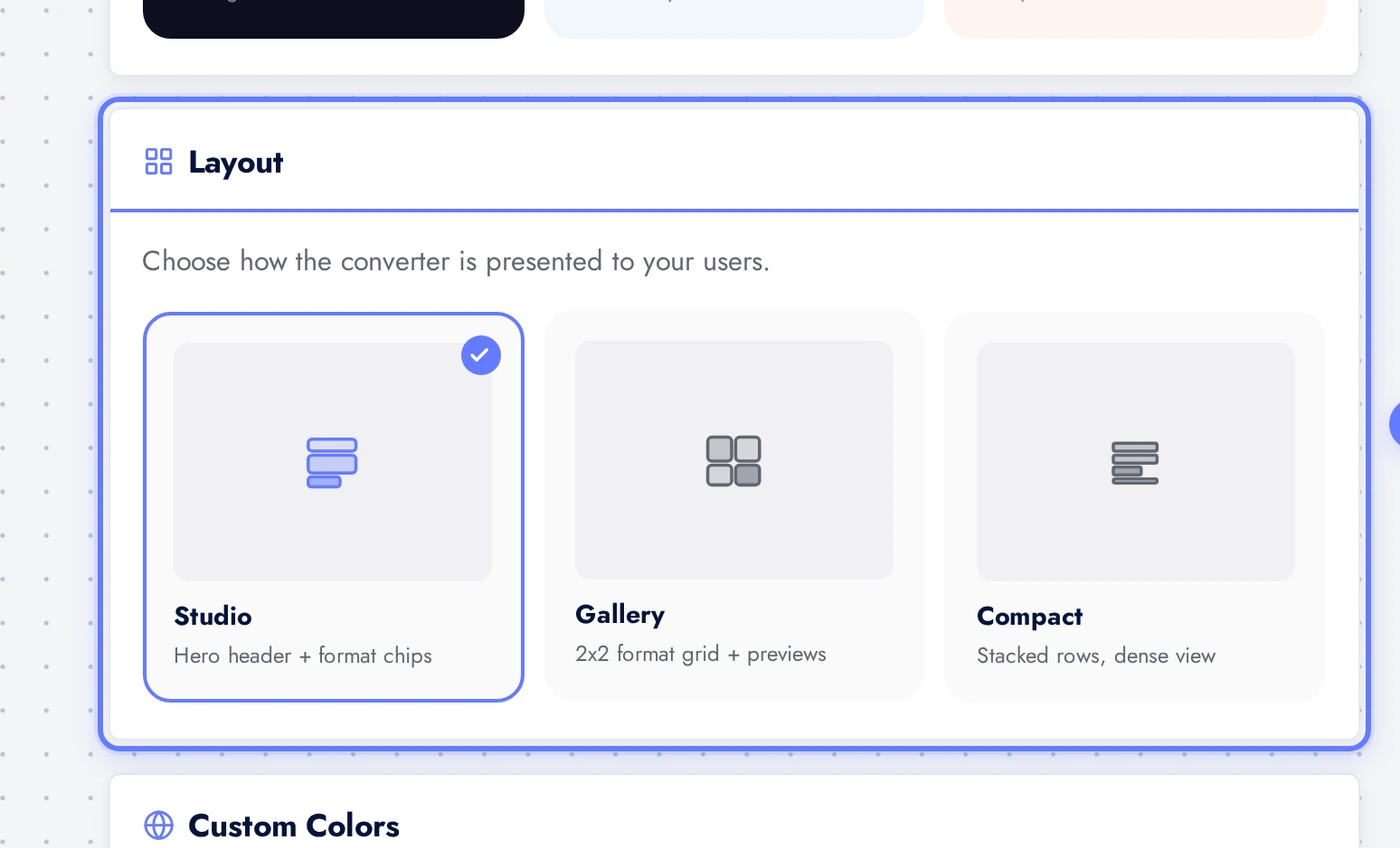
Three layouts: Studio (hero header plus format chips), Gallery (2x2 format grid with preview tiles), Compact (dense stacked rows). Studio is the most intuitive for first-time users.
The Content Tab
The Content tab controls hero copy, format selection, and which UI elements appear.
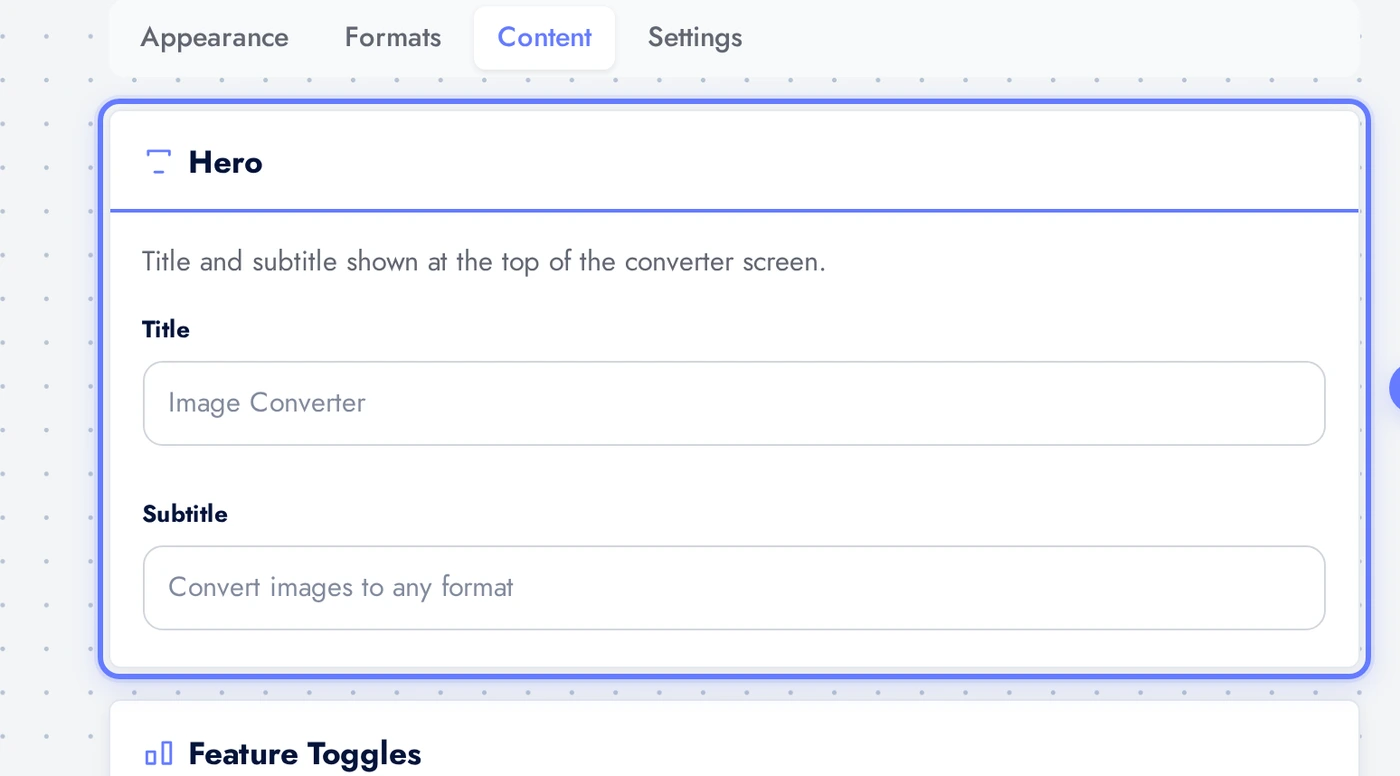
The Hero card holds the title and subtitle at the top of the converter screen.
The Formats card decides which target formats users can convert to. Seven supported: WebP (web optimised), AVIF (next-gen), JPG (universal), PNG (lossless), GIF (animated), BMP (raw bitmap), HEIC (Apple format). Tap any tile to enable or disable. Keep at least one enabled.
The Settings Tab
The Settings tab controls upload limits and default quality.
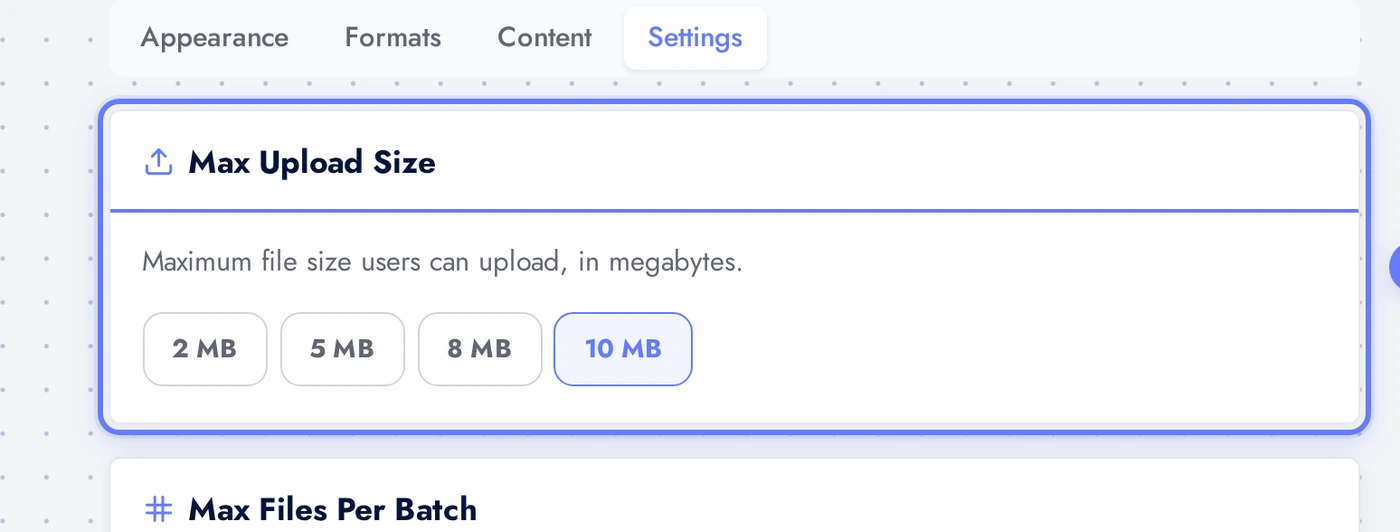
The Max Upload Size decides the largest file users can submit. Pick from 2, 5, 8, or 10 MB. Default is 10 MB.
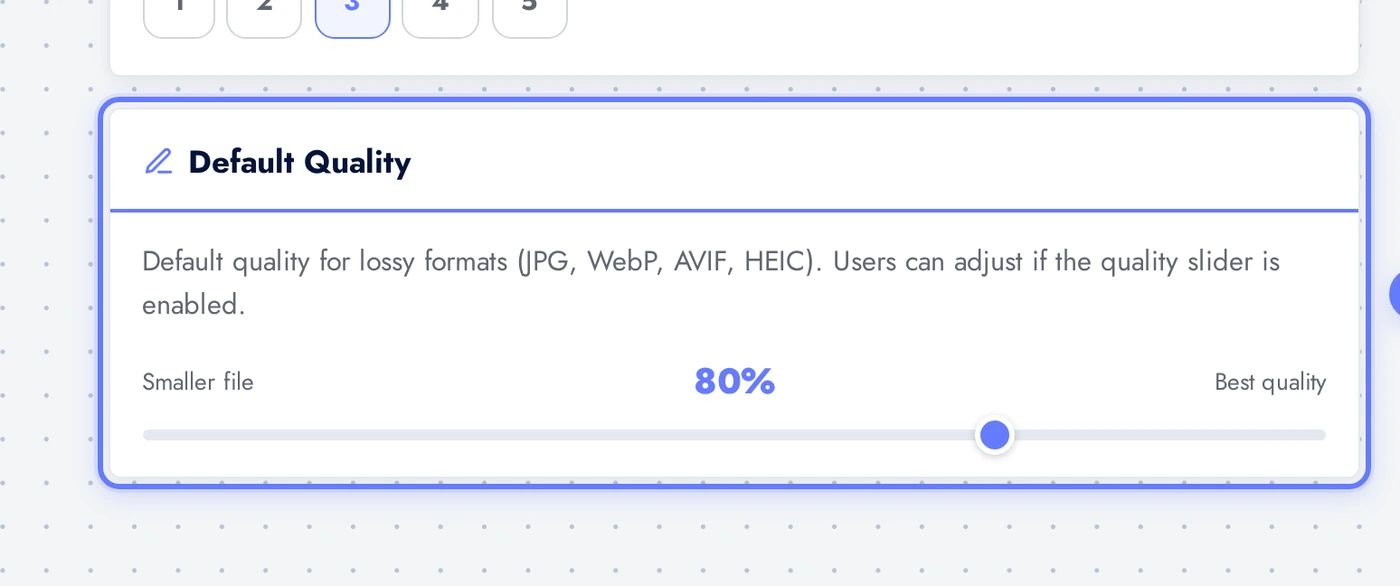
The Default Quality slider sets the starting output quality for lossy formats (JPG, WebP, AVIF, HEIC). Range is 40 to 95, default is 80 which keeps photos visually identical to the source. Does not affect PNG or BMP (those are lossless).
Live Preview
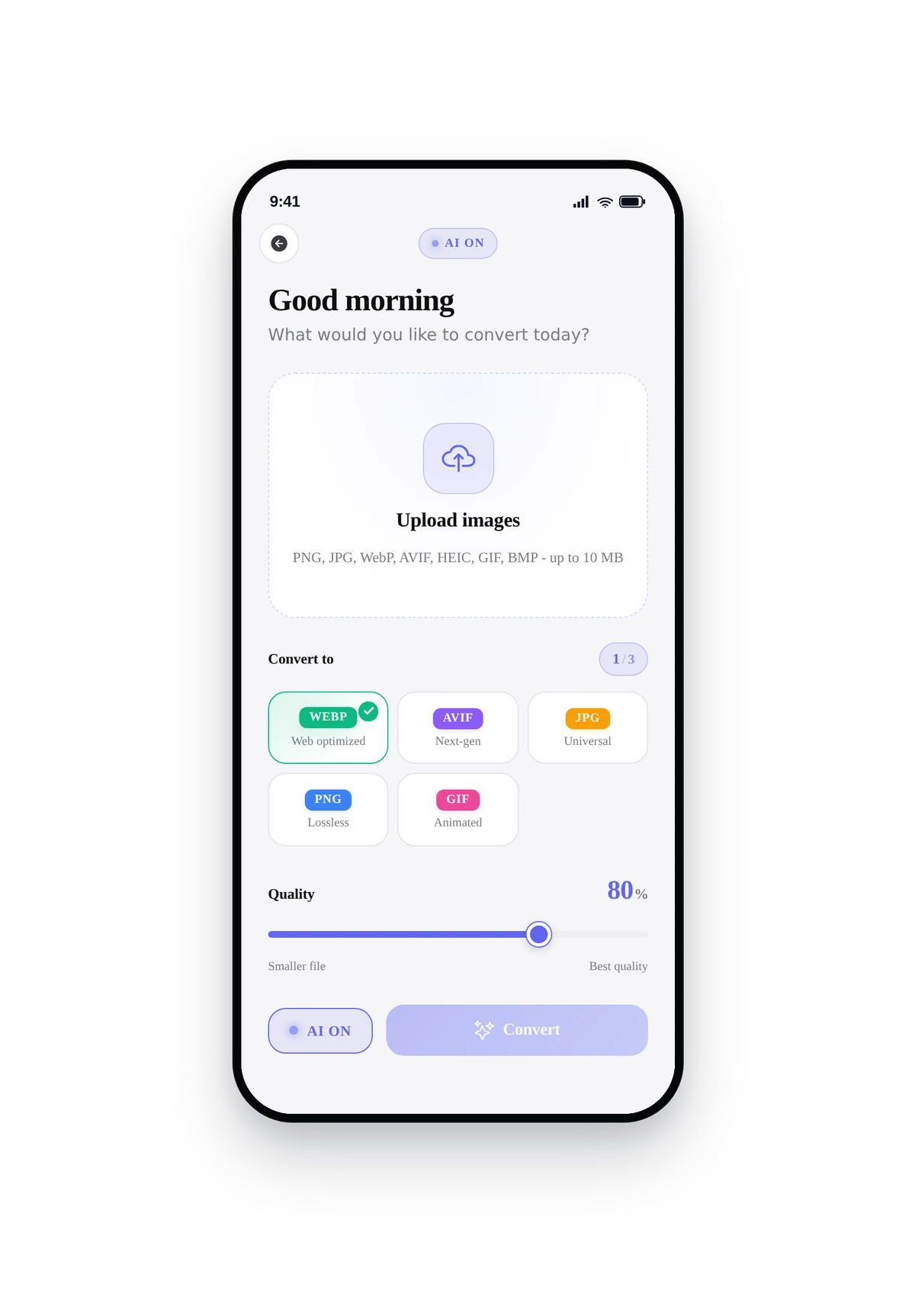
This is the actual native UI. Users upload a photo, pick a target format from the chips, tap convert.
Tips
- HEIC to JPG is the highest-converting use case. iPhone users sharing with Android recipients constantly need this. Lead your hero copy with it if your audience is mixed.
- WebP and AVIF are 30 to 50 percent smaller than JPG at the same visual quality. Promote them in your subtitle if your audience cares about web optimisation (designers, marketers, ecommerce).
- Hide BMP unless you have a specific use case. BMP is rare in modern workflows. Most users do not know what it is and the option clutters the chip row.
- For photo-archive apps, hide AVIF and HEIC. They have less universal support and confuse users who plan to share converted files widely.
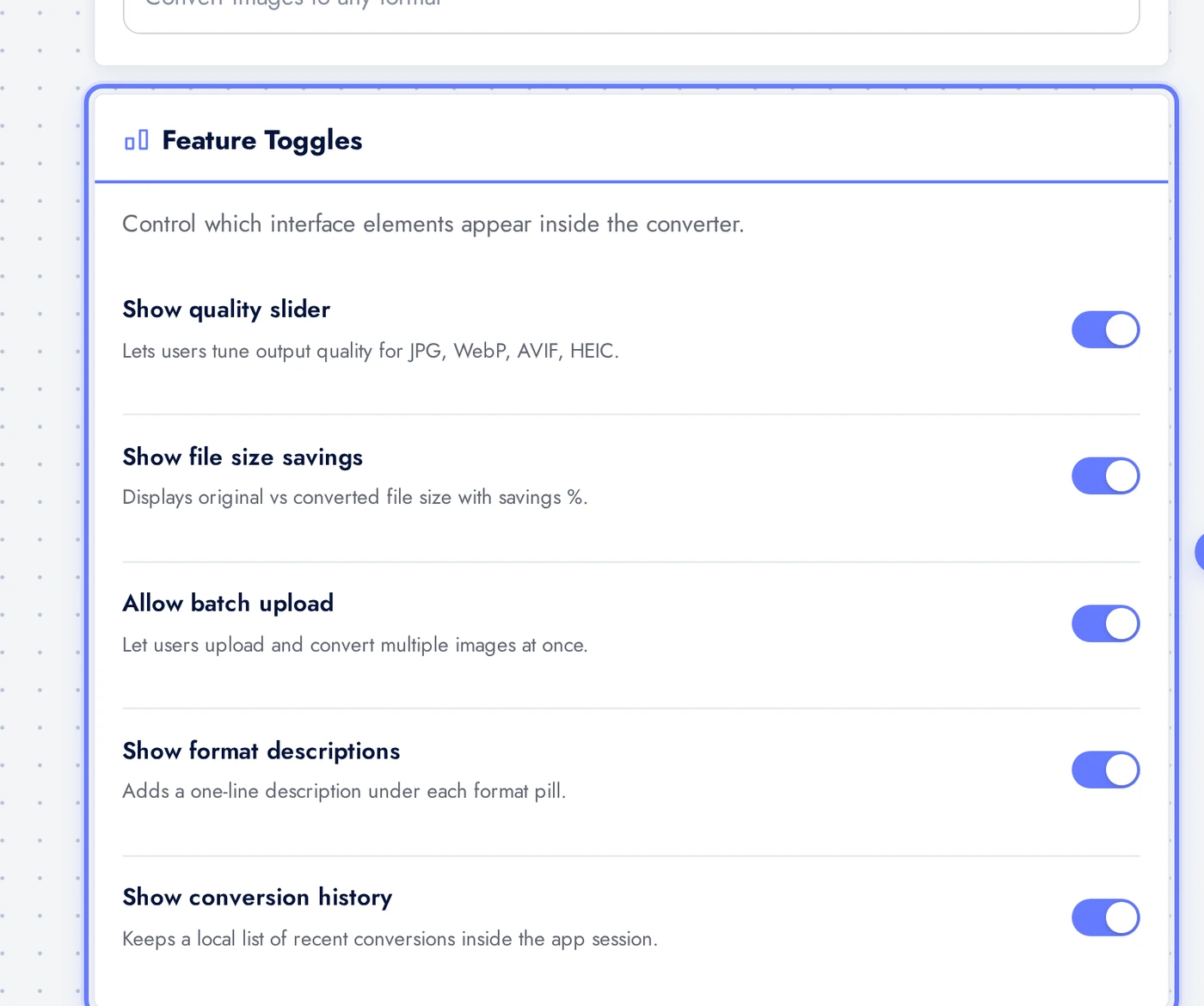
- Show format descriptions on by default. Most users do not know the difference between PNG and WebP; the one-line hint helps them pick.
Removing the Feature
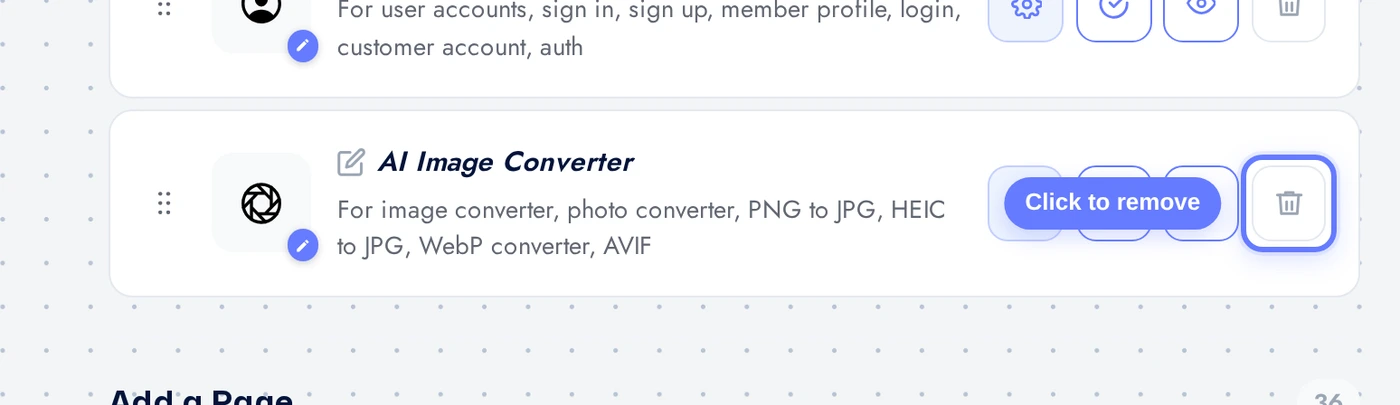
Back on Features, find the AI Image Converter row, click the red trash icon, confirm. Feature gone.