AI Chat Feature
What is the AI Chat Feature?
AI Chat adds a fully functional conversational assistant to your Swiftspeed app. End-users see a chat interface and converse with an AI that you customise. You set the persona, the model, the safety rails, and the look. The assistant can answer questions, recommend content, guide users through your app, roleplay as a character, or anything else your prompt describes.
Two ways to pay for the AI. Swiftspeed platform AI is bundled with your subscription, includes reasonable rate limits, no separate billing. Bring your own key lets you connect your OpenAI, Anthropic, or Z.AI account directly; you pay the provider, get exact control over models and rate limits.
Adding the AI Chat Feature to Your App
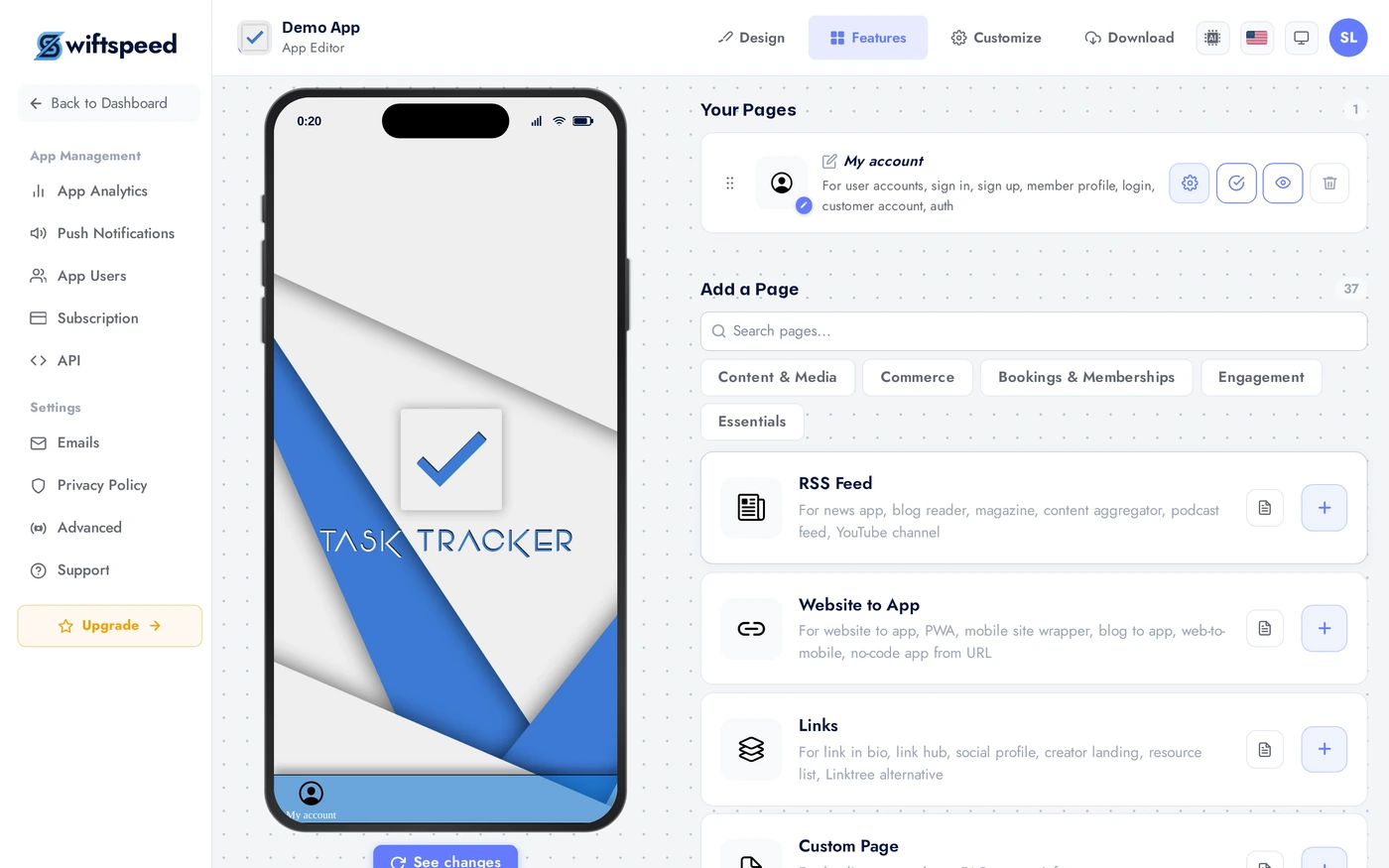
In the App editor, click Features in the top bar.
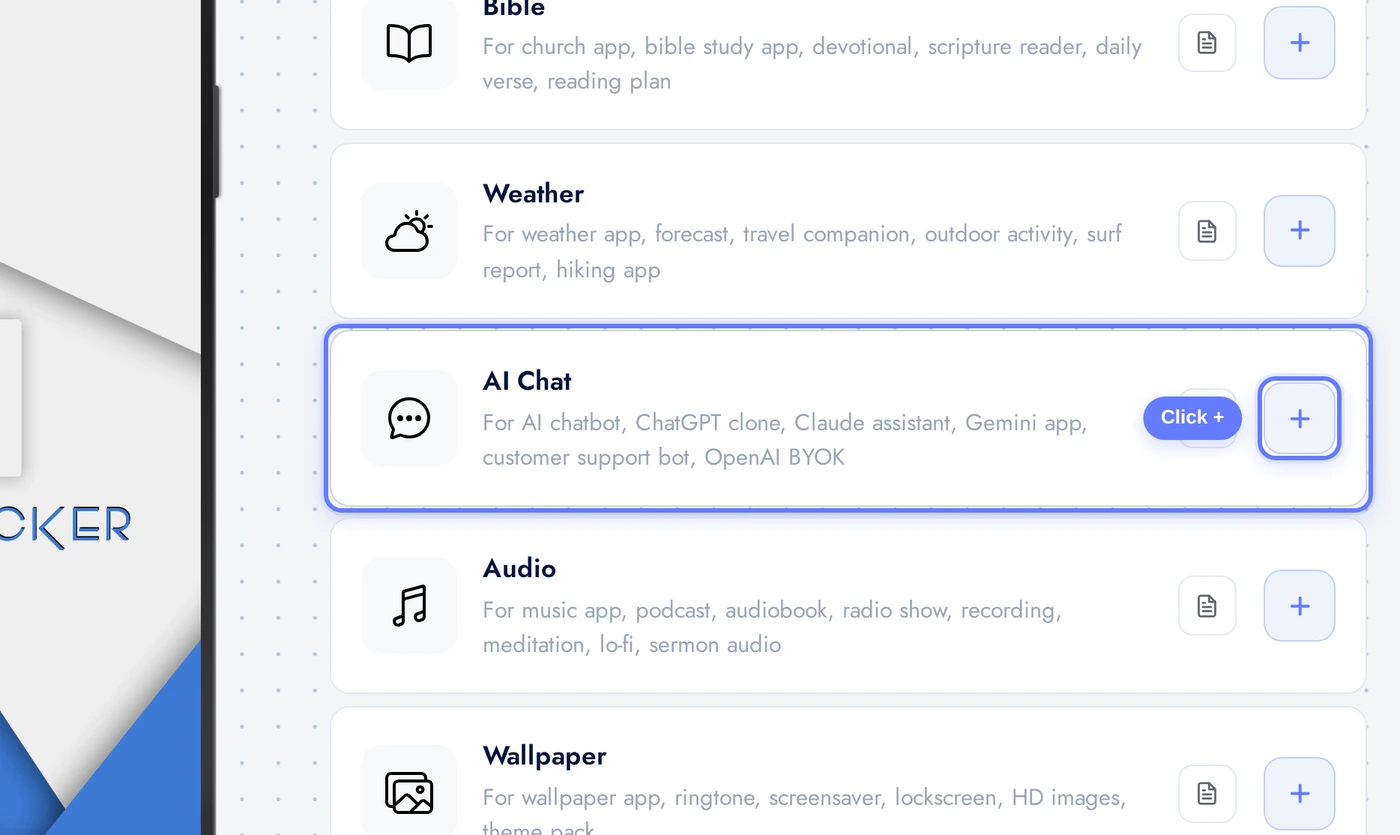
Find the AI Chat card and click the + button.
Provider Tab: Pick the Model
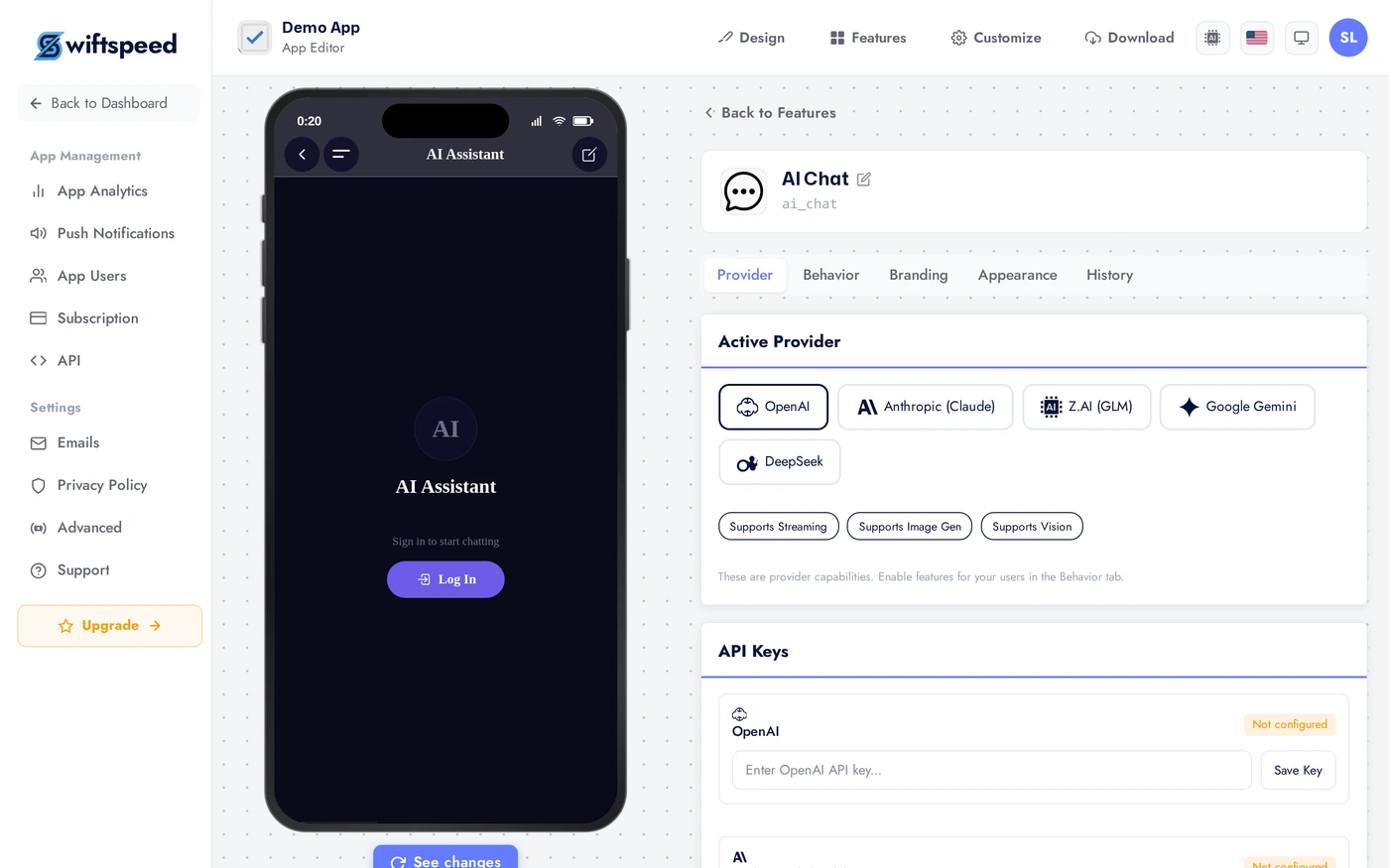
The Provider tab is where you choose which AI powers the chat and how it should be invoked.
Pick a provider. OpenAI (GPT-4o, GPT-4o-mini) is the default. Anthropic (Claude) is a strong alternative. Z.AI for region-specific compliance. Swiftspeed Platform AI uses our platform key (bundled with your subscription, no separate billing). For your own key, paste it in the appropriate field; the Test button verifies the key is valid before saving.
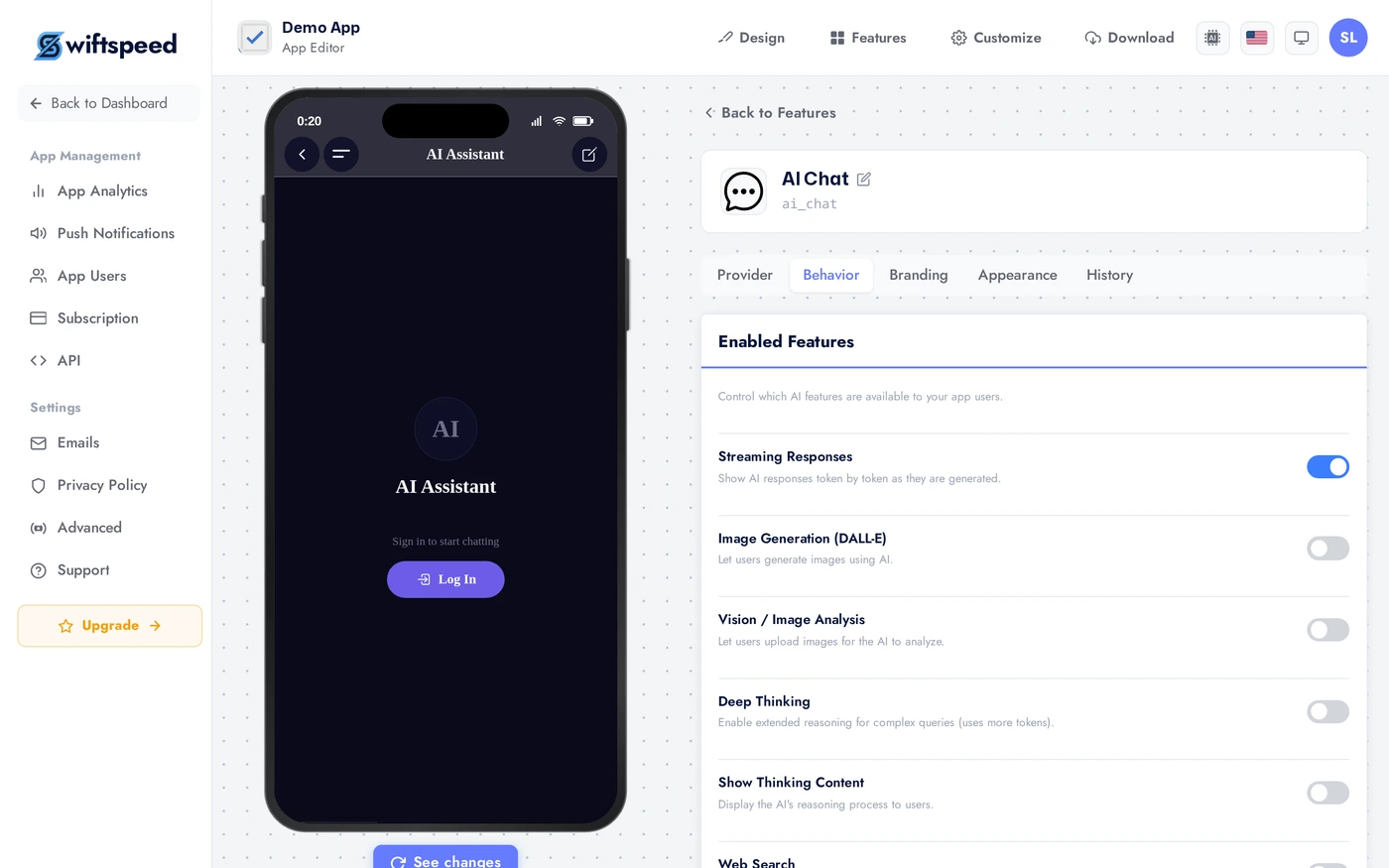
Behavior Tab: Define the Persona
The Behavior tab is the most important page in the editor. This is where you tell the AI who it is and how it should respond.
The System instructions field is the prompt the AI reads at the start of every conversation. Examples: "You are a friendly customer service agent for Acme Co. Answer questions about our products and policies." Or: "You are Captain Nova, a space explorer. Stay in character." Temperature controls creativity (0 = deterministic, 1 = creative). Max tokens caps response length. Capability toggles enable web search, image generation, vision, deep thinking, streaming.
Branding Tab: Name and Avatar
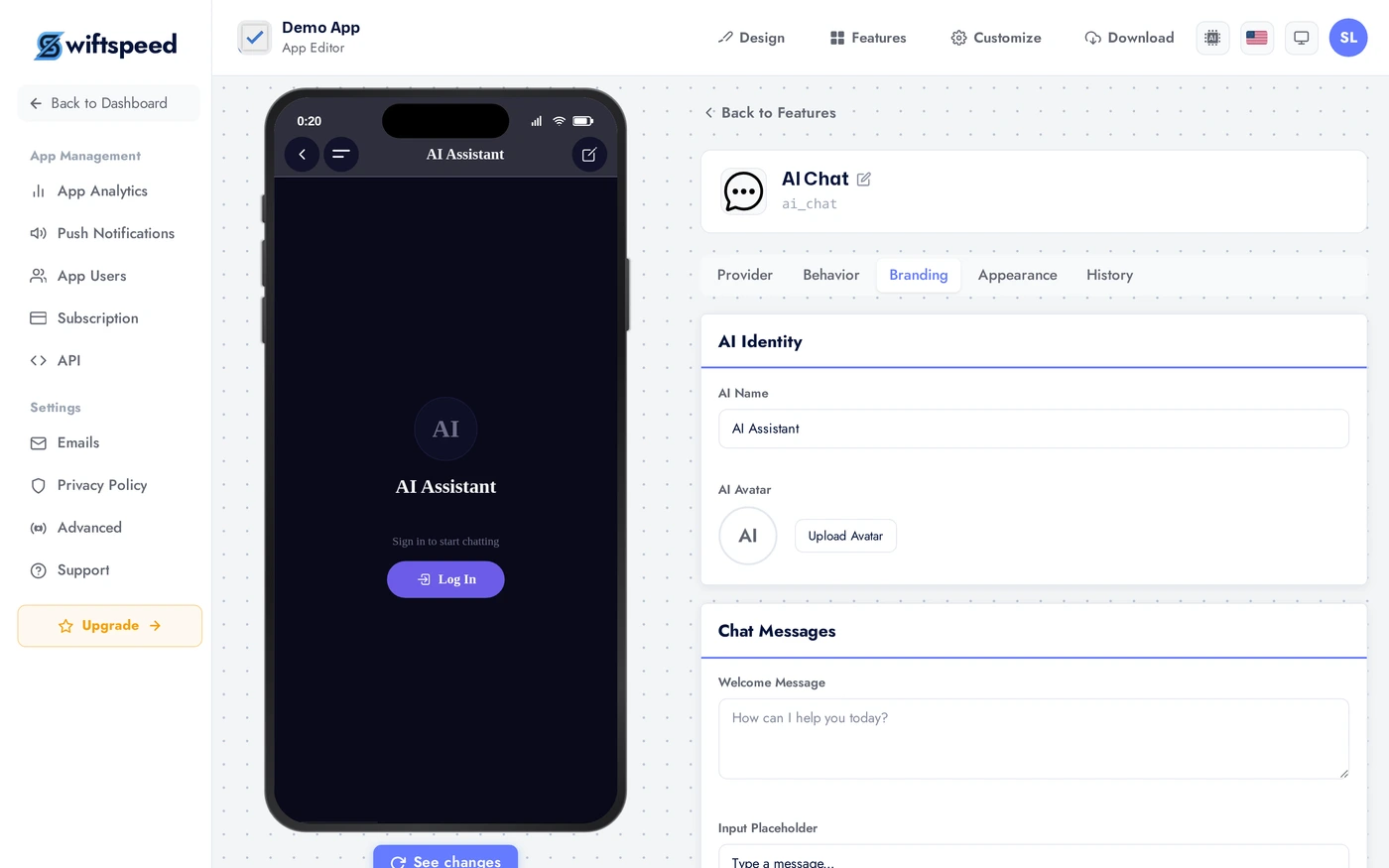
The Branding tab is where you give the assistant a name, an avatar, a welcome message, and suggested prompts.
AI name appears as the chat header and the assistant's display name. Avatar is an image uploaded here (or leave blank for initials). Welcome message is the first thing a user sees when they open the chat. Suggested prompts are tappable starter questions; useful for first-time users who do not know what to ask. Input placeholder customises the chat box hint text.
Appearance Tab: Theme and Layout
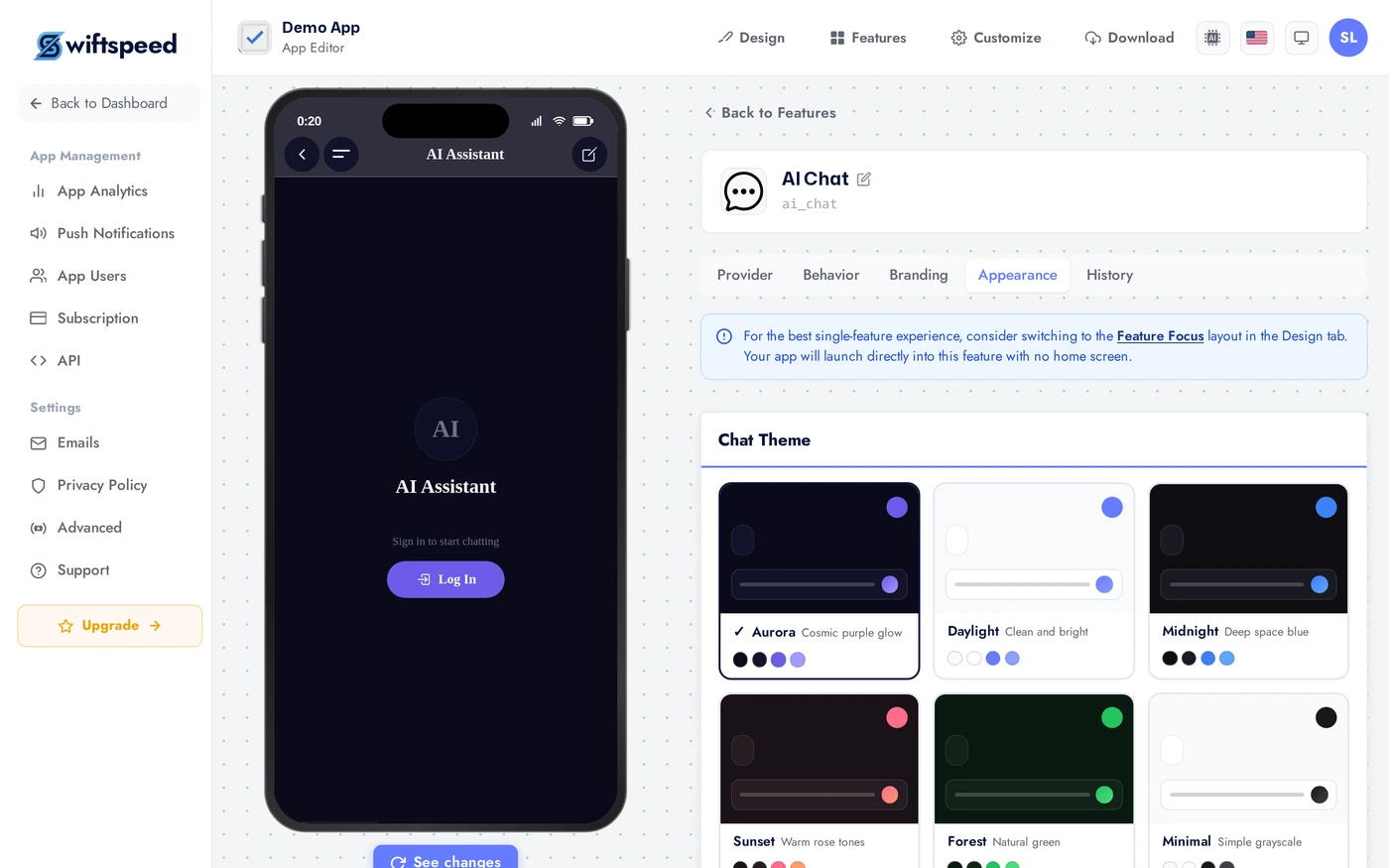
The Appearance tab controls the visual look of the chat screen.
Pick a chat theme (e.g. Aurora, Midnight) and a chat layout (Classic bubble vs Minimal full-width). Each combination tunes background, message bubble colors, and accent colors together. Pair with the rest of your app for a cohesive feel.
History Tab: Conversation Limits and Review
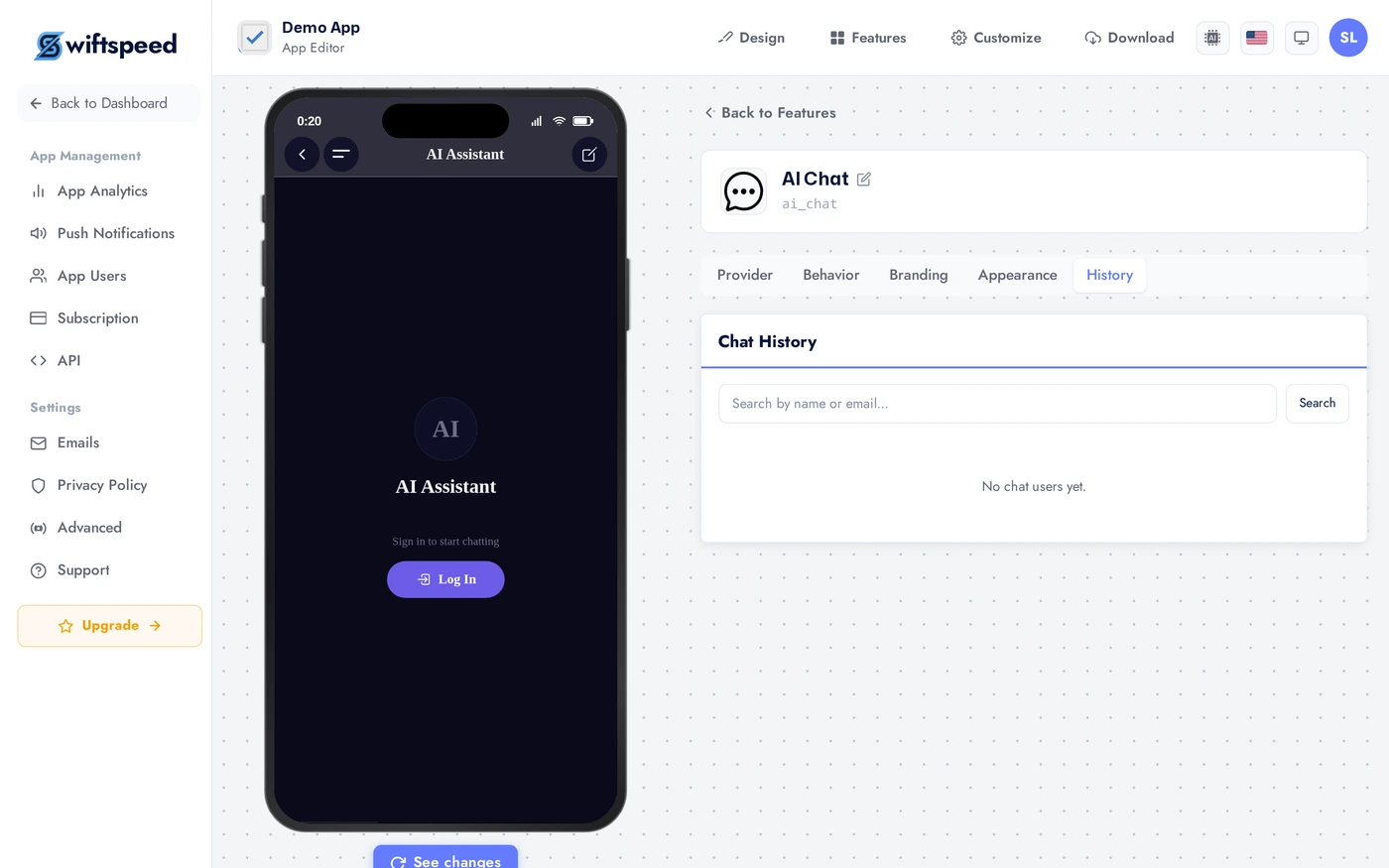
The History tab controls how many messages the AI remembers and lets you review past conversations.
Max context messages sets how many previous turns the AI sees on each response (default 20; higher = more context, more cost). Max conversation messages limits how long a single conversation can run before the user must start over. Allow multiple conversations lets users keep parallel threads. Below the settings, the conversation list shows past sessions you can review for quality.
Live Preview
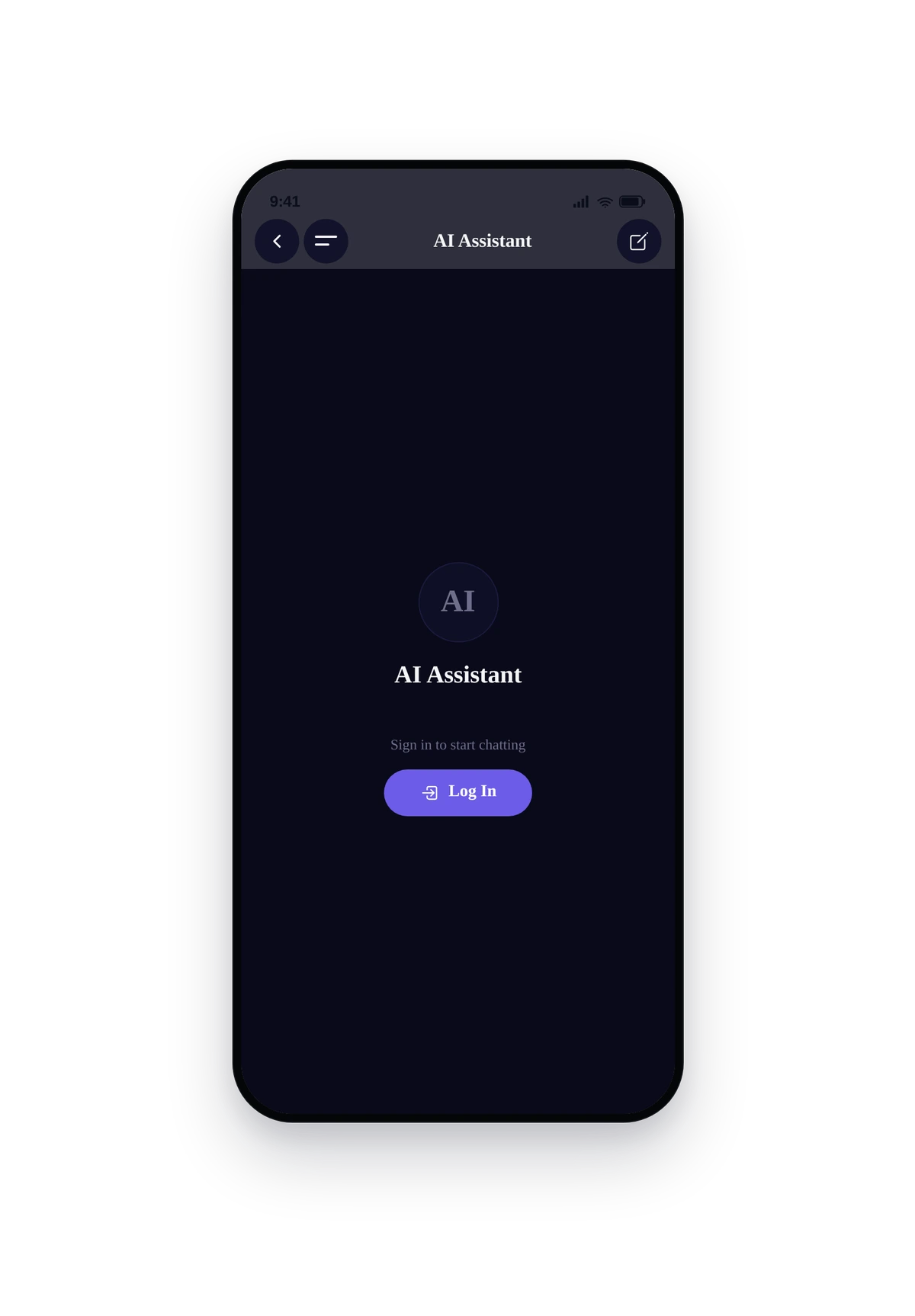
This is the actual chat surface end-users see. Welcome message at the top, suggested prompts as tappable chips, input bar at the bottom. The persona you wrote in Behavior is loaded as the system prompt automatically.
Tips
- Spend time on the system instructions. It is the single biggest determinant of quality. A great prompt with a small model often beats a generic prompt with a large model.
- Set max tokens to 300 to 600 for mobile. Long walls of text feel bad on small screens. Force concise answers.
- For kids apps, temperature 0.3 and explicit safety rules in the system prompt. Add: "Do not discuss violence, drugs, adult topics, or anything inappropriate for under-13 users."
- Welcome message is your conversion moment. First-time users who see a good welcome message stay; ones who see a blank screen leave. Lead with the value proposition.
- Suggested prompts surface what the assistant does best. Use 3 to 5 starter prompts that highlight your app's niche.
- Monitor the History tab weekly. Real user questions tell you what content to add, what to clarify in your system prompt, what features users want.
Removing the Feature
Back on Features, find the AI Chat row, click the red trash icon, confirm.