AI Background Remover Feature
What is the AI Background Remover?
The AI Background Remover is a Swiftspeed feature that adds a single-tap background-stripping screen to your mobile app. End-users upload a photo, the AI isolates the subject and outputs a PNG with the background removed (transparent), they download or share the cutout.
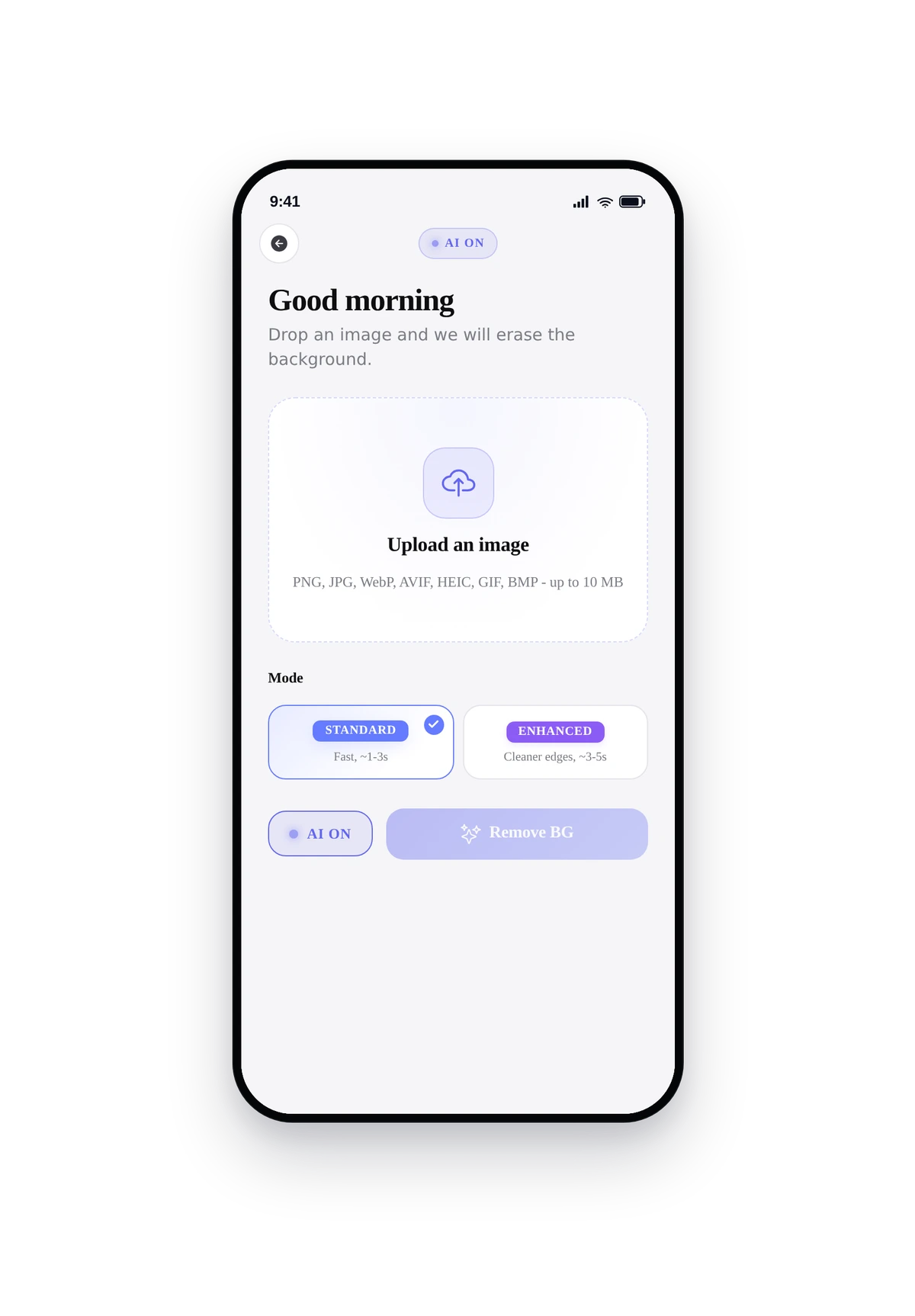
Two modes available. Standard is fast (1 to 3 seconds per image) and suitable for clear subject-background separation like product shots. Enhanced is slower (5 to 15 seconds) but much better at hair edges, fur, and translucent objects. Pick the right default for your audience.
Adding the Background Remover to Your App
In the App editor, click Features in the top bar.
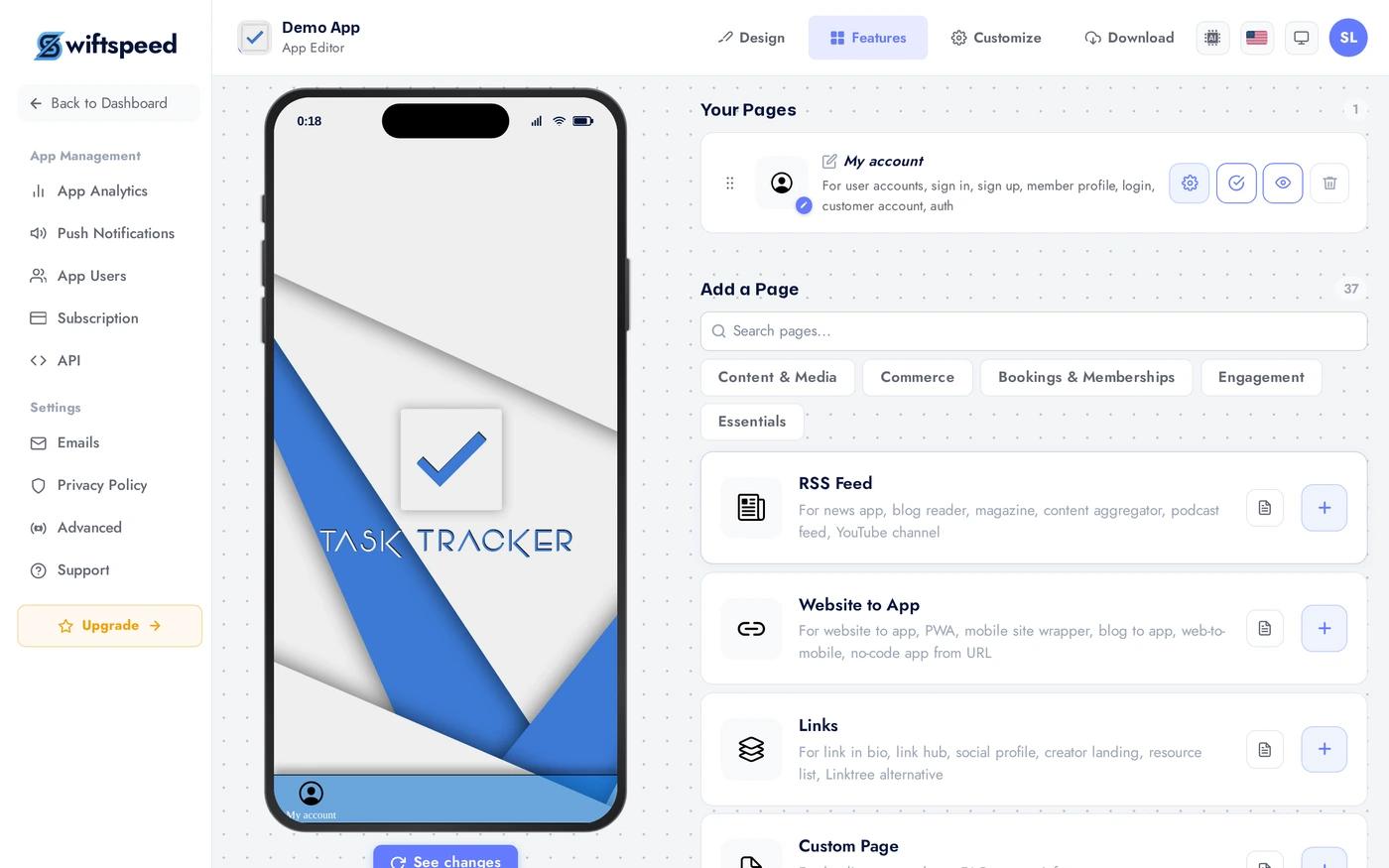
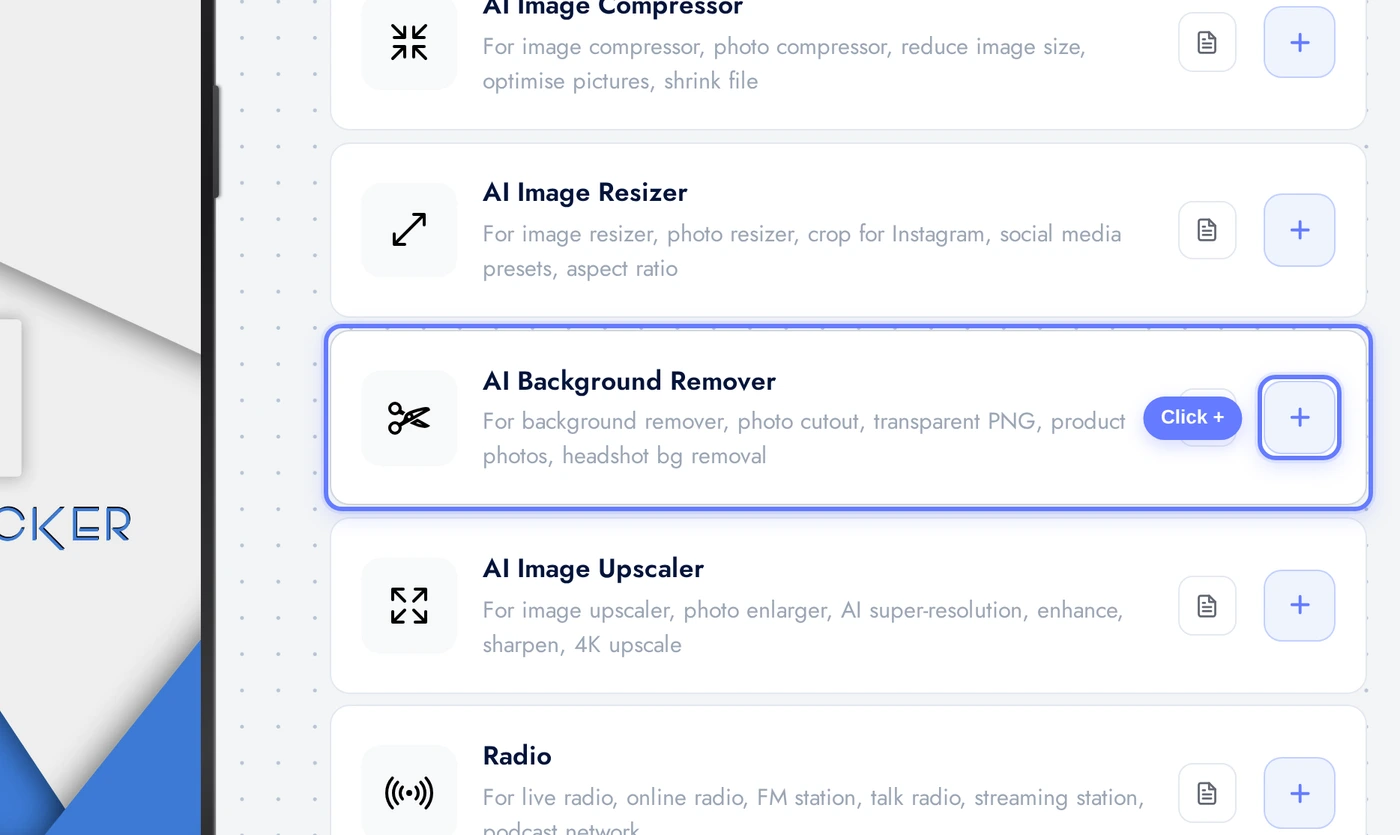
Find the AI Background Remover card. Click the + button to add it.
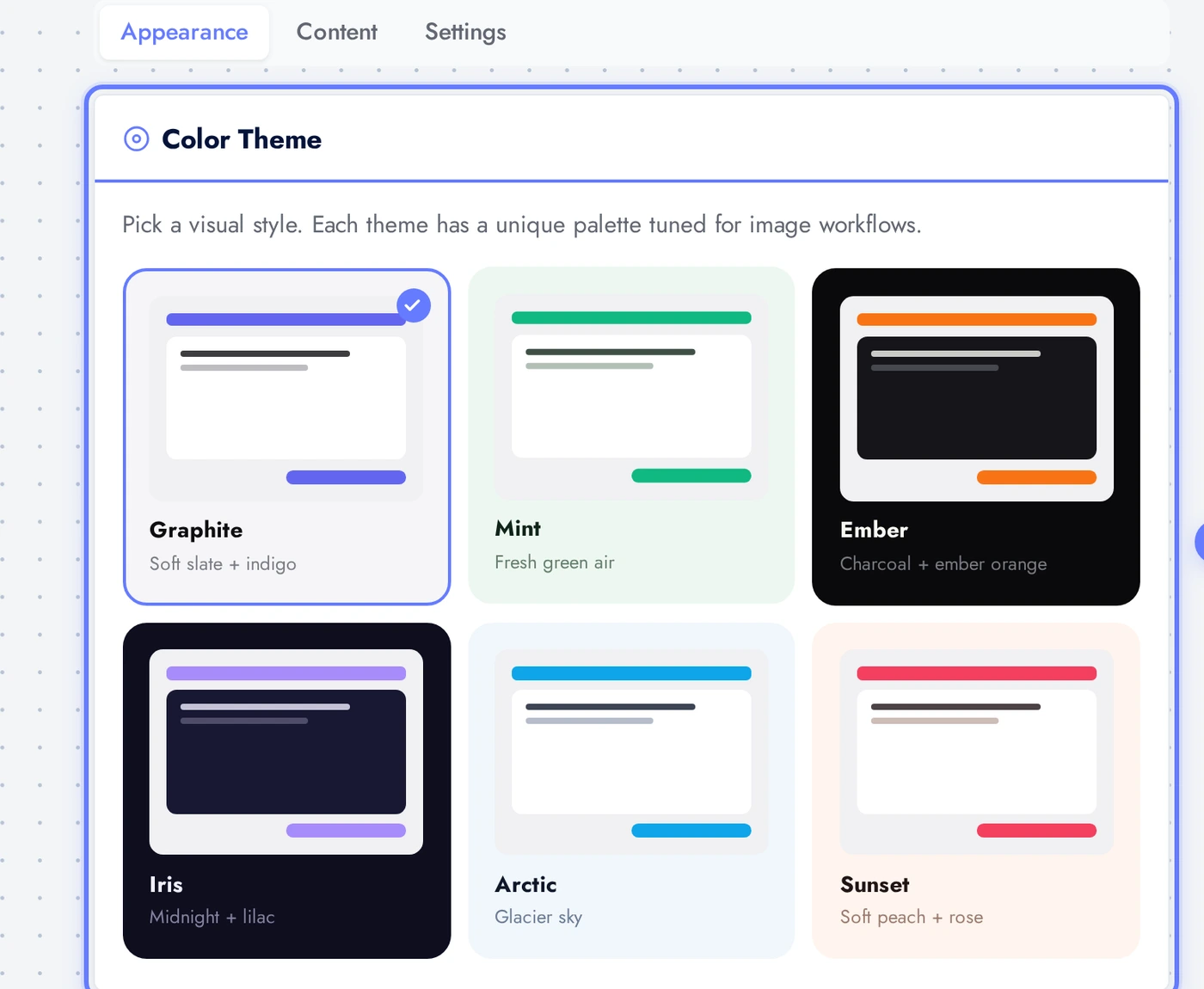
The Appearance Tab
Pick from six pre-tuned themes. The phone preview updates live.
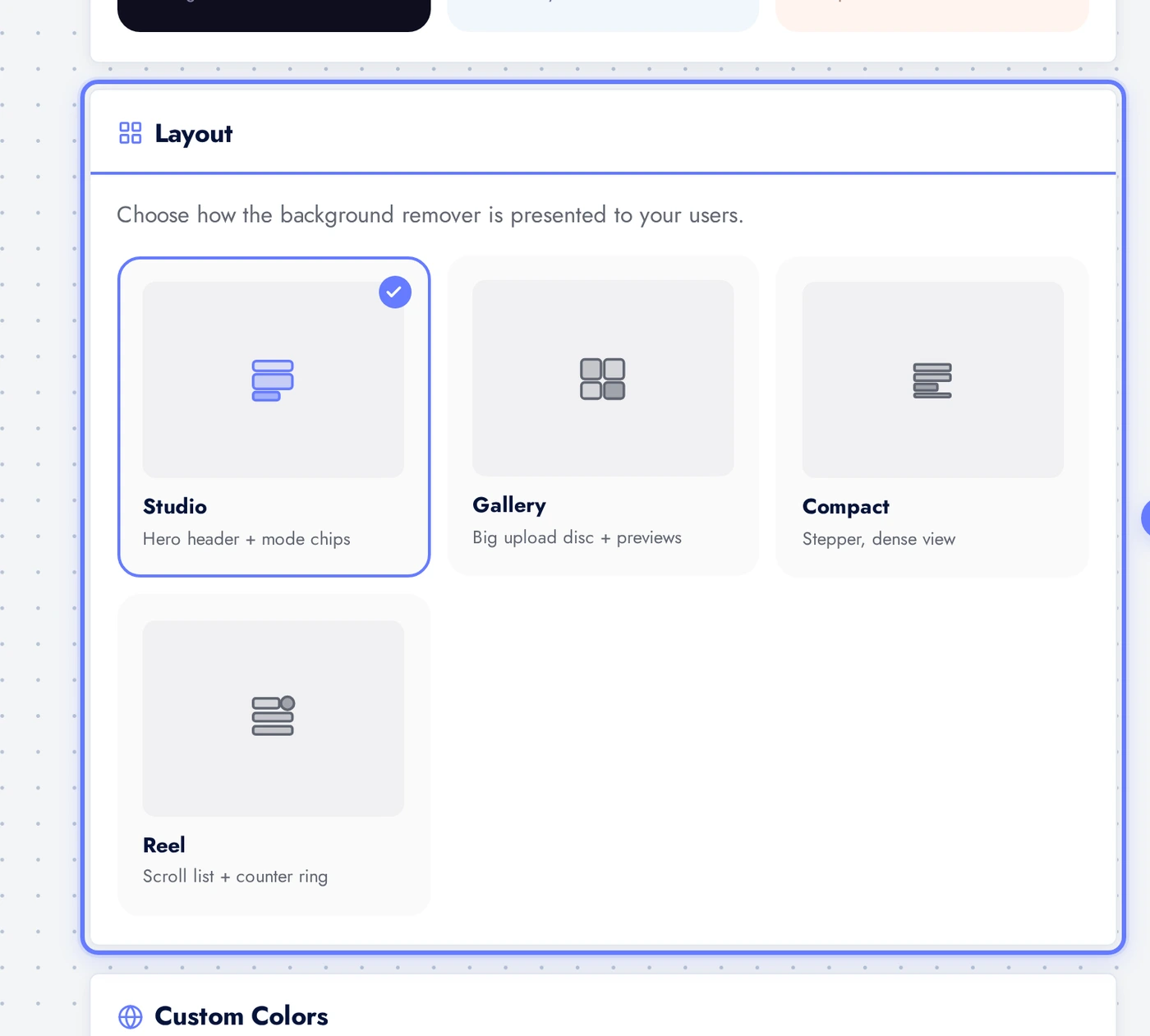
Four layouts: Studio, Gallery, Compact, Reel.
The Content Tab
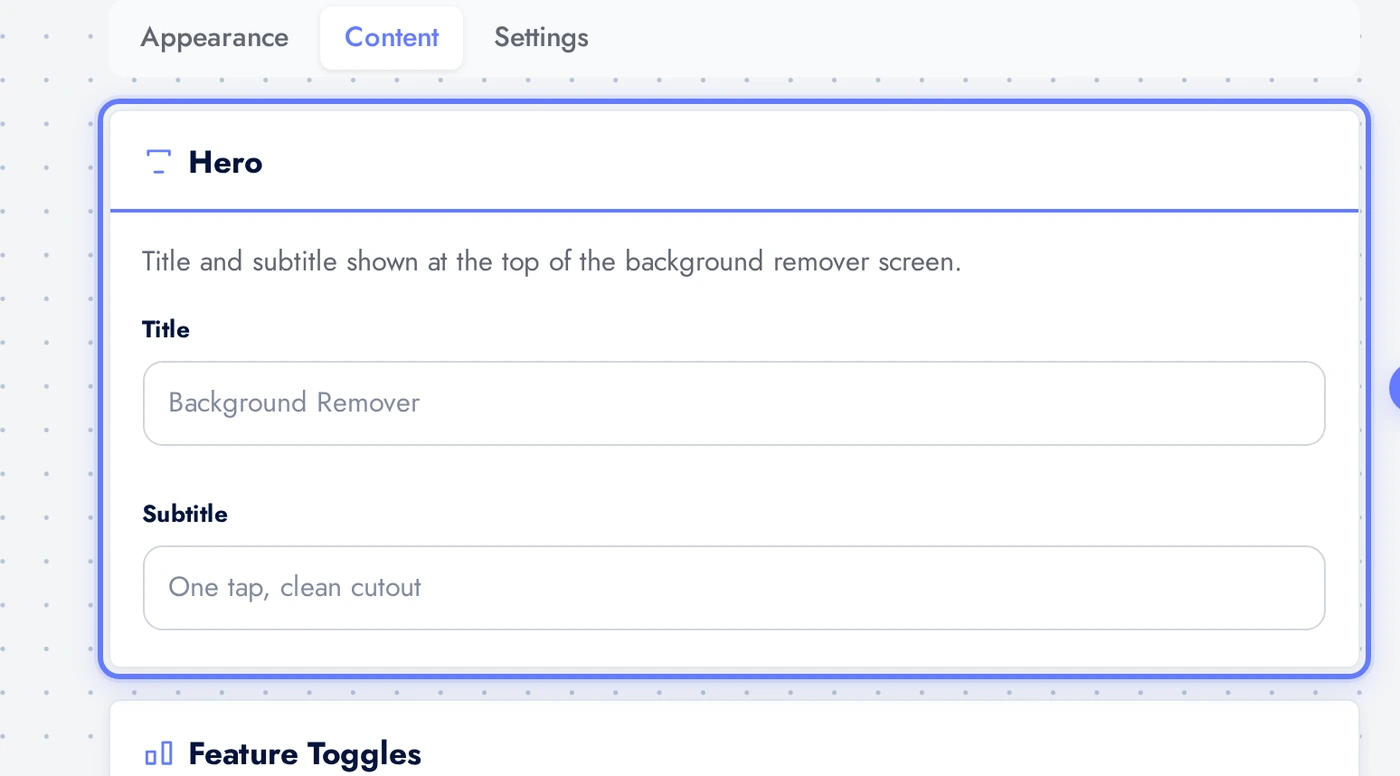
The Hero card holds the title and subtitle.
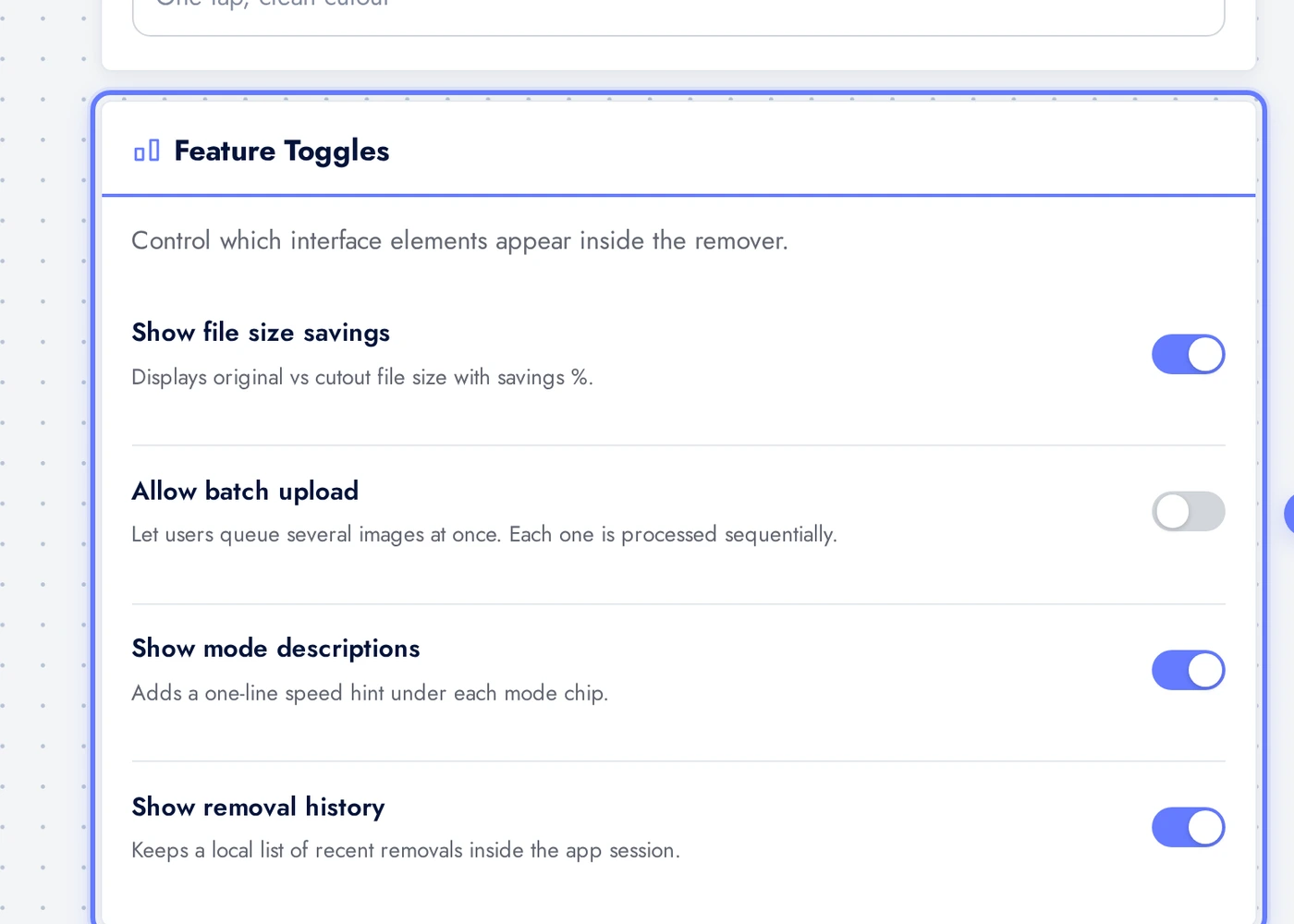
Show file size savings displays bytes saved on cutout (transparent backgrounds usually shrink the file). Allow batch upload queues several images, processed sequentially. Show mode descriptions adds speed hints under each mode chip. Show removal history keeps a session log.
The Settings Tab
Settings control the removal mode and upload limits.
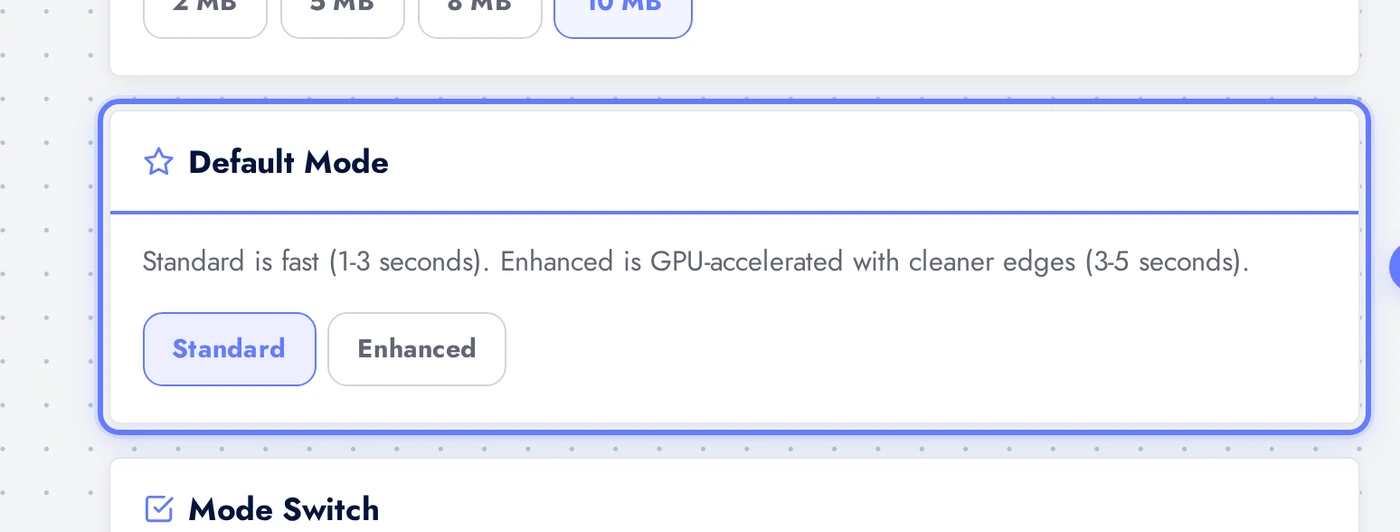
The Default mode controls which level new sessions start with. Standard is fast and clean for product photos with crisp edges. Enhanced is slower but much better at hair, fur, and translucent edges. Allow mode switch lets users toggle inside the app.
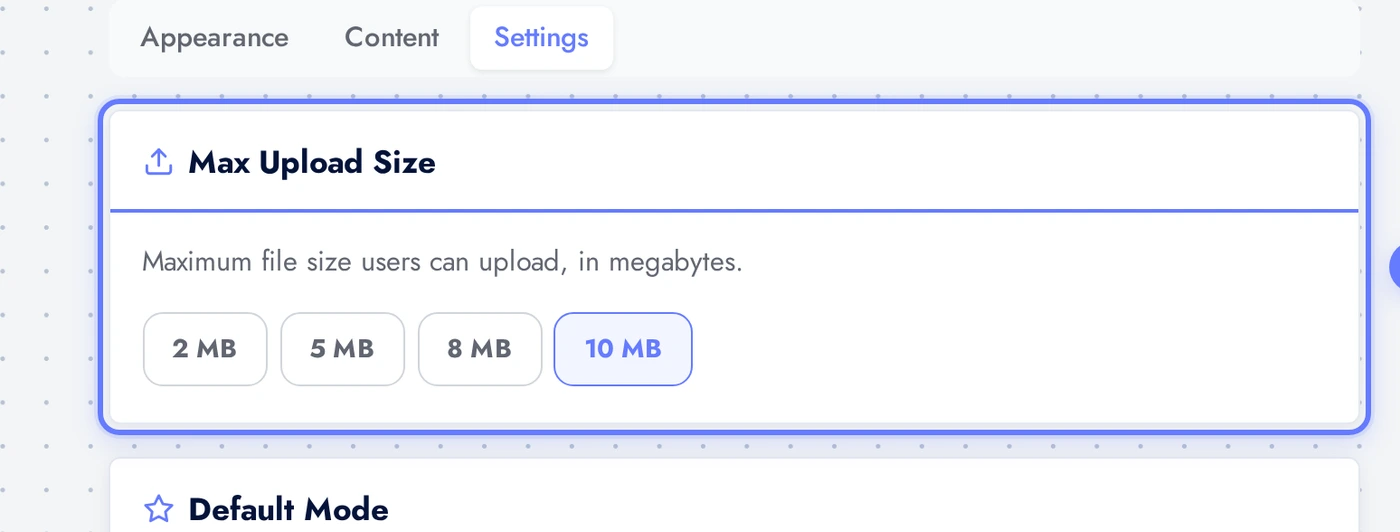
The Max Upload Size decides the largest file users can submit. Pick from 2, 5, 8, or 10 MB. Default is 10 MB.
Live Preview
This is the actual native UI. Users upload a photo, pick a mode, get a transparent PNG cutout.
Tips
- Enhanced is what you want for portraits, anything with hair, or translucent objects. Standard misses hair strands; Enhanced gets close to studio-grade.
- For e-commerce apps, default to Enhanced. Product photos often have soft shadows that Standard mode treats as part of the background.
- The result is a transparent PNG. If your users will paste the cutout onto a new background inside the app, pair this feature with the Image Resizer for canvas-size presets.
- Batch removal is sequential by design. Set expectations in your hero subtitle ("10 to 30 seconds per image on Enhanced mode").
- Cutouts lose color information at the edges. For perfectly clean cutouts the user should re-edit the mask manually; this feature is for "good enough in 5 seconds".
Removing the Feature
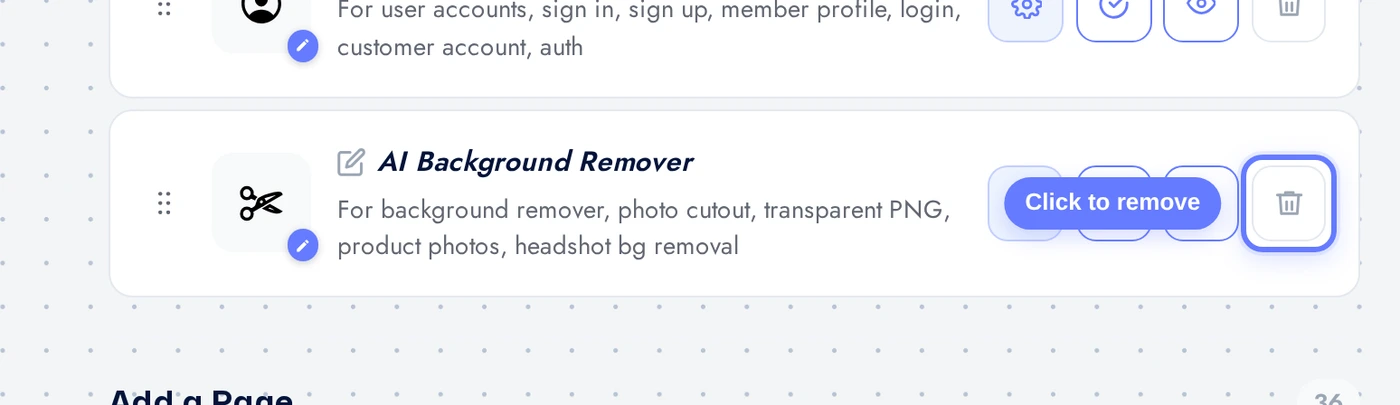
Back on Features, find the AI Background Remover row, click the red trash icon, confirm.