Using the AI App Builder
What the AI App Builder Does
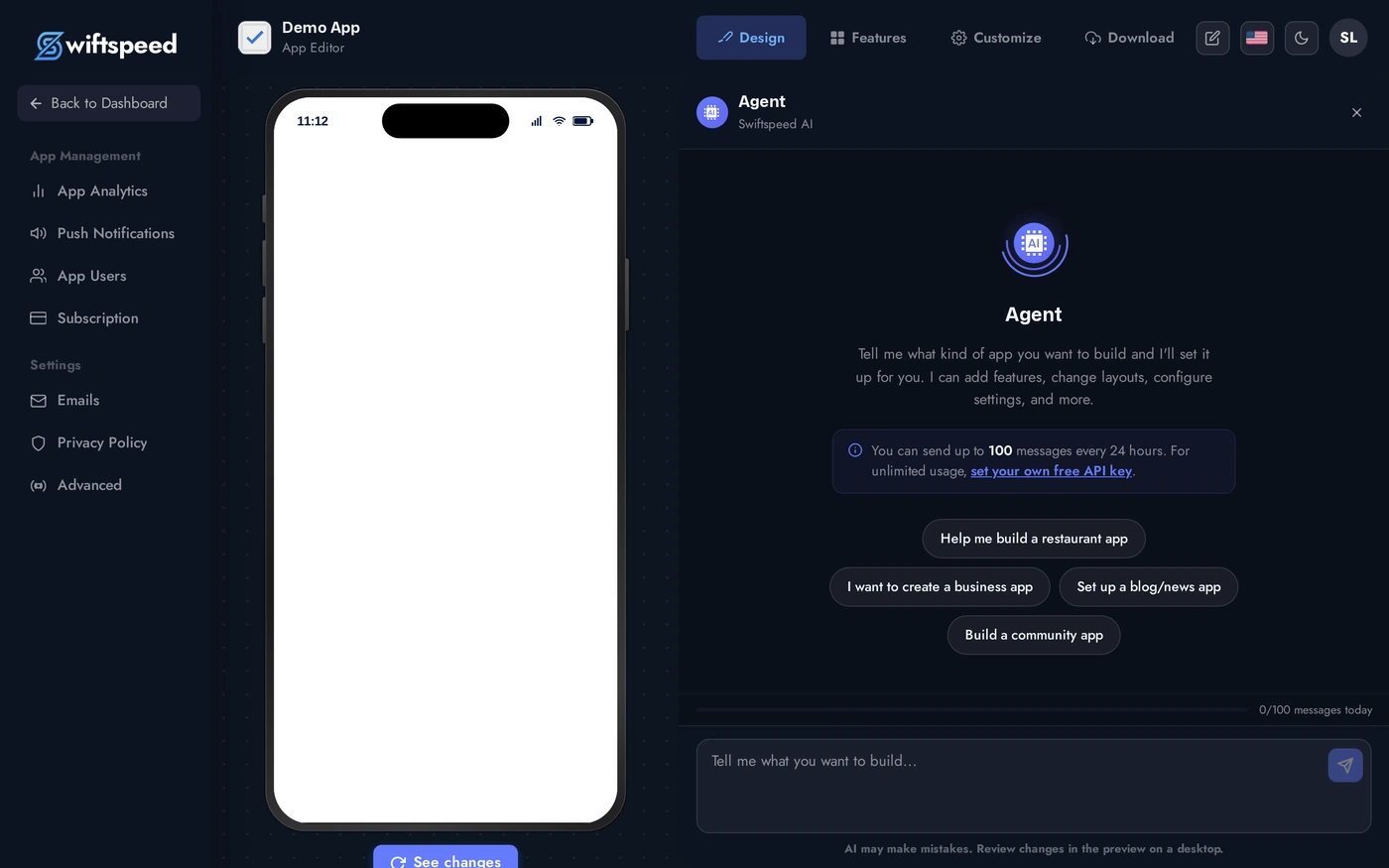
The AI App Builder is a chat-style assistant that lives in a panel on the right of the editor. Describe what you want in plain English ("turn this into a podcast app for jazz fans" or "add a contact page with my hours") and the assistant performs the actions for you: adds features, fills in fields, switches templates, picks colors, drafts copy.
The assistant works through the same APIs the editor exposes, so it can do anything you can do manually, and you can audit every change in the chat log.
Opening the AI Builder
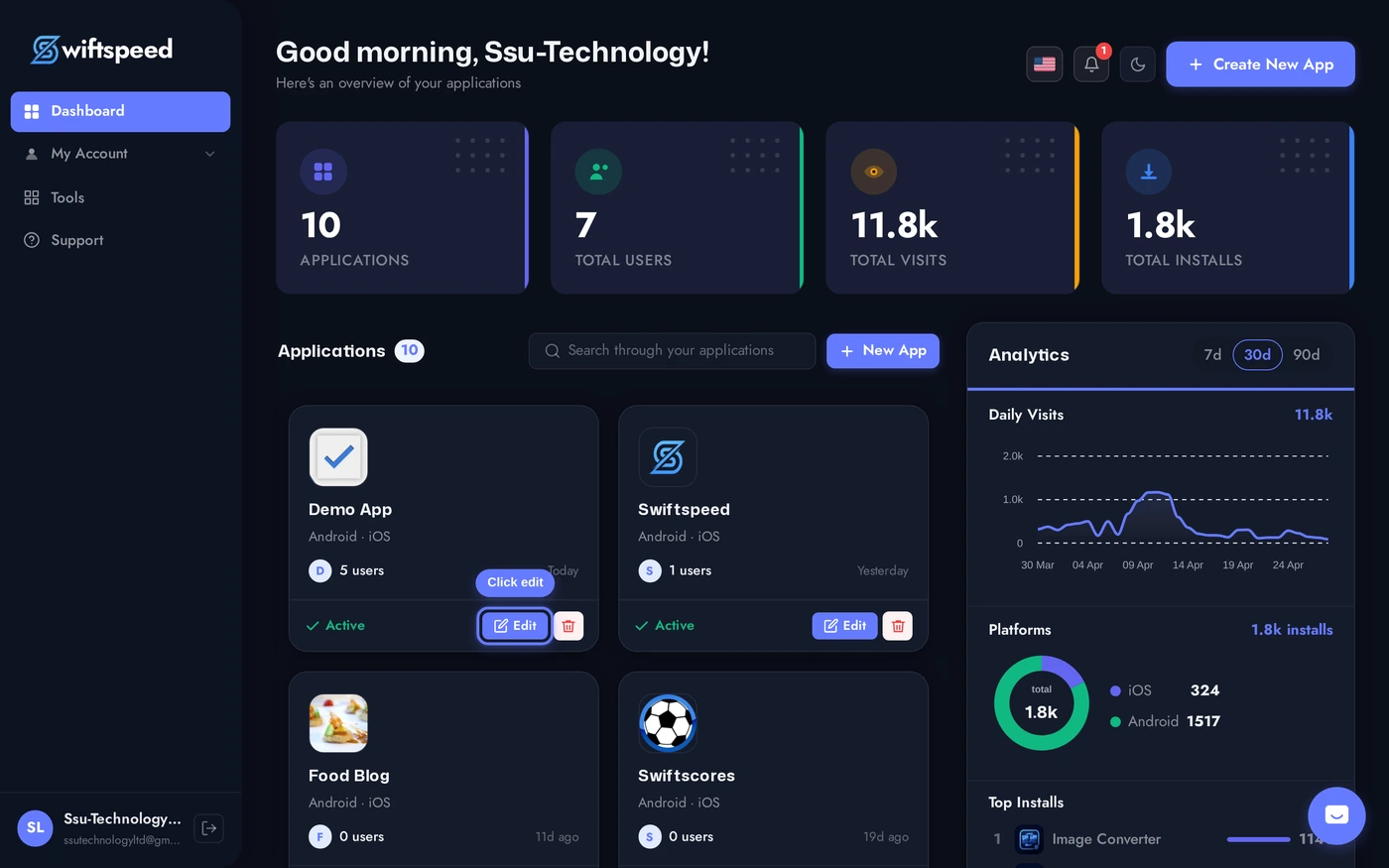
Open the app in the editor.
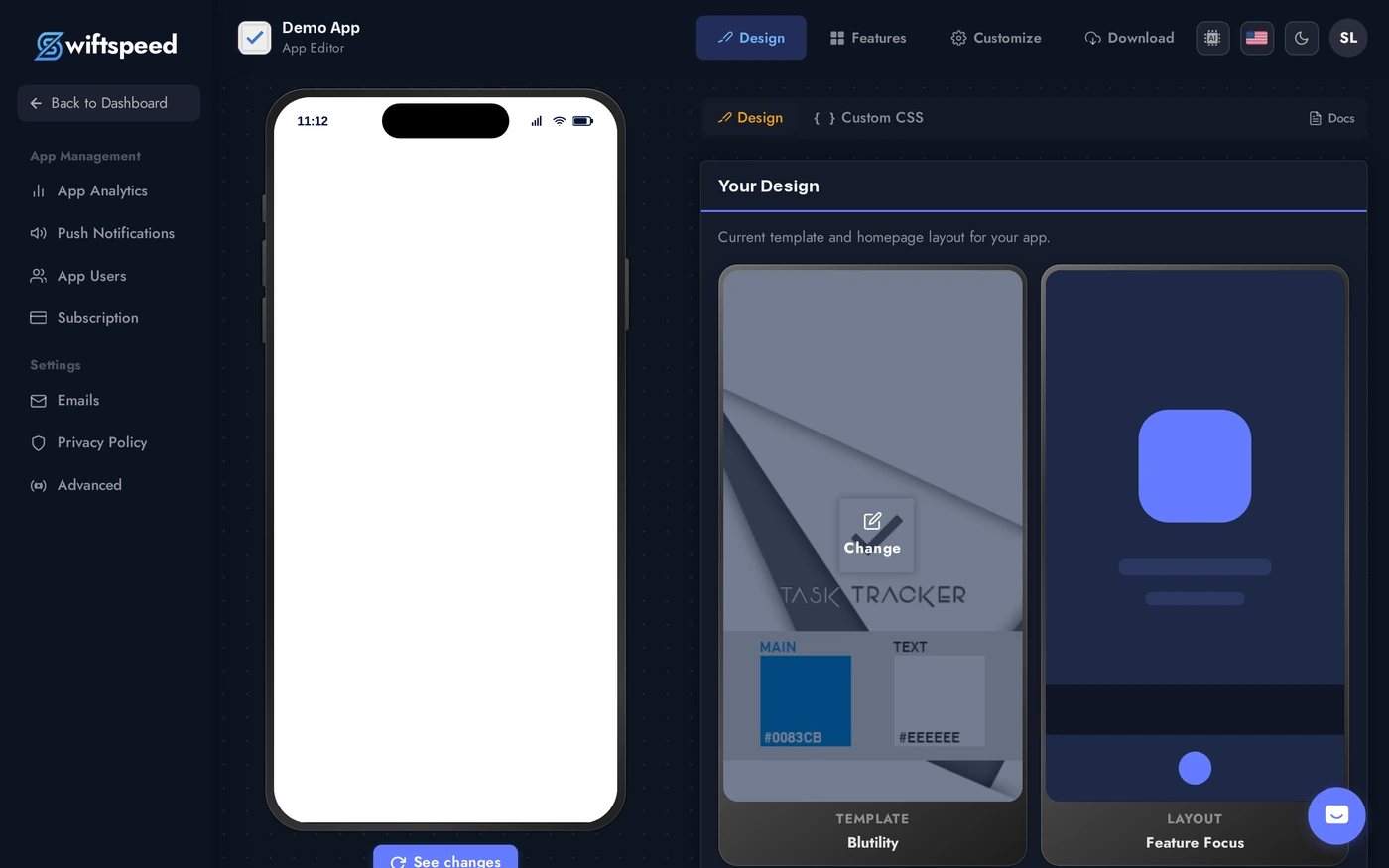
Click the AI Builder sparkle icon in the top right of the editor. The panel slides in from the right with a chat input.
Type a request in plain English. Examples: "build a coffee shop app", "add an audio feature with these tracks", "make all accents dark green", "what features should I add for a yoga studio?". The assistant responds, performs actions, and lists what it changed.
What to Ask
- "Build me an app for [type of business]", the assistant picks a template, adds the right features, fills in starter content. Best first message for a brand-new app.
- "Add a [feature]", incremental edits ("add a booking page", "add a contact form", "add 3 RSS feeds for tech news").
- "Change all [thing] to [other thing]", bulk edits ("change all accent colors to deep blue", "rename every feature to use sentence case").
- "What should I do next?", recommendations based on the current state of your app.
- "Write a description for my [feature]", copywriting help. The assistant drafts marketing copy, push notifications, store listings.
Iterating with the Assistant
- Be specific. "Add a contact page" works. "Add a contact page with phone +1 555 010 2345 and email hello@brand.com in San Francisco" works better.
- Iterate. Ask, see the result, refine. The phone preview reflects every change in real time, so you spot issues fast.
- Undo via chat. "Revert that last change" or "remove the booking feature you just added", the assistant tracks its actions and can roll them back.
- Mix manual and AI edits. Adjust a value manually, ask the assistant to do the next step. The two work together; the assistant reads the current state on every request.
What the AI Cannot Do
- Sign up for App Store / Play Store accounts on your behalf. Apple and Google require a human to register; the assistant cannot create the developer accounts you need to publish.
- Generate signed builds. Builds run in the cloud after you click Generate. The assistant can prepare the metadata, but you click the button.
- Replace your judgment on legal copy. Privacy policy and terms of service drafts are starting points; have a lawyer review before public launch in regulated industries.
- Read your screen perfectly. It works from API state, not pixels. If something is off-screen the assistant cannot see, describe it in words.
Tips
- Faster than manual for first drafts, slower for fine-grained adjustments. Use the assistant to bootstrap, then switch to direct editing for polish.
- Conversations persist. Close the panel, come back tomorrow, the assistant remembers the context.
- The assistant is honest about limitations. If it cannot do something, it will tell you and suggest the manual path.
- Try it on a copy first. Use the editor's "Duplicate App" feature, point the assistant at the copy, and see how aggressive its changes are before letting it touch your production app.