Games Feature
What is the Games Feature?
The Games feature drops a playable arcade inside your mobile app. Users browse a themed gallery of 25+ HTML5 games (puzzles, card, arcade, sports, word, board), tap one, and play full-screen without leaving your app. You can ship the whole library, or pick a single game that opens the moment users tap the feature tile, perfect for branded experiences built around one signature game.
Adding the Games Feature to Your Mobile App
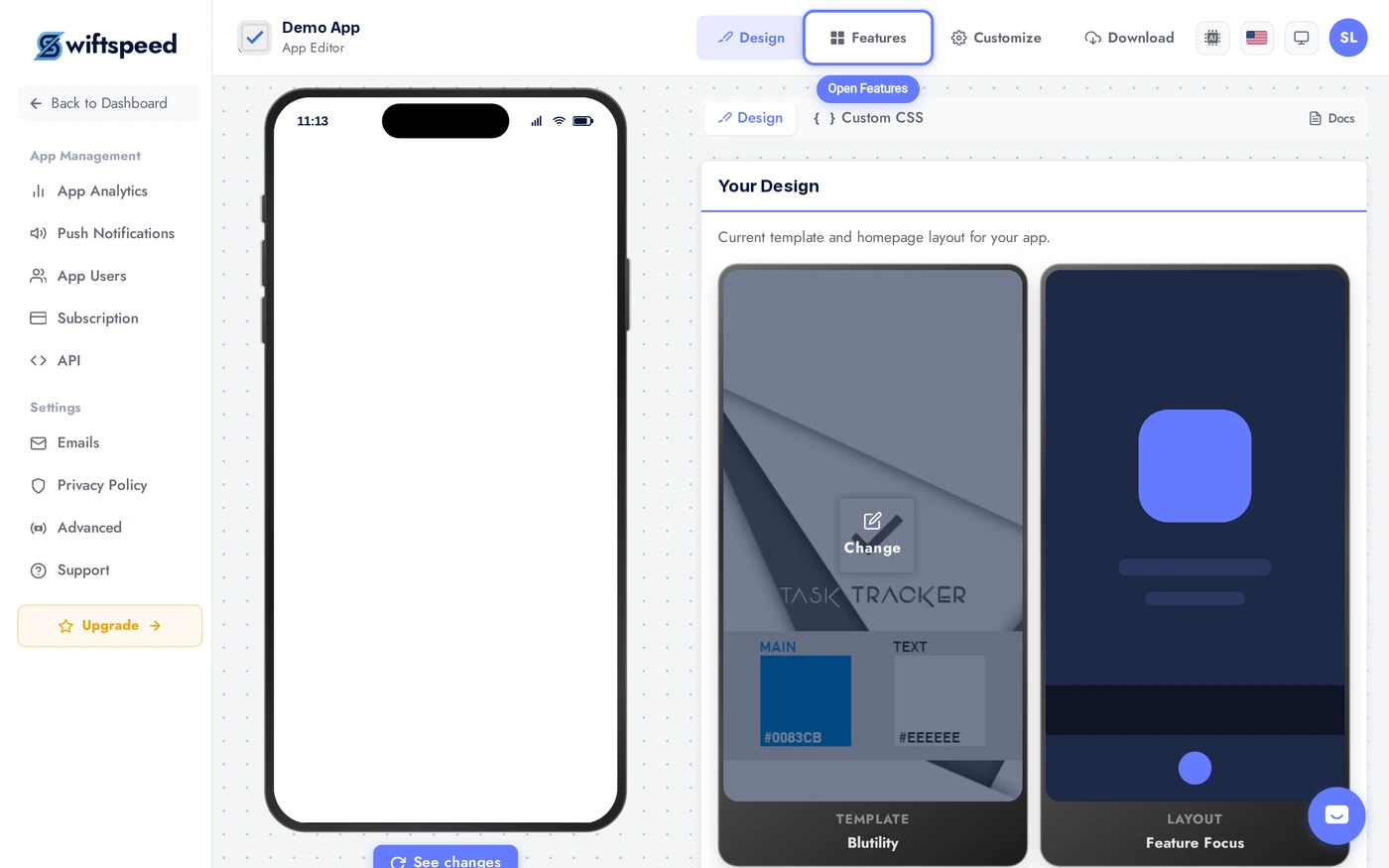
Click the edit pencil on the mobile app you want to add games to.

Click Features in the top bar.
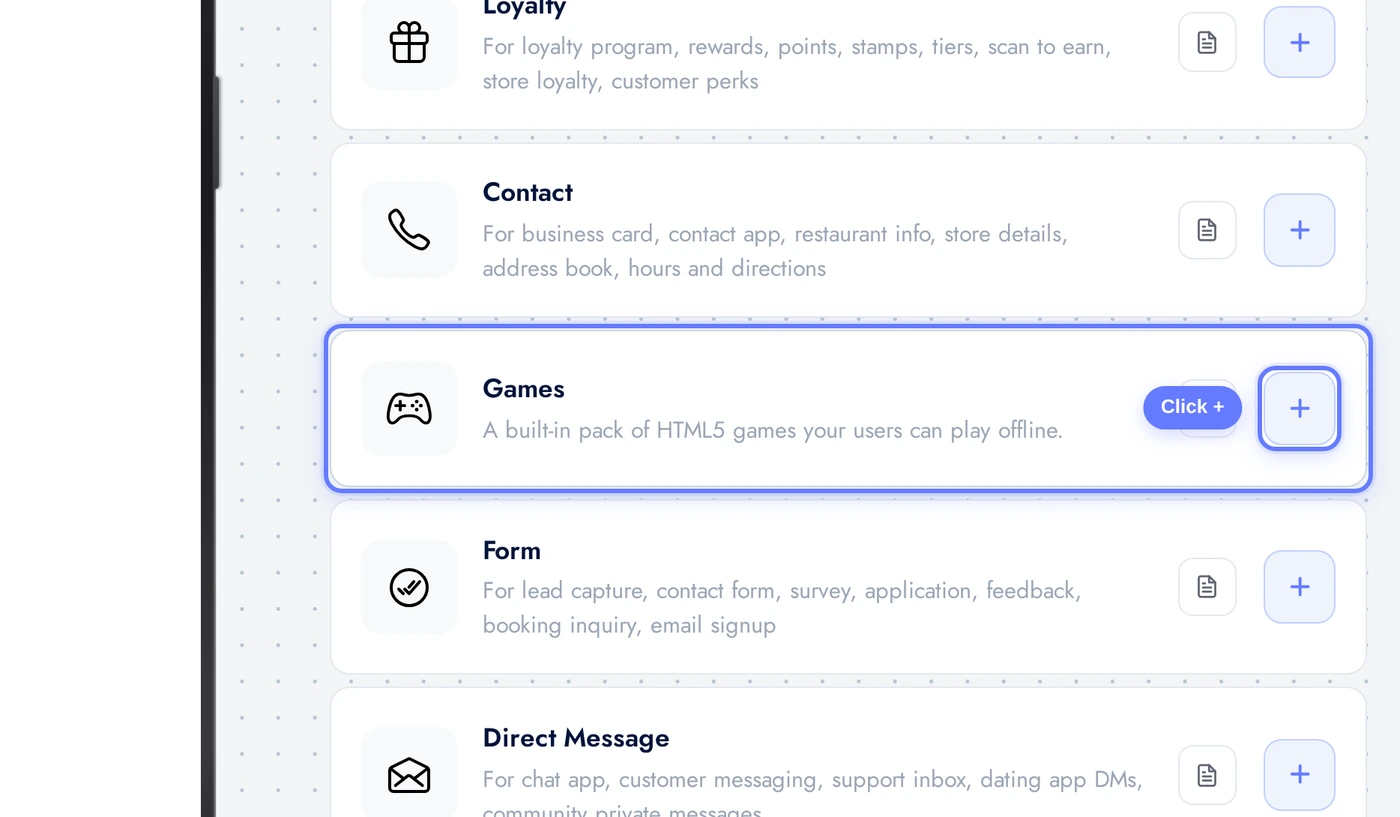
Find the Games card and click the + button. The feature is added with 10 popular games seeded by default so the gallery looks populated on first open.
Pick a Structure: Library or Single Game
The first card in the editor decides the shape of the feature:
The two structure cards: pick Game library for the multi-game gallery (default), or Single game to bind the feature tile to one game.
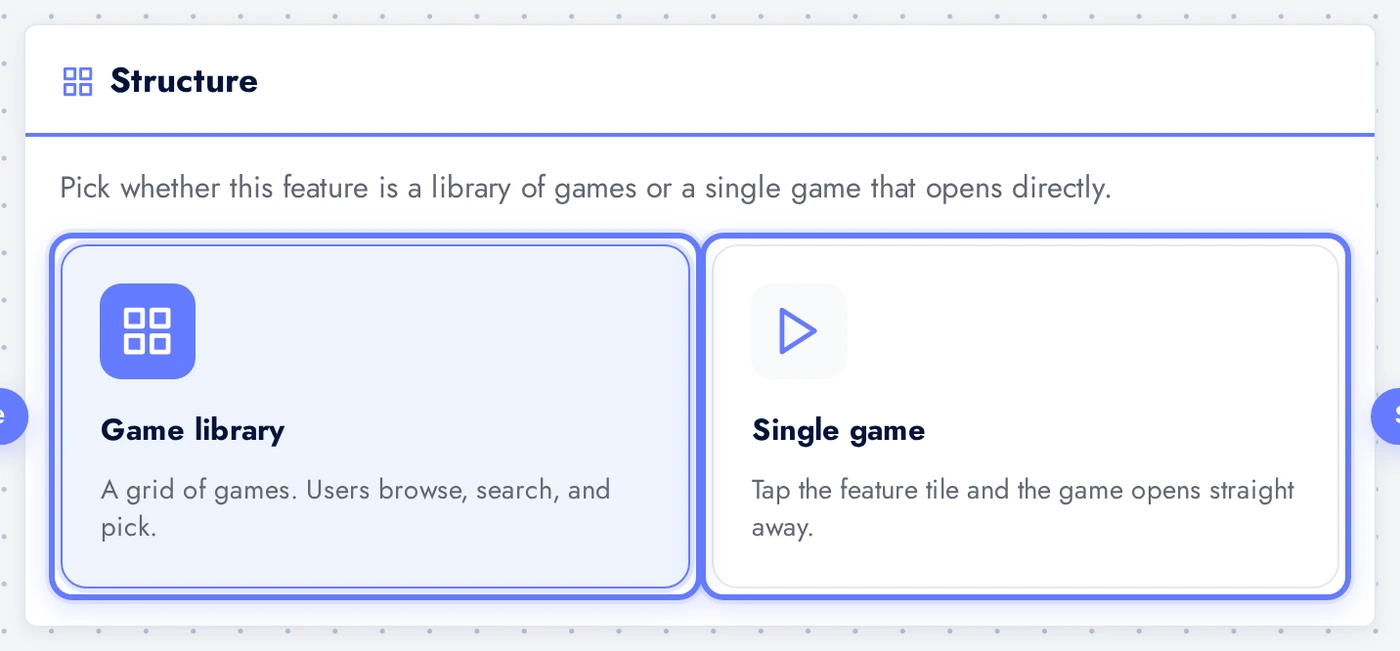
- Game library: a grid of games with categories, search, and short descriptions. Best for arcades, hubs, anywhere you want users to explore.
- Single game: tapping the feature tile in the app opens one specific game straight away. Best for branded promo apps, game-of-the-day, single-game studios.
Theme the Gallery
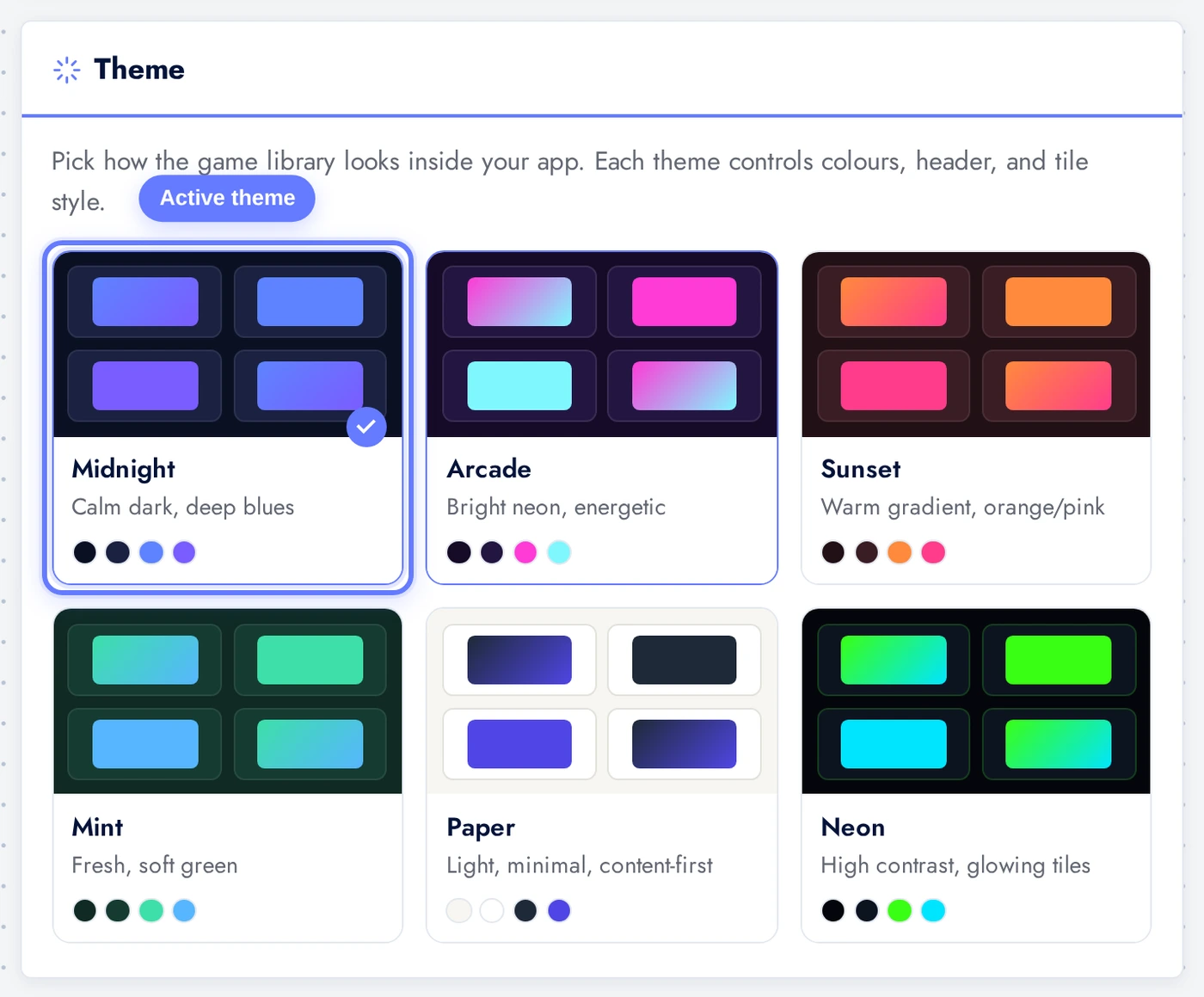
The Theme card controls colours, header layout, and tile style for the in-app gallery. Three themes ship: Midnight (calm dark, deep blues), Arcade (bright neon, energetic), and Sunset (warm gradient, orange/pink). You can swap themes any time, the gallery instantly re-renders inside the live preview.
Each theme card shows a miniature preview of the gallery in that style plus swatches of the key colours used.
Library Options
When the structure is Game library, an Options card lets you toggle gallery features:
Toggle any combination off if you want a leaner gallery. The defaults work for most apps.
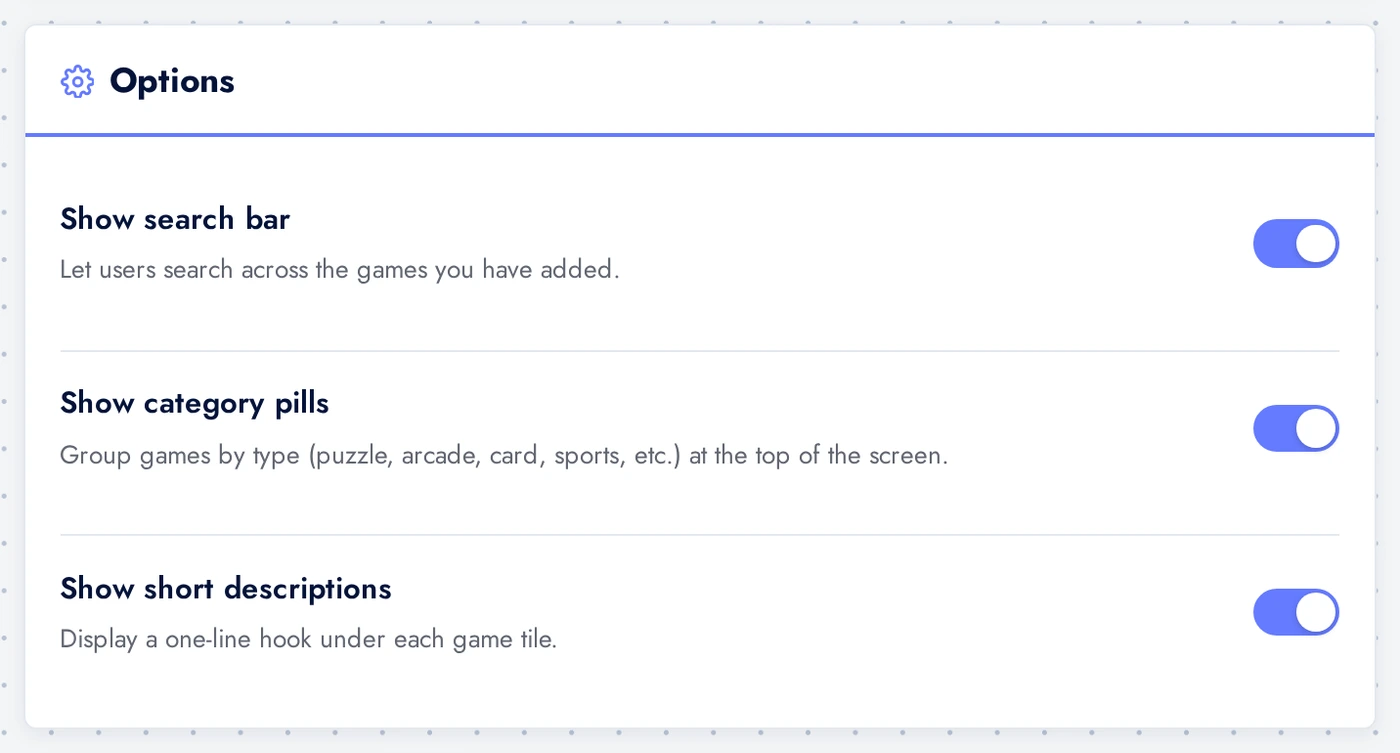
- Show search bar: lets users search across the games you have added.
- Show category pills: groups games by type (puzzle, arcade, card, sports, word, board, etc.) at the top of the screen.
- Show short descriptions: displays a one-line hook under each game tile.
Pick the Games to Ship
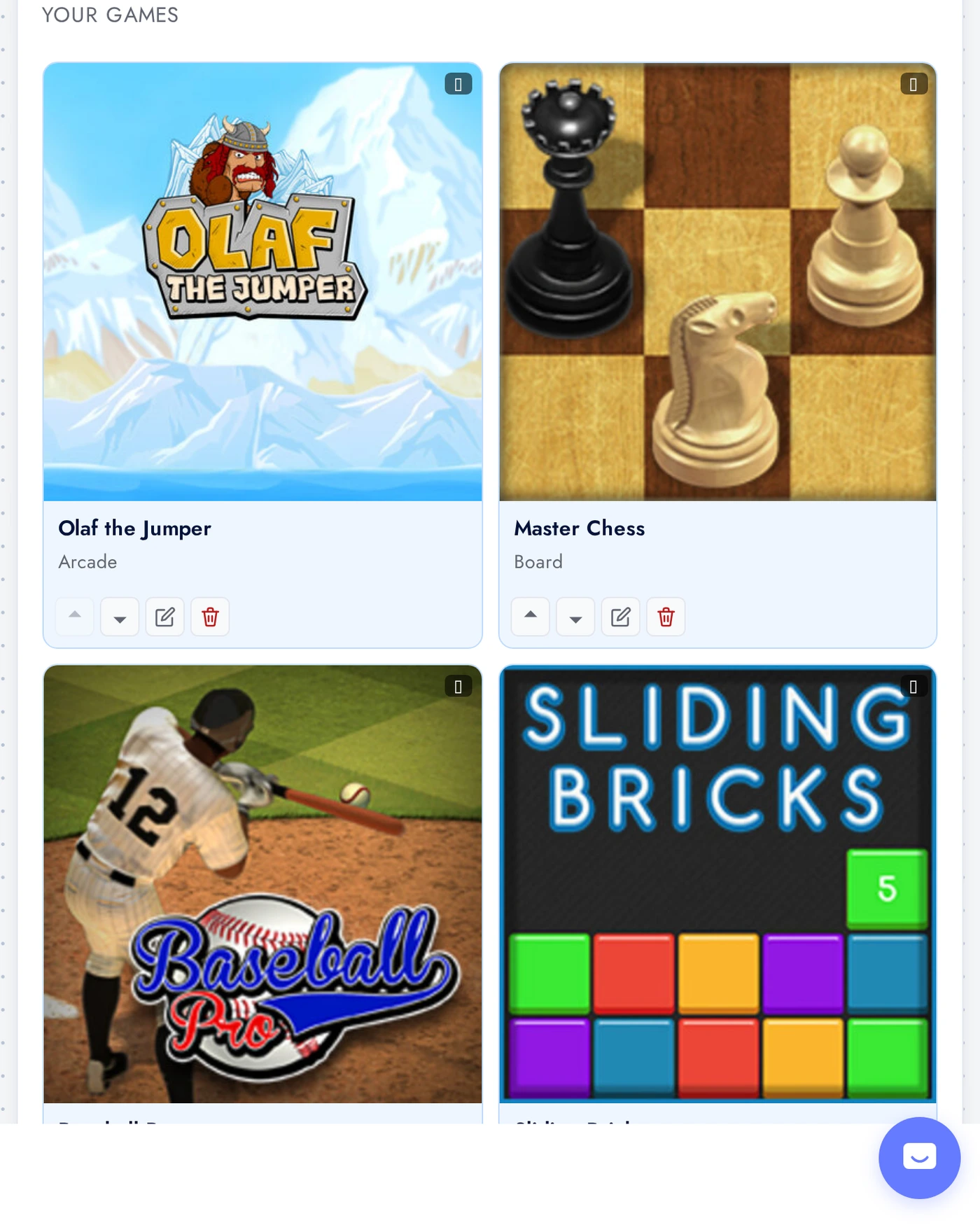
Below Options is the catalogue. Each game tile shows its thumbnail, title, category, and orientation. Toggle a tile on to add it to your gallery, off to remove it. Re-order added games with drag to control the visual flow on the user side.
The seeded 10 games sit in Added at the top; the rest of the 25-game library sits in Available. Click any + to add it; the gallery updates instantly.
Live Preview of the Gallery
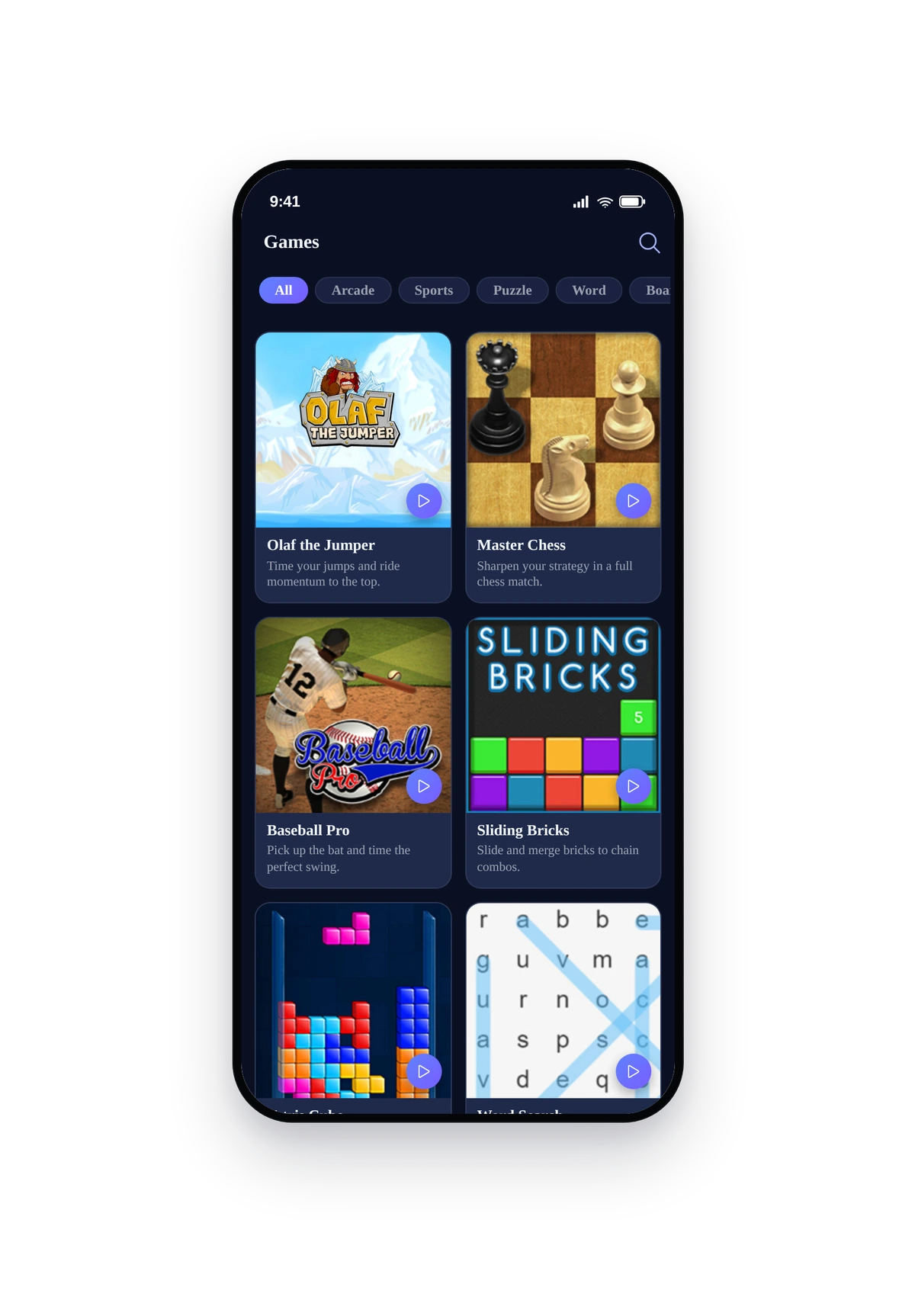
Here is how the seeded library renders inside a real phone running the native gallery:
Tap any tile to launch the game in-app. Each game has a Close (returns to the gallery or to your app home) and Restart overlay so the user always has a way out, no matter how the game is built.
Tips and Best Practices
- Pick a theme that fits your brand. Midnight is the safest default, it reads well against any app theme and most game thumbnails. Switch to Arcade for bright, kid-friendly apps and Sunset for casual / lifestyle apps.
- Less can be more. A curated 6-8 game gallery converts better than the full 25. Pick the games that match your audience (puzzles for productivity apps, arcade for kids, card games for casino-style apps).
- Single-game mode hides the catalogue entirely. If your app is built around one game, switch the structure to Single game. The feature tile goes straight into the game with no extra tap, no gallery, no distractions.
- Categories help discovery. If you ship 15+ games, leave the category pills on. They turn the gallery into a browse-by-mood experience rather than an endless scroll.
- Games run inside an iframe, sandboxed. They cannot reach your app data, your users, or your storage. The whole library is hosted on Swiftspeed CDN with short cache TTLs so updates ship without users reinstalling.
- Orientation is auto-handled. Landscape games (basketball, golf, racing) are CSS-rotated when the user is in portrait, so the game still fills the screen edge-to-edge. The in-canvas Close and Restart buttons rotate with it.