Delivery Feature
What is the Delivery Feature?
The Delivery feature turns your Swiftspeed app into a delivery marketplace platform. Stores list their products or menus, customers place orders, drivers pick up and deliver in real time, you take a commission. Suitable for food delivery, grocery delivery, parcels, last-mile logistics, or any physical-goods delivery business.
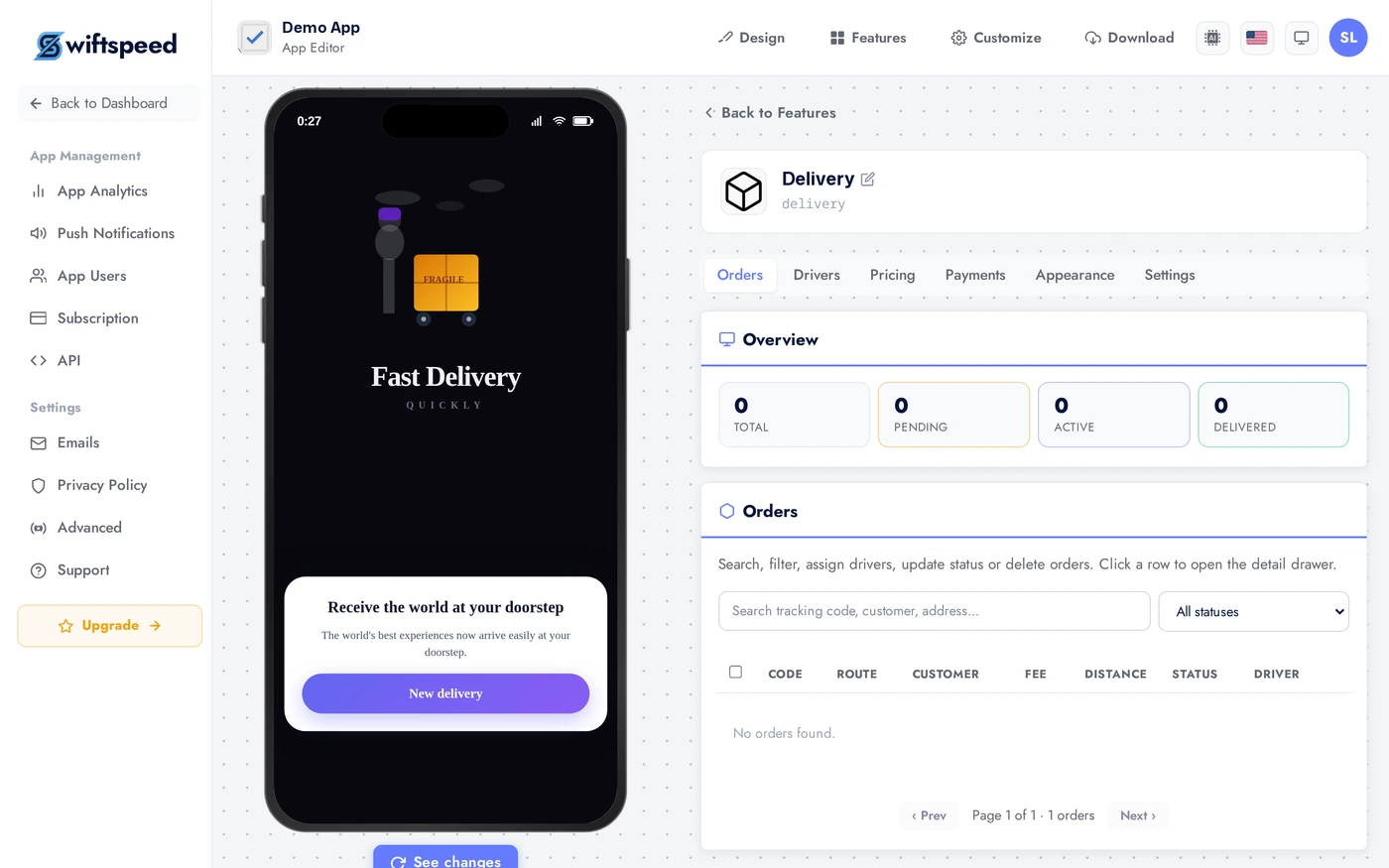
Six editor tabs map to the operational surfaces: Orders is your live dashboard, Drivers manages your fleet, Pricing controls fees and commissions, Payments is the money flow, Appearance and Settings configure the customer-facing app.
Adding the Delivery Feature
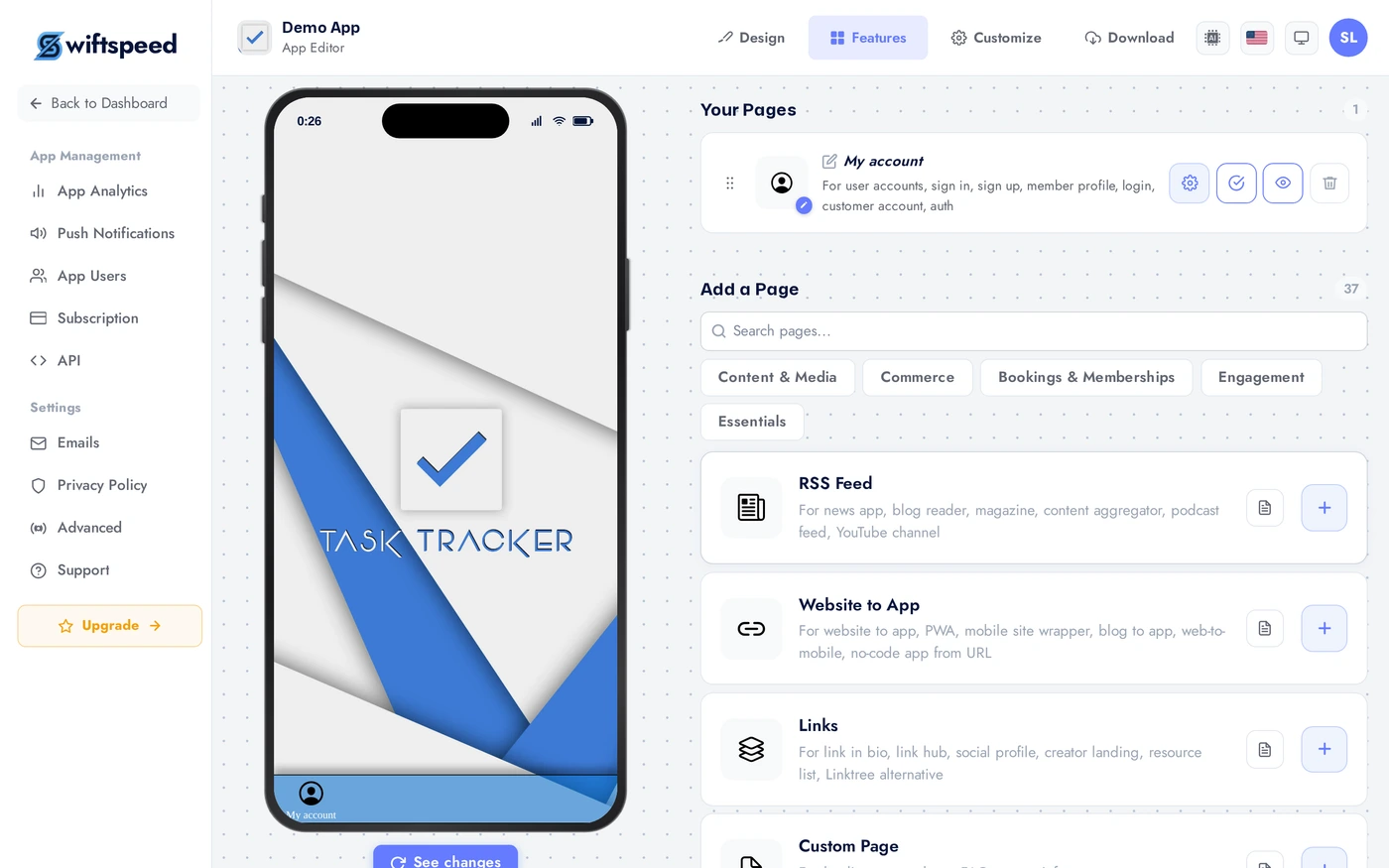
In the App editor, click Features in the top bar.
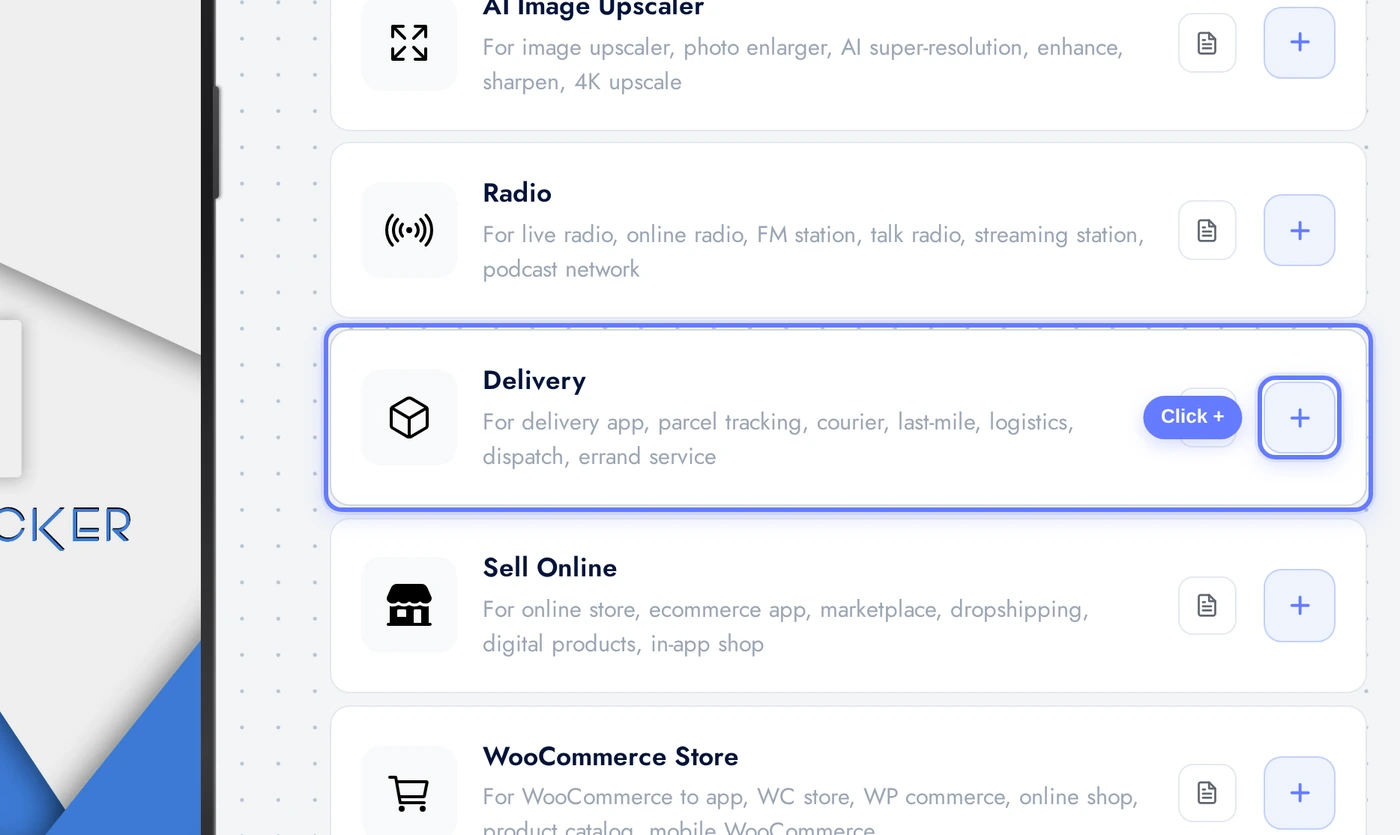
Find the Delivery card and click the + button.
Orders Tab: Live Operations Dashboard
The Orders tab is your real-time dashboard. Every order coming through the app appears here with status: new, accepted, preparing, ready for pickup, in transit, delivered, cancelled. Filter by store, driver, status. Drill into any order for the line items, payment status, customer address, and the assigned driver's live location.
Drivers Tab
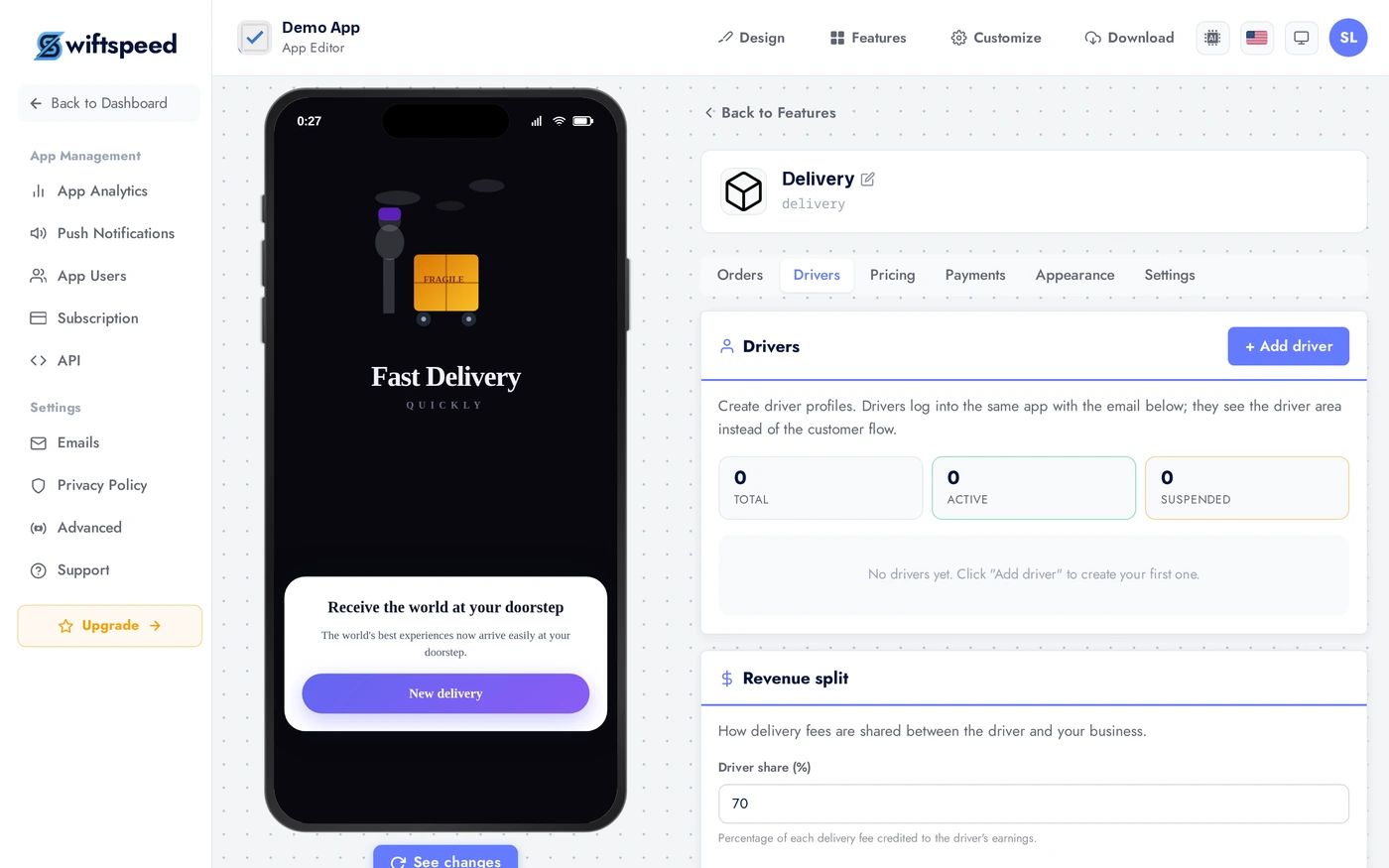
Manage your delivery fleet. Each driver has a profile with name, photo, contact, vehicle type, active status. Drivers log into a separate Driver Mode in your app, see assigned orders, and update status (picked up, delivered). The Orders dashboard sees their location in real time as they move.
Pricing Tab: Fees and Commissions
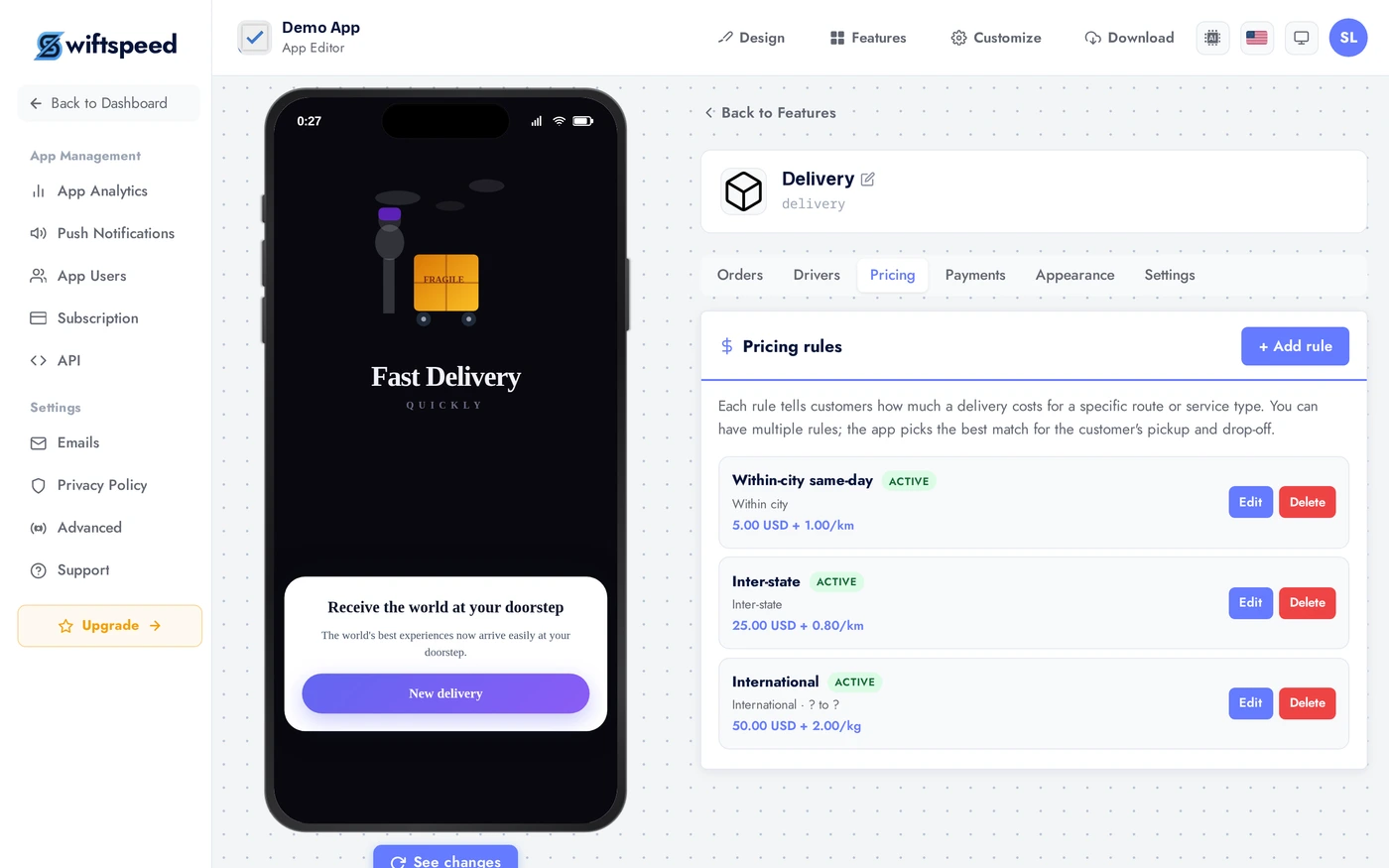
Configure how delivery fees and commissions work. Base fee is the fixed amount per order. Per-kilometre rate scales fee by distance. Per-item rate scales by basket size. Surge pricing windows boost fees at peak hours (Fridays, weekends, bad weather). Platform commission is the cut you take from each store and each driver. Multiple pricing zones if your service covers a wide area with different cost structures.
Payments Tab
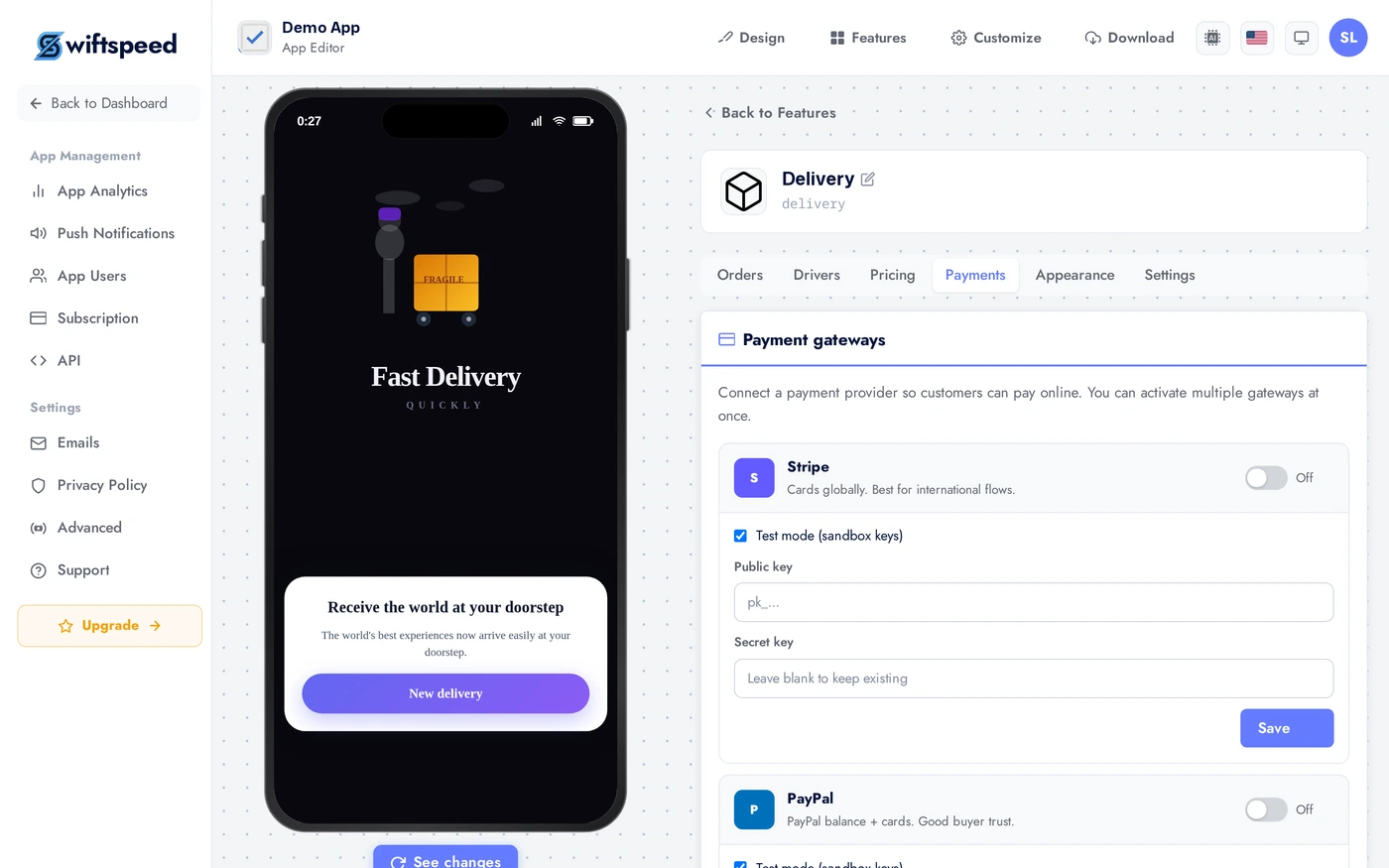
Choose what payment methods to accept (card via Stripe or Paystack, cash on delivery, in-app wallet). Configure driver and store payout schedules (daily, weekly, on-demand). Daily payouts cost more in processor fees; weekly (Friday is popular) is the standard for fleet retention.
Appearance and Settings
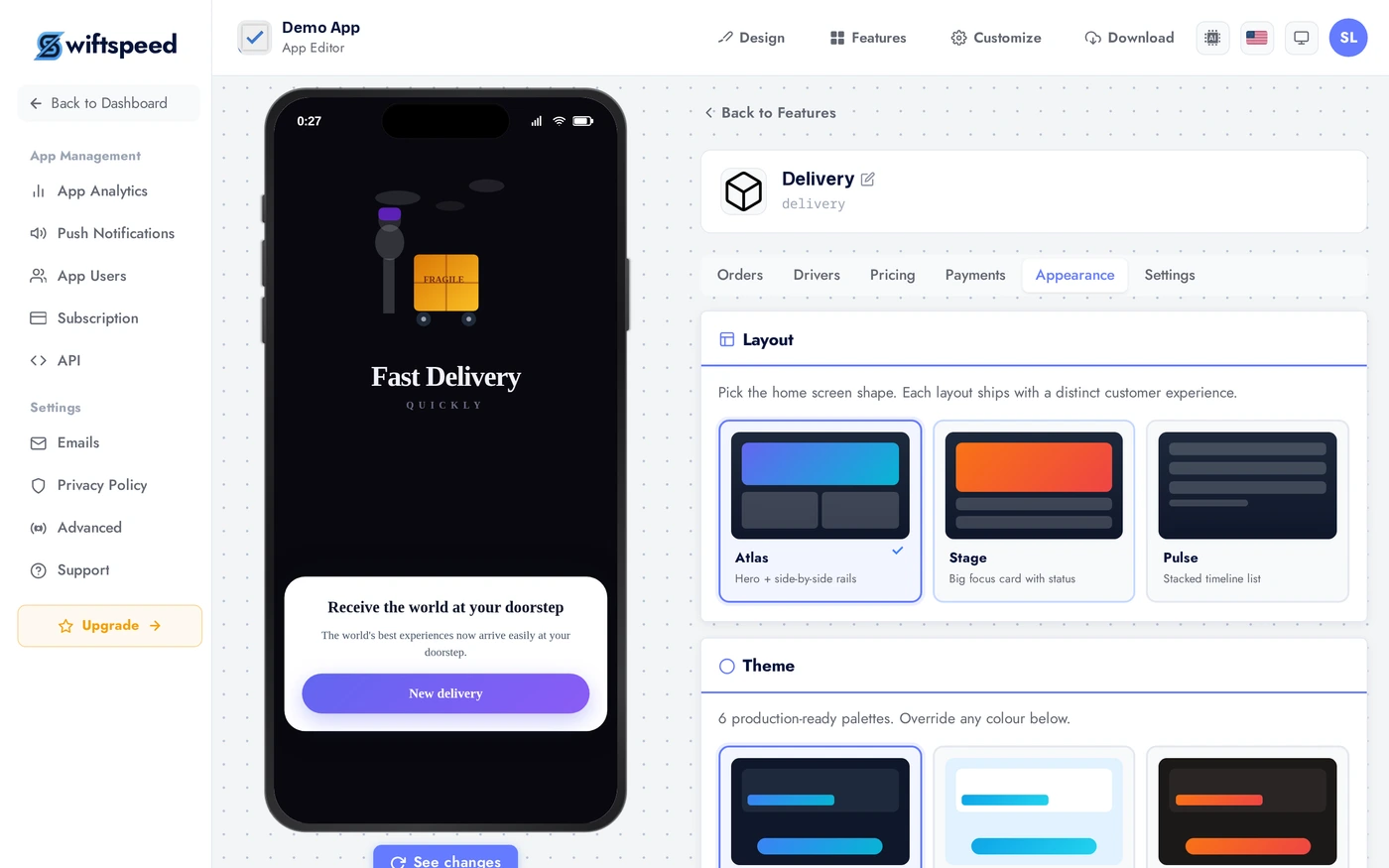
Pick a layout (storefront grid is the default for food and grocery; list for sparse catalogs; map for delivery-anywhere apps), a theme, and customise colors.
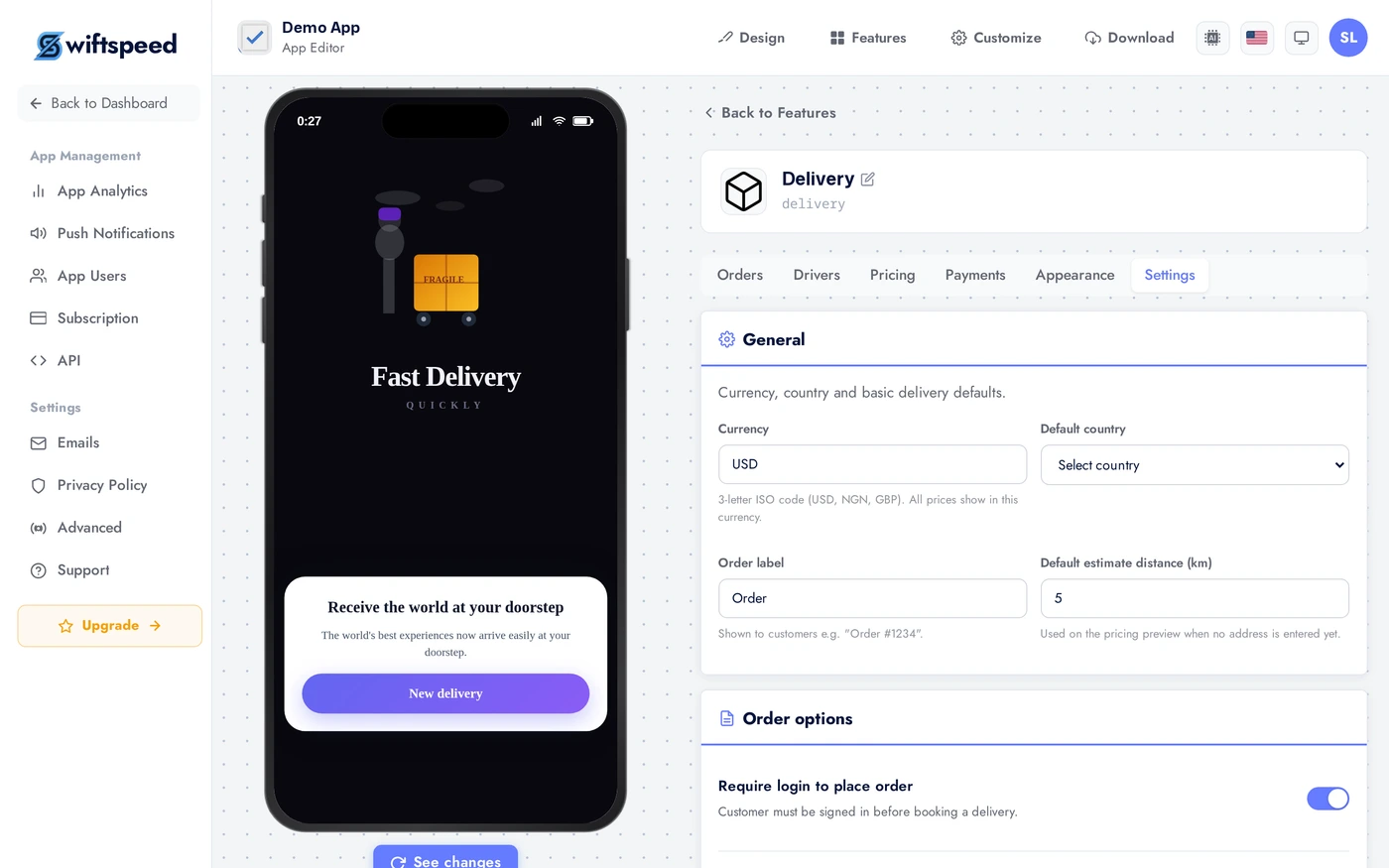
Service area, currency, supported languages, time zone, notification templates (order accepted, driver picked up, delivered). Defaults work for most operations; revisit when you launch in a new region.
Live Preview
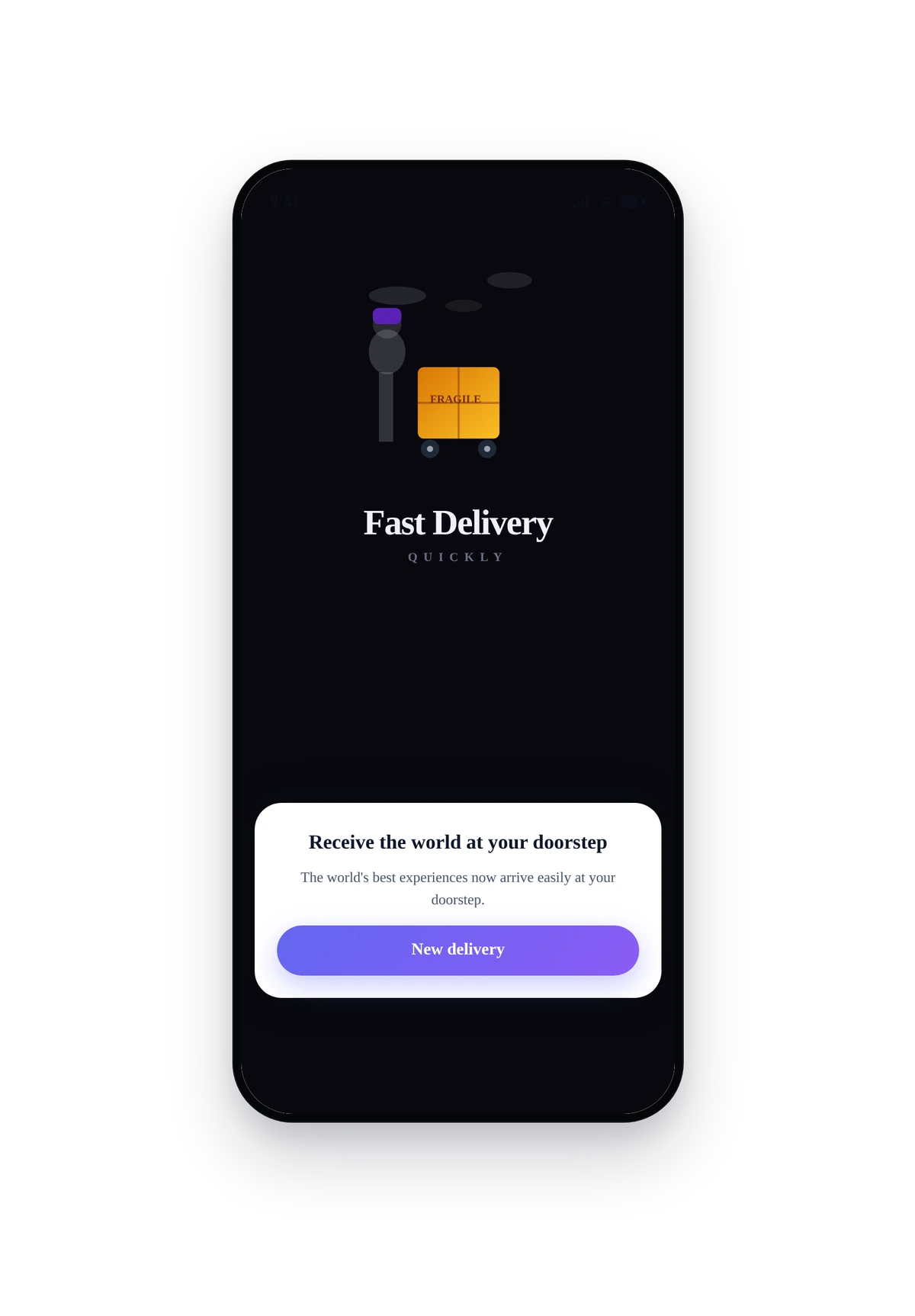
This is the actual native UI customers see. Storefront grid, address selector at the top, search, category chips. Tapping a store opens its menu and lets the customer build an order.
Tips
- Start with 3 to 5 stores in a tight geographic area. Launching citywide on day one without supply means empty search results and bounced first-time users.
- Surge pricing is essential for Fridays and weekends. Configure it once and your drivers will work the busy slots without you negotiating.
- Customers expect 30 minutes max for food. Use pricing zones to enforce that radius from each store; longer waits kill repeat orders.
- Driver payouts every Friday keeps retention strong. Daily payouts cost more in processor fees; on-demand is even worse.
- The Orders dashboard is best left open during peak hours. Drivers and stores will message you the moment something stalls; faster response = higher fleet loyalty.
- A clear refund policy in Settings reduces support load. Communicate it in the order confirmation email and the app footer.
Removing the Feature
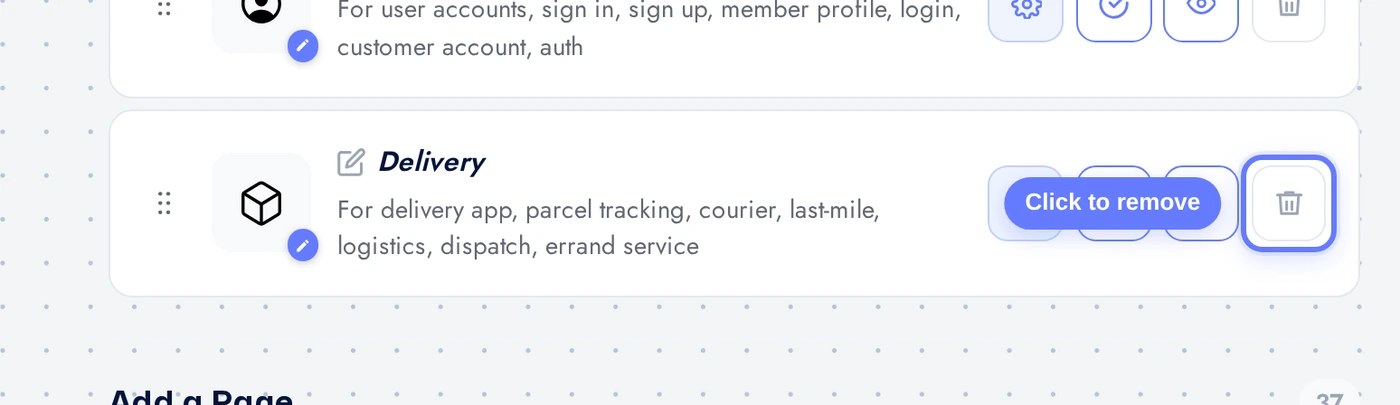
Back on Features, find the Delivery row, click the red trash icon, confirm. Active orders should be cleared before removing the feature; running orders are not auto-cancelled.